User impacts and limitations for Cloudera Manager in high availability mode
There are impacts and limitations you should be aware of when using Cloudera Manager in high-availablity mode.
Managing Cloudera Manager Wizards in High Availability (HA) mode
- Problem Statement
-
In a Cloudera Manager High Availability (HA) environment, both Cloudera Manager Server instances monitor the same shared parcel repository and share a single PostgreSQL database.
When adding a new parcel URL or uploading a parcel, both nodes might attempt to process the metadata simultaneously, causing the parcel addition to fail and triggering a following unique constraint violation in the Cloudera Manager Server log:Detail: Key (product, version)=(CDH, 7.1.9...) already exists. - Root Cause
-
The issue is caused by a race condition. Because both Cloudera Manager instances are active and reading from and writing to the same database schema, they might simultaneously attempt to insert the same parcel record. This leads to database locks or "duplicate key" errors.
This same principle applies to Cloudera Manager Wizard activities (such as installation, upgrades, adding Runtime services, or Cloudera Data Services on premises deployment), where concurrent DB writes can lead to inconsistent state or task failures.
- Recommended Solution: Single-Node Maintenance Mode
- To ensure database integrity during parcel operations or wizard executions, you must
temporarily transition to a single-node configuration.
- Prepare the Primary Instance
- Stop the secondary Cloudera Manager Server instance.
- On the primary Cloudera Manager node, open the
/etc/default/cloudera-scm-serverconfiguration file. - Locate the
CMF_JAVA_OPTSvariable and modify thehaModeflag tofalse:-Dcom.cloudera.cmf.haMode=false - Restart the Cloudera Manager Server on the primary node only.
- Perform Maintenance
- Log in to the Cloudera Manager UI.
- Add the Parcel URL, download or distribute parcels, or run the desired Wizard (Install, Upgrade, or Add Runtime service).
- Verify that the operation has completed successfully.
- Restore High Availability
- On the primary Cloudera Manager node, revert the
haModeflag in /etc/default/cloudera-scm-server totrue:-Dcom.cloudera.cmf.haMode=true - Restart the Cloudera Manager Server on the primary node.
- Start the Cloudera Manager Server on the secondary node.
- Confirm both nodes are synchronized, and the HA status is healthy in the Cloudera Manager UI.
- On the primary Cloudera Manager node, revert the
- Prepare the Primary Instance
- Important Restrictions
-
While in HA mode, do not perform the following activities unless you follow the "Single-Node" steps described above:
- Adding/Updating Parcels: This prevents contention for locks on the RELEASES table.
- Cluster Upgrades: This ensures that a single orchestrator manages the upgrade path.
- Adding Runtime services: This prevents the system from generating duplicate service IDs or creating configuration conflicts.
- Cloudera Data Services on premises Deployment: This ensures that environment validation runs on a single thread.
Known Limitations
For a cluster running with Cloudera Manager High Availability in Active-Passive, it has some known limitations that you must be aware of.
- During the failover time (normally, a few seconds), any incoming API calls will be dropped because the load balancer will not redirect any API call to the Passive server during that period.
- Some commands that work with files (e.g. GenerateCMCA) may fail if a Cloudera Manager Server failover happens halfway. Those files will not be transferred during failover. You should retry such commands manually.
- You cannot enable Secure Credential Storage if Cloudera Manager high availability has been configured.
- The QueueManager service should be manually restarted if it indicates stale configuration after you restart the Cloudera Manger server after setting up High Availability.
- If the Active instance of Cloudera Manager server fails, and Cloudera Manager fails over to the Passive instance, Parcels must be downloaded again to the Passive instance. (Required only when adding new hosts, or services.)
- You can see some instances of following errors in server logs, which
can be safely ignored:
ERROR org.hibernate.engine.j1dbc.batch.internal.BatchingBatch - HHH000315: Exception executing batch [org.hibernate.StaleStateException: Batch update returned unexpected row count from update [0]; actual row count: 0; expected: 1; statement executed: - Hive Replication may fail if it occurs during a Cloudera Manager failover event. After the failover, subsequent replications will succeed.
-
- OPSAPS-60726: Newly saved parcel URLs are not showing up in the parcels page in the Cloudera Manager HA cluster.
- To safely manage parcels in a Cloudera Manager HA
environment, follow these steps:
- Shutdown the Passive Cloudera Manager Server.
- Add and manage the parcel as usual, as described in Install Parcels.
- Restart the Passive Cloudera Manager server after parcel operations are complete.
Cloudera Manager behavior
For a cluster running with Cloudera Manager High Availability in Active-Passive, it may behave differently from a non-HA Cluster in terms of success/failure/retry of operations.
- If the Active Cloudera Manager server fails while running commands or API calls:
- In general, “a server communication error warning” will pop up on the command processing UI. Once the Load Balancer redirects the traffic to the passive server, the warning will go away and the command will continue running.
- if the Active server is running while the Passive server fails
- If the Passive server node fails, the load balancer should be aware of this by monitoring the health check packets. As long as the Active node is running, users will not be affected.
- If both Active and Passive servers fail
- The Cloudera Manager Admin Console will no longer be accessible since there is no functional server running at this point.
- Time taken by failover from the Active to Passive server instance
- It depends on the health check settings of your load balancer. Take HAProxy as an example, by default, three consecutive failed checks are needed to remove the server from the load balancing rotation. The interval of each health check is normally 2 seconds. So it might take HaProxy 4-6 seconds to do the failover under a default setting.
- Time taken to fail back from the Passive server to the Active server
- It can take up to 25 seconds to fail back from the Passive server to the Active server. During this time the Cloudera Manager Admin Console returns a 404 error. This additional time is taken by the Cloudera Manager server to become operational.
Changes in Health Tests
On HA-mode compatible versions, the naming of the Cloudera Manager server entities has changed to distinguish between multiple instances. This change will impact the customers that are upgrading from an earlier version.
In the earlier versions, the Cloudera Manager server name was
cloudera_manager_server, which changed to
CMSERVER:{Cloudera Manager server's host
            name}.
Due to this name convention change, you
will observe in the chart below that the Cloudera Manager server has a
new name and color on the charts. Meanwhile, the metrics for the old
entity name are still available.
The cyan area in the chart represents the single Cloudera Manager server running in non-HA mode. The green and purple areas represent the 2 Cloudera Manager servers with HA enabled.
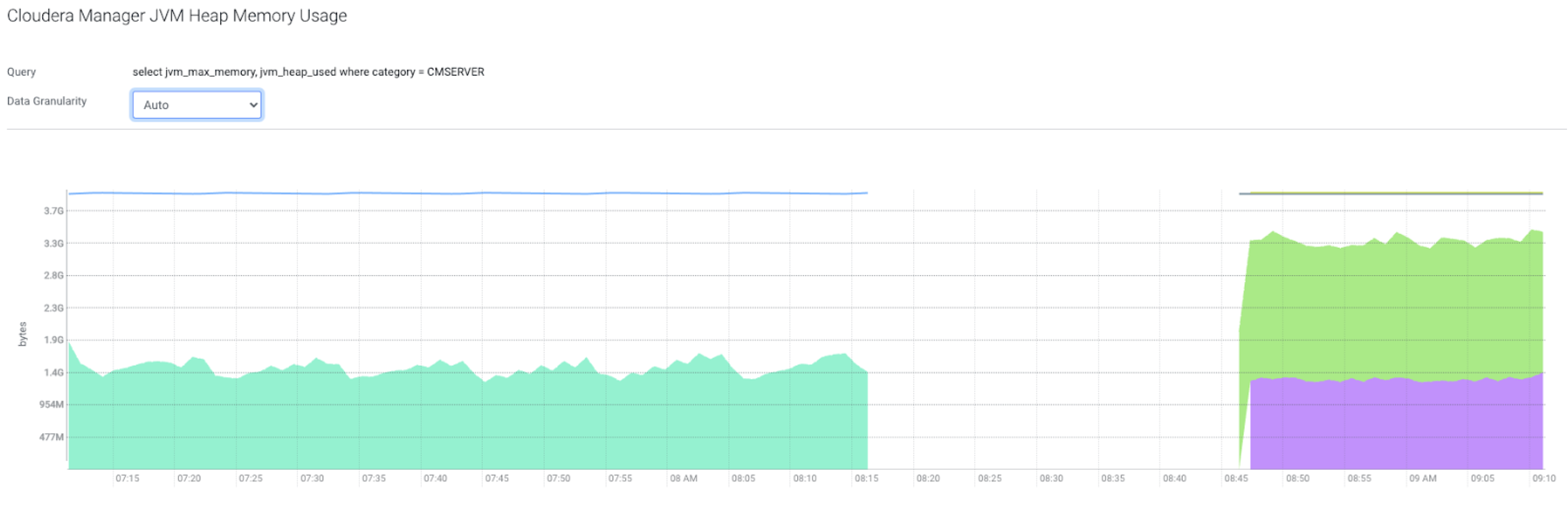
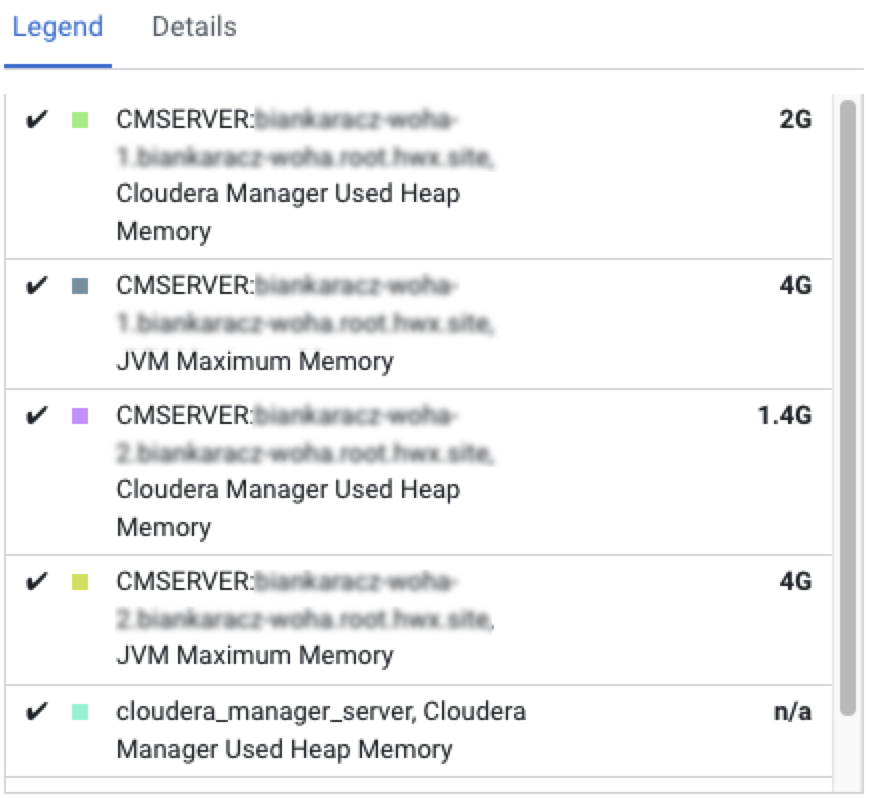
The metrics are still available with the old entity name (cloudera_manager_server) after an upgrade to an HA-compatible version.
SELECT cm_database_size WHERE entityName = "cloudera_manager_server" AND category = CMSERVERselect cm_database_size where category = CMSERVER