Cloudera Data Explorer (Hue) configuration files
Data Explorer roles are configured using three key files: hue.ini, hue_safety_valve.ini, and hue_safety_valve_server.ini. These files define the operational settings and safety parameters for Data Explorer.
Data Explorer roles are configured with the following three configuration files:
- hue.ini: The first file auto-generated when you add the Data Explorer service to your Cloudera cluster using Cloudera Manager.
- hue_safety_valve.ini: Used to override bugs or configure properties missing from the Cloudera Manager UI.
- hue_safety_valve_server.ini: Used to configure only the Data Explorer role, rather than the full Data Explorer service (which includes the Data Explorer Load Balancer). Note: This file is rarely used in practice.
Cloudera recommends that you do not edit
.ini files directly from the command line because they are stored in
dynamic directories named by process ID and populated from the Cloudera Manager database. To add configurations that cannot be added directly
from the Cloudera Manager UI (such as Authentication Backend for SAML), use
the Data Explorer Service Advanced Configuration Snippet (Safety Valve) for
hue_safety_valve.ini field under the Data Explorer service
configurations in Cloudera Manager.
Locating and viewing configuration files via CLI:
- Open a CLI console on a machine in your cluster.
- SSH into the Data Explorer server host as a
rootuser - Find the active Data Explorer server process directory path:
echo /var/run/cloudera-scm-agent/process/$(sudo ls -valrt /var/run/cloudera-scm-agent/process | grep HUE_SERVER | tail -1 | awk '{print $9}') - Navigate into the process directory:
cd /var/run/cloudera-scm-agent/process/$(sudo ls -valrt /var/run/cloudera-scm-agent/process | grep HUE_SERVER | tail -1 | awk '{print $9}') - List the .ini configuration files for the process ID:
Terminal showing Data Explorer configuration files:ls -ltr /var/run/cloudera-scm-agent/process/$(sudo ls -valrt /var/run/cloudera-scm-agent/process | grep HUE_SERVER | tail -1 | awk '{print $9}')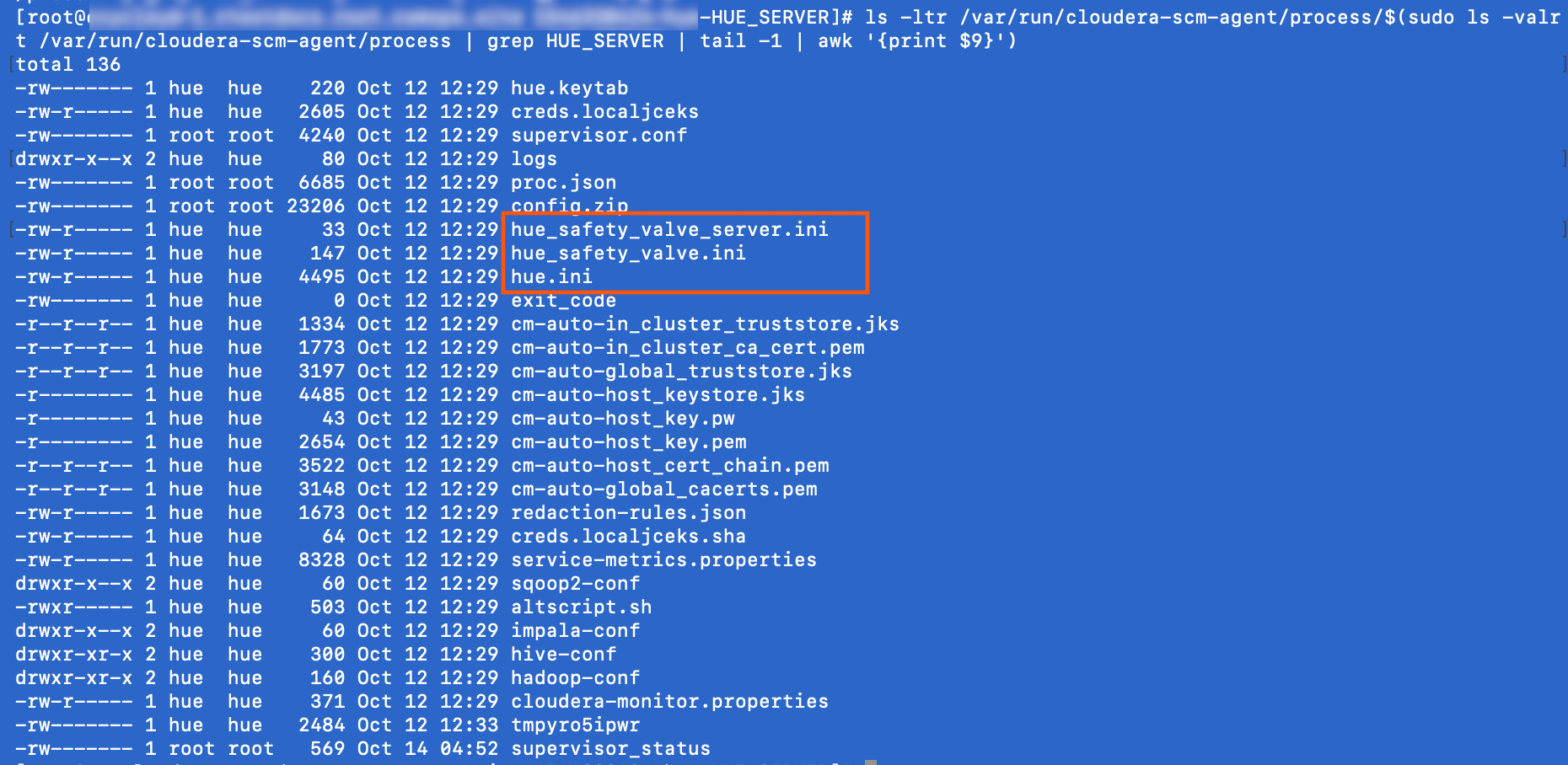
- Inspect the configuration file contents:
sudo less hue.ini
Locating process files via Cloudera Manager:
The process directory for any given role is mirrored in Cloudera Manager. Go to , select a role such as Data Explorer (Hue) Server, and click the Processes tab.
