Learn how to create a role in Ranger using UI.
-
Sign in to Cloudera Manager.
-
In the left navigation, click Clusters.
-
Select the relevant Ranger cluster.
-
Click the Web UI dropdown menu and click one of the
Ranger Admin Web UI. The Ranger log in page displays.
-
Sign in to Ranger. The Ranger home page displays.
-
In the left navigation, click Settings, and then click
Roles.
-
In the Roles tab, click the Add New
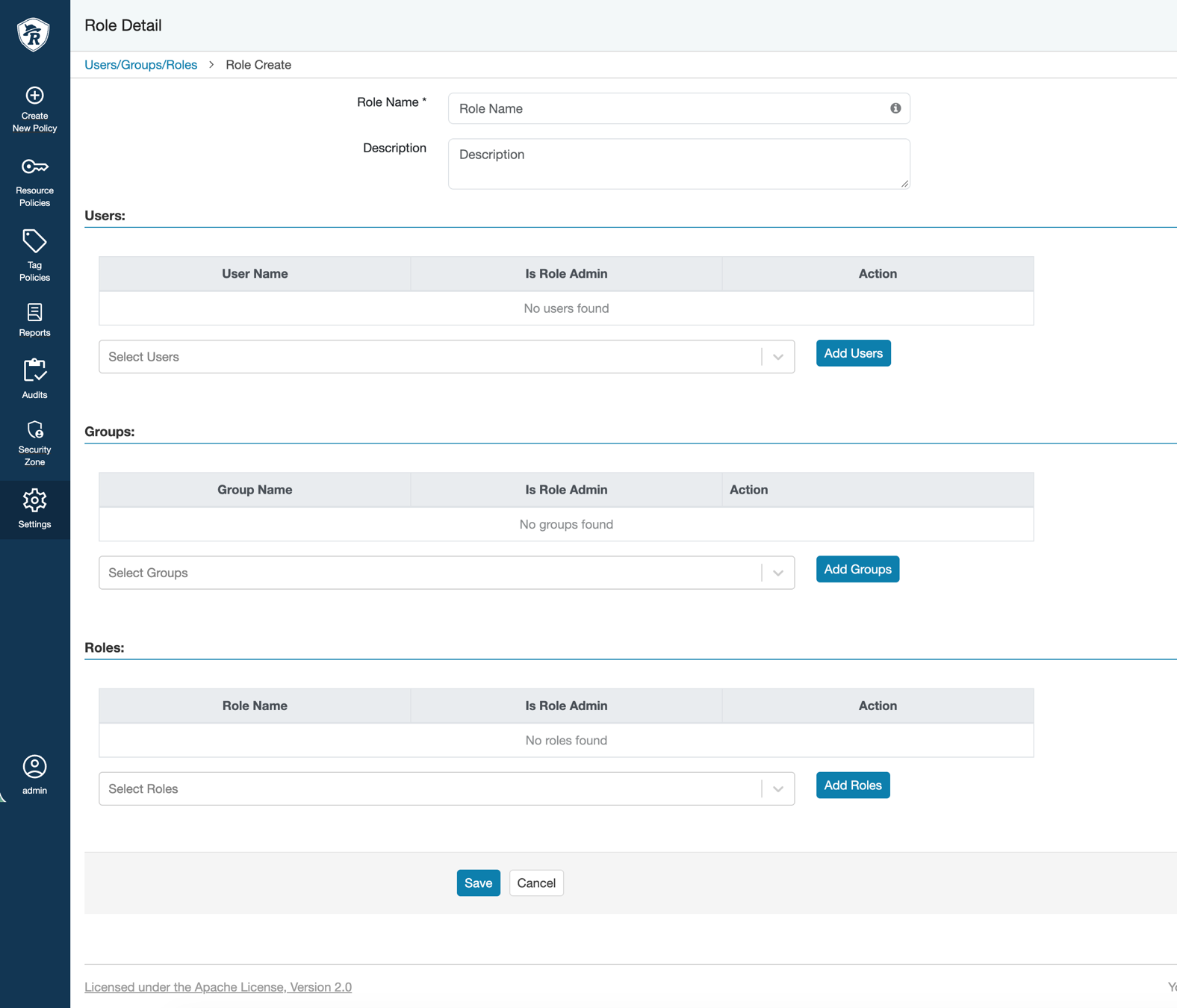
Role button. The Role Detail page
displays.
Figure 1. Create role in Ranger
-
Provide the following information:
- Role Name: Enter the unique identifier as a role
name. For example, iceberg-data-all-access.
- Description : Provide a brief summary of the
role's intended permissions or scope.
- (Optional) Group: Click
Group dropdown button and select the required
group from the list.
-
Click Save.
