Click the Web UI dropdown menu and click one of the
Ranger Admin Web UI. The Ranger log in page displays.
Sign in to Ranger. The Ranger home page displays.
In the left navigation, click Settings, and then click
Users.
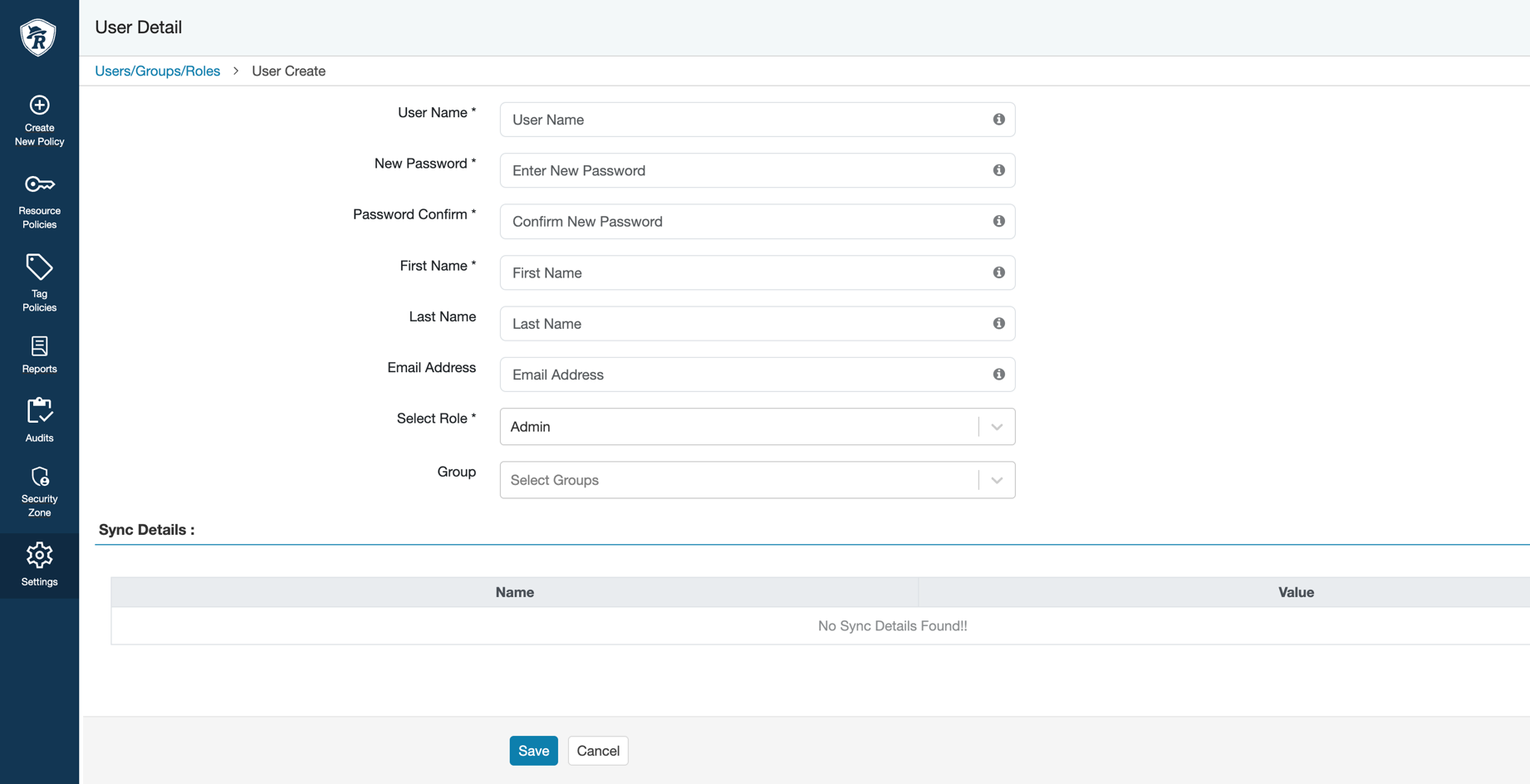
In the Users tab, click Add New
User button. The User Detail page
displays.
Figure 1. Create user in Ranger
Provide the following information:
User Name: Enter the unique identifier as a user
name. For example, svc-iceberg-rest-catalog.
New Password: Enter the password.
Password Confirm: Enter the same password that
you have entered in the preceding field.
First Name: Enter the first name of the user. For
example, Iceberg REST.
(Optional) Last Name: Enter the last name of the
user. For example, Catalog.
(Optional) Email Address: Enter the email id of
the user. The email ID must be in
[***USER_NAME***]@[***YOUR_DOMAIN***].com.
For example,
svc-iceberg-rest-catalog@example.com.
Select Role: Click the Select
Role dropdown button and select
User from the list.
(Optional) Group: Click
Group dropdown button and select the required
group from the list.