Configure a resource-based service: Atlas
How to add an Atlas service.
-
On Service Manager > Resource Policies, click Add New Service (
 ) next to Atlas.
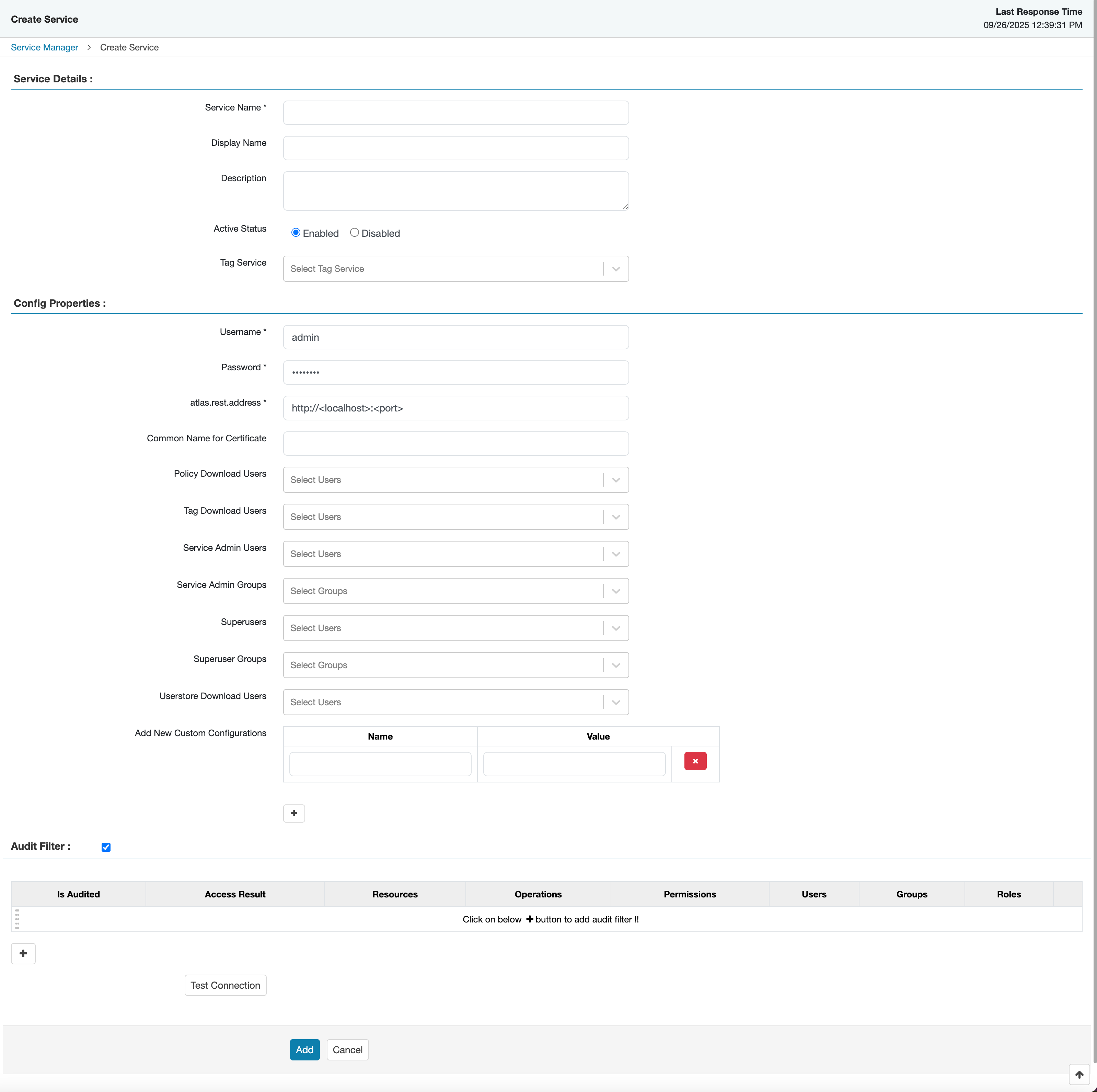
The Create Service page appears.
-
On Create Service, enter the following information:
Table 1. Service Details Field name
Description
Service Name
The name of the service; required when configuring agents.
Display Name The name which appears on Service Manager. Description
A description of the service.
Active Status
Enabled or Disabled.
Tag Service Select a tag-based service to apply the service and its tag-based policies to Atlas. Table 2. Configuration Properties Field name
Description
Username
The end system username that can be used for connection.
Password
The password for the username entered above.
atlas.rest.address (SSL environment)
Atlas host and port. Update in the Ranger plugin services to get resource lookup working. Value is
https://<Atlas-server>:<https-port>.Default port is 31443.
Common Name For Certificate
The name of the certificate.
This field is interchangeably named Common Name For Certificate and Ranger Plugin SSL CName in Create Service pages.
Policy Download Users Selected users can download policies in the service. Tag Download Users Selected users can download tags in the service. Service Admin Users Selected users can create/update/delete/read policies in the service. Service Admin Groups Users in the selected groups can create/update/delete/read policies in the service. Superusers The plugin grants all accesses on all resources to the selected users. Superuser Groups The plugin grants all accesses on all resources to users in the selected groups. Userstore Download Users Selected users can download user and group details. Add New Configurations
Add any other new configuration(s).
- Click Test Connection.
- Click Add.
