Configure a resource-based service: NiFi Registry
How to add a NiFi Registry service.
-
On Service Manager > Resource Policies, click Add New Service (
 ) next to NiFi Registry.
The Create Service page appears.
) next to NiFi Registry.
The Create Service page appears.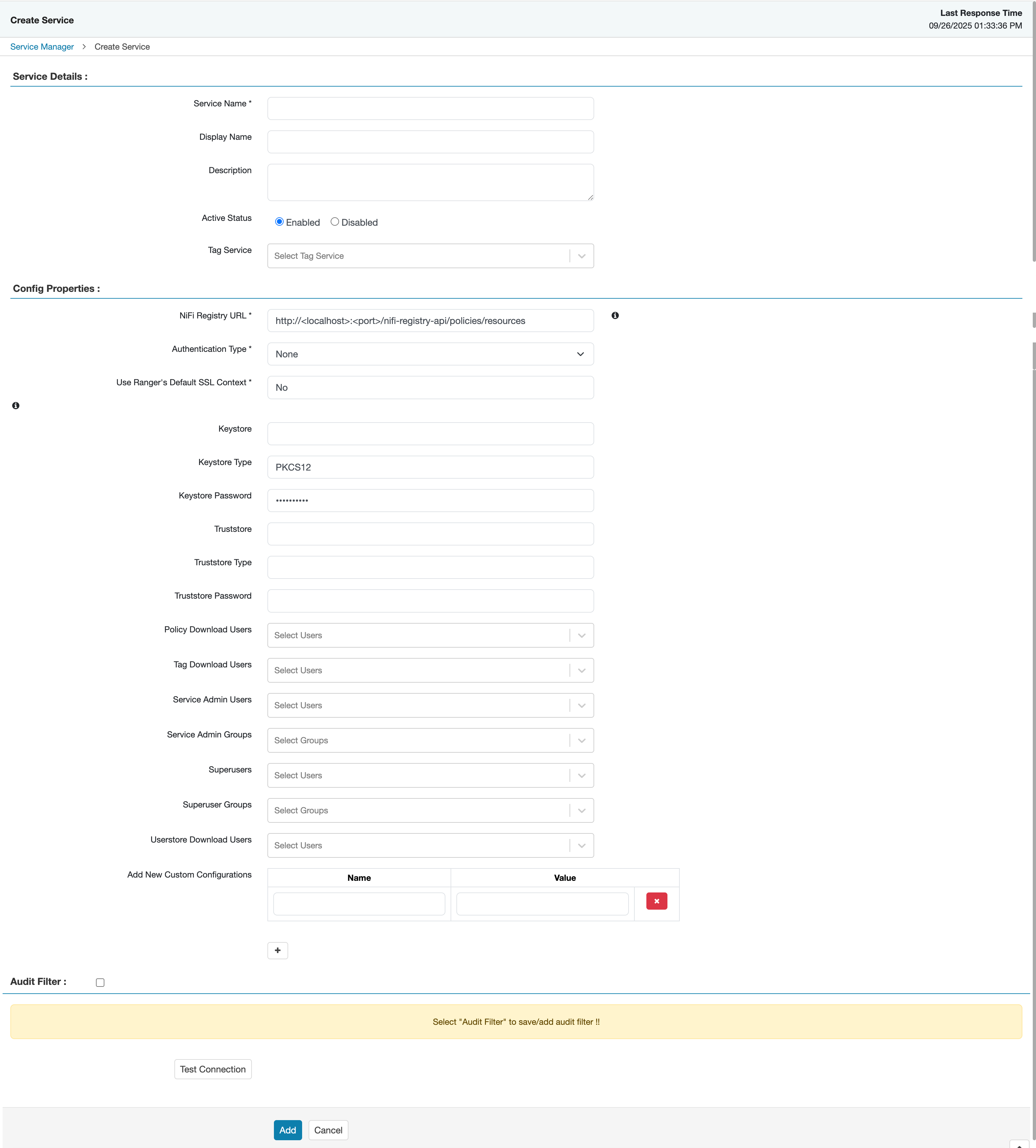
-
On Create Service, enter the following information:
Table 1. Service Details Field name
Description
Service Name
The name of the service; required when configuring agents.
Display Name The name which will appear on Service Manager. Description
A description of the service.
Active Status
Enabled or Disabled.
Tag Service Select a tag-based service to apply the service and its tag-based policies to NiFi. Table 2. Configuration Properties Field name
Description
NiFi Registry URL
The complete NiFi Registry URL.
Authentication Type None or SSL. Use Ranger's Default SSL Context If true, then Ranger's keystore and truststore will be used to communicate with NiFi Registry. If false, the keystore and truststore properties must be provided. Keystore The keystore to use when Ranger makes an https connection to the NiFi Registry. This keystore contains the certificate that represents the Ranger server. Keystore Type The keystore type (JKS or PKCS12). Keystore Password The keystore password. Truststore The truststore to use when Ranger makes an https connection to the NiFi Registry. This truststore contains the public key of the certificate authority that signed the NiFi server certificates. Truststore Type The truststore type (JKS or PKCS12). Truststore Password The truststore password. Policy Download Users Selected users can download policies in the service. Tag Download Users Selected users can download tags in the service. Service Admin Users Selected users can create/update/delete/read policies in the service. Service Admin Groups Users in the selected groups can create/update/delete/read policies in the service. Superusers The plugin grants all accesses on all resources to the selected users. Superuser Groups The plugin grants all accesses on all resources to users in the selected groups. Userstore Download Users Selected users can download user and group details. Add New Configurations
Add any other new configuration(s).
- Click Test Connection.
- Click Add.
