Hive allows you to create tables based on existing or new files and directories within a
storage location. To use the storage location, the end user must have authorized access to that
location. If the storage location is an S3 cloud object, there are two primary options for
granting permissions via Ranger.
Option 1: Use the Ranger RAZ S3 plugin policy
Use this option if you want fine-grained access control specifically managed through the
Ranger RAZ S3 plugin policy.
Configure Hive.
Go to Cloudera Manager > Hive > Configuration.
Search for the Ranger Plugin URL Auth Filesystem Schemes
configuration.
Append s3a: to the existing values.
Permissible values are
hdfs:,file:,wasb:,adl:,s3a:.
Restart the Hive service.
Configure Ranger.
Log in to the Ranger Admin UI.
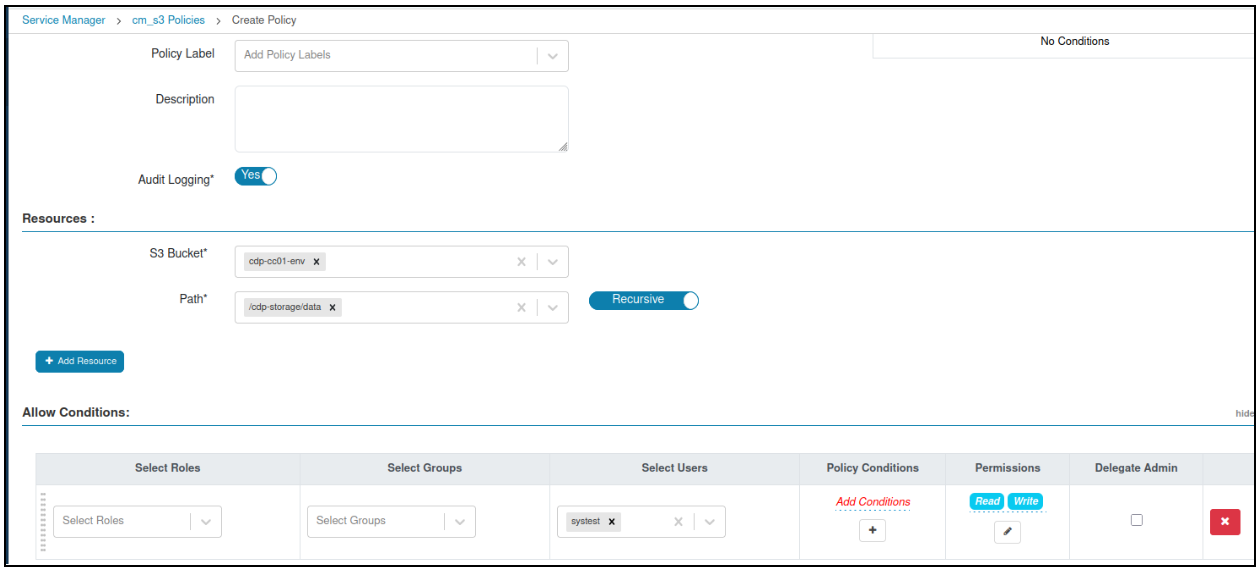
Navigate to Resource Policies > cm_s3 and click Add New Policy.
Define the policy for your specific S3 location.
S3 Plugin Policy give access to resource bucket and
path:
S3 Bucket - cdp-cc01-env
Path - /cdp-storage/data
Option 2: Use the Hive URL policy
Use this option to authorize access requests against standard Hive URL policies rather than
the RAZ S3 plugin.
Configure Hive.
Go to Cloudera Manager > Hive > Configuration.
Search for the Ranger Plugin URL Auth Filesystem Schemes configuration.
Remove s3a: from the configuration.
This ensures authorization is
handled by the Hive URL policy and bypasses the Ranger RAZ S3 plugin.
Restart the Hive service.
Configure Ranger.
Log in to the Ranger Admin UI.
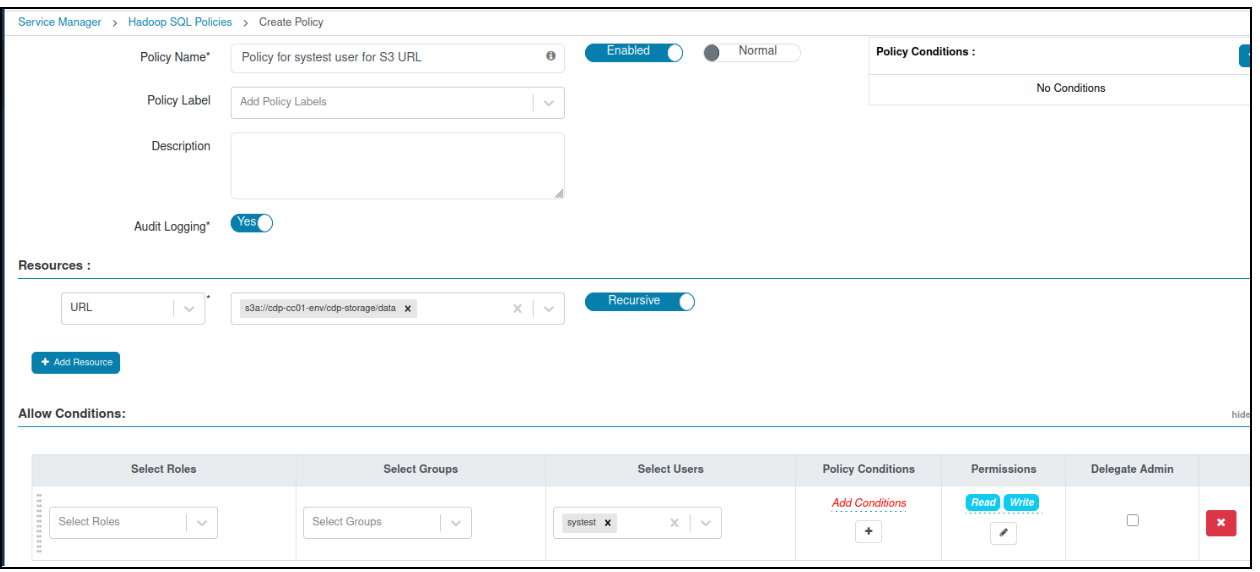
Navigate to Resource Policies > Hadoop SQL and click Add New Policy.
Define a new Hive policy using the URL resource type to authorize
the specific S3 location.
Hive URL Policy giving access to S3 url full
path: