Managing AWS S3 compatible credentials for Cloudera Data Services on premises
You can register shared, S3-compatible object storage credentials that workloads can reuse across your Cloudera Data Services on-premises deployment. As a Cloudera administrator, you can use the Cloudera Management Console to create, edit, test, and delete external accounts under the Shared Resources.
External Accounts are intended for storage that sits outside the containerized cluster managed by Cloudera Management Console. Sensitive values such as Access Keys are stored securely in Vault. The Cloudera Management Console displays only the account metadata.
About External Accounts
An external account represents a single S3-compatible storage endpoint and bucket, along with the credentials required to access that bucket.
Cloudera Data Warehouse, Cloudera Data Engineering, and Cloudera AI can use external accounts where the integration is supported. Workloads read credentials from Vault using the account name you register in the Cloudera Management Console.
Review the following information:
- Each external account name must be unique. You cannot change the account name after you create the account.
- Access keys and Secret keys are not displayed in the Cloudera Management Console after you save an account.
- You must always test the connection successfully before you can create or save an account.
- When you create or update an external account, Cloudera stores account metadata in the environment database. Access keys, Secret keys, and the generated keystore are written to Vault.
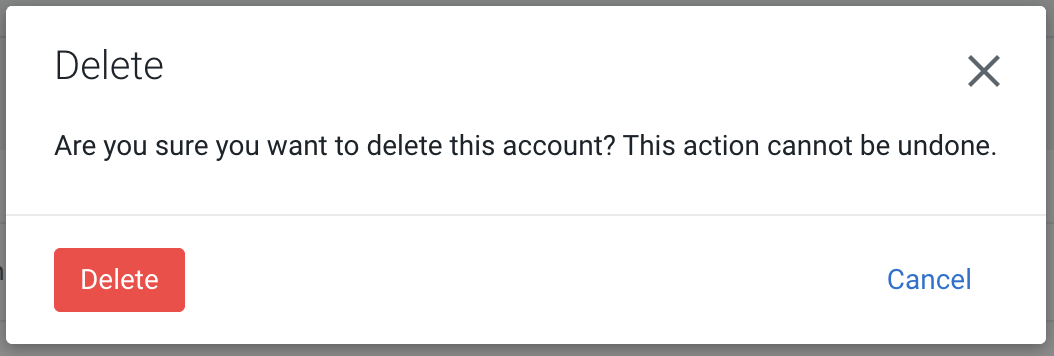
- Deleting an account removes the external account and deletes the corresponding credentials from Vault.
Prerequisites for using External Accounts
Before you manage external accounts, ensure that the following requirements are met:
- You are signed into the Cloudera Management Console as a user with permission to Shared Resources
- Your S3-compatible endpoint is reachable from the containerized cluster.
- Vault is available for your Cloudera Data Services on premises deployment.
Accessing External Accounts
As a starting point, you must reach one or more external accounts.
- Sign into the Cloudera Management Console.
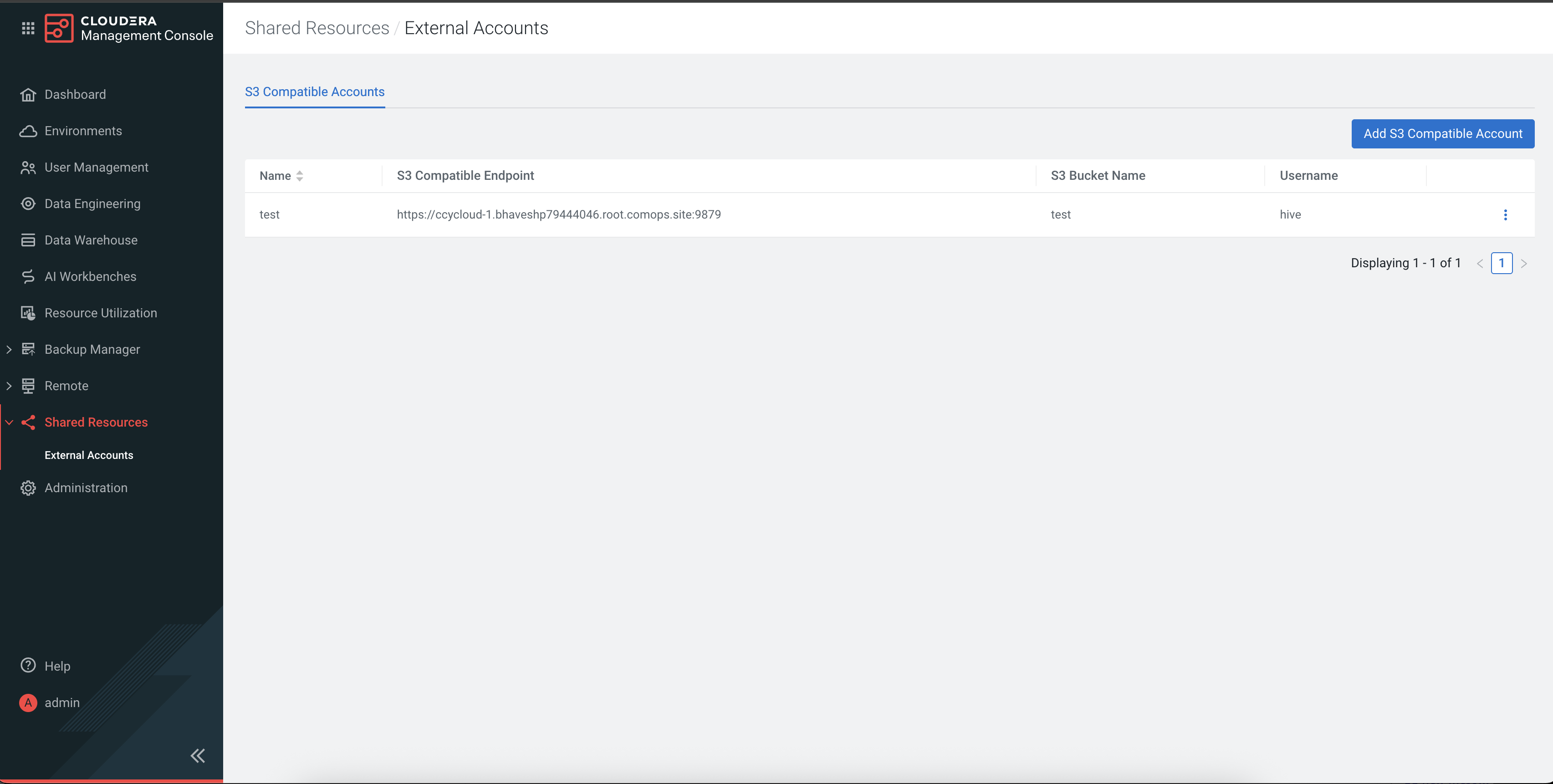
- In the left navigation pane, click Shared resources >
External Accounts.
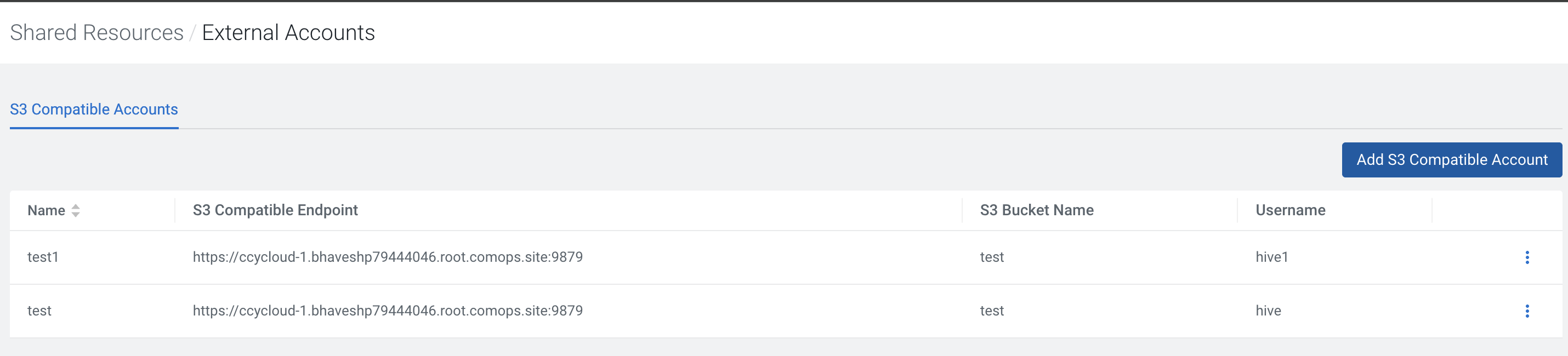
The External Accounts page displays the S3 Compatible Accounts tab.
Creating an S3 Compatible Account
You must create and set up an S3 account that is compatible with the supported Data Services.
- On the External Accounts page, click Add S3 Compatible Account.
-
In the Add S3 Compatible Account dialog, provide the required information as listed in the following table.
Table 1. Property Description Name A unique friendly name for the account, for example s3-prod.S3 Compatible Endpoint The endpoint URL for the S3-compatible storage service. The URL must start with http://orhttps://, followed by a hostname and optional port.S3 Bucket Name The bucket that this account is scoped to. Username The Cloudera workload username to associate with the Access Key and Secret key. Access Key The S3 access key for authentication. Secret Key The S3 secret key for authentication. 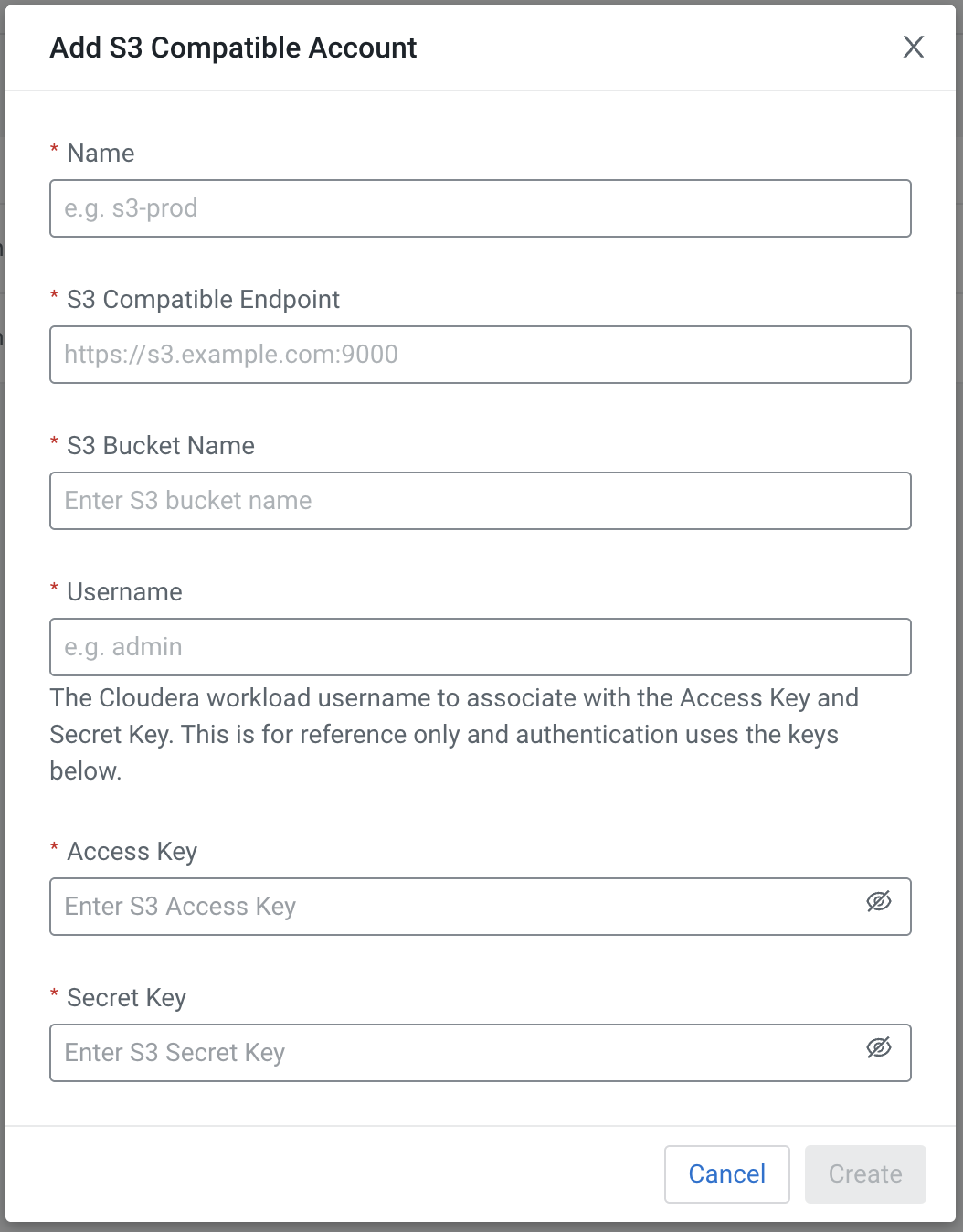
- Click Test Connection to verify that the endpoint is reachable and
that the credentials are accepted.
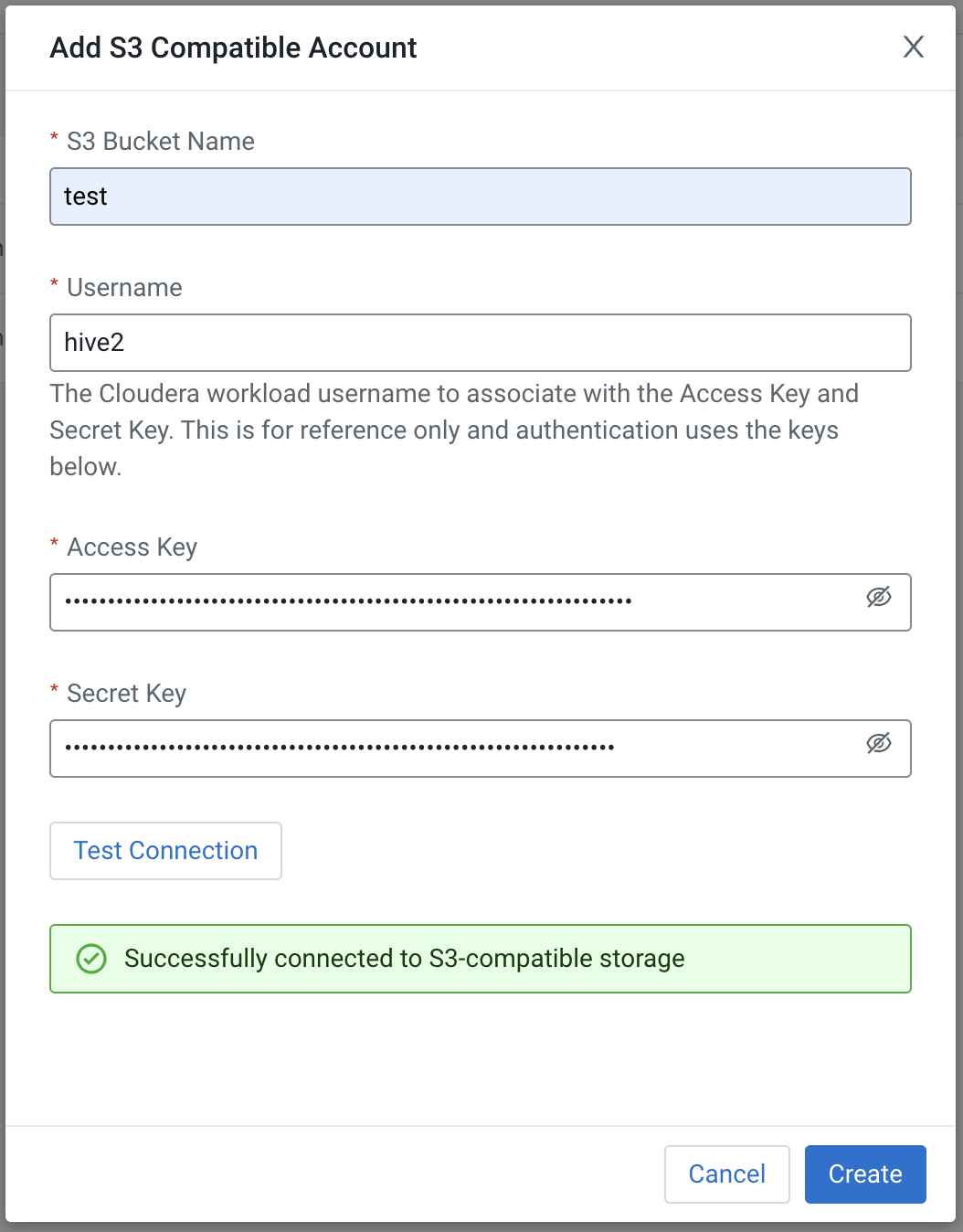
- After the connection test succeeds, click Create.
Updating an External Account
You can update the endpoint, bucket, and username for an existing external account. The account name cannot be changed at any point in time.
- On the External Accounts page, locate the account you want to update.
- Navigate to the action menu for the selected account, click Edit
Account.
- Update the endpoint, bucket, or username as required. Leave the Access
Key and Secret Key fields blank.
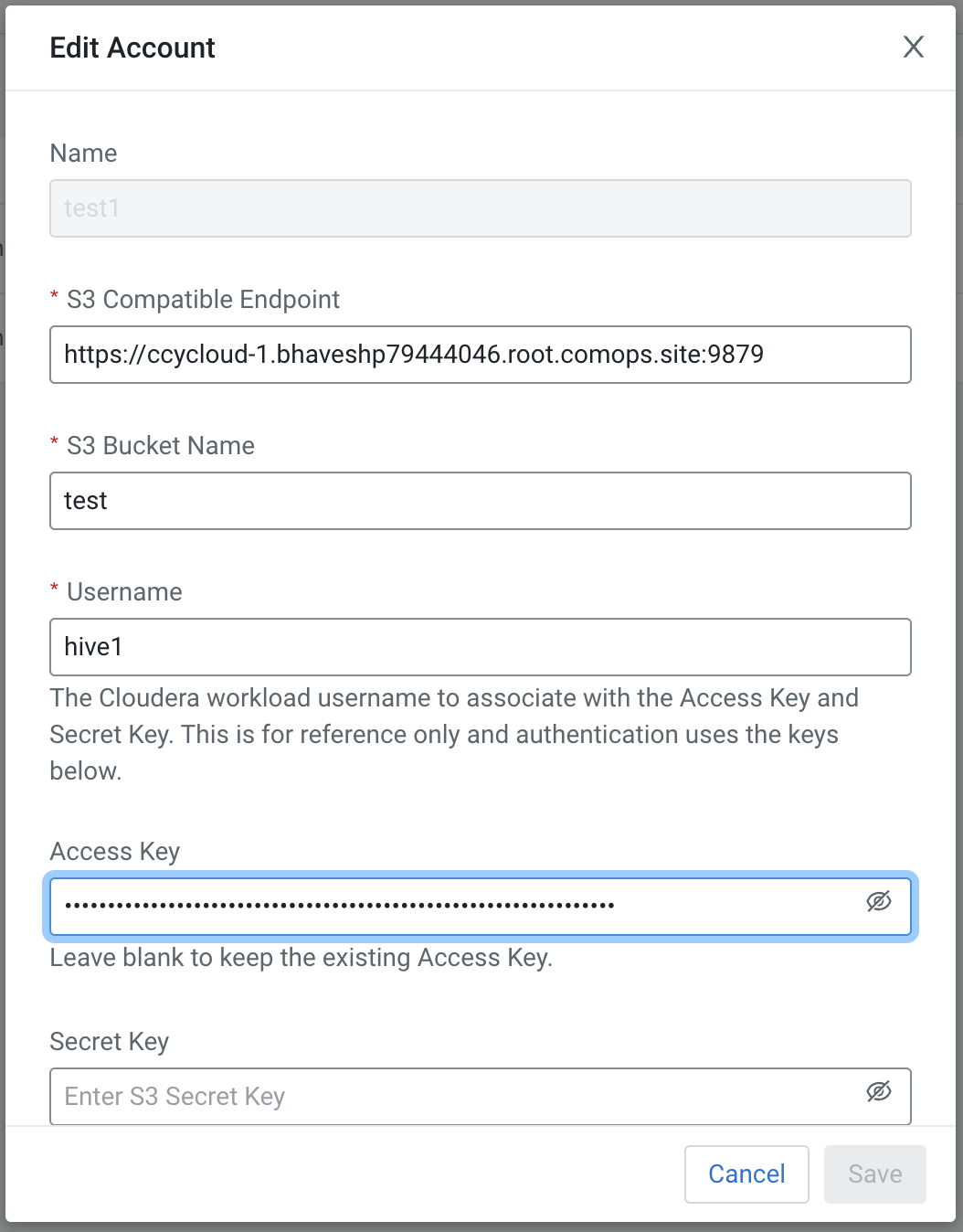
- Click Test Connection. Cloudera uses the credentials stored in Vault to test the connection.
- After the connection test succeeds, click Save.
Rotating External Account credentials
You rotate credentials by editing an existing account and supplying new Access Key or Secret Key values. The external account name does not change, so workloads that reference the account by name continue to use the same external account.
When you provide new credentials, the software application writes a new version of the secret to Vault at the same path. Workloads read the current credentials from Vault after the update completes.
- On the External accounts page, locate the account for which you want to rotate credentials.
- Open the action menu for the selected account, then click Edit.
- Enter the new values in the Access Key and Secret
Key fields.
To retain the existing value, leave the respective fields blank.
- Click Test Connection to verify that the new credentials are accepted by the S3-compatible endpoint.
- After the connection test succeeds, click Save.
Deleting an External Account
You can delete an external account in your Shared Resources
- On the External Accounts page, locate the account you want to delete.
- Navigate to the action menu for the account, then click Delete