Configuring the GPU Modals
Select slice profiles per GPU or per Multi-Instance GPU (MIG) node.
Using the Configure option
Using any Configure button, you can specify the slices for a specific GPU. Using the modal window that pops up, you can configure specific slices.
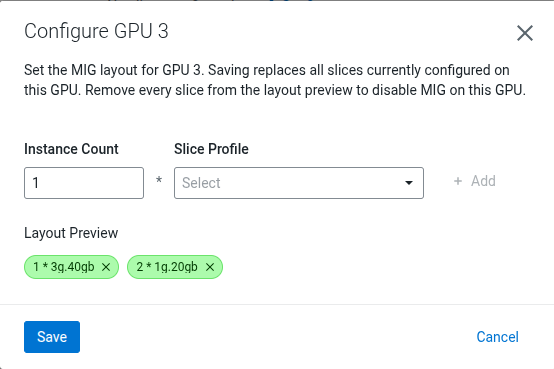
The user can add new slices to the layout, or remove existing ones. The UI validates if the user exceeds the capacity of the GPU, for instance:
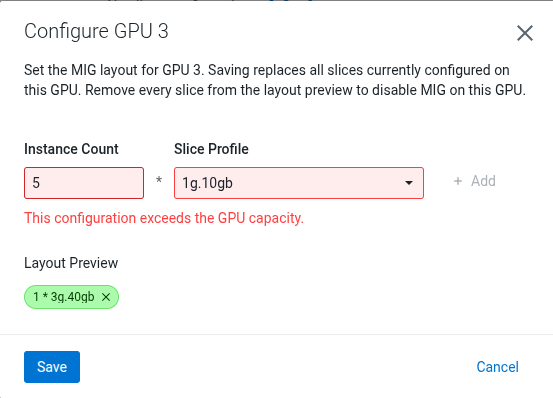
In the previous illustration, having 5 * 1g.10gb and 1 *
3g.40gb would exceed both the compute units and memory of the GPU. The
modal detects this behavior and warns the user.
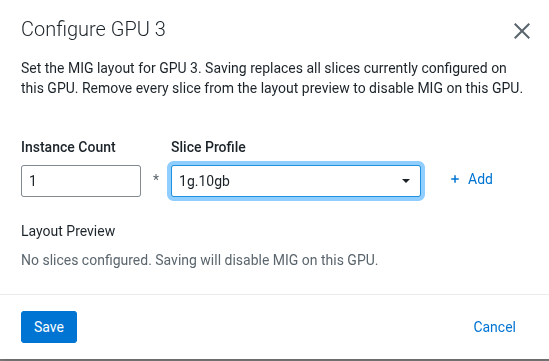
The UI alerts the user that having no slices will disable MIG on a specific GPU. It does NOT imply that the GPU cannot be used but indicates that if a workload uses this GPU, then it would use the entire GPU.
Note that the Instance Count field upper limit is capped at the
maximum count of the selected Slice Profile. For instance, as an
example for GPU NVIDIA H100 80GB HBM3
- For
Slice Profile1g.10gb, the maximum amount of slices you can have is 7. Otherwise you would exceed the compute unit capacity of the GPU. Therefore,Instance Countfield upper limit is set to 7. - For
Slice Profile1g.10gb+me, you can only have 1, soInstance Countfield upper limit is set to 1.
After setting the slices in this modal and clicking on Save, the UI
marks that GPU as Modified:

It implies what slices would be removed and what would be added. User can use the Revert button to revert back to the original slices for that particular GPU. Or they can use the Configure button again to overwrite the slices for that GPU.
Configuring on Every GPU Modal
You can use the Configure on Every GPU button at the node level:
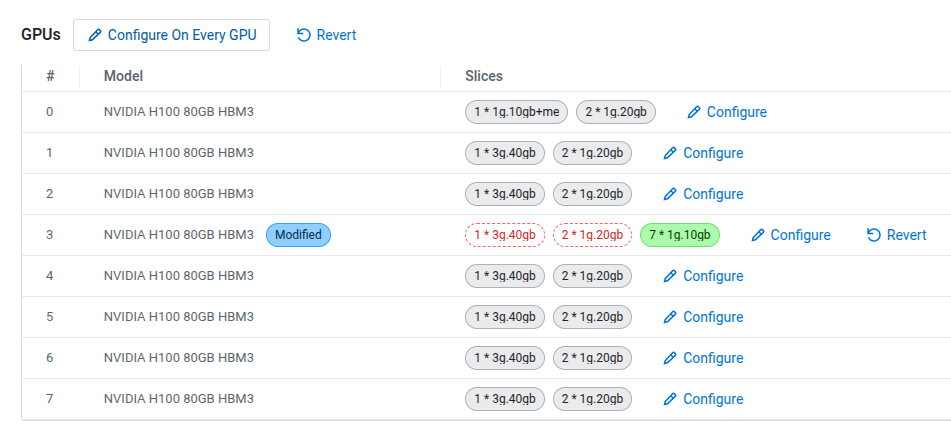
Configure On Every GPU option, the user can select what
slices to use on every GPU on this node. A similar modal window pops up, where the
slices can be specified for every GPU on this node: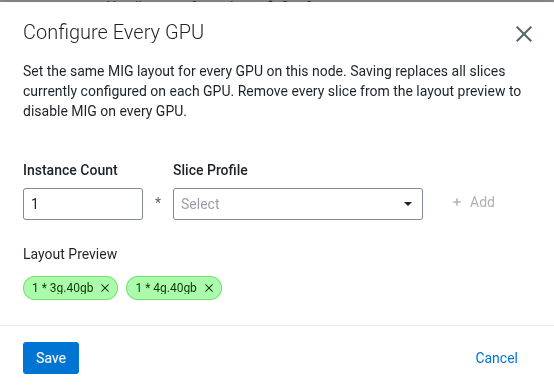
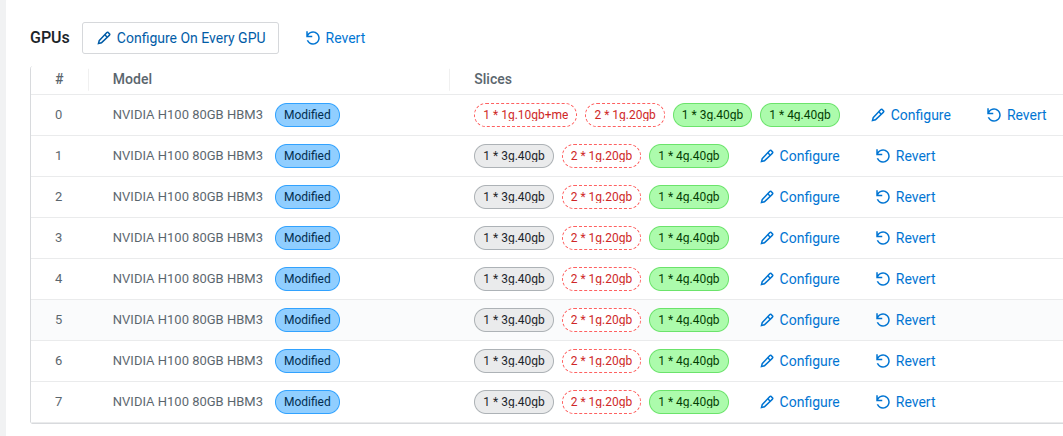
The Revert button at the node level behaves in an analogous manner. It reverts back every GPU on this node to the original MIG configuration.
