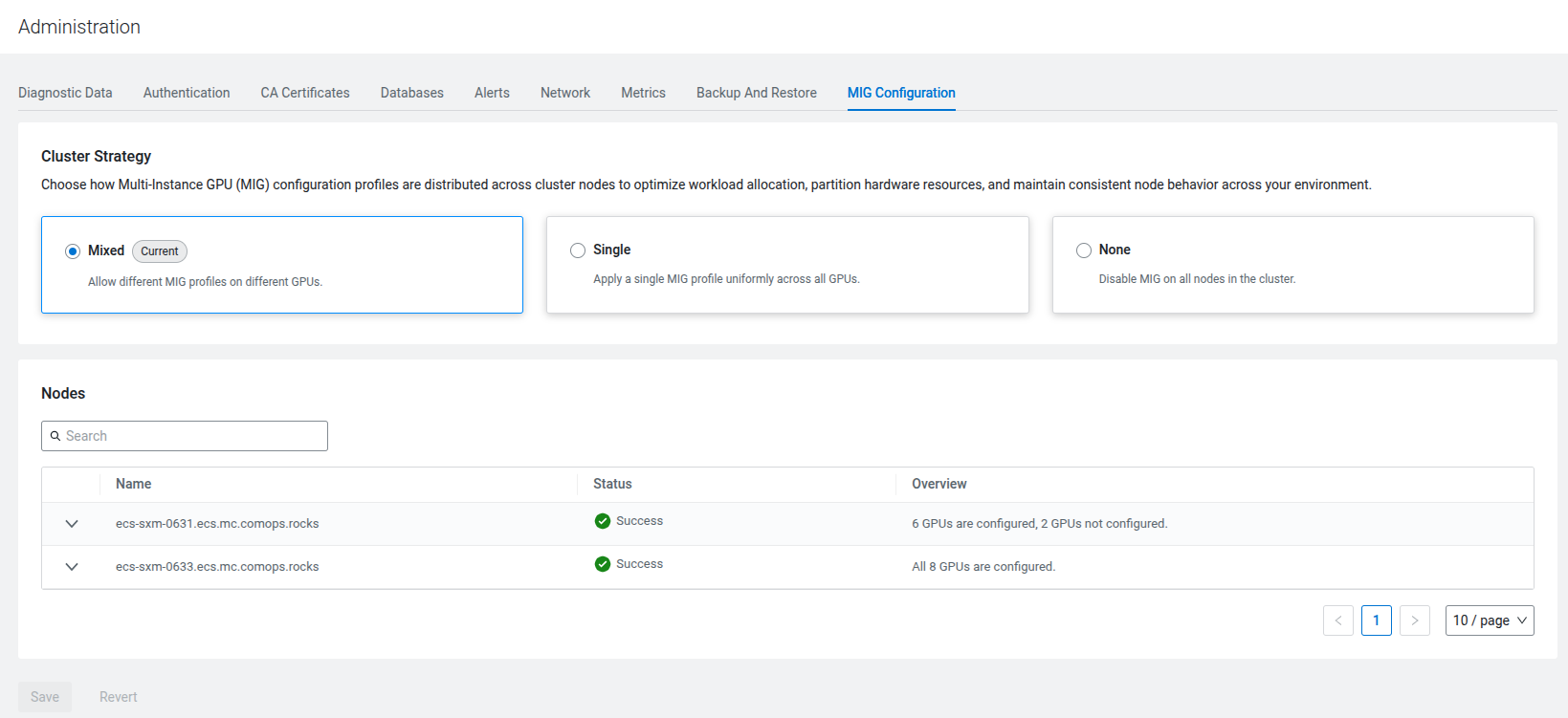
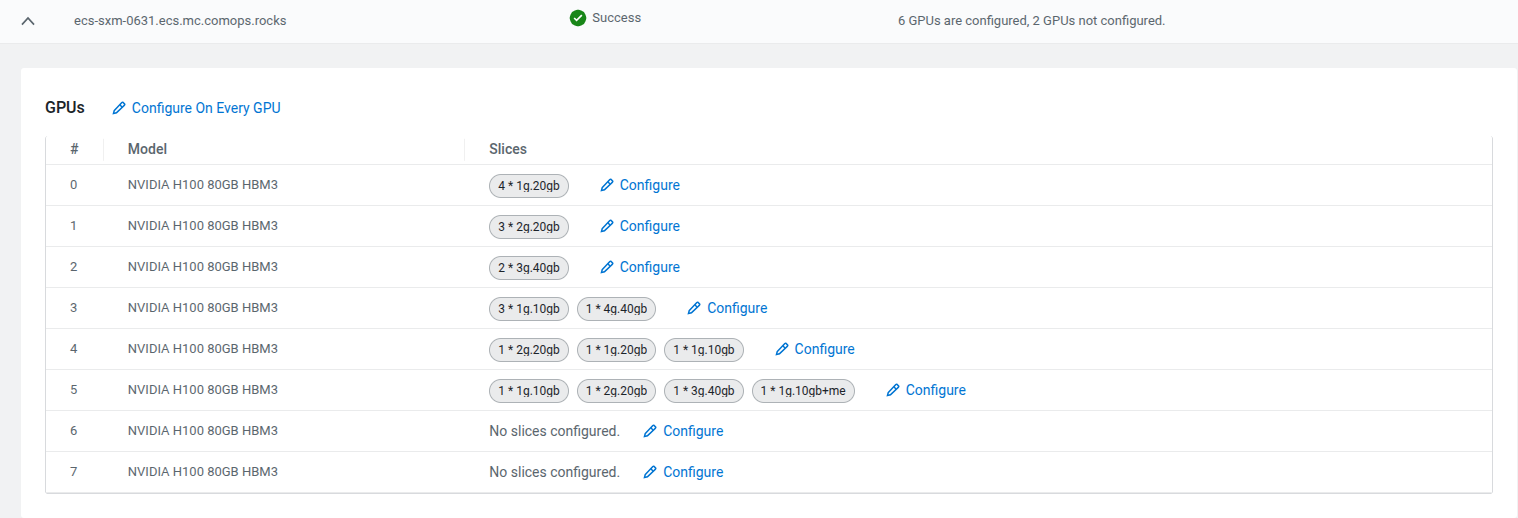
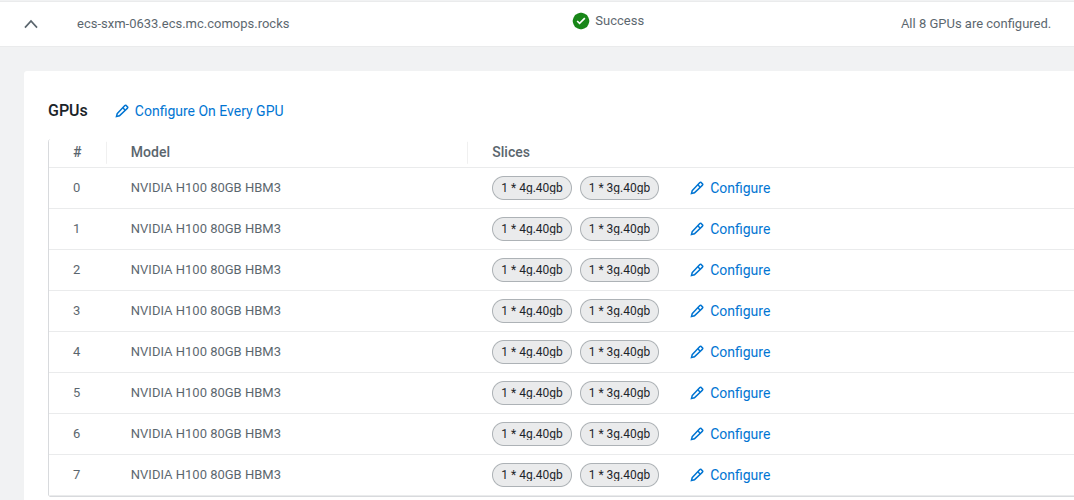
Saving the Multi-Instance GPU (MIG) configuration
Once you complete making all the MIG configuration changes on the UI, save them.
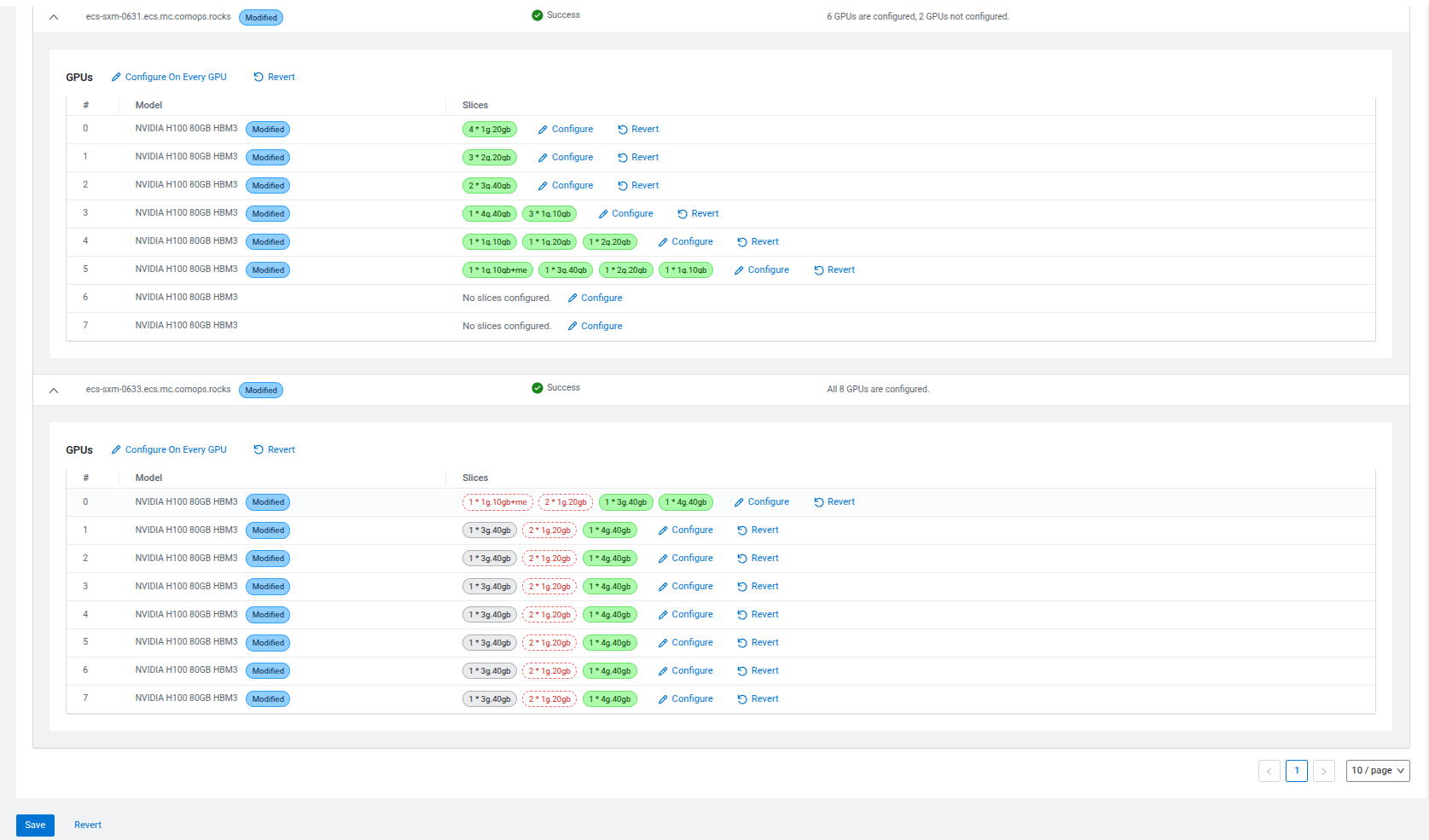
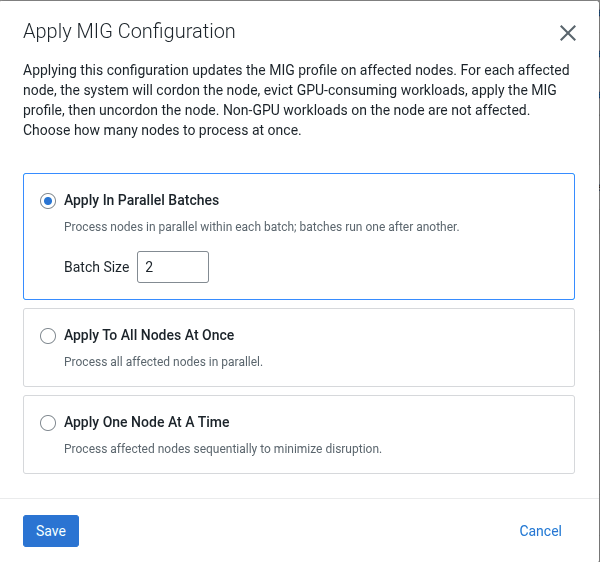
In this modal, the user can select how they want to apply the MIG configuration:
- Apply In Parallel Batches: This is the default option. Select this option to enable how many affected nodes should be processed in parallel. It combines the benefits of the other two options: parallel processing, but in a rolling fashion. Having too many nodes processed at once can clog the backend system.
- Apply To All Nodes At Once: Processing is done simultanously for every node.
- Apply One Node At A Time: Nodes are processed one-by-one.
- The modal text describes what applying the MIG configuration stands for:
For each affected node, the system will cordon the node, evict
                        GPU-consuming workloads, apply the MIG profile, and then uncordon the
                        node
. Apply workflow is the same for every node. - The UI controls what nodes will be sent for processing:
- Typically only the modified nodes will be sent for processing, the other nodes will be left untouched (or unsent).
- If the cluster-wide strategy was modified, then every node will be sent for processing, even if a certain node did not require any MIG configuration changes.
- When the MIG feature is used the very first time, every node will be sent for processing.
Polling the MIG configuration progress
After selecting the proper MIG config application method and clicking on Save, the UI initiates a request to the backend. The backend validates the request, then it starts applying the MIG configuration in the background. Then the UI starts polling the backend for retrieving the progress about the MIG config application.
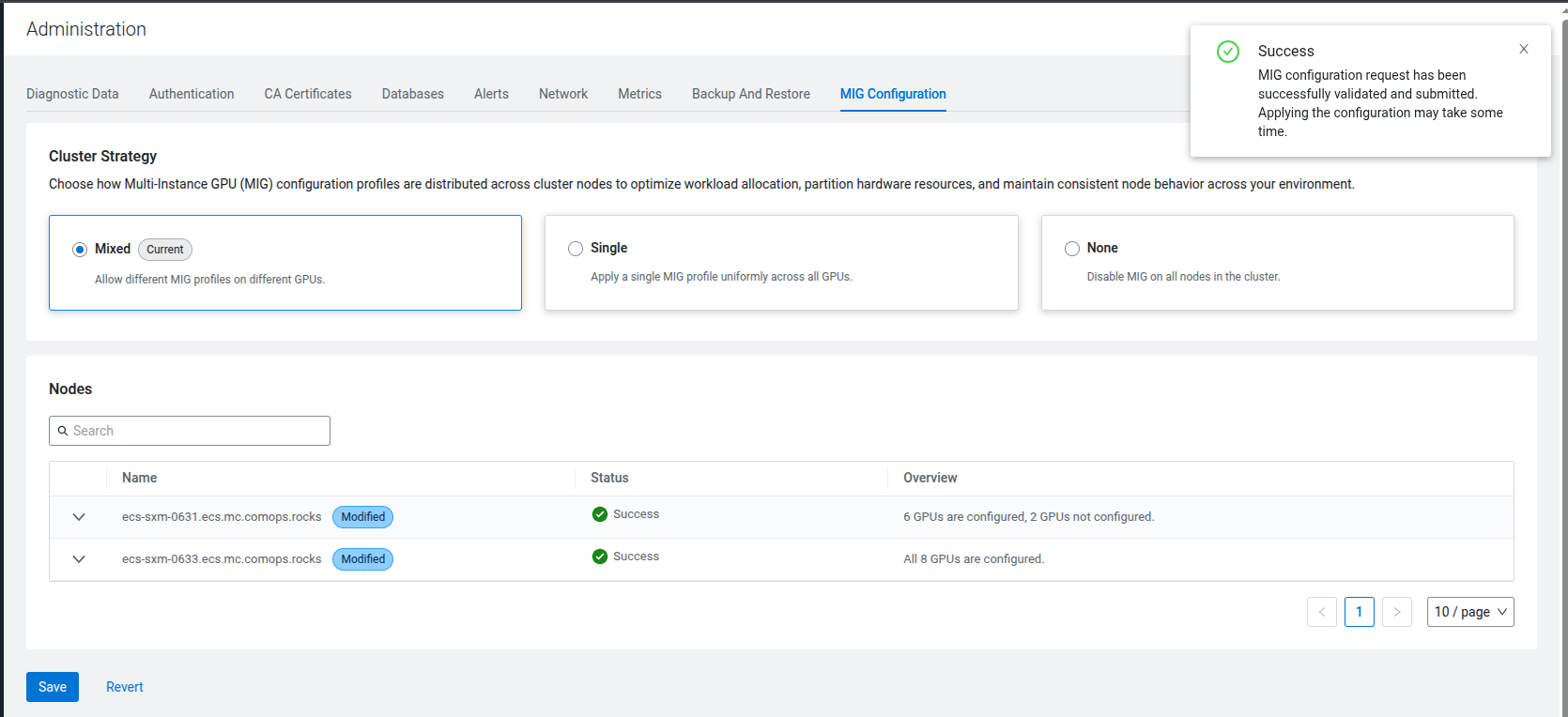
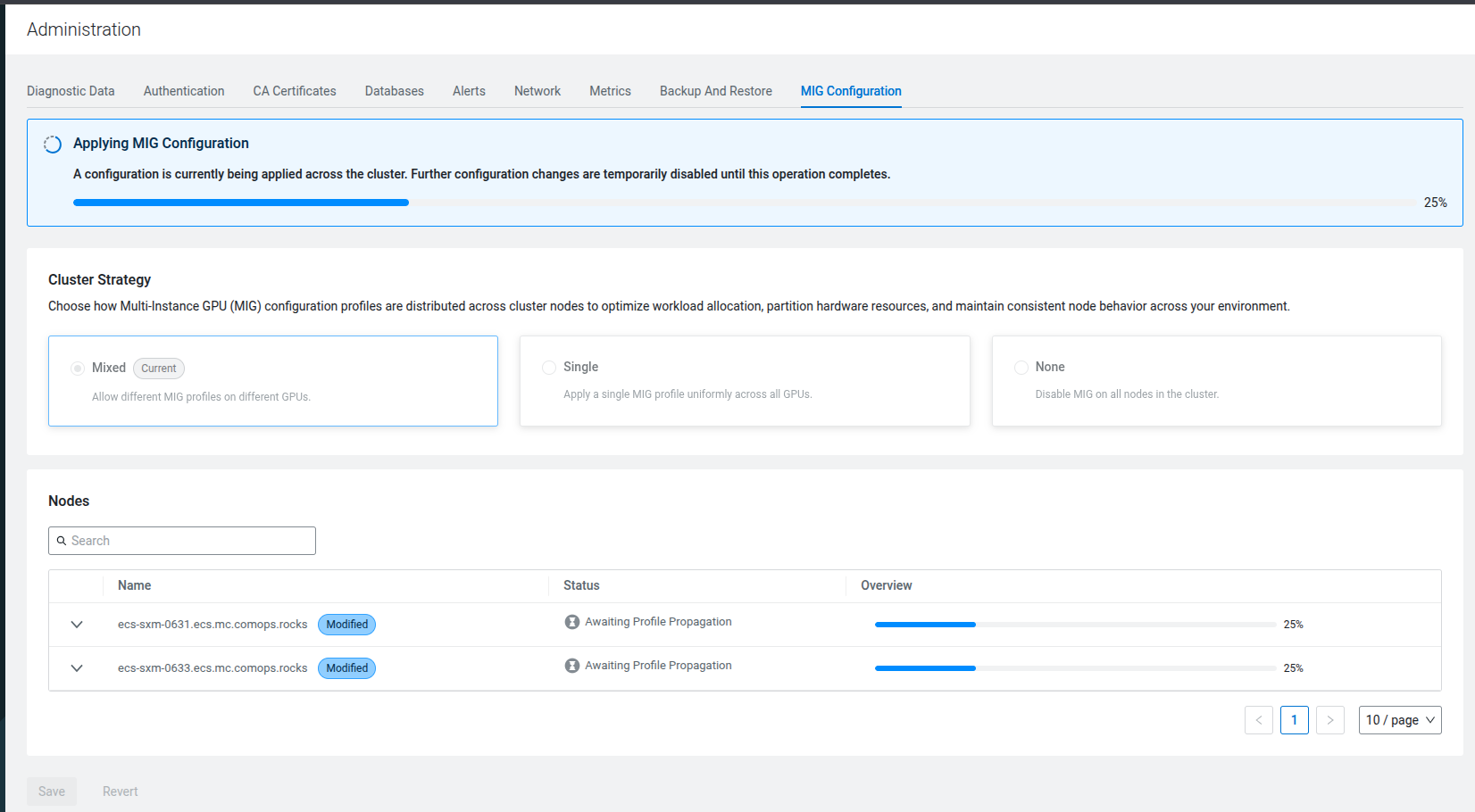
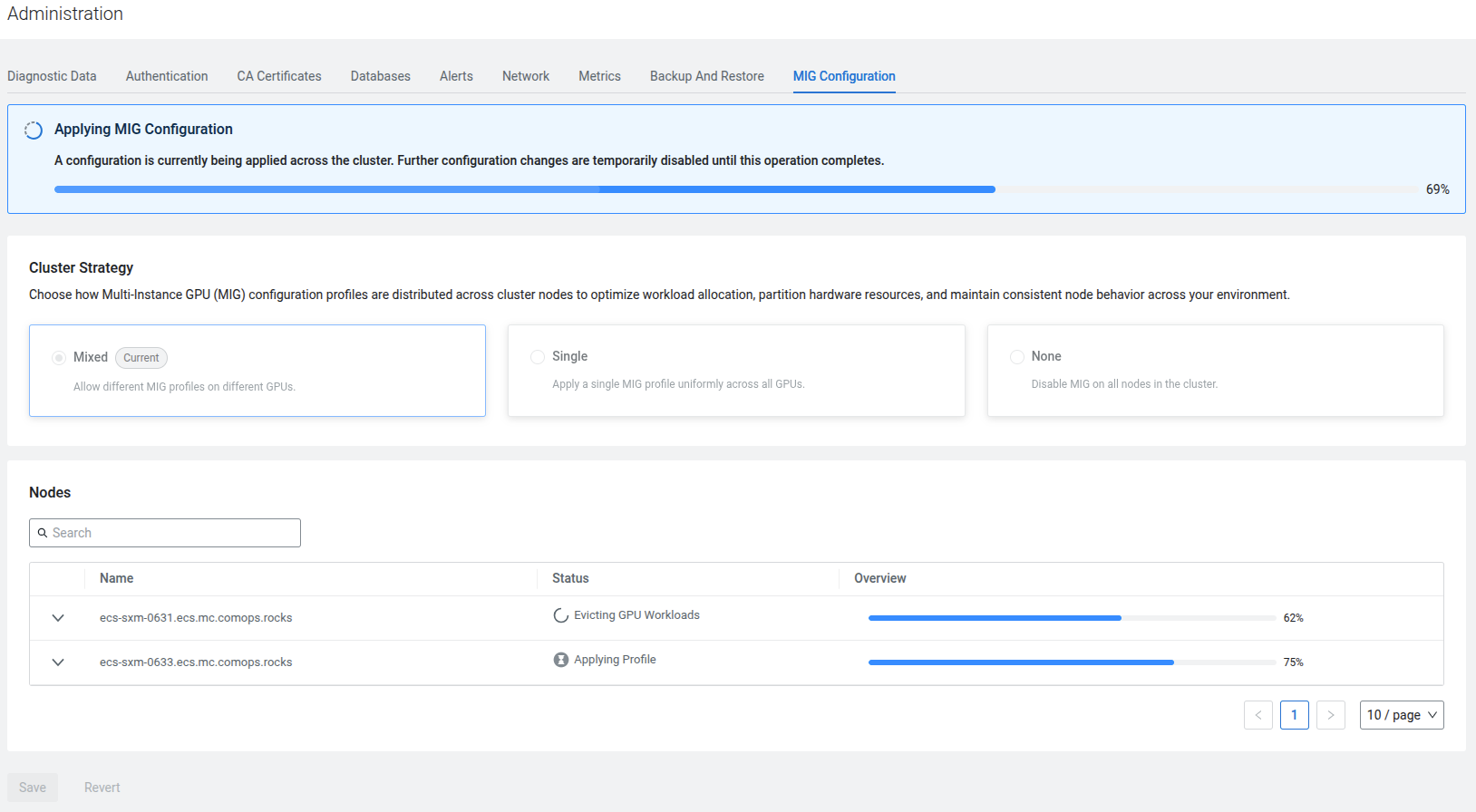
Every modification action (Save, Revert) is disabled while the MIG configuration change is in progress. If a MIG configuration change is being applied, then no other MIG configuration change request can be sent in because the backend rejects it, and also the UI forbids such.
Failed.