Cloudera Data Engineering supports in-place upgrades from eligible releases
to the latest version. If your current version does not support in-place upgrades, the UI
disables the option, and you must use a side-by-side upgrade with the
dex-upgrade-utils Docker image. Administrators can manage and trigger
upgrades through the Cloudera Data Engineering user interface.
To check whether your Cloudera Data Engineering version is eligible for the
in-place upgrade option, see the supported upgrade paths in the Cloudera Data Services on premises upgrade documentation..
When you upgrade to the latest version in Cloudera Data Engineering, the upgrade
process prepares your service for the upgrade with a click of a button. Your
information is also backed up in this process. Learn how to complete the upgrade
process here.
The following are not included in the automatic backup that Cloudera Data Engineering takes before the upgrade (the backup used to
restore the service if an irrecoverable failure occurs during the upgrade):
Keytabs or passwords
Roles of the service and virtual clusters (VCs), that is, access control
(ACL) role assignments
Certificates (TLS certificates)
Data connectors
Sessions
Airflow custom operators and libraries
Airflow connections
Airflow variables
Logs
Job Run logs (Driver, Executor, API)
Service logs
Virtual Cluster event logs
Spark Session logs (Including statement history)
Airflow DAG logs
Virtual Cluster end-points
Ensure that the catchup option is not enabled for any user's
Airflow jobs. Before the backup starts, if the Airflow DAG catchup
options are enabled, disable them manually.
In the Cloudera console, click the
Data Engineering tile.
The Cloudera Data EngineeringHome page displays.
In the left navigation menu, click Administration,
select a Service, and click
Upgrade.
Click the Maintenance tab and click Upgrade
Service.
Click Start Preparation.
Cloudera Data Engineering prepares the service for you. If the
service cannot be prepared, click Retry or
Cancel Upgrade. Canceling the upgrade returns your
service to the original state. Optionally, you can click Download
Logs to download the monitoring logs for the service. Cloudera Data Engineeringon premises does not generate a service-level
diagnostic bundle. Because all data services in a Cloudera Data Services on premises deployment run on the same
Kubernetes cluster, diagnostic bundles are collected from the Cloudera Management Console. If the preparation is successful, proceed
to the next step. If the preparation and cancellation fails, you must contact
Cloudera support.
Click Start Backup.
Cloudera Data Engineering automatically creates a backup for you. The backup is used for restoring
if an irrecoverable failure happens during the upgrade.
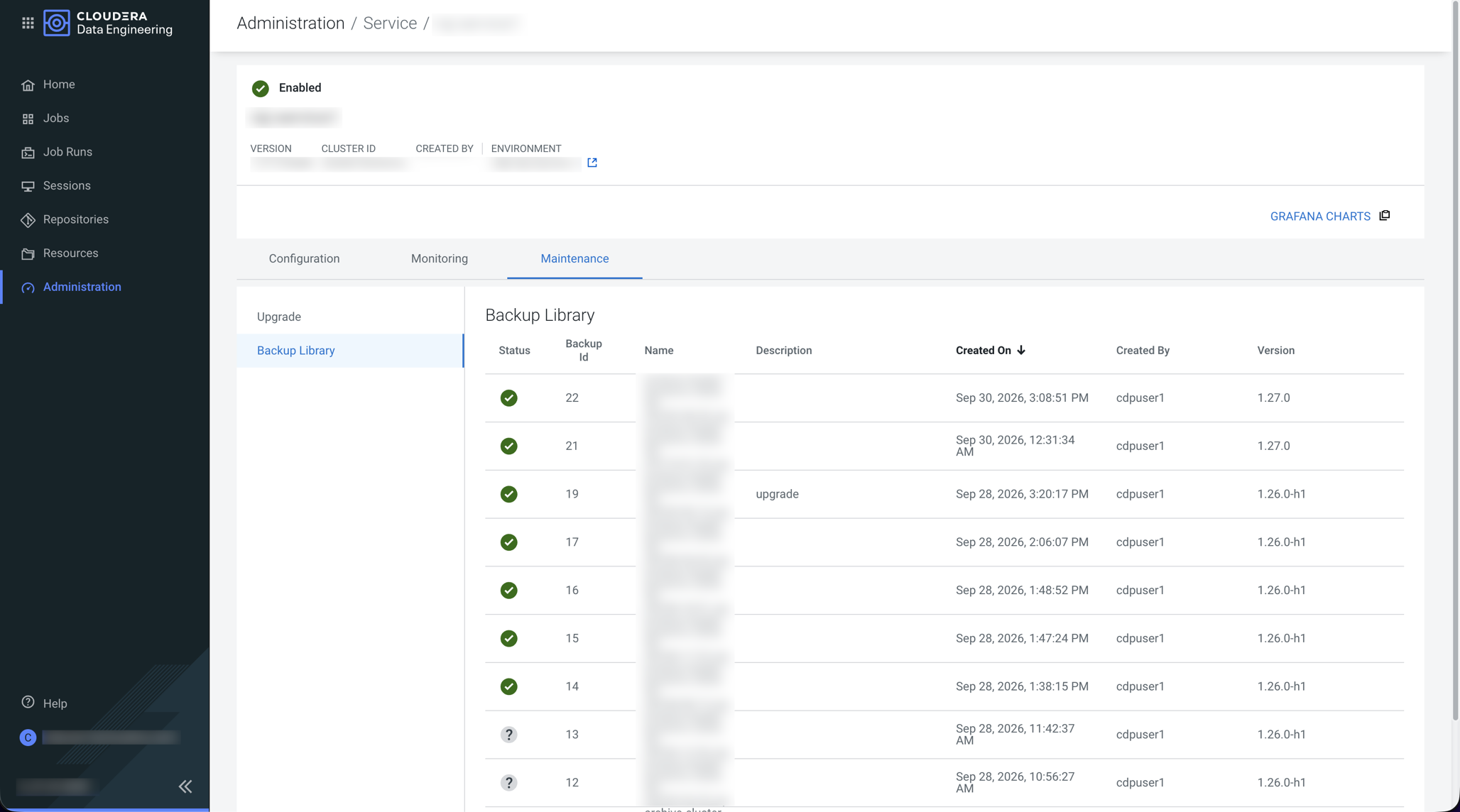
Optional: When the backup is complete, to view the backup that was created, select
Backup Library.
Click Start Upgrade.
A progress message in the UI displays the current step out of the total number
of upgrade steps.
After the upgrade is complete, to enable all paused jobs and sessions, click
Resume Service.
The service restarts.
After the upgrade is complete and you resumed the service, the service operates on
the upgraded version of Cloudera Data Engineering. If you cancel the upgrade,
your service resumes the previous state, which enables all paused jobs and resumes all
sessions.