Installing in Internet-connected environment
Install Cloudera on premises containerized clusters in an Internet-connected environment using Cloudera Manager to automatically pull deployment images and configure local Kubernetes namespace assets.
- Your Kubernetes
kubeconfigmust have permissions to create Kubernetes namespaces. - You must have persistent storage classes defined in your OpenShift cluster. These can be configured by OpenShift cluster administrators.
- Only TLS-enabled custom Docker Registry is supported. You must use a TLS certificate to secure the custom Docker Registry. The TLS certificate can be self-signed, or signed by a private or public trusted Certificate Authority (CA).
- Only TLS 1.2 is supported for authentication with Active Directory/LDAP. You must use TLS 1.2 to authenticate the Cloudera Control Plane with your LDAP directory service such as Active Directory.
- OpenShift Container Platform network configurations that restrict pod communication are not supported. For example, multi-tenancy isolation with network policy is not supported.
- You must ensure that the administrator credentials comply with the following
policies:
- Username: Must be 1-128 characters long. Allowed characters are alphanumeric characters, dashes (-), underscores (_), and periods (.)
-
Password: Must be at least 8 characters long and contain at least one uppercase letter, one number, and one special character (
'#', '&', '*', '$', '%', '@', '^', '.',
                                    '_','!'
-
In Cloudera Manager, on the top right corner, click . The Select Cluster Type page is
displayed.
Figure 1. Add Cluster option in the Add drop-down menu 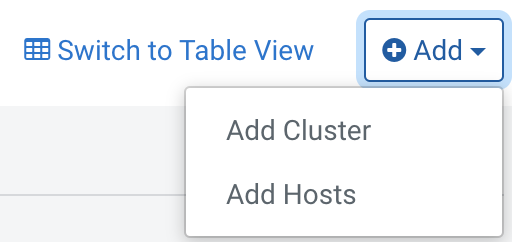
-
On the Select Cluster Type page, select the cluster type
as Cloudera on Premises Containerized Cluster. In
Other Options, click here to
install Cloudera Data Services on premises, then click
Continue.
Figure 2. Add Cloudera on Premises Containerized Cluster page 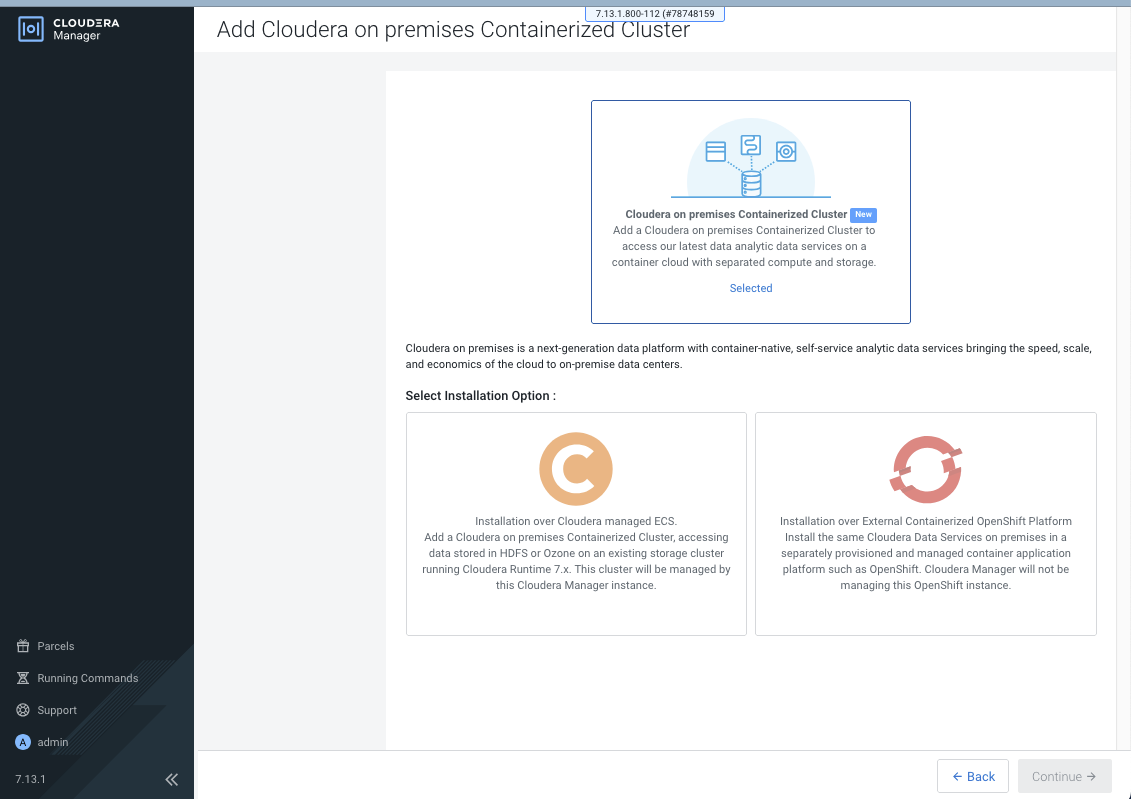
-
On the Getting Started page of the installation wizard,
configure your installation pathway. . . Click
Next.
- Select Internet as the Install Method.
- Optional: To use a custom repository link provided by Cloudera, click Custom Repository.
- Optional: To apply a configuration template from a past installation, click Apply Previously Downloaded Template to browse and upload a template from your machine.
- Verify the prerequisites for the version you are installing.
- Click Next.
Figure 3. Getting Started page with the Internet Install Method selected 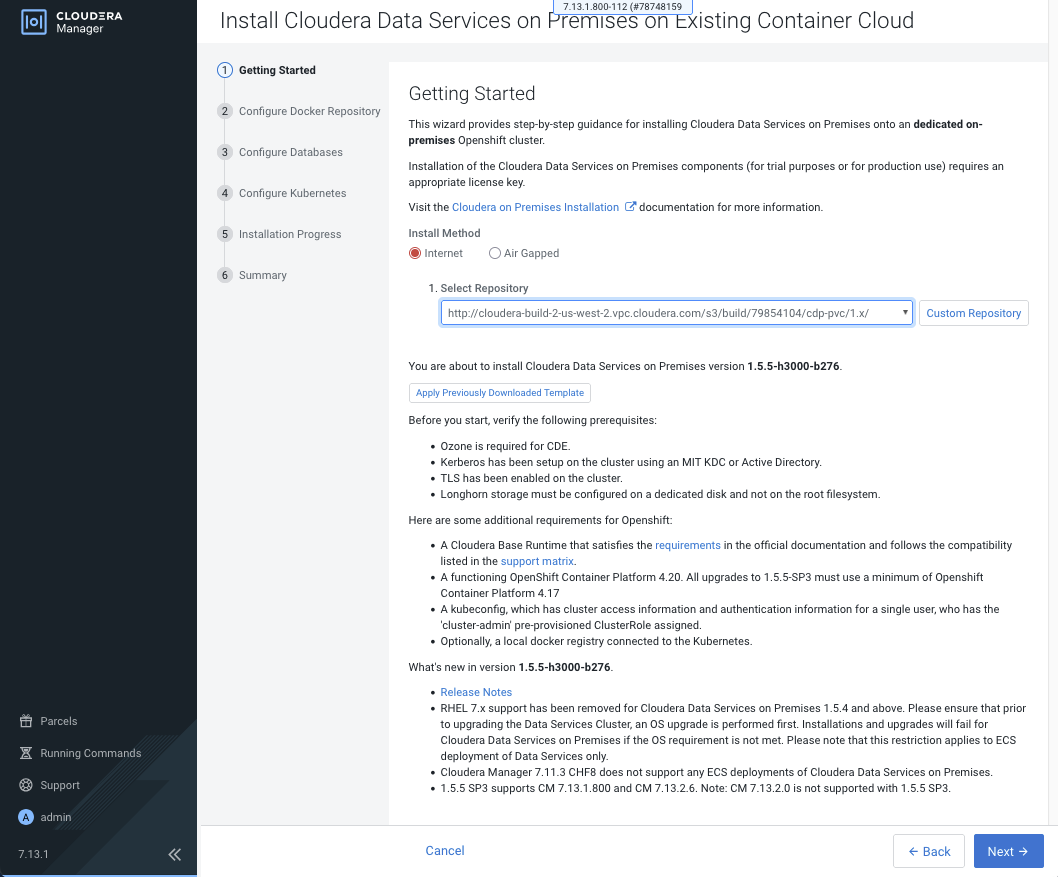
-
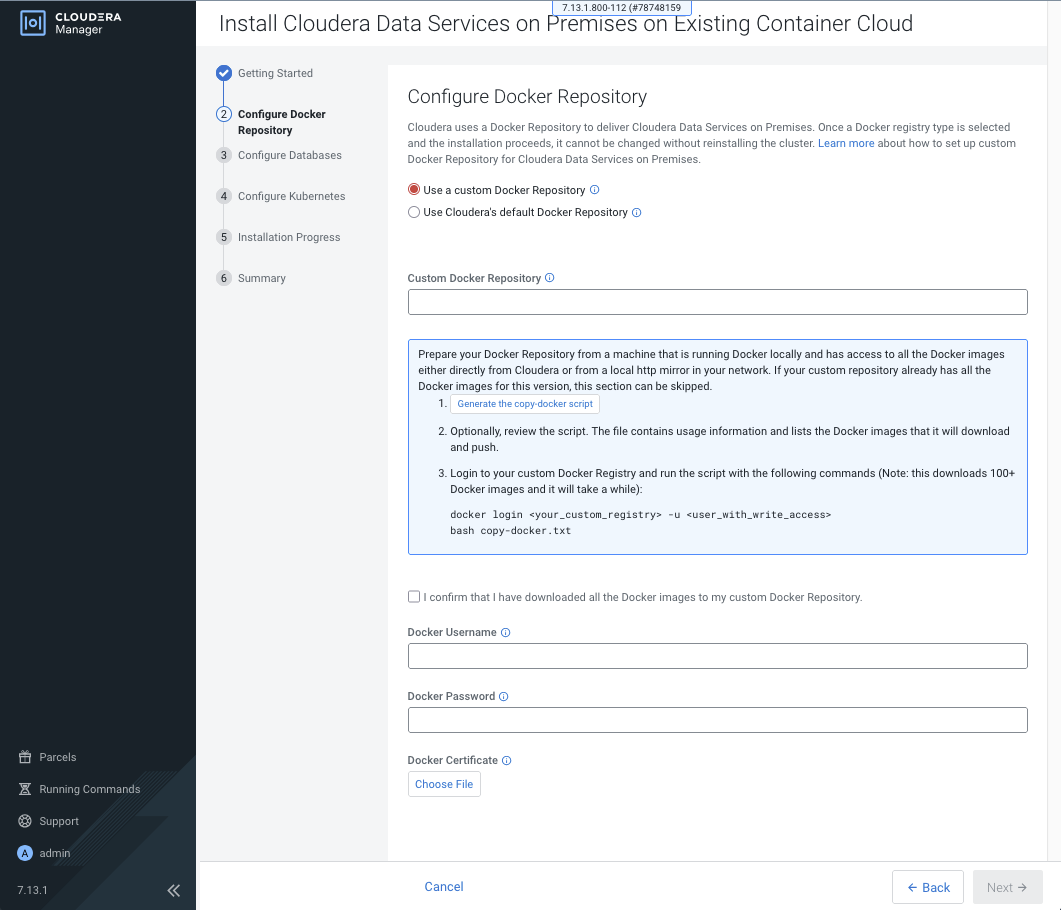
On the Configure Docker Repository page, select one of
the following Docker repository options:
- Select the Use a custom Docker Repository option
to copy all images
(Internet
or Air Gapped) to the embedded
registry.
- Enter your local Docker Repository in the Custom Docker Repository field in the following format: [*DOCKER REGISTRY*]/[*REPOSITORY NAME*]
- Optional: If your registry doest not yet contain all the required
Docker images, prepare your Docker Repository from a machine that is
running Docker locally and has access to all the Docker images
either directly from Cloudera
or a local HTTP mirror in your network.
- Click Generate the copy-docker script on the wizard or download the script file.
- Log in to your custom Docker Registry and run the
script.
docker login <your_custom_registry> -u <user_with_write_access>
bash copy-docker.txt
- Select the I confirm that I have downloaded all the Docker images to my custom Docker Repository. checkbox.
- Enter your Docker Username and Docker Password.
- Click Choose File to upload your Docker certificate.
- Click Next.
Figure 4. Configure Docker Repository page with the Use a custom Docker Repository option selected 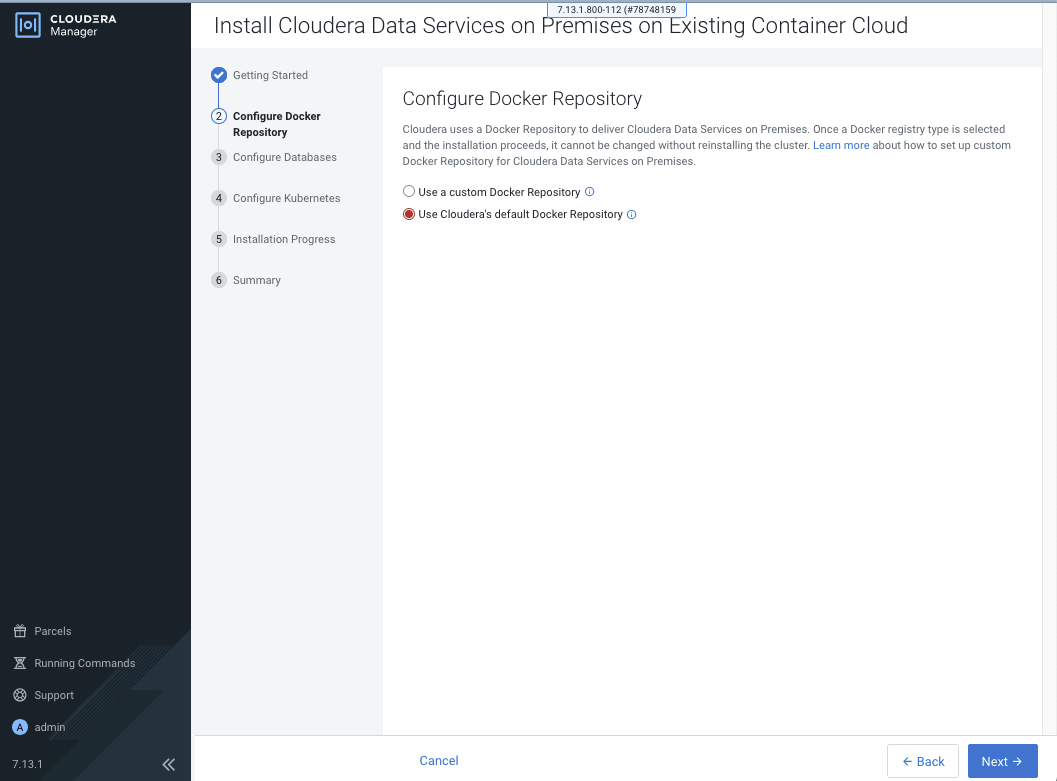
- Select the Use Cloudera's default Docker Repository option to copy images from
Internet to the embedded registry. This uses the default repository that is
in the manifest.json file. This option can be selected
only if you have selected Internet as the
installation method.
Use this option if you are setting up Cloudera on premises in non-production environments.
- Select the Use a custom Docker Repository option
to copy all images
(Internet
or Air Gapped) to the embedded
registry.
-
On the Configure Databases page, click
Next.
Figure 5. Configure Databases page 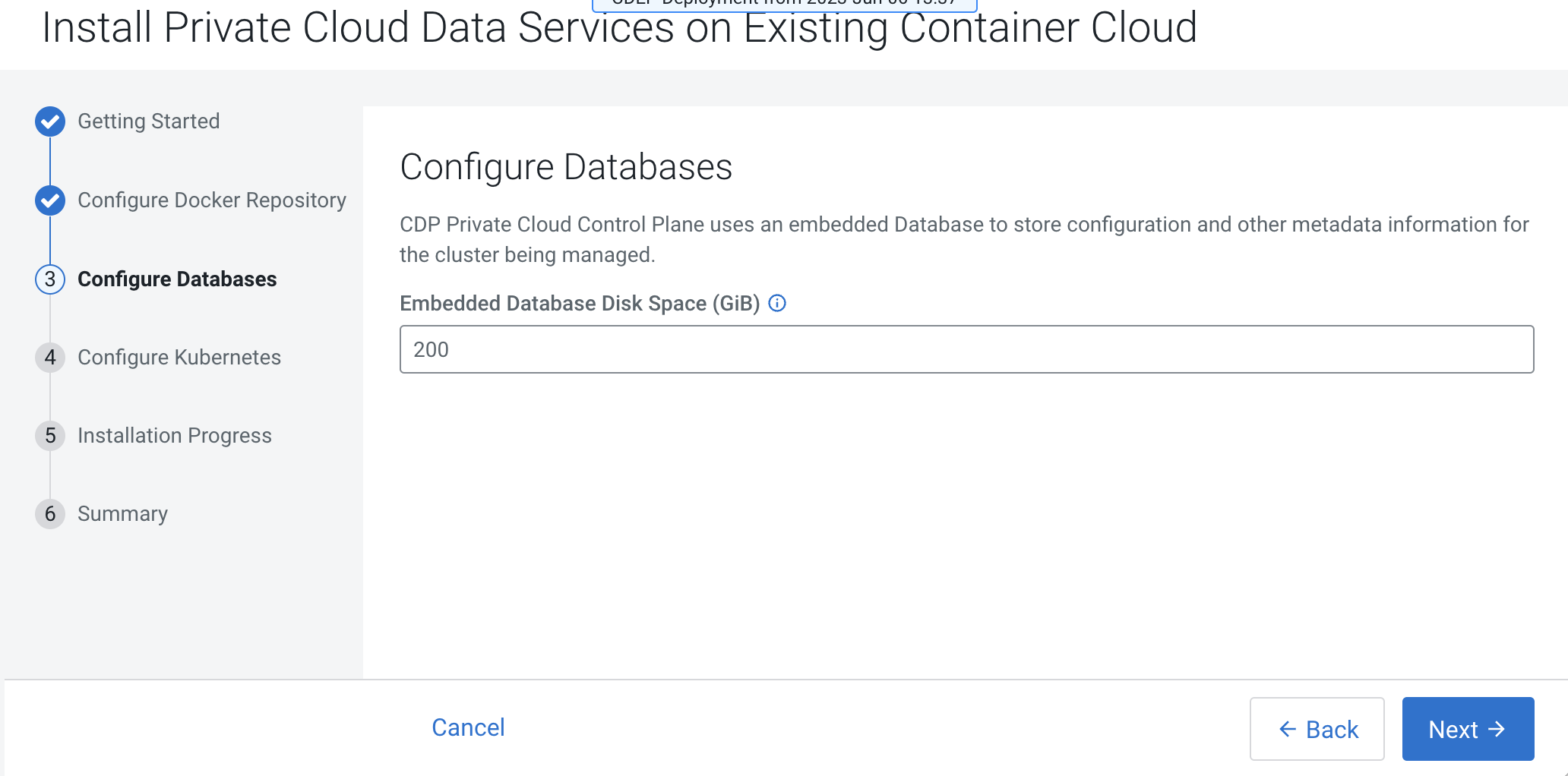
-
On the Configure Kubernetes page, specify the
information about Kubernetes, Docker, database, and vault information.
-
If you want to use this installation configuration again to install Cloudera on premises, download this
information as a template.
Figure 6. Download as Template button 
The template file is a text file that contains the database and vault information that you entered for this installation. This template is useful if you install on premises again with the same databases, as the template populates the fields on the Configure Kubernetes page automatically. The user password information is not saved in the template.
Figure 7. Configure Kubernetes page 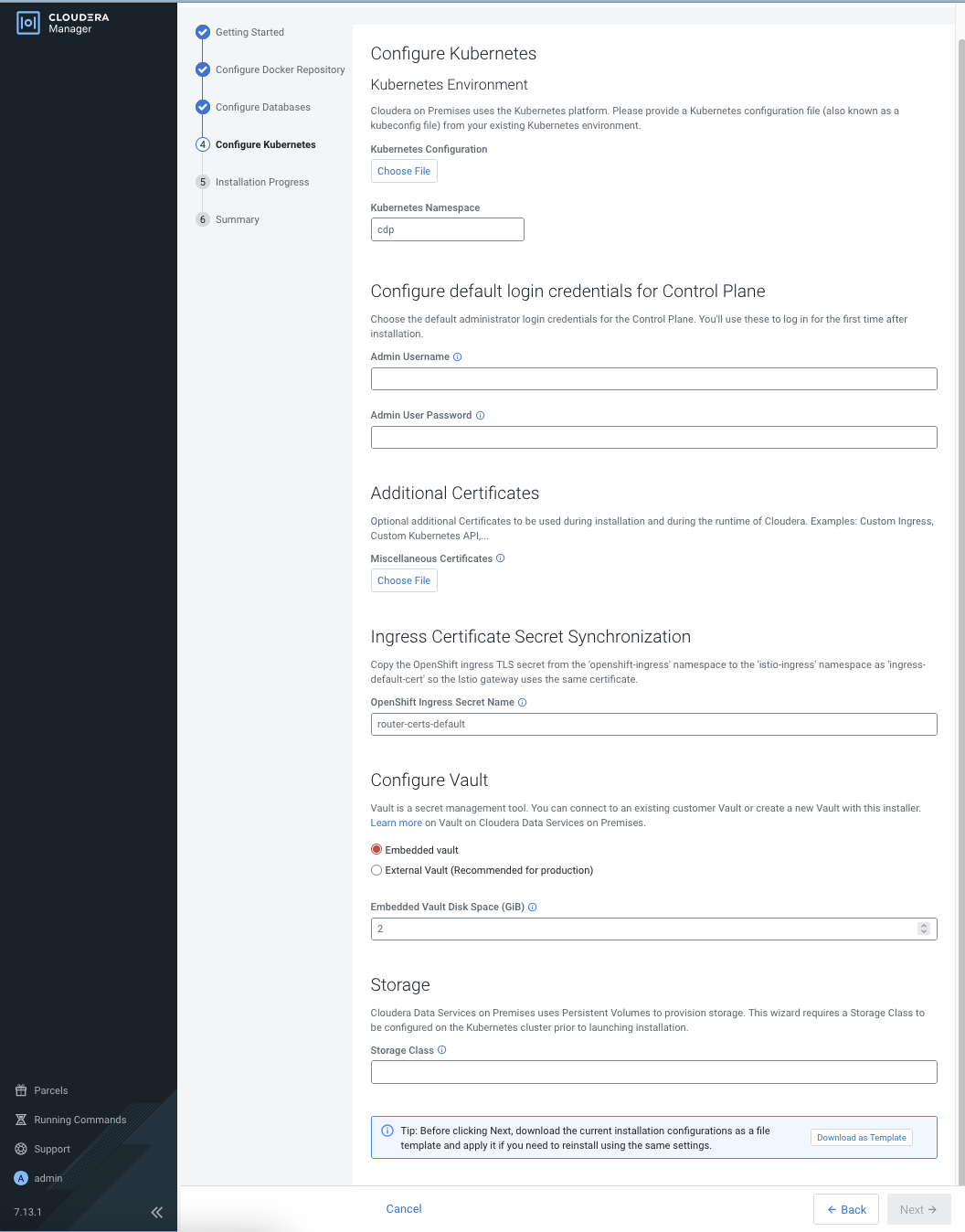
-
If you want to use this installation configuration again to install Cloudera on premises, download this
information as a template.
-
The Installation Progress page displays the installation
progress. When the installation is complete, click
Next.
Figure 8. Installation Progress page 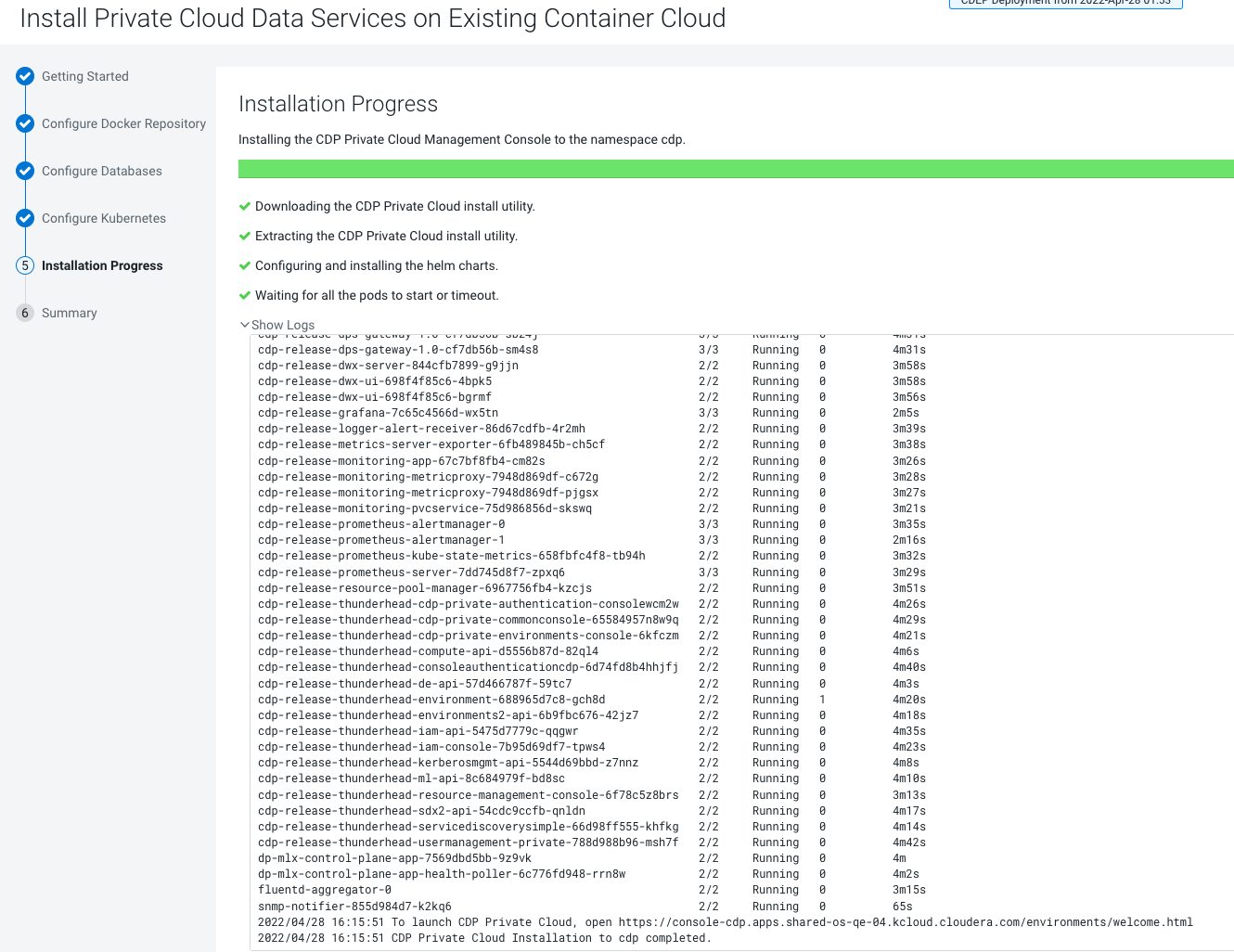
-
The Summary page displays a message with a link to
Launch Cloudera on premises.
Figure 9. Launch Cloudera on Premises button on the Summary page 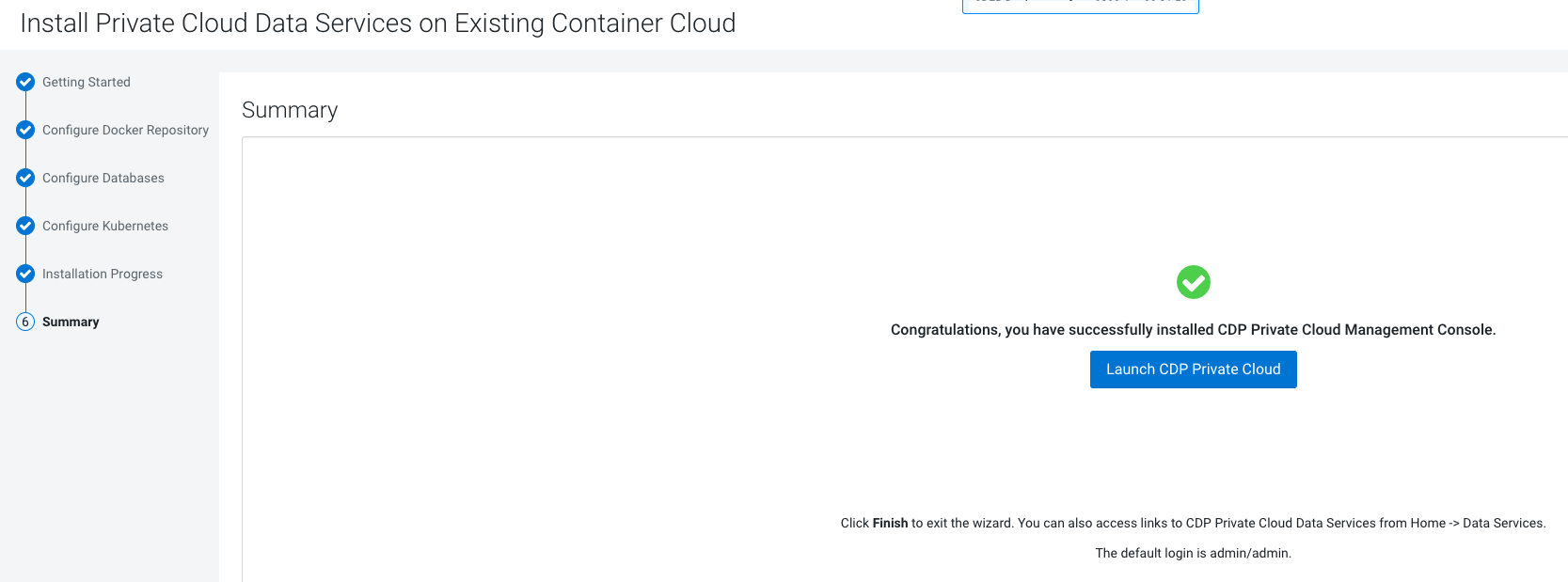
- Click Launch Cloudera on premises to launch your Cloudera on premises.
- Log in using the previously provided username and password.
- Set up external authentication using the URL of the LDAP server and a CA certificate of your secure LDAP. Follow the instructions on the Welcome to Cloudera on premises page to complete this step.
- Click Test Connection to ensure that you are able to connect to the configured LDAP server.
- Register a Cloudera on premises environment
- Create your first Virtual Warehouse in the Cloudera Data Warehouse Data Services
- Provision an Cloudera AI Workbench in the Cloudera AI Data Services
