Configuring IAM role access for Iceberg replication

Iceberg replication in Data Lakes using AWS relies on AWS IAM role management. You must configure the required IAM role access for the Replication Manager users before you use or create Iceberg replication policies.

The following IAM role access permissions must be configured and available:
IAM Role Required Permissions
Source IAM role
  • Read and write permission for the staging bucket.
  • Write permissions to the target bucket and target location mappings (when specified) if the DistCp jobs run on the source.
Target IAM role
  • Read and write permissions for the staging bucket.
  • Read permissions to the source bucket and source location mappings (when specified) if the DistCp jobs run on the target.
  1. Verify whether the correct IAM role has been assigned and is available on the source and target.
    1. For the source IAM role verification, go to the Management Console > Data Hubs > > [*** CHOOSE YOUR ENVIRONMENT ***] > Cloudera Manager page.
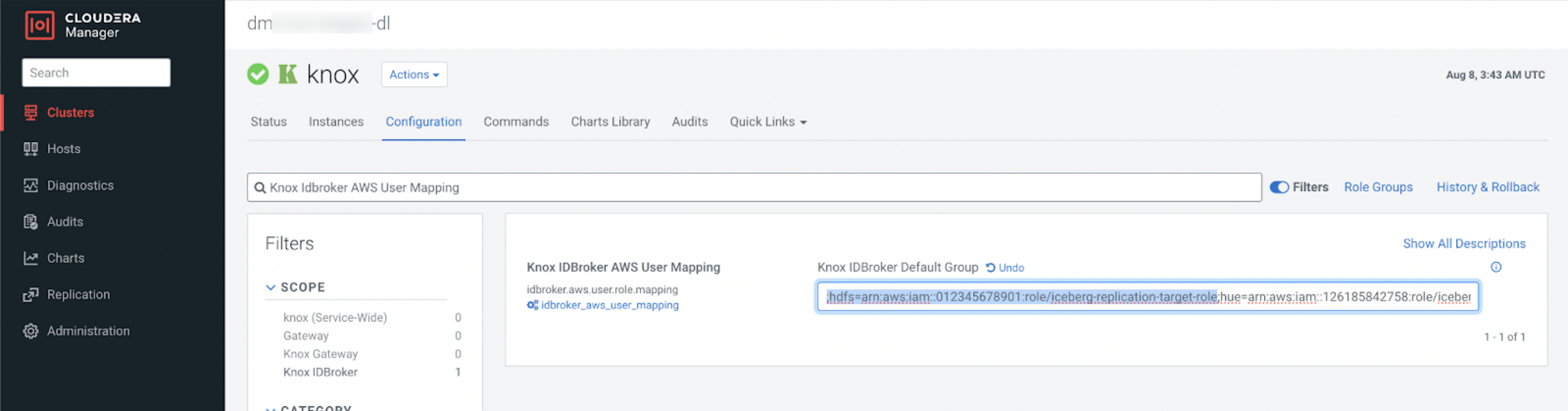
    2. Go to the Clusters > Knox > Configuration > Knox Idbroker AWS User Mapping advanced configuration snippet.
    3. Verify whether the advanced configuration snippet displays the required details.
      Iceberg replication uses the hdfs user mapping for IAM role mapping.

      The following image shows the advanced configuration snippet with sample list of AWS user-role mapping:

      Figure 1. Knox IDBroker AWS User Mapping advanced configuration snippet details
      The image shows the General page in the Create Replication Policy wizard. Choose HBase option to continue creating a HBase replication policy.
    4. For the target IAM role verification, go to the Management Console > Data Hubs > > [*** CHOOSE YOUR ENVIRONMENT ***] > Cloudera Manager page.
    5. Go to the Clusters > Knox > Configuration > Knox IDBroker AWS User Mapping advanced configuration snippet.
    6. Verify whether the advanced configuration snippet displays the required details.

      Iceberg replication uses the hdfs user mapping for IAM role mapping.
  2. Configure the IAM role access in the AWS Console.
    1. Log in to the AWS Console.
    2. Go to the Services > IAM page.
      Identity and Access Management (IAM) appears on the left pane.
    3. Go to Identity and Access Management (IAM) > Access Management > Roles.
      The Roles section is displayed on the right pane.
    4. Search for the IAM role displayed in the Knox Idbroker AWS User Mapping advanced configuration snippet.
      For example, iceberg-replication-target-role. The role is displayed in the search results.
    5. Click on the role to view the role details.
    6. Go to the Permissions tab to view the list of existing permissions for the role.
    7. Expand each permission by clicking the permission.
      Ensure that each permission allows all S3 actions on the warehouse location, staging location, or mapping location.

      For example, the permission might display The permission sets listed below are valid only in the event that DistCp is run on the source when you click it.

    8. For the source IAM role, add the read and write permissions for the staging bucket, and add the write permissions to the target bucket so that the DistCp jobs when run on the source can copy (write) the files to the target bucket. Use the following snippet to perform this action:
      {
      "Sid": "stagingLocationAccess",
      "Effect": "Allow",
      "Action": "s3:*",
      "Resource": [
      "arn:aws:s3:::iceberg-replication-staging-bucket",
      "arn:aws:s3:::iceberg-replication-staging-bucket/*"
      ]
      },
      {
      "Sid": "TargetWarehouseAccess",
      "Effect": "Allow",
      "Action": "s3:*",
      "Resource": [
      "arn:aws:s3:::iceberg-replication-target-bucket",
      "arn:aws:s3:::iceberg-replication-target-bucket/*"
      ]
      },
      {
      "Sid": "ReadOnlyAccessForFromPath-LocationMapping",
      "Effect": "Allow",
      "Action": [
      "s3:Get*",
      "s3:List*",
      "s3:Describe*"
      ],
      "Resource": [
      "arn:aws:s3:::location-mapping-bucket-source-1",
      "arn:aws:s3:::location-mapping-bucket-source-1/*",
      "arn:aws:s3:::location-mapping-bucket-source-2",
      "arn:aws:s3:::location-mapping-bucket-source-2/*",
      "arn:aws:s3:::location-mapping-bucket-source-3",
      "arn:aws:s3:::location-mapping-bucket-source-3/*"
      ]
      },
      
      
      {
      "Sid": "ReadAndWriteAccessForToPath-LocationMapping",
      "Effect": "Allow",
      "Action": [
      "s3:*"
      ],
      "Resource": [
      "arn:aws:s3:::location-mapping-bucket-target-1",
      "arn:aws:s3:::location-mapping-bucket-target-1/*",
      "arn:aws:s3:::location-mapping-bucket-target-2",
      "arn:aws:s3:::location-mapping-bucket-target-2/*",
      "arn:aws:s3:::location-mapping-bucket-target-3",
      "arn:aws:s3:::location-mapping-bucket-target-3/*"
      ]
      }
      
    9. For the target IAM role, add the read and write permissions for the staging bucket. Use the following snippet to perform this action:
      {
      "Sid": "stagingLocationAccess",
      "Effect": "Allow",
      "Action": "s3:*",
      "Resource": [
      "arn:aws:s3:::iceberg-replication-staging-bucket",
      "arn:aws:s3:::iceberg-replication-staging-bucket/*"
      ]
      },
      {
      "Sid": "ReadAndWriteAccessForToPath-LocationMapping",
      "Effect": "Allow",
      "Action": [
      "s3:*"
      ],
      "Resource": [
      "arn:aws:s3:::location-mapping-bucket-target-1",
      "arn:aws:s3:::location-mapping-bucket-target-1/*",
      "arn:aws:s3:::location-mapping-bucket-target-2",
      "arn:aws:s3:::location-mapping-bucket-target-2/*",
      "arn:aws:s3:::location-mapping-bucket-target-3",
      "arn:aws:s3:::location-mapping-bucket-target-3/*"
      ]
      }