Managing agent parameters using the Cloudera Edge Management UI
Learn how to configure parameters for individual agents and override flow parameters on the agent-level, enabling more granular configuration within an agent class.
-
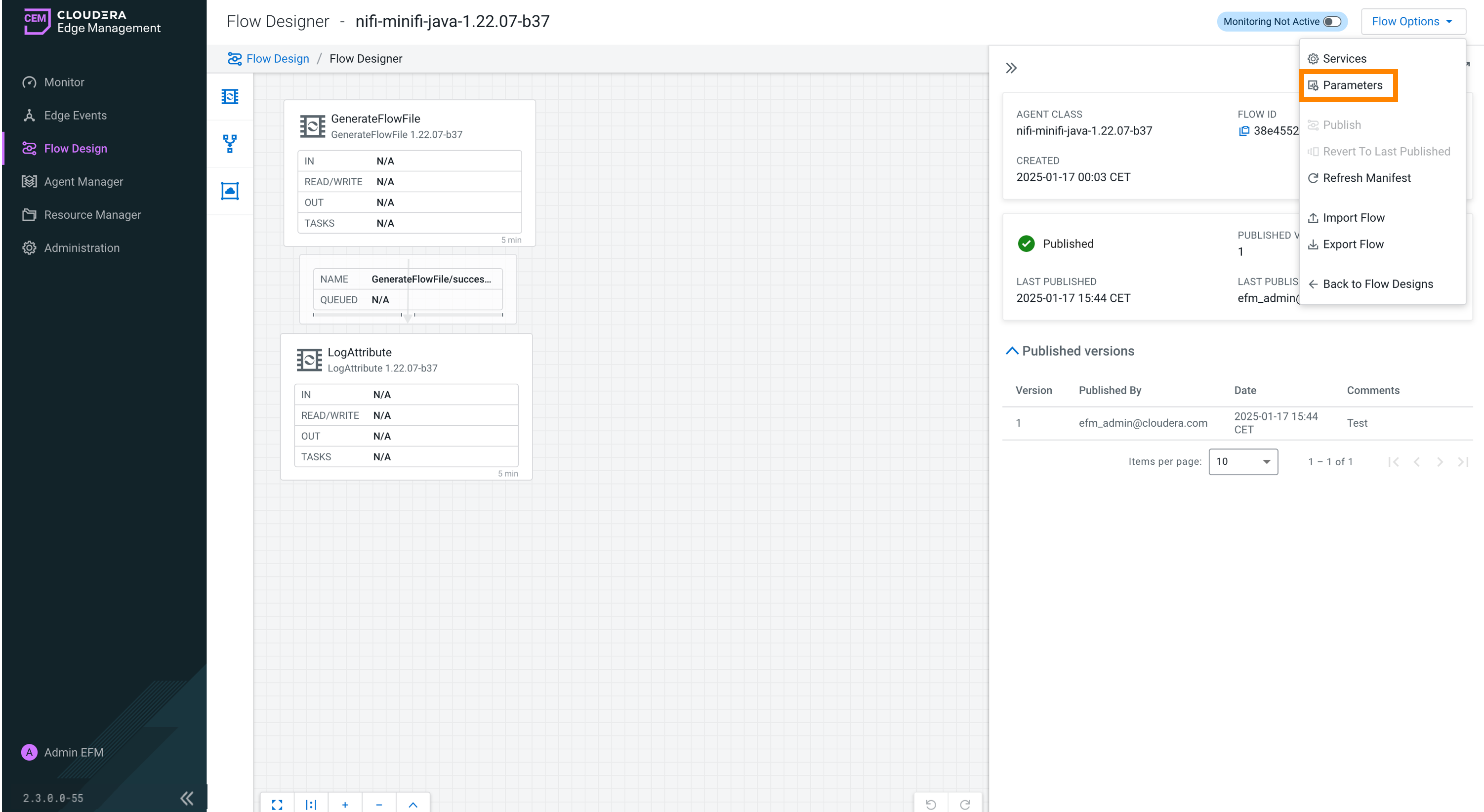
Click from the drop-down menu in the upper-right corner to access the
parameter management interface.
-
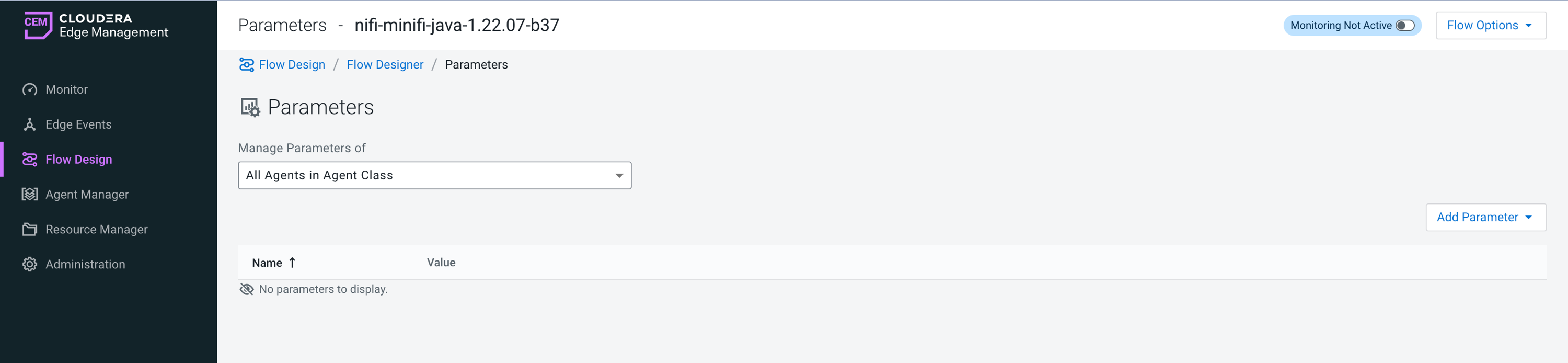
Use the Manage Parameters of dropdown menu to filter
parameters by scope.
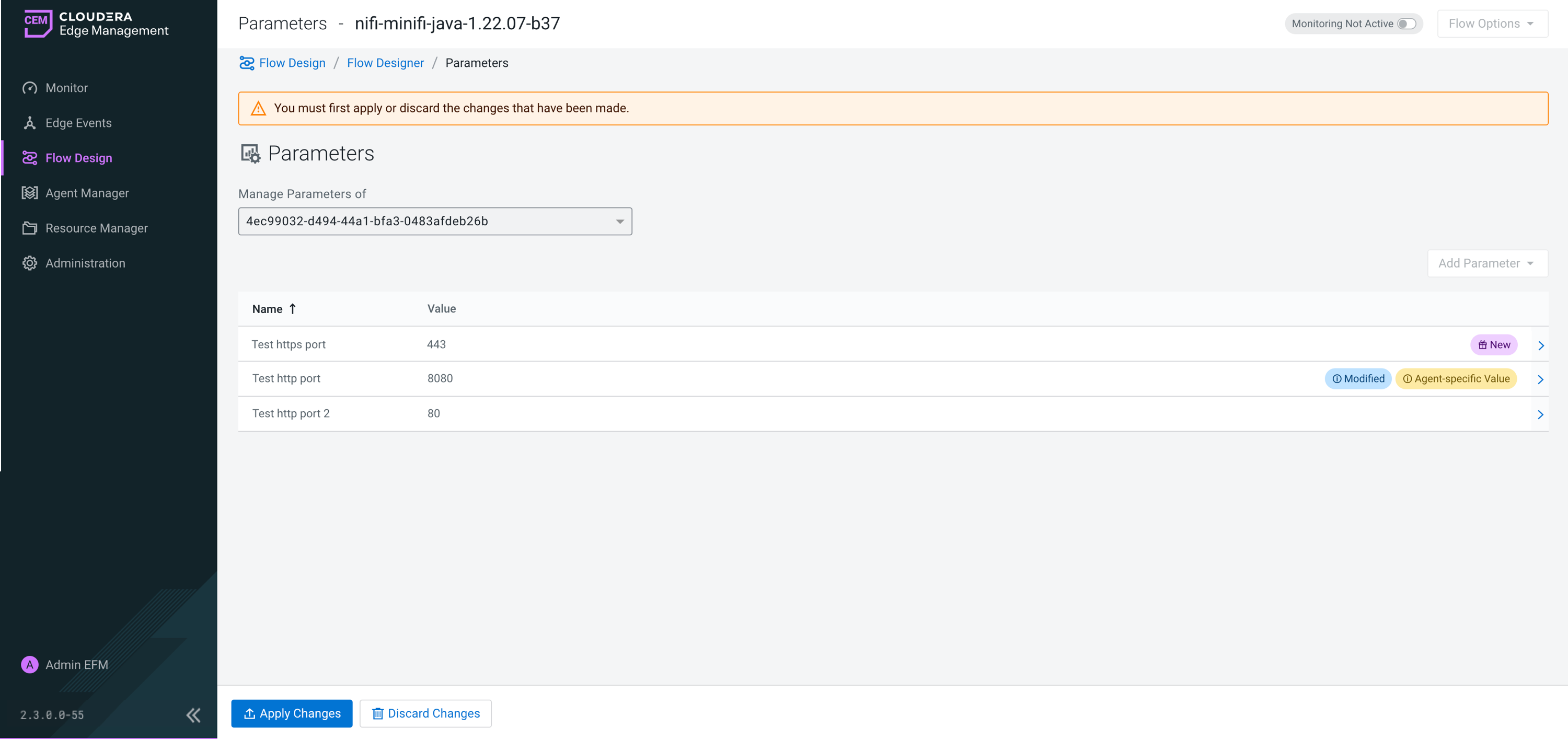
- You can view parameters for all agents in an agent class.
- You can filter and display parameters for a specific agent.
-
To modify a parameter value:
- Click the arrow icon at the end of the parameter row to open the parameter editor on the right-hand side.
- Update the Value field as needed.
- Optional: Set the parameter to an empty string by selecting the Set empty string checkbox.
- Close the parameter editor panel.
You can identify the changes in the parameter list by the badges displayed.
- New
- Indicates a newly added parameter.
- Modified
- Indicates the parameter value has been changed.
- Agent-specific Value
- Highlights that the parameter has a custom value unique to the selected agent.