Edge Flow Manager user interface
The Edge Flow Manager user interface (UI) provides a centralized platform to design, deploy, and monitor dataflows and edge agents.
- Build, edit, publish, and revert dataflows
- Monitor deployments and agent activity
- Manage agents, resources, and access control
- Start the application.
- Open a web browser and navigate to
http://<hostname>:10090/efm/ui.
Monitor
Select Monitor in the left navigation to open the Dashboard. This page provides an overview of C2 server status and agent deployments.
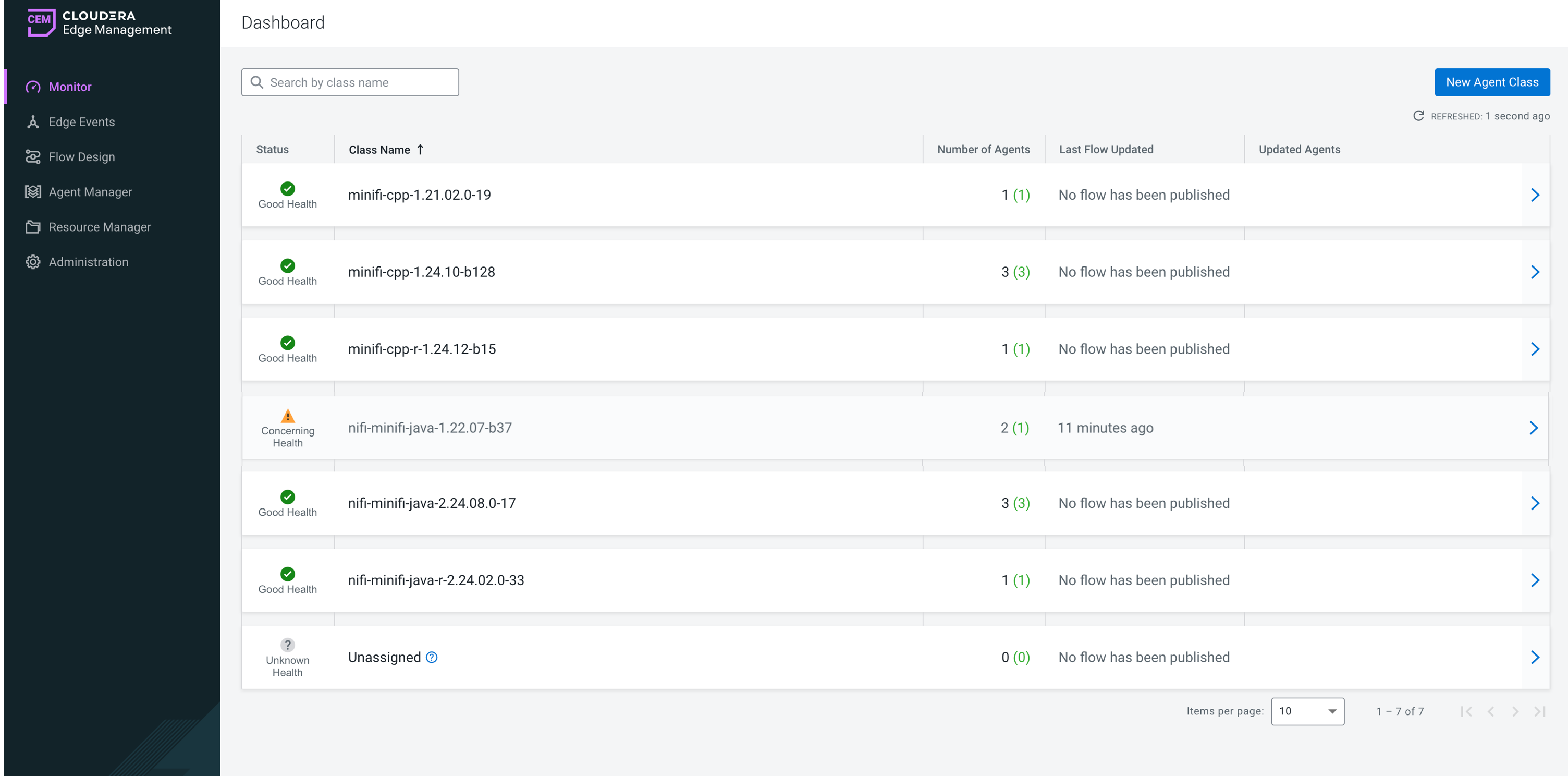
For more information on how to monitor deployments and other related actions, see Managing deployments in Cloudera Edge Management.
Edge Events
Select Edge Events in the left navigation to open the Edge events view, which displays the list of events generated by the C2 server and agent events.
- Track agent activity
- Investigate issues and system events
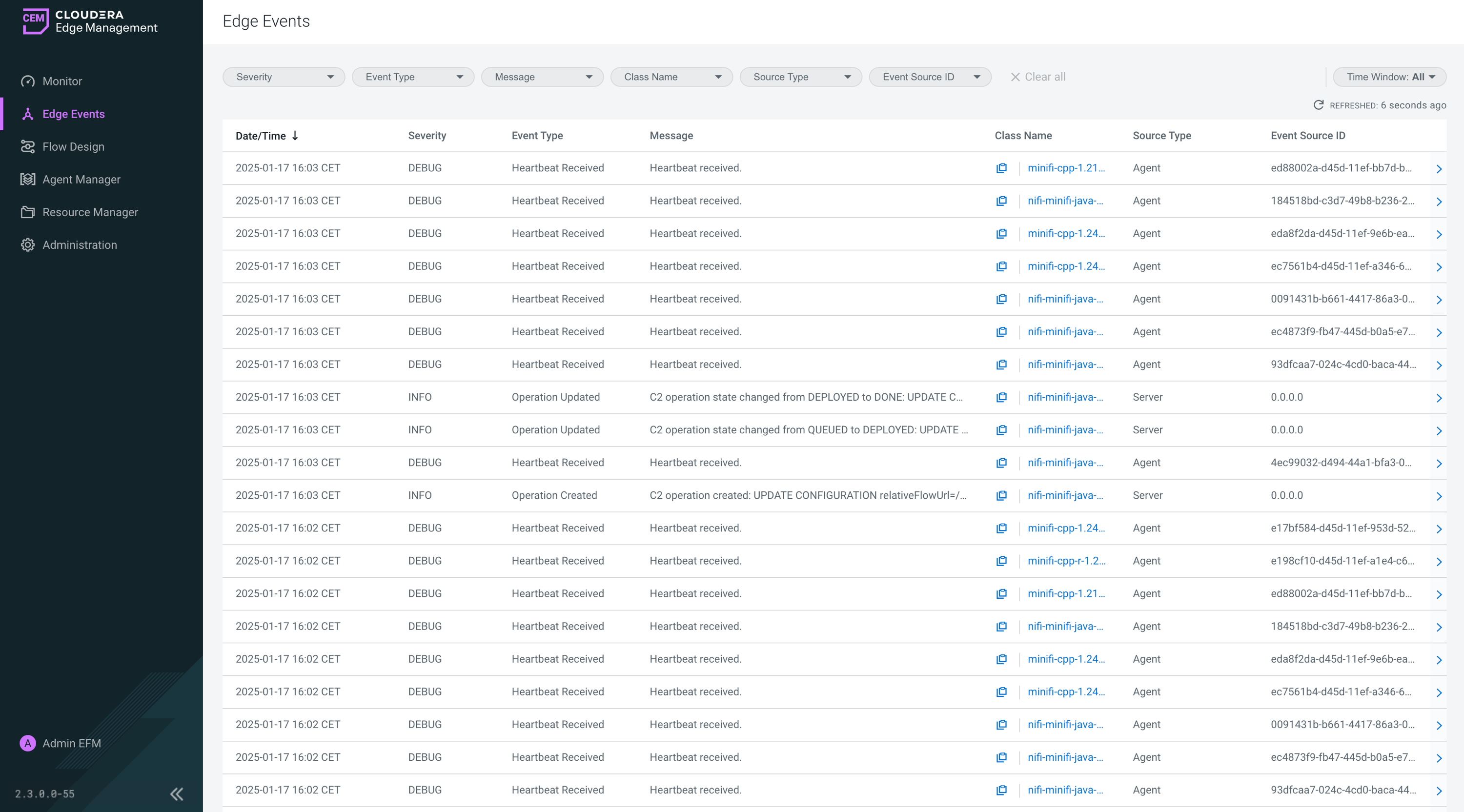
For more information on how to monitor server and agent events, see Monitoring events in Cloudera Edge Management.
Flow Design
Select Flow Design in the left navigation to open the Flow Design view that allows you to build and publish dataflows in Cloudera Edge Management.
- Status
- Class
- Published Version
- Published On
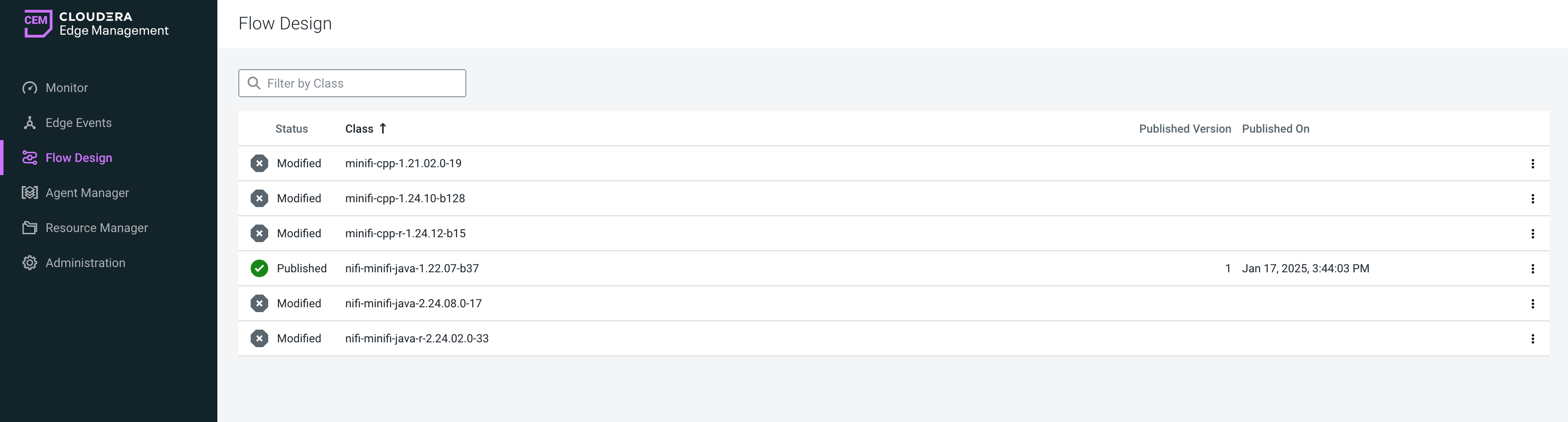
You can sort data in each column in ascending or descending order by clicking the column header.
You can filter flows by class by using the Filter by Class field.
Flow Designer
To edit a dataflow, click the arrow at the end of a class row or double-click the class name. This opens the Flow Designer.
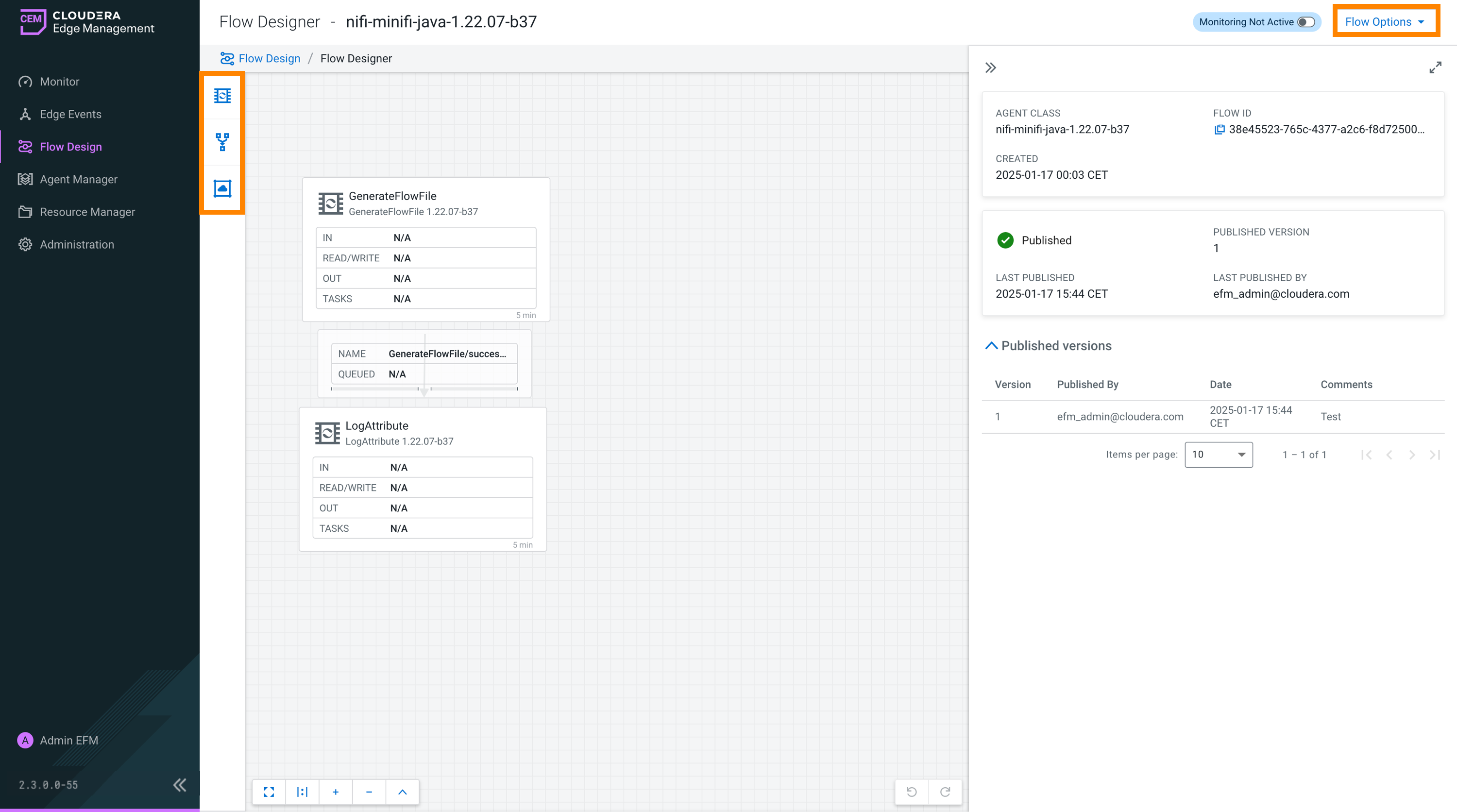
Components toolbar
Located on the left side of the canvas, the toolbar contains the main components (processor, funnel, remote processor group) you need to design your dataflow. You can drag these components onto the canvas to build your flow.
Flow options menu
Located in the top-right corner of the screen, the Flow Options menu provides actions for managing your dataflow:
- Services: Access shared services for processor configurations or task operations
- Parameters: Manage parameters for configuring processor and service properties
- Publish: Publish the current flow version
- Revert to Last Published: Restore the last published version of the flow
- Refresh Manifest: Synchronize manifest changes
- Import Flow: Import an existing flow
- Export Flow: Export the current flow for reuse or backup purposes
- Back to Flow Designs: Return to the main Flow Designs page
- Building a dataflow in Cloudera Edge Management
- Publishing a dataflow in Cloudera Edge Management
Monitoring dataflows
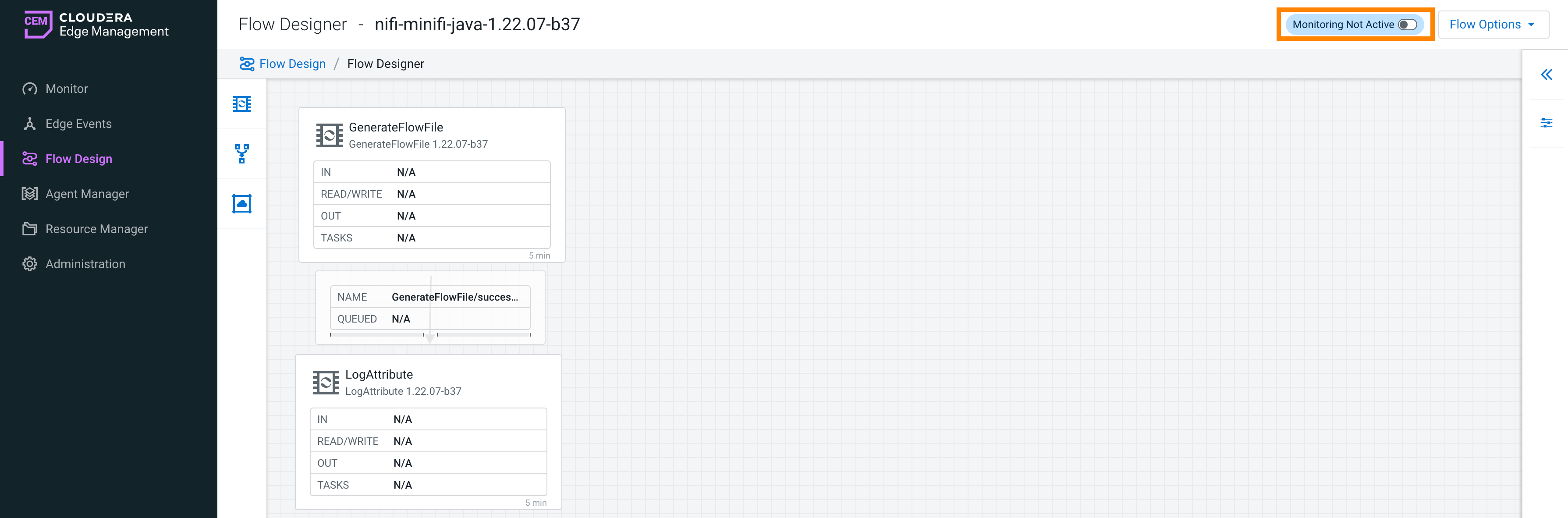
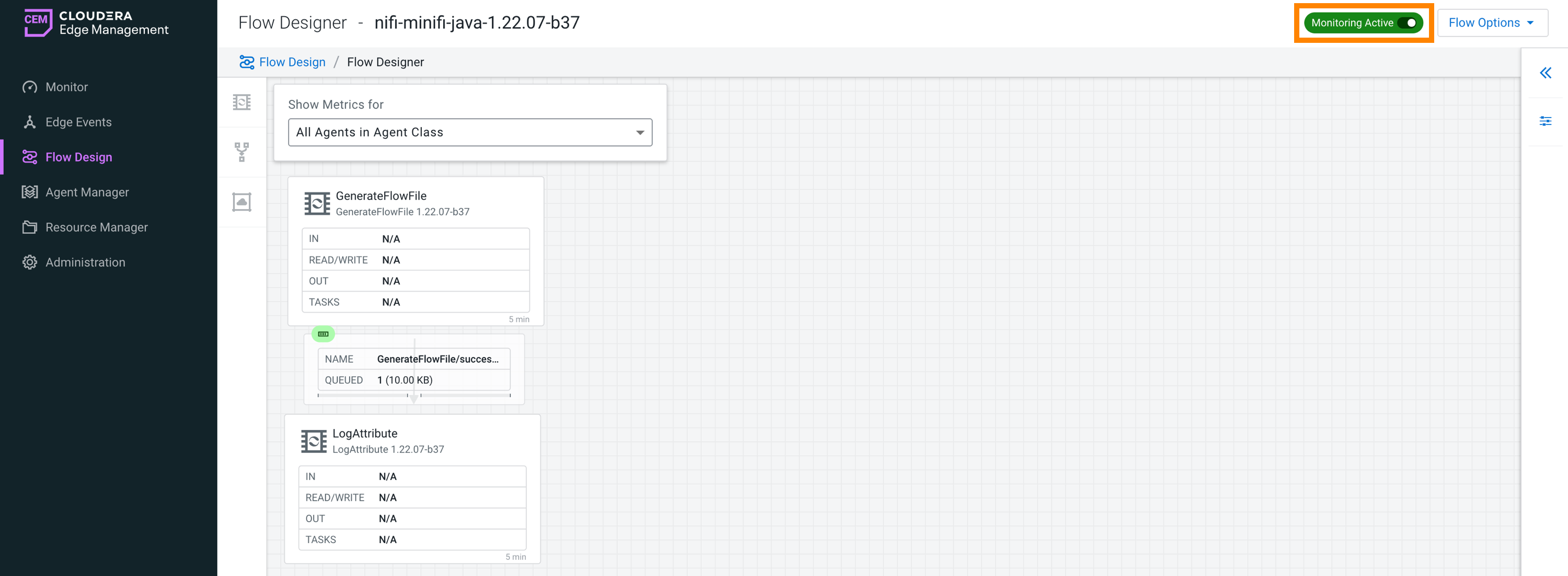
The monitoring view provides a read-only, near real-time view of a running flow.
Use it to:
- Observe processor, connection, and queue behavior
- Identify bottlenecks or issues
While this view is similar in appearance to the Flow Designer interface and can be accessed from the Flow Designer, it operates in a read-only mode, ensuring that no modifications can be made to the flow during monitoring.
- Editing mode: Modify the flow
- Monitoring mode: View runtime behavior
- All agents in a class (aggregated view)
- A specific agent (detailed view)
Agent Manager
Select Agent Manager in the left navigation to open a centralized view to monitor the health and status of agents.
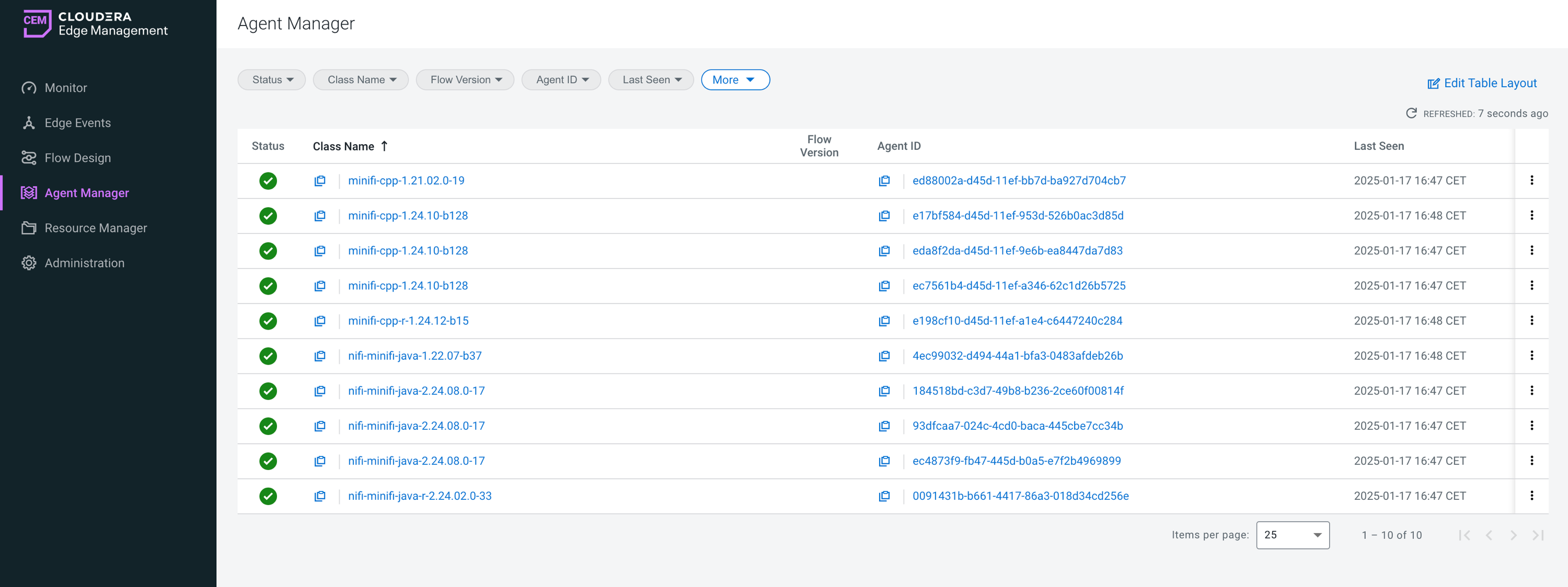
The Agent Manager allows you to:
- View and filter agents based on specific criteria
- Monitor agent health and activity
- Initiate commands on one or more agents
For more information, see Managing agents in Cloudera Edge Management.
Resource Manager
Select Resource Manager in the left navigation to open a view that enables you to manage assets and extensions in Cloudera Edge Management.
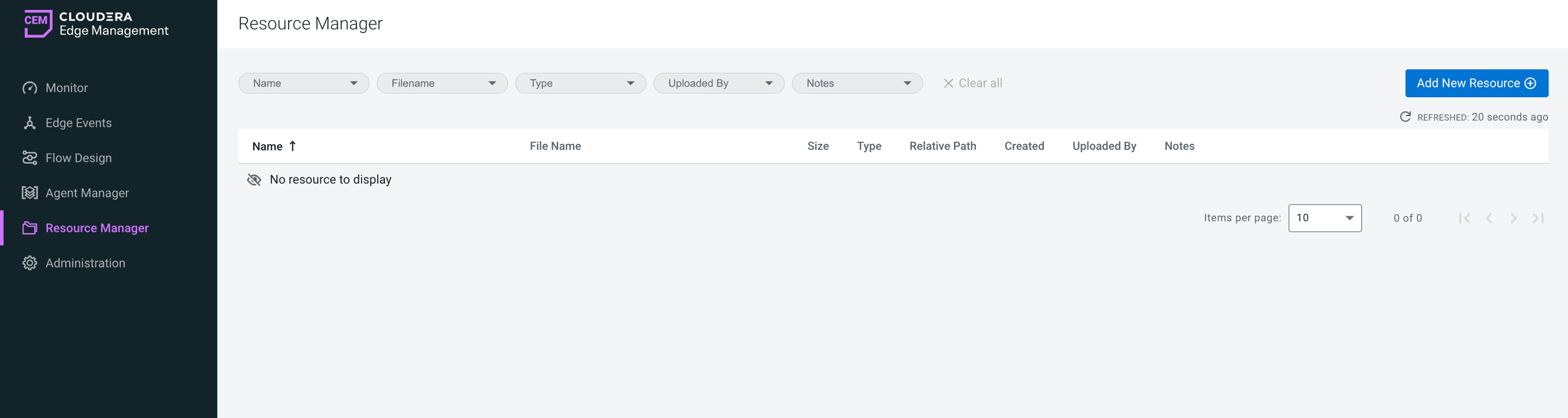
- Upload new resources
- Manage existing resources
For more information on how to work with resources, see Managing resources in Cloudera Edge Management.
Administration
Select Administration in the left navigation to open the Administration view for managing access control using role-based authorization.
Role-based authorization means that access is granted based on roles assigned to agent classes, determining what users can view and modify. These roles must be associated with authenticated users, ensuring secure and role-specific operations. The Administration screen allows you to manage user permissions and define access controls.
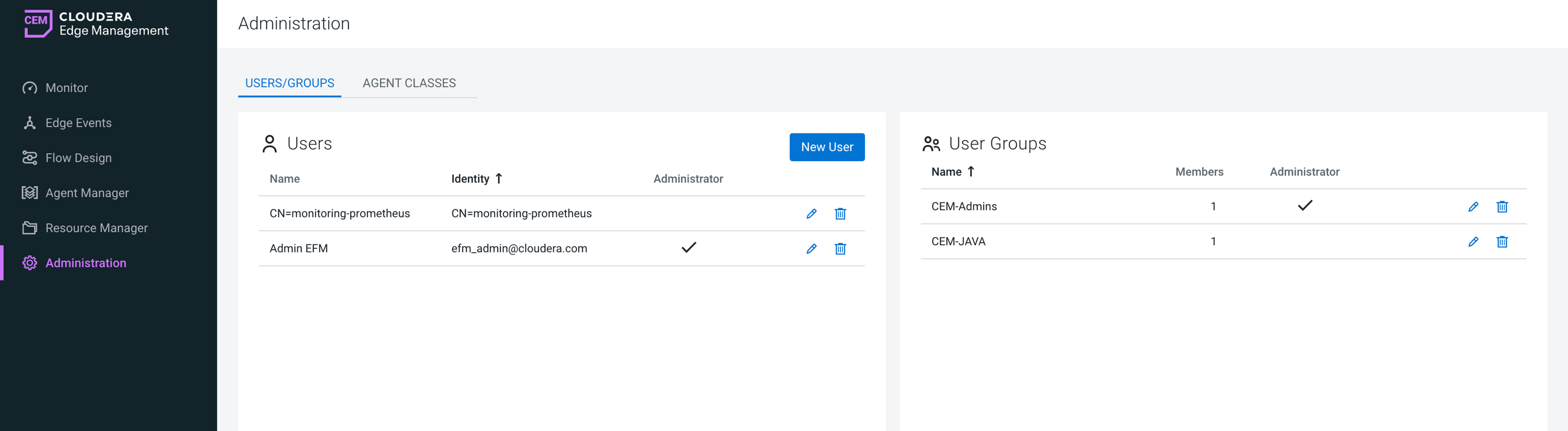
You can:
- Assign roles to users based on their access requirements
- Manage permissions for each user to ensure secure and controlled operations
- Associate roles with agent classes for fine-grained access control
For more information, see Access control policies.
