Migrating flows versioned with NiFi Registry [Technical Preview]
You can extend the Cloudera Flow Migration Tool workflow to migrate versioned flows and their NiFi Registry snapshots from NiFi 1 (Cloudera Flow Management 2.x) to NiFi 2 (Cloudera Flow Management 4.x). This process uses a dedicated Working Registry, registry dumps, and additional migration commands.
Registry migration is not a separate process; it builds on the same staged approach as flow migration. The Migration Tool migrates only the snapshots (saved flow versions in NiFi Registry) that are referenced, either directly or as nested registered flows, by the input flow.json or flow.json.gz, rather than entire registry repositories. Key commands used in this process include: migrate-registry, upgrade-flow, export-registry-result, and cleanup-working-registry.
Strategy overview
When migrating without handling Registry, the suggested migration strategy is the same as before. If the migrated flow contains versioned Process Groups, those will be migrated as regular Process Groups. If however, one wants to maintain consistency and handle versioned flows as distinct units, the following approach is suggested.
This approach has multiple merits:
- Helps partitioning the work and share load on different owners
- Multiple checkouts of the same registered flows are registered one time, without introducing inconsistencies and additional work
- Keeps the references consistent
- Resulting a dump which can be load into a NiFi Registry instance with minimal manual work
In order to apply this strategy and benefit from the merits, a different strategy is needed with the usage of both new and existing commands. As an end result you can expect both the flow to be migrated and a set of migrated snapshots ready to be imported into the target registries.
Prerequisites
- Properties
-
Configure registry-related properties in migration.tool.properties as described in Configuring the Cloudera Flow Migration Tool.
- Working registry
-
Stage 1 of registry migration works in an iterative manner not unlike flow migration. For flow migration, the result of a previous execution can be feed back to the Migration Tool after manual changes for further refinement. In case of registry migration, the result of the migration can be used as input for the next execution as well but instead of files, the Migration Tool commits the result of the execution into a NiFi Registry, called working registry. The reasons for this:
- A registry migration might result numerous migrated snapshots, making it hard to coordinate with the owners of the given snapshots
- Due to nested snapshots, migrating a registered flow can have affect on multiple others. Without a central place, these connections would be broken
As of these, the Migration Tool uses the concept of "Working Registry" to store the "intermediate results", for the timeframe of the migration effort. The working Registry must be a NiFi 1 (Cloudera Flow Management 2) based NiFi Registry instance running in a place reachable by the Migration Tool. This instance can be a standalone, completely Cloudera Flow Management independent Registry depending on the company policies. While the bucket names used by Migration Tool are following a specific format, it is suggested to use an instance dedicated to this effort. Also for logistical reasons it is beneficial to make this instance accessible for teams working on the migration. For further details, see Strategy.
- Registry dumps
-
The Migration Tool does not connect into running services (except the working registry) and will not collect the registered snapshots directly from the source registry. Instead, "registry dumps" serves as input for the registry migration. For more information, see the Apache NiFi Toolkit Guide — export-all-flows.
It is important to use the version of the NiFi Toolkit associated with the source Cloudera Flow Management version.
The Migration Tool will need the dump of all Registries defined in and used by the input flow. The content of every dumps should be within a separate folder under a shared parent. This parent directory will be set as a value for the relevant property (see below). It is important to mention that the folders containing the dumps must be named as the relevant Registry Client in the NiFi flow. As usual, these input files are not modified by the Migration Tool.
- Used flow
- The Migration Tool does not migrate all snapshots within the repositories. As most snapshots are not in use and the possible and necessary manual changes would increase the amount of necessary work significantly, only the snapshots will be handled are directly or indirectly (as nested registered flow) referenced by the provided flow (flow.json or flow.json.gz). This incoming flow is also updated during the migration process in order to reflect the changes in the registry snapshots.
- External systems
-
Aside from the working registry, which should be dedicated for the migration process, the Migration Tool still does not connect to external services, included but not limited to NiFi instances or the source Registry of the used dumps. In short: the Migration Tool will not reach out neither the "source" registries and NiFi or the "target" registries and NiFi.
Preparation
- Working Registry
-
In order to have a successful migration, some preparation is needed. Other than exporting the flow.json as previously, further steps are necessary.
First in order, it is necessary for the registry migration to have a storage for migrated flows. Just like with flow migration, the idea is to feed back the results of a previous migration as an input for incremental migration. But due to the number of possible files and to ease the administrational overhead of coordinating manual changes, Migration Tool uses a dedicated NiFi Registry as an intermediate storage: in most cases, Migration Tool will read the subject of the migration from this Registry and write the results back. This Registry is called a Working Registry. The Working Registry is not part of the Migration Tool, but needs to be maintained by the user. Migration Tool merely connects to it using a set of properties defined in the Properties section.
All the intermittent results will be stored within the Working Registry until the last step of the migration. This involves all migrated registries. Also it is important to mention that the Working Registry is also used for resolving manual changes as it is described later in the strategy. Due to this, the instance must be reachable by the personnel responsible to overview the migration and do the manual work with the snapshots.
- Registry Dumps
Just like in case of flow migration, the flow.json (or flow.json.gz) must be exported. In the same manner, the content of the Registries the flow connects to must be dumped. This can be done by using the NiFi Toolkit. The NiFi Toolkit supports the following command can be used for dumping the content of a NiFi Registry:
./bin/cli.sh registry export-all-flows -u https://internal-domain:18080 --outputDirectory "/my_dir/flow_exports"For more information about this command, see the Apache NiFi Toolkit Guide. Migration Tool expects to have access to the content of all Registries the flow is pointing to using Registry Client. The way to do this is having all dumps within their own directories under a common parent directory. This directory is called "dump directory". Later on, when executing migration steps, this directory will be used as value for command argument. In order to determine the connection between dumps and Registry Clients in the flow, the directory name of the individual dump folders (not the parent) must be the same as the name of the relevant Registry Client.
Migration Tool supports working with NiFi Registry only. While it does not directly connect to the source registry, other implementations might represent details of the registered flow in a different way, not covered by the feature set of the Migration Tool. In case by any reason, multiple Registry Clients are pointing to the same NiFi Registry, all clients have to have the separate dump folder under a dedicated name.
Example:
You have a flow.json, containing two Registry Clients: R1 and R2. R1 points to "https://internal-domain:18080" and R2 points to "https://other-internal-domain:18082". These are the only Registry Clients declared in the flow.json. In order to gather the necessary dumps, the following commands needs to be executed (users also keep care of relevant credentials as written in the Toolkit documentation):
In this example, the value of the argument "Export Directory" (see relevant command) will have the value of./bin/cli.sh registry export-all-flows -u https://internal-domain:18080 --outputDirectory "/my_dir/flow_exports/R1" ./bin/cli.sh registry export-all-flows -u https://other-internal-domain:18082 --outputDirectory "/my_dir/flow_exports/R2"/my_dir/flow_exports.- Further preparation
-
Further steps of preparing for the migration are the same as in case of normal flow migration. It is important to highlight however that the flow.json and the collection of dumps serve as "input state" for the migration together. This state will represent the state of the system (NiFi cluster and NiFi Registry all together) from the time of dumping. Further changes in the original will not have an effect. (This is still an offline effort, just like classical migration)
- Bucket and flow names
-
Bucket and flow names stored in the Working Registry follow specific conventions to ensure they are identifiable. In most cases, the default values for maintaining these conventions work properly, but there may be situations where they clash with the naming of flows and buckets under migration (see below), making it difficult for the tool to resolve names correctly. For these unlikely cases, a set of properties is provided to override the default settings.
It is important to note that once a migration process has started (that is, after the start step of Migrate Registry Snapshots has been executed), naming has already been applied, and any changes may result in unpredictable outcomes. If naming conflicts are discovered after this point, the Working Registry must be cleaned up and the migration must be restarted.
Property Name Description Default Value registry.working.migration.infix The infix used for under migration buckets which separates the registry name and the original bucket name under-migrationregistry.working.naming.separator The separator string between different tokens of a concatenated bucket or flow name, like the under migration bucket names within the Working Registry _registry.working.flow.multiversion.postfix The first part of the postfix after the flow name when multiple lines are maintained. The second part of the postfix (after the separator) is the order. line - Target registries
-
The final result of the registry migration process consists of a fully migrated flow.json and a set of registry exports. During migration, both the references in the flow.json and the references within nested flows point to the Working Registry. This ensures that the snapshots remain loadable and consistent throughout the migration process.
In the final step of the migration, these references are updated to point to the intended target registries. For more information about the required properties, see the preparation steps for Stage 2.
- registry.final.location.{$identifier}.name
- registry.final.location.{$identifier}.url
Stage 1
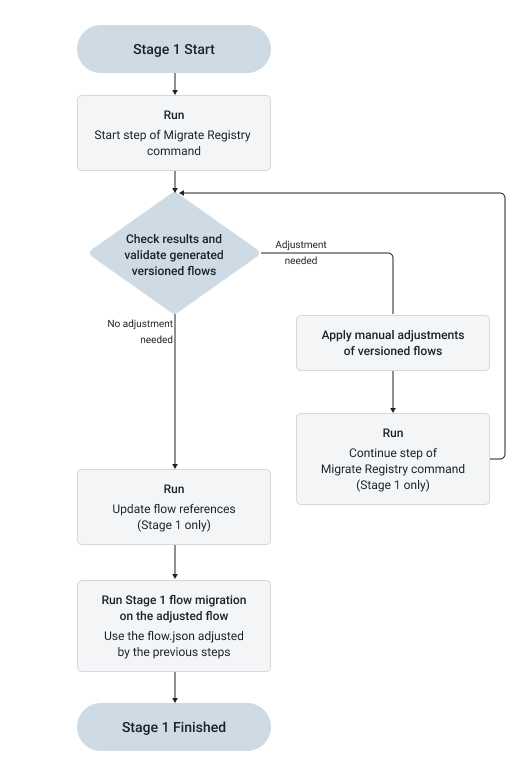
The following diagram illustrates the recommended workflow for the stage 1 migration of versioned flows with NiFi Registry.
Start step
Just like classical flow migration, Stage 1 represents the set of flow changes that keep the flow NiFi 1 compatible. However, unlike flow migration, multiple executions are required to progress through this stage. These executions use the same command with different arguments. Registry migration precedes flow migration, so when the flow is migrated, versioned process groups are substituted with the already migrated ones. The flow.json modified during registry migration should be used as input for subsequent flow migration.
To start registry migration, run the Registry Migration command with the start step. This command performs the initial migration and serves a role similar to the first execution of Component Migration from a strategic perspective. It requires both the flow.json (or .gz) file and the necessary registry dumps. In addition, the Working Registry must be set up, accessible, and empty from a migration perspective. In this context, “empty” means that it does not contain results from an ongoing registry migration.
This state is determined by the Migration Tool based on the existing Registry buckets. At the beginning of execution, the Migration Tool checks for bucket names that match the naming scheme it uses for storing migration results. The format is:
{$nameOfTheRegistry}_under-migration_{$bucketName}Here, $nameOfTheRegistry corresponds to the Registry Client name
(and the directory name of the dump files for that registry), and
$bucketName matches the bucket name in the original registry. This naming
convention allows content from multiple source registries to be handled within a single
Working Registry. While it is technically possible to store unrelated buckets in the Working
Registry, this is not recommended. If the Migration Tool detects buckets that match this
naming pattern, it prevents execution of the start step.
When the command is executed with the start step, several actions occur. First, snapshots in the dump(s) are filtered based on usage: only snapshots referenced by the flow.json (either directly or as nested registered flows) are processed. Other snapshots (entire flows or unused versions) are skipped. The selected flows are then subject to component and variable migration, and the results are stored in the Working Registry. The Migration Tool maintains references and updates version information both in the flow.json and in the registered snapshots. This ensures that NiFi can fully load the flow or any registered flow checked out from the Working Registry, including nested snapshots.
Bucket names follow the schema described above. In most cases, flow names remain identical to the original. It is important to note that identifiers are not preserved; from that perspective, these are entirely new (recreated) buckets and flows. The Migration Tool handles these changes within the scope of the flow, but if any external systems rely on these identifiers, they must be updated manually.
Flow names change only when multiple versions of the same registered flow are used (either directly or as nested flows). In such cases, the flow name is postfixed as follows:
{$originalFlowName}_line_{$lineOrder} This means that when multiple versions are used, the Working Registry will
contain multiple versions of the original registered flow as separate flows (for example,
myFlow_line_1, myFlow_line_2). While this is supported by the Migration
Tool, it introduces a risk of divergence because these versions are handled separately
during migration. As a best practice, align all usages to the latest version before
migration whenever possible. These flows function as separate flows during migration and are
migrated independently. The lineOrder does not represent the original
version number; it is a sequential number assigned by the Migration Tool. The only guarantee
is that a higher line order corresponds to a higher original version. These lines are merged
into a single flow at the end of the migration.
From this point onward, registry migration becomes an ongoing process that primarily reads from and writes to the Working Registry. Other input files, such as flow.json and the registry dumps, are required at later stages, but most operations rely on iterating over the Working Registry content. Because of this, the start step cannot be executed again once migration has begun, as the Working Registry will already contain buckets that match the migration naming scheme. Such attempts will fail without effect. If the migration must be restarted, use the restart step (with the same migration.tool.properties). Be aware that this command removes all content from the Working Registry under buckets whose names match the “under migration” naming pattern.
It is generally considered best practice to use the Working Registry as a dedicated environment and avoid storing unrelated flows in it. In rare cases where this is not possible, or when bucket or flow names conflict with the migration naming scheme or multi-line flow naming, you can override the default infixes and postfixes using properties defined in the Properties section.
Changing these properties during an ongoing migration can result in unpredictable behavior, as the Migration Tool relies on these naming conventions at multiple stages of the process.
Example:
As part of the preparation for migration, export the flow.json file and create dumps from all NiFi Registries used by the flow. These dumps contain files generated by the NiFi Toolkit, for example:
/my_dir/flow_exports/R1/toolkit_registry_export_all_B1_Flow1_1
/my_dir/flow_exports/R1/toolkit_registry_export_all_B1_Flow1_2
/my_dir/flow_exports/R1/toolkit_registry_export_all_B1_Flow1_3
/my_dir/flow_exports/R1/toolkit_registry_export_all_B1_Flow2_1
/my_dir/flow_exports/R1/toolkit_registry_export_all_B2_Flow3_1
/my_dir/flow_exports/R2/toolkit_registry_export_all_B1_Flow4_1
/my_dir/flow_exports/R2/toolkit_registry_export_all_B1_Flow4_2
These files represent the contents of two registries, R1 and R2, each in its own directory. In this example, four flows are present:
-
3 versions of Flow1 in bucket B1 of registry R1
-
1 version of Flow2 in bucket B1 of registry R1
-
1 version of Flow3 in bucket B2 of registry R1
-
2 versions of Flow4 in bucket B1 of registry R2
(this B1 bucket, although it has the same name as in R1, is a different bucket)
The accompanying flow.json uses only the following snapshots:
-
Versions 2 and 3 of Flow1
-
Version 1 of Flow3
-
Version 2 of Flow4
Other versions are not used, either directly in the flow or indirectly through nested references.
With this understanding of the input, the following command starts the migration process:
./migration.sh nifi migrate-registry -s -i /my_dir/flow.json -ed /my_dir/flow_exports -od /my_dir/out -scoIn many ways, this command is similar to migrate-components: it uses -i to define the input (the flow), -od to specify the output directory, and -sco to limit execution to Stage 1. In addition, -ed specifies the directory containing the registry dumps, and the -s argument indicates that the command should run in start mode.
A successful run produces several types of output:
-
- flow.json
-
The flow is not yet migrated at this stage, but all registered flow references and their contents are replaced with the newly migrated snapshots from the Working Registry. The properties of all NiFi Registry Clients are also updated to point to the Working Registry. This ensures that when the flow is loaded into a NiFi instance, the version status indicator reflects the actual state of the registered flows. The output flow.json overwrites any existing file in the output directory.
-
- Activity logs
-
The command generates one general activity log and one log for each migrated registry snapshot. These logs follow the standard activity log format but are named to distinguish them. Snapshot-specific logs use the following naming convention:
{$workingRegistryBucketName}_{$workingRegistryFlowName}-activity-log.jsonActivity logs overwrite results from previous executions.
-
- Working Registry content
-
All snapshots used by the flow are migrated and written to the Working Registry according to the naming conventions described earlier.
As a result, the Working Registry contains the following entities:
-
Bucket: R1_under-migration_B1
- Flow: Flow1_line1, version 1
- Flow: Flow1_line2, version 1
-
Bucket: R1_under-migration_B2
- Flow: Flow3, version 1
-
Bucket: R2_under-migration_B1
- Flow: Flow4, version 1
-
Restart step
In some cases, it is satisfactory to restart the migration process from the beginning. For these cases, to simplify the cleanup, a restart step can be run. This is identical to the start step in every regard, except that instead of checking the buckets of the Working Registry, the 'restart' step deletes buckets under migration before executing the migration.
./migration.sh nifi migrate-registry -res -i /my_dir/flow.json -ed /my_dir/flow_exports -od /my_dir/out -scoManual resolution
Manual resolution of situations cannot be migrated automatically is part of the registry migration too. Contrary to the flow migration, it comes in the form of validating and resolving a high number of independent flows. In order to support this circumstance and support possibly multiple owner teams to work on their related flows, the Registry migration utilises the Working Registry. For every managed flow, the expected way to add manual changes to the registered flows under migration, it is expected to be checked out to a NiFi instance and when the work is finished, to be committed into the Working Registry as a new version of the flow. The Migration Tool will always use the last version from every flow. Because of this, there is no limitation on the number of versions related to manual changes and there is no connection between the versioning of the individual registered flow. While this is the first point in the migration strategy where manual resolution might be necessary, this can happen after any command execution. As registered flows are independent (except referencing to each other), it is a likely situation that some registered flows need manual adjustment after a migration command and others do not.
Example
In this example the initial migration of Flow3 signed a
necessary manual change. In order to resolve this the owner of the flow can load the last
version of the flow from the Working Registry into the canvas of the NiFi instance dedicated
for validating and managing the migration effort (presumably the development environment),
apply the changes and then save the flow back into the Working Registry. Later on, during
validation of the registered flow an other change has been applied to the flow, resulting in
a further snapshot in the Working Registry. As a result, at this point, the following
versions of Flow3 exist in the Working Registry:
-
Version 1: Created by the initial migration at the 'start' step
-
Version 2: Also created by the 'start' step in order to update the reference
-
Version 3: The resolution of the manual change
-
Version 4: Follow up changes by owner during validation
The Migration Tool will always use the last version to work with, thus in this example, any further migration will happen in the version 4 snapshot, resulting in a version 5, and so on.
Continue step
After the initial migration of the snapshots happens and the working items are stored in the Working Registry, further refinements might be needed in an iterative manner, as in the case of flow migration. Just like in that case, the result of the previous migration or manual adjustment should be fed back to the Migration Tool for further refinement. Again, just like in the case of flow migration, this should continue until no changes or manual change requests appear in the output. An important change compared to flow migration is that, in the case of Registry migration, it is not necessary to specify the input using command arguments. In the case of Registry migration, after the initial 'start' step, the Migration Tool always works from and to the Working Registry specified by the properties file.
Example
Continuing with the example from before, the following command can be executed in order to apply further migration to the whole content of the Working Registry:
./migration.sh nifi migrate-registry -c -od /my_dir/out -scoAs seen, this command is similar to the 'start' step but lacks some of the arguments: because the 'continue' step works based on the content of the Working Registry, no input specification is needed. Likewise, the content of the Registry dumps is not necessary at this step. You still need to define the output directory, however, as while the main result of the migration (migrated snapshots) is committed to the Working Registry, the activity logs describing the transformations will be created within the specified directory.
While the 'start' step needs to migrate all registered flows within all buckets, the 'continue' step does not require working with the whole set of registered flows at all times: different flow-owner teams might work at different paces and schedules, so, to support this, it is possible to specify a subset of flows to be migrated. This specification can happen at multiple levels:
-
You can specify a given Registry using the registry argument. Only flows originally from the specified Registry will be included in the migration.
-
After you specify a Registry, it is possible to specify a Bucket using the registryBucket argument. Only flows originally coming from the specified Registry and Bucket will be included in the migration.
-
After you specify a Bucket, it is possible to specify a Flow using the registryFlow argument. Only the flow coming from the specified Registry and Bucket, named as the specified flow, will be migrated.
The previous example executed a migration on all flows managed by the Working Registry. With the addition of some of the arguments above, we can narrow down the scope to Flow1 and Flow2:
./migration.sh nifi migrate-registry -c -od /my_dir/out --registry R1 --registryBucket B1 -scoIn case we want to limit the scope even further, we can use the third relevant argument, registryFlow. The following example will migrate Flow2 only:
./migration.sh nifi migrate-registry -c -od /my_dir/out --registry R1 --registryBucket B1 --registryFlow Flow2 -scoWhen the scope is limited, no registered flow outside the specified boundaries is updated. In practice, this means that no new snapshot will be created for those flows, including snapshots for updating reference versions. This will not directly affect later migrations, as nested flows do not have a direct effect on the migration of the actual subject, but this requires attention during manual steps, where, if not set by the user, the referenced flows might not be up to date.
Example
Flow3 has a nested flow that references Flow1. We use the following arguments: registry R1 and registryBucket B1. This will result in a migration where Flow1 (the nested flow in this scenario) will be part of the migration, thus a new version will be created, while Flow3 will be excluded. As a result of this migration, Flow3 will point to a now obsolete version of Flow1. This is deliberate and supports scenarios where work is split between different teams and registered flows are migrated by different people at their own pace. While there are dependencies between flows, a change in a dependency does not automatically trigger a change in the dependent flow, as it might have been modified but not yet committed. The NiFi instance used for this purpose will indicate that a new version is available, and the owners of Flow3 can manually upgrade the reference as it fits their workflow. Alternatively, Upgrade Flow References can be used.
After execution, the usual manual step is expected: validating the result and executing the required manual changes are user responsibilities. To support this, as in the case of the 'start' step, there is a separate activity log for every migrated registered flow, making it easy for the owner of the given registered flow to validate the changes. When activity logs for all registered flows managed by the Working Registry show that there are no changes and no expected manual changes, the Stage 1 migration of the registered flows is considered complete, and the migration process can continue with the next step.
Upgrade flow references
Optionally, before proceeding with the migration of the flow.jso (or at any appropriate time), you can update the references in the flow.json. By executing the upgrade-flow command, the Migration Tool replaces all registered flows with the latest snapshots available in the Working Registry.
This process does not update the references between registered flows. As a result, if those references are outdated, the flow will continue to reflect that state.
To perform the flow upgrade, run the following command:
./migration.sh nifi upgrade-flow -i /my_dir/flow.json -od /my_dir/out/out -scoMigration of the flow.json
After the Stage 1 migration of the registry snapshots, normal flow migration can be executed. The majority of the flow migration follows the existing strategy: an iterative approach where the results of the previous execution are fed back into the tool, with manual corrections applied between iterations. The crucial difference between the two approaches is that when versioned process groups are migrated as part of the registry, the Migration Tool should skip these process groups during flow migration. To achieve this, flow migration commands must be executed using the --registryAware argument in addition to the usual arguments, as shown in the following example:
./migration.sh nifi migrate-components -i /my_dir/flow.json -od /my_dir/out/out -sco --registryAwareWhen the Migration Tool detects this argument, it skips all versioned process groups. It assumes that these process groups have already been migrated during previous steps. Since the registered flows are already migrated (Stage 1 only), this allows the personnel responsible for flow migration to better understand how earlier changes affect the flow and what additional adjustments are required to keep the flow aligned with the registry changes.
In most cases, registry-aware mode is essential to avoid introducing changes into already migrated and validated registered flows, which may have been checked out multiple times, potentially leading to inconsistencies. In addition, registry-aware mode has further implications:
External controller services might be replaced or modified during flow migration, but these changes are not reflected in the checked-out registered flows or in the snapshots stored in the Working Registry. In practice, this means that an external controller service might no longer exist or might exist in a different form, resulting in broken references within the registered flows. These issues must be resolved manually, depending on the nature of the changes and business requirements. The Migration Tool cannot resolve this automatically, but to help identify such cases, it generates activity log entries when a flow is migrated in registry-aware mode and skipped registered flows still reference external services. These appear as activity log events such as:
{
 "sequence" : 4,
 "type" : "manual-validation-request",
 "subject" : "7be1831f-019d-1000-02ab-09481049764a",
 "message" : "Please check if the external service references are still working after the migration",
 "context" : {
   "externalServices" : "5d5ec272-5d91-382e-96b2-9491c1809213"
 }
}
Furthermore, a registered flow has visibility into the variables of its containing process groups. It is assumed that by the time the flow is migrated, the registered flows have already been migrated and stored in the Working Registry. Since registered flows in the Working Registry have already undergone component and variable migration, the variables within those flows are converted to parameters according to the rules of variable migration.
If a registered flow uses a Parameter Context defined outside the registered flow (and incorporated into it before migration), those Parameter Contexts are not modified during migration. As a result, NiFi’s existing behavior for resolving such Parameter Contexts remains unchanged after migration.
Stage 2
The following diagram illustrates the recommended workflow for the Stage 2 migration of versioned flows with NiFi Registry.
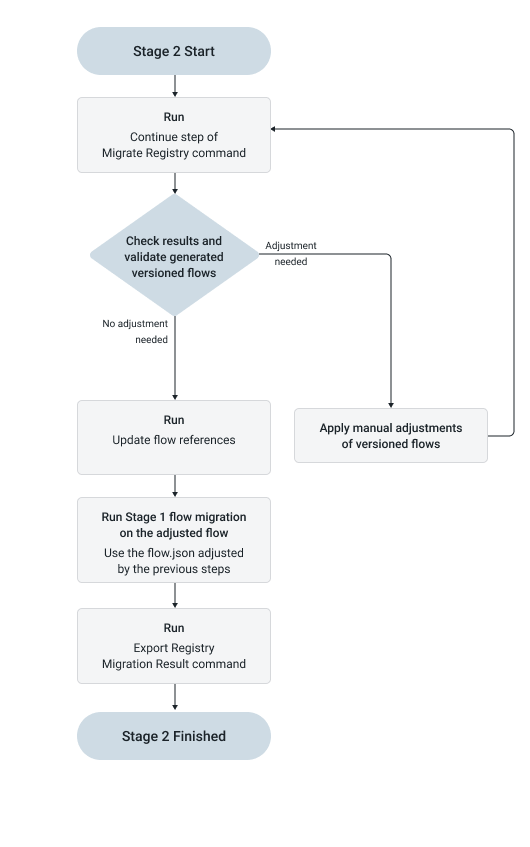
Just like in normal flow migration, Stage 1 follows an iterative approach, while Stage 2 cannot be executed again on a set of artifacts that have already been processed. To successfully migrate the registries and the flow, however, some additional steps are necessary.
Preparation
Running Stage 2 requires further preparation. This step can be completed during the initial preparation, but considering the potential length of the process, it is possible that some of the necessary information is not available at that time. At this point, the Migration Tool must be prepared to export the required information from the Working Registry and apply the necessary transformations to bring the snapshots to their final state.
To achieve this, additional properties must be provided as follows: for every registry dump that was migrated during the previous steps, the following properties must be defined in the migration.tool.properties file:
registry.final.location.{$identifier}.name
registry.final.location.{$identifier}.url
Here, the identifier is a property-format-compatible string that links the two parameters. The name must match the directory name of the corresponding registry dump (and the related Registry Client), and the url should be the URL of the target NiFi Registry. Using this information, when the Migration Tool writes out the results of the final step and creates an importable dump, it ensures that nested flow references point to the correct target URL.
Example
In the previous examples, https://internal-domain:18080 and https://other-internal-domain:18082 were used as the URLs for the R1 and R2 registries, respectively. These are the URLs of the source registries, from which you want to migrate. The target registries are installed separately at different URLs, and you want the internal references (nested flows) to point to the correct URLs. To achieve this, you need to set the target URL for both registries. This can be done as follows:
registry.final.location.firstRegisrty.name=R1
registry.final.location.firstRegistry.url=https://new-internal-domain:18087
registry.final.location.secondRegistry.name=R2
registry.final.location.secondRegistry.url=https://new-other-internal-domain:18088
As a result of this configuration, when further steps are executed and the final output of the registry migration is created, the storage location (the attribute that connects the nested flow to the referring one) of the reference will be set based on this mapping. Thus, if a registered flow has a nested flow from the R2 registry, the storage location will contain https://new-other-internal-domain:18088.
It is possible to use the same target URL for multiple registries. This can be useful if, in the Cloudera Flow Management 2 environment, multiple registries served the NiFi cluster, but in the Cloudera Flow Management 4 environment, a smaller number or even a single registry backs the NiFi cluster. While this is a fully supported scenario, there are some considerations to keep in mind:
-
Regardless of URL reuse, all property pairs must be fully specified.
-
The Migration Tool generates independent, import-ready registry dumps and does not handle overlapping flow names. If multiple registries contain flows with the same (original) name under the same (original) bucket name, importing them into the same target registry will fail.
In this scenario, the following properties would be expected:
registry.final.location.firstRegisrty.name=R1
registry.final.location.firstRegistry.url=https://new-internal-domain:18087
registry.final.location.secondRegistry.name=R2
registry.final.location.secondRegistry.url=https://new-internal-domain:18087
If the R2 registry has a flow named Flow1 in bucket B1 (and the R1 registry also has a flow with the same name in a bucket with the same name), both dumps will contain a Flow1 under the same bucket name (B1), preventing successful import into a single target registry.
Note: While this is a limitation of the target environment, the Working Registry can handle this situation. Because each bucket is prefixed with the name of the source registry, there are no naming conflicts. In this example, the Working Registry would contain separate Flow1 instances under the buckets R1_under-migration_B1 and R2_under-migration_B1, handled separately.
Migrateing the Registry
At this point, the final migration of the registry snapshots can be executed. Like in the case of flow migration, this execution applies changes that break Cloudera Flow Management 2 compatibility, and the result is intended to be used with Cloudera Flow Management 4. During this step, the Migration Tool loads all managed snapshots from the Working Registry, applies the necessary transformations, and writes the results back into the Working Registry. From this point, the resulting snapshots cannot be loaded into Cloudera Flow Management 2.
Just as before, all flows have an accompanying activity log containing all necessary information about the migration relevant to that particular registered flow. No partitioning is allowed for this command using the registry, registryBucket, or registryFlow arguments; the migration is applied to the entire set of flows managed by the Working Registry.
./migration.sh nifi migrate-registry -c -od /my_dir/outOnly the continue step is valid for execution involving Stage 2, and the filtering arguments (registry, registryBucket, and registryFlow) must not be used. The flow.json is not updated during this step; its content is still considered to be Stage 1 compatible.
Manual resolution
After upgrading the registered flows to be compatible with Cloudera Flow Management 4, further manual changes and adjustments might be necessary. The approach is the same as before, except that the snapshots now require Cloudera Flow Management 4 to be loaded. The activity logs generated as a result of the last command serve as a guideline for the expected and possible functional changes.
In addition, it is important to validate the registered flows from a business perspective. While most Cloudera Flow Management 4 components behave identically or similarly to their Cloudera Flow Management 2 counterparts, and the same applies to changes introduced by the migration, the similarity is not 100%, so identical behavior cannot be guaranteed without human oversight.
Migrating the flow.json
Stage 2 migration of the flow (variables, templates, and components) proceeds in the same way as usual, except for the use of the registryAware argument. As in Stage 1, this primarily serves as a flag to skip versioned Process Groups in the flow.
In addition, if the user executes all commands together using the shorthand migrate-all, an additional command, Upgrade Flow References, is executed. If the commands are executed one by one, this command must be executed manually. As usual, manual adjustment of the flow takes place at this stage.
Furthermore, because the Upgrade Flow References step (see below) runs before manual adjustments (either as part of migrate-all or through manual execution), the flow should contain the latest version of all registered snapshots checked out from the Working Registry. This allows further adjustments to be made to the registered flows within the context of the full flow. These changes must be committed to the Working Registry.
While this is a useful stage for resolving discrepancies between the flow and the registered flows, it is important to keep in mind that a given registered flow may be used in multiple places. Also note that, as this is a manual step, no references (including both references directly in the flow.json and nested flow references) are updated automatically.
Upgrading flow references
The migrate-registry command executed previously handled the Stage 2 changes for the snapshots but did not update the state of the flow.json. This command is responsible for connecting the two and checking out the newest versions of the registered flows from the Working Registry.
Although this is the same command used during Stage 1 and it will inevitably run the Stage 1 part, in this case it will not cause any regression; the result will contain only Stage 2 changes. The following command must be executed:
./migration.sh nifi upgrade-flow -i /my_dir/flow.json -od /my_dir/out/outThe command still requires a running Working Registry. After execution, the checked-out registered flows in the flow.json will reflect the latest versions from the Working Registry.
Exporting Registry migration result
As a final step of the actual Registry migration process, the artifacts to be imported into the target NiFi Registry and NiFi must be generated. To do this, it is necessary to have the updated version of the flow.json from the last step, a running Working Registry, and the properties defined at the beginning of Stage 2. During this command, the URLs will be replaced with the target (final location) URLs, corresponding to the registry name, in both the flow and the registered flows, and the necessary snapshots will be exported as a registry export. The following command must be executed:
./migration.sh nifi export-registry-result -i /my_dir/flow.json -od /my_dir/outThe command replaces URLs in the flow and nested references based on the previously set properties and writes the results as exported registry snapshots into the output directory, under the directory specified by the name of the registry. After this point, the up-to-date versions of the snapshots are no longer in the Working Registry but in the registry exports generated by this command. As a result, further changes made in the Working Registry will not be reflected in the final artifacts unless this command is executed again, generating a new set of registry migration results. A newly generated result is completely independent of any previously generated set.
Thus, instead of pointing to the URL of the Working Registry, these registered flows will point to the target registries defined in the migration.tool.properties. In addition, the URLs in the Registry Clients will be updated based on the same logic. For example, if the final (target) registry URL (https://new-internal-domain:18087) is bound to the registry named R1 in the properties, the Registry Client with the name R1 will be updated to use that URL.
The version of the exported snapshot is usually 1. There are two exceptions to this. The first is when the Migration Tool is instructed to keep the version history. In this case, all snapshot versions from the original dump (not from the Working Registry; mid-migration versions are not kept in the final result) are added to the output in their original format. These are still non-migrated Cloudera Flow Management 2 snapshots and are not intended for loading into a Cloudera Flow Management 4 instance, but they can be useful for preserving change history within the target NiFi Registry. To achieve this, the following command must be executed:
./migration.sh nifi export-registry-result -i /my_dir/flow.json -ed /my_dir/flow_exports -od /my_dir/out --keepHistoryAs shown in the command, the keepHistory argument is required
for this behavior. In addition, the path to the original registry exports used during the
initial phase of the migration must be provided. These historical snapshots are not added to
the Working Registry, only to the export. In such cases, the version of the migrated
snapshot is not 1; instead, it is assigned the next version in the sequence. For example, if
the last version in the history is 17, the migrated Cloudera Flow Management
4–compatible snapshot will have version 18.
The other situation in which the version might differ from 1 is when multiple versions of the original flow are used in the flow or in referencing registered flows, and the Migration Tool “splits” the flow into multiple lines (one for each version used). This splitting exists only to simplify the migration process (although it is generally preferable to resolve these differences before migration begins), and the lines are merged in this final phase. The actual content of the snapshots is not merged; instead, rather than multiple separate flows, a single flow (using the original name, without the “line” postfix) is exported with multiple snapshots, where each snapshot represents the final version of a line. The version number corresponds to the line order; therefore, while the version numbers may differ from the original, the relative order is preserved. Snapshots from lines with higher version numbers will have higher version numbers in the result.
Using the dumps from the previous example, and considering that the flow.json uses Flow1 (versions 2 and 3) and Flow4 (version 2) directly, and Flow2 (version 1) via Flow4, the following files will be present in the export generated by the command:
/my_dir/out/R1/toolkit_registry_export_all_B1_Flow1_1
/my_dir/out/R1/toolkit_registry_export_all_B1_Flow1_2
/my_dir/out/R1/toolkit_registry_export_all_B1_Flow2_1
/my_dir/out/R2/toolkit_registry_export_all_B1_Flow4_1
During migration, because multiple versions of Flow1 were used by the flow.json, these versions were represented as separate flows and therefore migrated separately. In the Working Repository, these versions appeared as the flows Flow1_line_1 and Flow1_line_2. As the list of results shows, these were merged back into snapshots under the same flow, Flow1.
Here, toolkit_registry_export_all_B1_Flow1_1 and toolkit_registry_export_all_B1_Flow1_2 are the fully migrated versions of versions 2 and 3 of the original Flow1, respectively (note that intermediate versions from the Working Registry are not kept). Similarly, toolkit_registry_export_all_B1_Flow2_1 is the fully migrated version of version 1 of the original Flow2, and toolkit_registry_export_all_B1_Flow4_1 is the fully migrated version of version 2 of the original Flow4.
These two scenarios (keeping history and having multiple lines) can overlap. In such cases, the migrated snapshots receive the next version numbers sequentially, in the order defined by the line order. When keeping history, the same migration would result in the following exported snapshots:
/my_dir/flow_exports/R1/toolkit_registry_export_all_B1_Flow1_1
/my_dir/flow_exports/R1/toolkit_registry_export_all_B1_Flow1_2
/my_dir/flow_exports/R1/toolkit_registry_export_all_B1_Flow1_3
/my_dir/flow_exports/R1/toolkit_registry_export_all_B1_Flow1_4
/my_dir/flow_exports/R1/toolkit_registry_export_all_B1_Flow1_5
/my_dir/flow_exports/R1/toolkit_registry_export_all_B1_Flow2_1
/my_dir/flow_exports/R1/toolkit_registry_export_all_B1_Flow2_2
/my_dir/flow_exports/R1/toolkit_registry_export_all_B2_Flow3_1
/my_dir/flow_exports/R2/toolkit_registry_export_all_B1_Flow4_1
/my_dir/flow_exports/R2/toolkit_registry_export_all_B1_Flow4_2
/my_dir/flow_exports/R2/toolkit_registry_export_all_B1_Flow4_3
In this case, toolkit_registry_export_all_B1_Flow1_4 and toolkit_registry_export_all_B1_Flow1_5 are the fully migrated versions of versions 2 and 3 of the original Flow1, respectively; toolkit_registry_export_all_B1_Flow2_2 is the fully migrated version of version 1 of the original Flow2; and toolkit_registry_export_all_B1_Flow4_3 is the fully migrated version of version 2 of the original Flow4. All other snapshots are copied from the original export.
In most cases, the flow is ready to be loaded, but before that, some final steps are necessary.
Closure
In order to have a fully working NiFi cluster (with registered flows), some additional steps are required after the migration. This section assumes that both the target NiFi environment and the NiFi Registries are in place and properly set up.
Importing Registry exports
The exports generated by the Export Registry Migration Result command must be imported into the target registry, one by one. This can be done using the Import All Flows command of the NiFi Toolkit, as shown in the following examples:
./bin/cli.sh registry import-all-flows -u http://new-internal-domain:18087 --input "/my_dir/flow_exports/R1"
-- and
./bin/cli.sh registry import-all-flows -u http://new-other-internal-domain:18088 --input "/my_dir/flow_exports/R2"
For more information on this command, see the Apache NiFi Toolkit Guide. Each registry requires a separate import, so R1 and R2 in the example are imported using separate commands with their own specific arguments. If the commands above are executed correctly, the nested references in the registry snapshots will point to the registries into which they are imported.
Continuing the example, Flow4 in R2 has a nested flow, Flow2 from R1. The exported snapshot of Flow4 will have its reference to Flow2 pointing to https://new-internal-domain:18087, based on the configured properties. If Flow2 is imported into a different NiFi Registry instance at another location, the reference will be invalid, preventing NiFi from properly resolving the nested flow when adding it to the canvas.
Adding flow.json to NiFi
As in migration without registry support, the flow.json must be added to a NiFi instance to be used. As with registry imports, flow references point to specific URLs (through clients, see below) defined by the property files. To keep the flow functioning properly, it is recommended to ensure that these URLs match.
Updating client properties
The Migration Tool keeps the registry URLs up to date by replacing the URL property of the NiFi Registry clients according to the properties file, in sync with the registry references. However, the Migration Tool is not aware of any authentication or authorization information.
To properly connect to the NiFi Registry instances, these settings must be updated by the user according to the requirements of the given registry instance. This can be done by opening the Controller Service and navigating to the Registry Clients tab. By editing the SSL Context Service property of the given Registry Client, the necessary settings can be applied.
Manual validation
During previous steps, manual validation was included at multiple points as part of the migration strategy. While these steps helped prevent different parts of the flow from deviating from the desired results, it is strongly recommended to validate the entire flow in the target environment. This includes, but is not limited to, verifying that NiFi can establish connections with the NiFi Registries used and that the registered flows point to the correct versions.
