Managing accounts
View and manage primary and secondary accounts that belong to your organization, including viewing account information, modifying default profiles for all users, and granting access to Secondary Administrators.
Primary and Secondary Administrators
Every account must have a Primary Administrator. You designate this person, and the Cloudera Account team sets the role. A Primary Administrator can add one or more Secondary Administrators in Cloudera Account 360. Secondary Administrators have the same administrative capabilities as the Primary Administrator for their assigned accounts.
Primary Administrators can view secondary accounts related to any primary account they manage. Secondary Administrators can only view the accounts to which they are directly assigned. They cannot view other accounts in the hierarchy.
Default user profiles
When new users register, they automatically receive one of the following default profiles, which define their access to support, knowledge resources, and the community:
- Support Access – Provides access to create and view support cases, the Knowledge Base articles, and the Community Portal.
- Knowledge Base Access – Provides access to Knowledge Base articles and the Community Portal, but does not include Support Access.
- Community Access – Provides access to view and post in the Community Portal but does not include Support or Knowledge Base Access.
-
Search for the organization you want to view or edit.
The Account Details page is displayed.
Figure 1. Account Details page example for ZanZog's Cogs 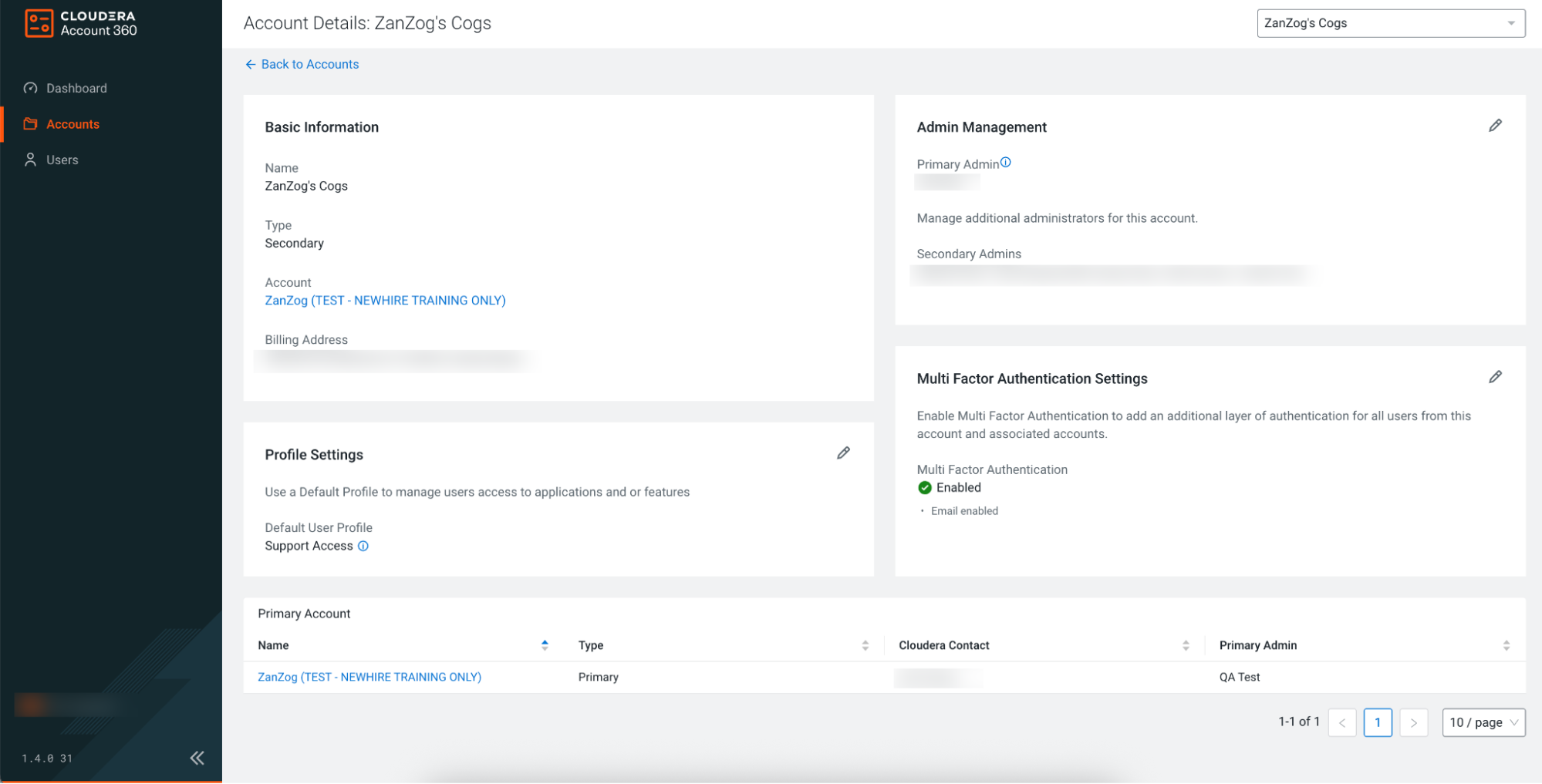
-
Modify the Admin Management settings using ✏️, if needed.
You can add Secondary Administrators to the account. If you need to change the Primary Administrator, contact Cloudera Support to request the update.
Figure 2. Admin Management section example 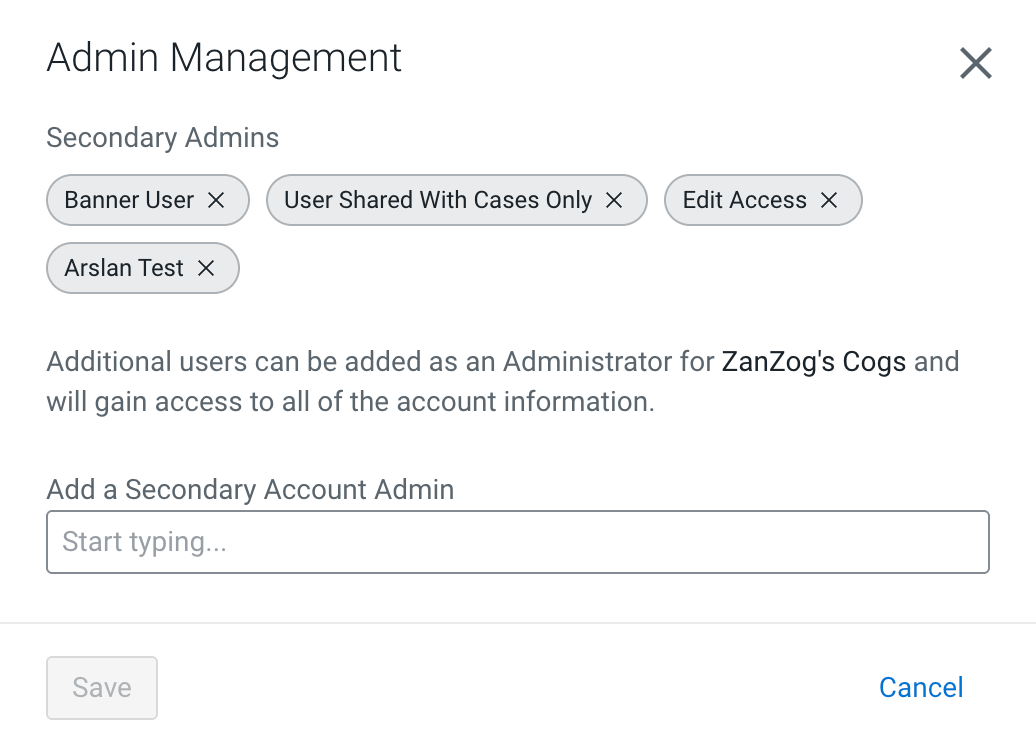
-
Update Multi‑Factor Authentication Settings using ✏️, if needed.
You must enable at least one multi-factor authentication method to access Cloudera products and services. By default, the system enables email authentication.
Figure 3. Multi‑Factor Authentication Settings section example 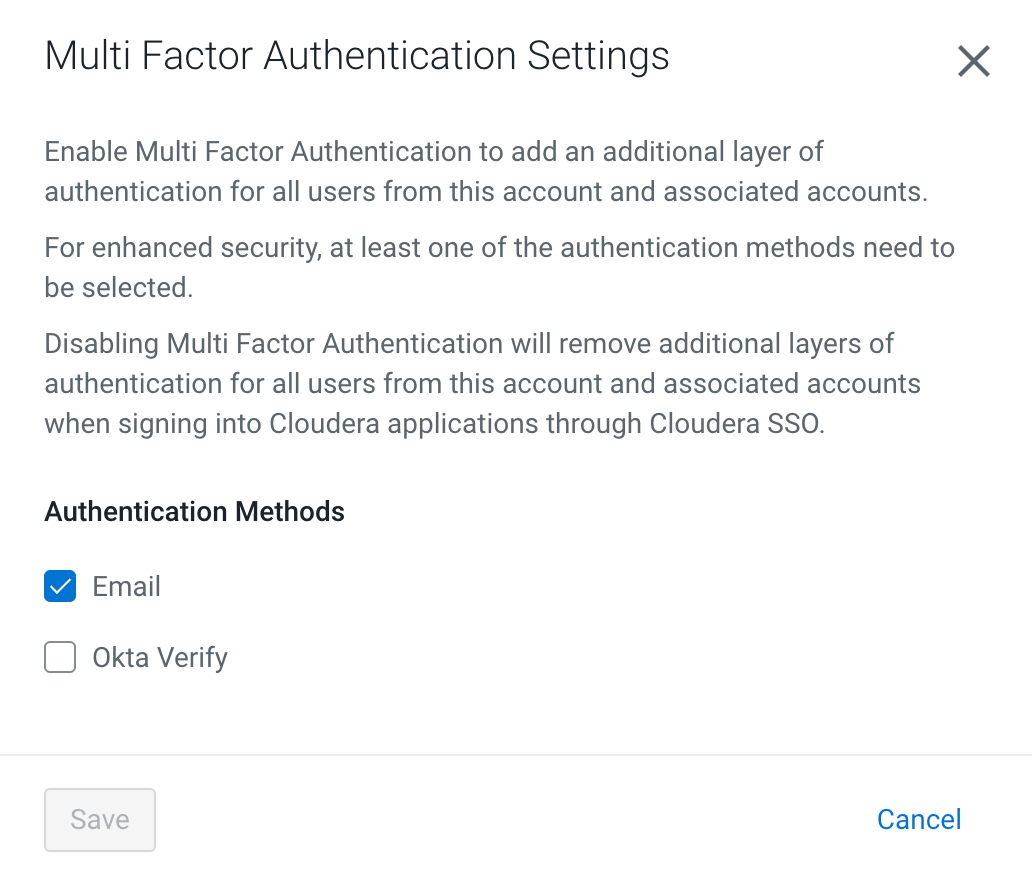
- Change the Authentication Method by selecting Okta Verify.
- Click Save.
