Managing users
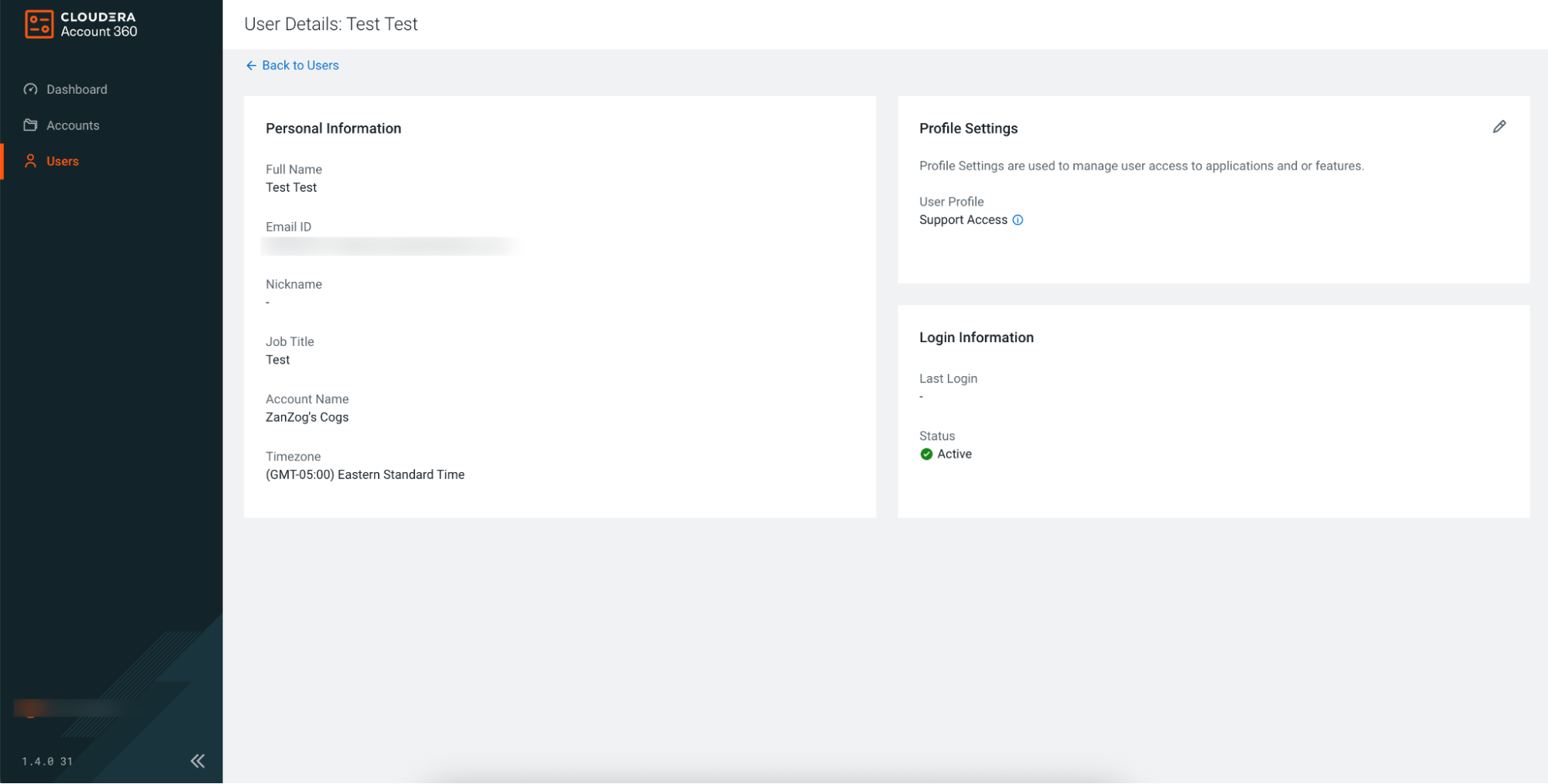
View the user details of internal, Cloudera, and external users. For internal users, view profile and login information and modify the profile settings.
The following types of users are listed on the Users page:
- Internal Users – Users from your organization
- Cloudera Users – Users from the Cloudera account team
- Grant Cloudera users full access to Cloudera Account 360 using the Grant Access toggle for troubleshooting purposes.
- External Users – Users shared with your account from other organizations for case or consumption access, or both
- Grant external users full access to Cloudera Account 360 using the Grant Access toggle, if needed.
- Request Cloudera Support to share new External Users with your account for cases or consumption access.
- You can remove External Users from the Users page by clicking 🗑️.
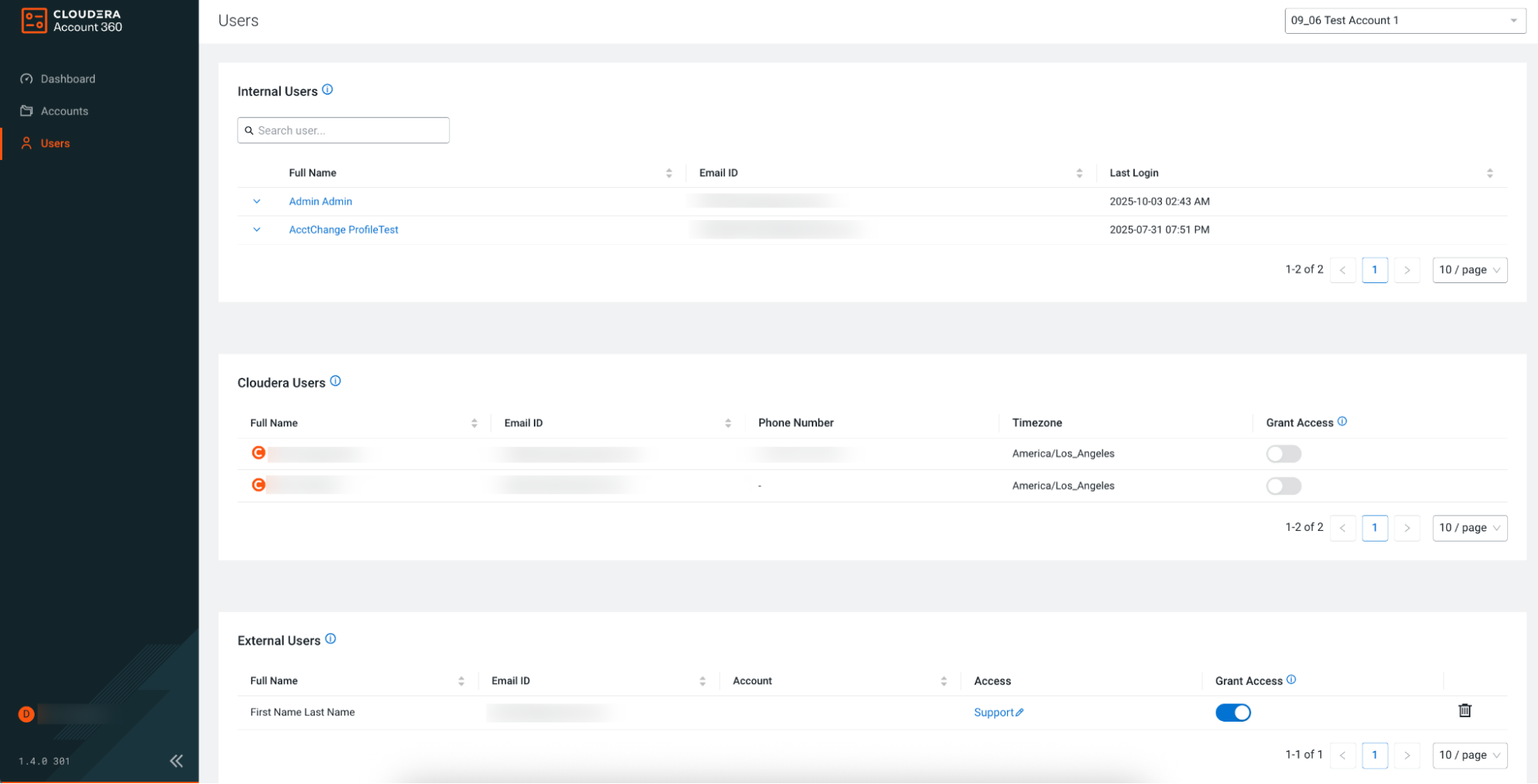
To manage profile information only for Internal Users, perform the following steps:
-
Search for the user whose information you want to view or edit.
The User Details page is displayed.
-
In the Profile Settings section, edit the User Profile settings using ✏️, if needed.
The User Profile setting defines the access levels for Cloudera applications and features in MyCloudera.
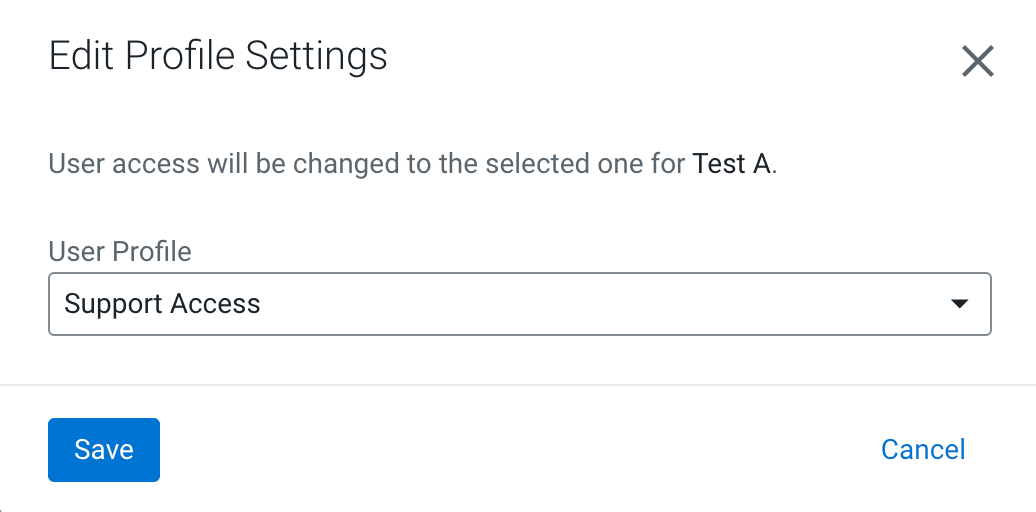
- Select Knowledge Base Access to grant access only to the Knowledge Base.
- Select Support Access to grant access to Support cases, the Knowledge Base, and the Community Portal.
- Select Community Access to grant access only to the Community Portal.
- Click Save.
