Consumer Groups
Kafka consumer group lag, partition assignments, member status, and committed offset positions are monitored and managed from the Consumer Groups page in Cloudera Surveyor.
Consumer Groups Page
The Consumer Groups page provides detailed information about all consumer groups in the selected cluster. Monitor consumer group health, lag metrics, member status, and partition assignments. Filter and sort consumer groups by name, status, group type, or lag. Delete consumer groups as needed.
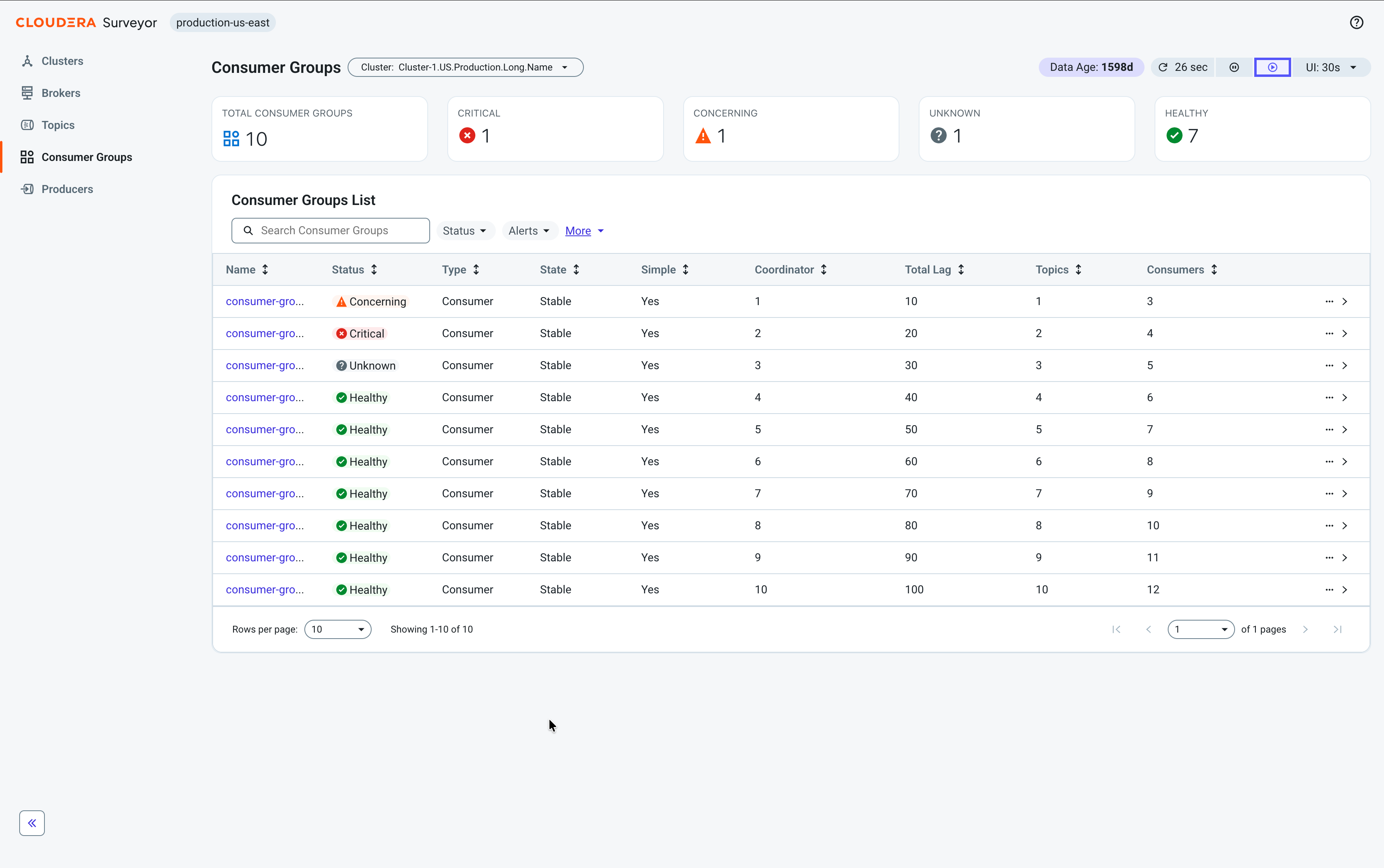
At the top of the page, health summary tiles displays the total number of consumer groups categorized by status, providing an at–a–glance view of the overall health distribution across all consumer groups in the selected cluster.
Beneath the tiles, a table displays the following essential consumer group metrics for quick health assessment:
- Name – A unique identifier (Group Id) for the consumer group.
- Status – The overall health status of the consumer group derived from active alerts.
- Type – The type of consumer group such as
Consumer,Classic, orStreams. - State – The current state of the consumer group such as
Stable,Empty, orDead. - Simple – The indication of whether the consumer group is a simple consumer group. Simple consumer groups have committed offsets but do not use the entire consumer group protocol with coordinator or rebalancing.
- Coordinator – The broker ID of the group coordinator responsible for managing this consumer group.
- Total Lag – The combined lag across all partitions consumed by the consumer group.
- Topics – The number of topics with offsets committed by the consumer group.
- Consumers – The number of active consumer members in the group.
Click any consumer group row to open the Entity Details Drawer for quick access to all consumer group attributes. Click the consumer group name to go to the Consumer Group Details page.
Consumer Group Details Page
The Consumer Group Details page provides detailed information about an individual consumer group. At the top of the page, health summary tiles display the consumer group's overall status and key metrics including member count, total lag, and subscribed topic count.
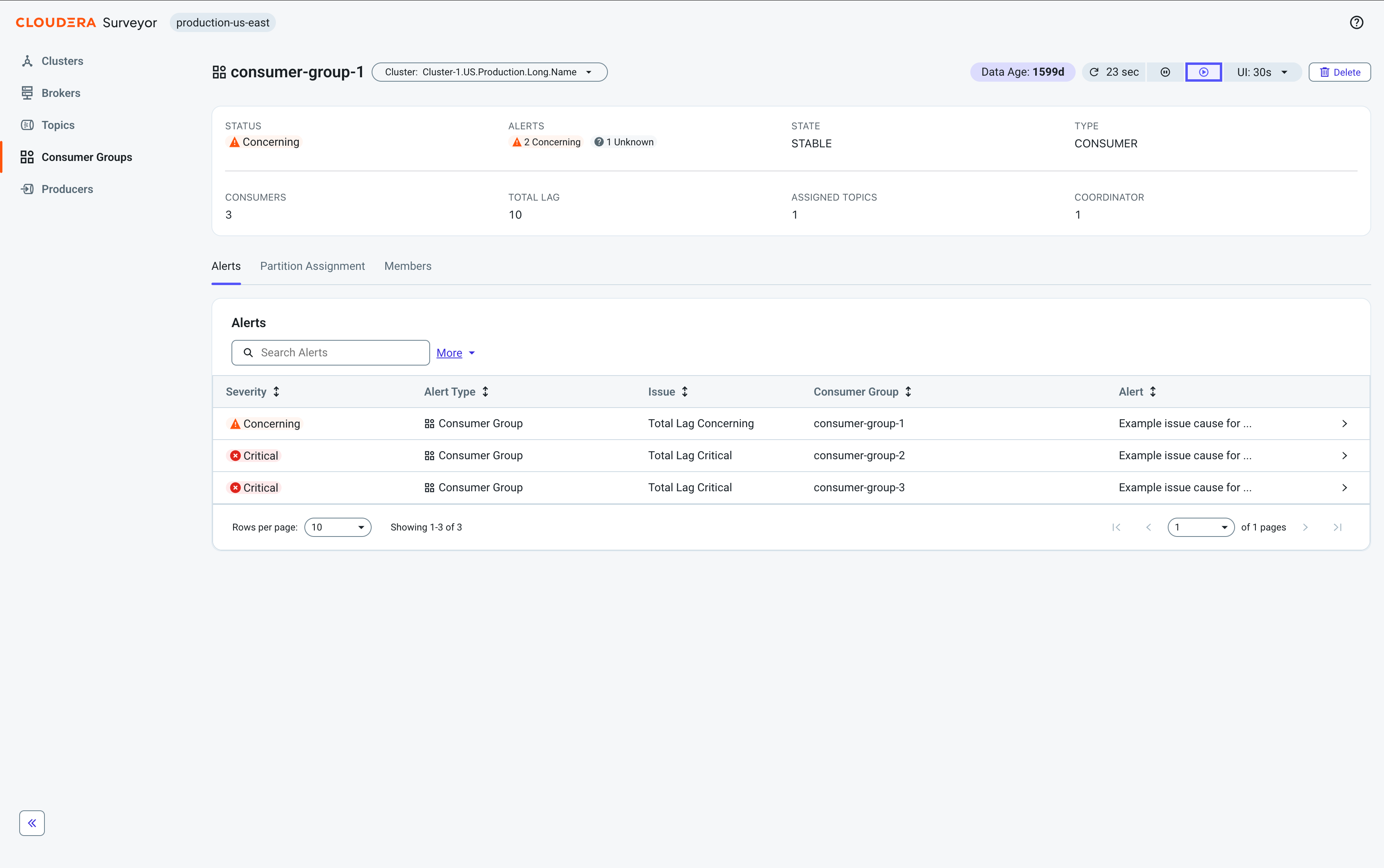
The page organizes consumer group information through the following tabs:
-
Alerts – View and monitor all alerts affecting the consumer group.
-
Partition Assignment – View partition offset positions and lag. Edit offsets as needed.
-
Members – View active consumer group members and their partition assignments.
Editing consumer group offsets
Edit consumer group offsets in Cloudera Surveyor using the Edit Committed Offsets option on the Partition Assignment tab of the Consumer Group Details pages.
Consumer offsets track the position of each consumer group within a topic partition, allowing
consumers to resume reading from where they left off. In Cloudera Surveyor, you edit offsets using the  Consumer Groups > Consumer Group Details > Partition Assignment >
  Edit
Committed Offsets option, which opens the Edit Committed Offsets modal. The
modal allows you to select a scope and choose from multiple reset strategies to control where
consumers will begin reading messages.
Edit
Committed Offsets option, which opens the Edit Committed Offsets modal. The
modal allows you to select a scope and choose from multiple reset strategies to control where
consumers will begin reading messages.
Editing offsets changes the position from which consumers read messages when they restart. This operation only updates the stored offset position in Kafka. Active consumers must be stopped to ensure that the updated offsets take effect.
You edit offsets to replay messages after a processing error, skip problematic messages that are causing consumer failures, or reprocess data with updated business logic. Offset edits are also useful for testing consumer behavior or recovering from incorrect offset commits.
- You must have the necessary permissions to alter consumer group offsets in your Kafka
cluster. The required Kafka ACL is
READon theGROUPresource. - You must stop all consumer applications in the target consumer group before editing offsets. Active consumers do not pick up the updated offsets until they restart and rejoin the consumer group.
-
In Cloudera Surveyor, click Consumer Groups.
-
Click Edit
Committed Offsets to open the offset editor.
Deleting consumer groups
Delete consumer groups in Cloudera Surveyor using the  Delete option on Consumer Groups pages or the
Delete option on the Consumer Group
Details pages.
Delete option on Consumer Groups pages or the
Delete option on the Consumer Group
Details pages.
Deleting a consumer group permanently removes the group's metadata and all committed offset records from the cluster. This operation cannot be undone.
You delete consumer groups when decommissioning applications, cleaning up test or development
environments, or removing stale consumer groups that are no longer in use. When a deleted
consumer group is recreated by restarting an application, it starts fresh with no offset
history, and the offset behavior is determined by the auto.offset.reset
property (typically starting from latest or earliest).
- You must have the necessary permissions to delete consumer groups in your Kafka cluster. The
required Kafka ACL is
DELETEon theGROUPresource. - You must verify that all consumer applications in the target group have stopped. Deleting an active consumer group might cause unexpected behavior when consumers attempt to commit offsets or rejoin.
- You must verify that no applications or monitoring tools depend on the consumer group's offset information.
-
In Cloudera Surveyor, click Consumer Groups.
-
Click
 > Delete on the right side of the consumer group row.
-
Click
Delete to confirm deletion.
