Topics
Kafka topic health, partition distribution, replica placement, and consumer group subscriptions are monitored and managed from the Topics page in Cloudera Surveyor.
Topics Page
The Topics page provides comprehensive information about all topics in the selected cluster. Monitor topic health, partition distribution, replica status, and consumer group subscriptions. Filter and sort topics by name, status, partition count, or alert severity. Create new topics or delete existing ones as needed.
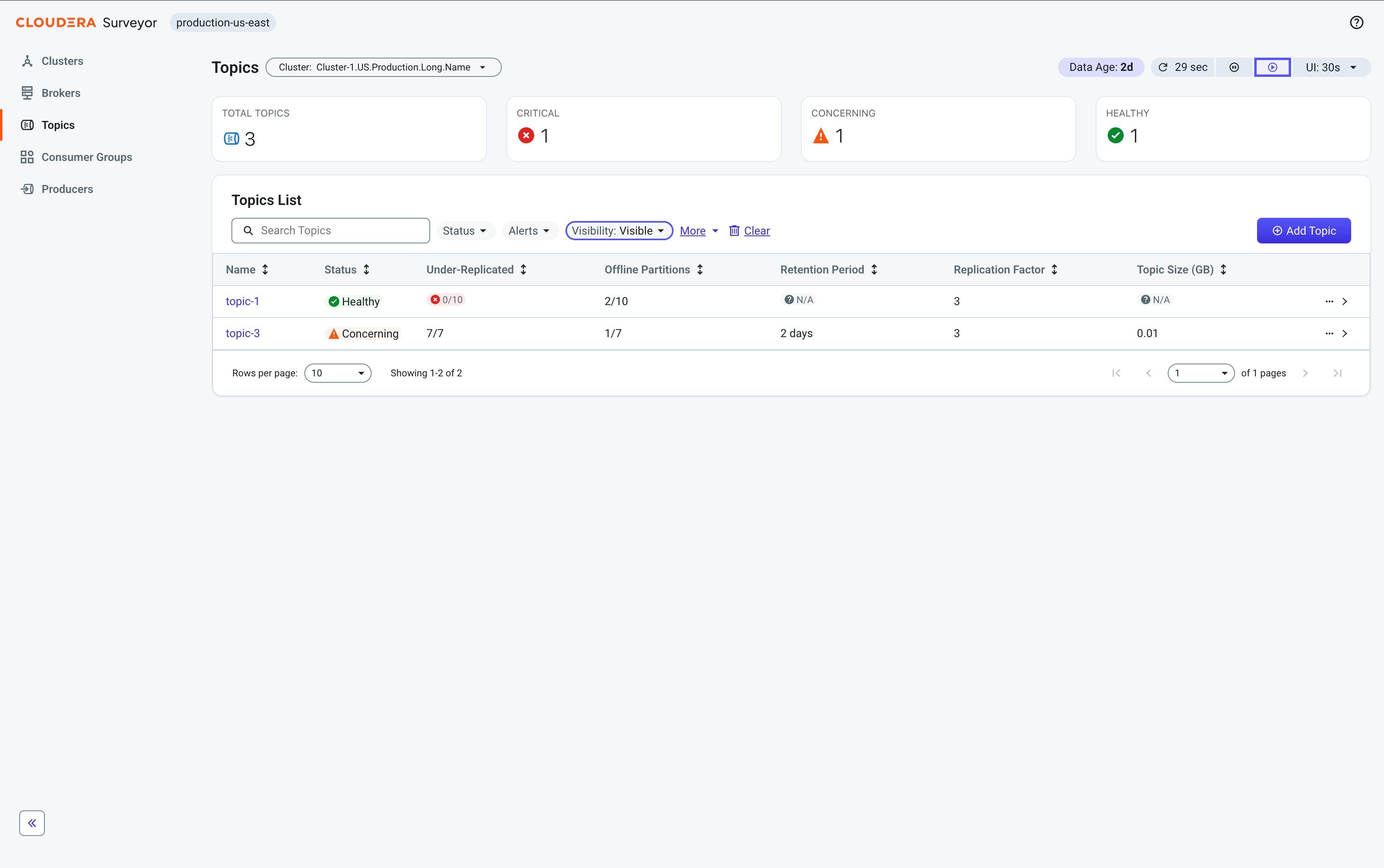
At the top of the page, health summary tiles display the total number of topics categorized by status, providing an at-a-glance view of the overall health distribution across all topics in the selected cluster.
Beneath the tiles, a table displays the following essential topic metrics for quick health assessment:
-
Name – A unique identifier for the topic. Click to open the Topic Details page.
-
Status – The overall health status of the topic.
-
Under-Replicated – The count of partitions with fewer in-sync replicas than configured.
-
Offline Partitions – The count of partitions with no active leader.
-
Retention Period – The duration for which messages are retained.
-
Replication Factor – The number of replicas for each partition.
-
Topic Size (GB) – The total size of all replicas.
Click Add Topic to create a new topic with custom configurations. Click any topic row to open the Entity Details drawer for quick access to all topic attributes. Click the topic name to go to the Topic Details page.
Topic Details Page
The Topic Details page provides comprehensive information about an individual topic. At the top of the page, health summary tiles display the topic's overall status and key metrics including partition count, replication factor, and partition health indicators.
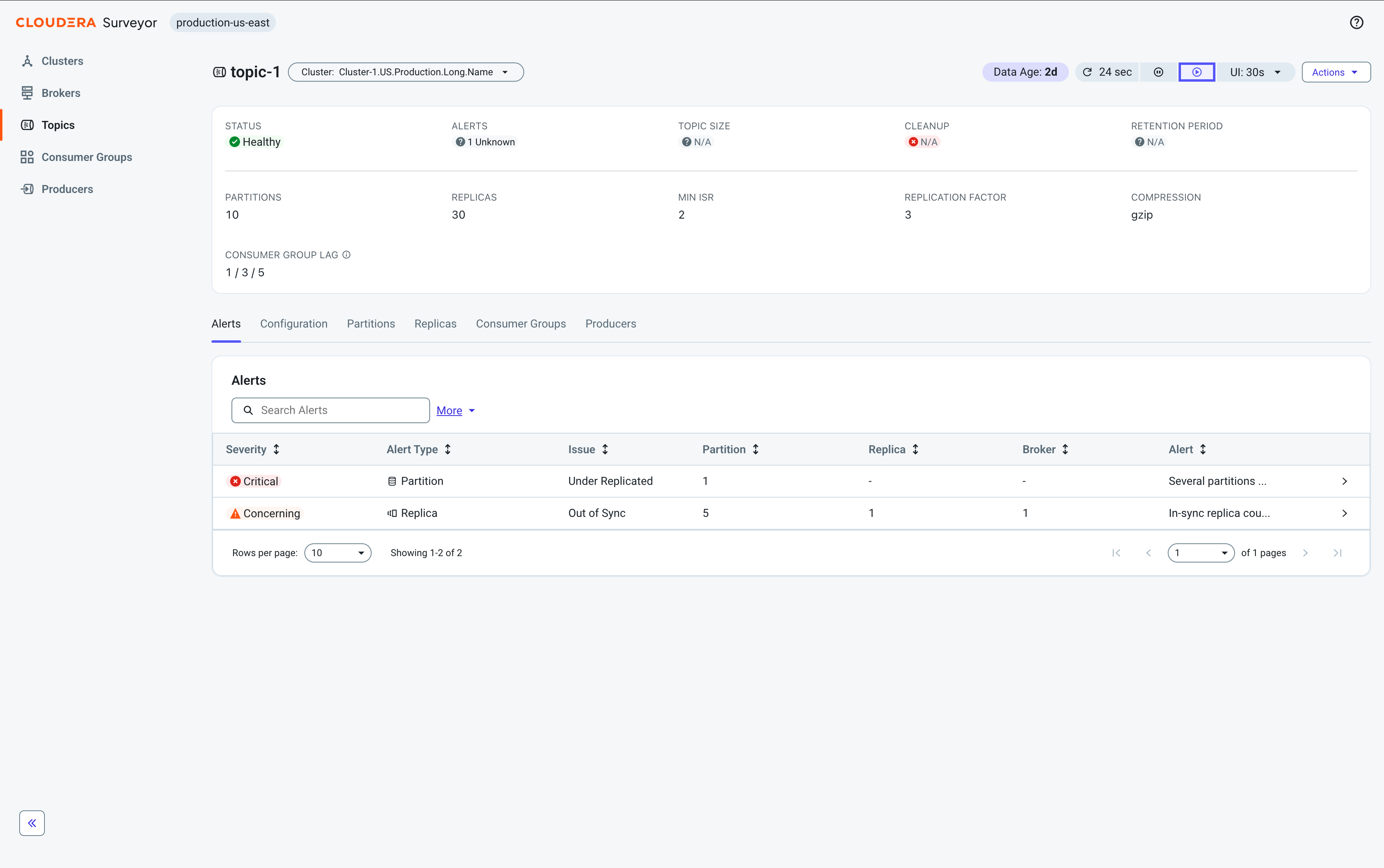
The page organizes topic information through the following tabs:
-
Alerts – View and monitor all alerts affecting the topic.
-
Configuration – View and edit topic configuration properties. Increase partition count and manage property overrides.
-
Partitions – Monitor partition health and replica distribution.
-
Replicas – View detailed information regarding the partitions of this topic.
-
Consumer Groups – View consumer groups consuming from this topic and monitor their lag.
-
Producers – View producers associated with this topic.
Creating topics
Create new topics with custom properties in Cloudera Surveyor
using the  Add Topic option on the
Topics page.
Add Topic option on the
Topics page.
Topics are the fundamental units of data organization in Kafka, organizing messages into named
streams that producers write to and consumers read from. In Cloudera Surveyor, you create topics using the  Topics > Add Topic option, which opens the Create Topic drawer. The
drawer provides an interface to configure mandatory properties as well as property overrides.
Property overrides customize behaviors such as data retention or cleanup policies, overriding
the default values defined at the server level.
Topics > Add Topic option, which opens the Create Topic drawer. The
drawer provides an interface to configure mandatory properties as well as property overrides.
Property overrides customize behaviors such as data retention or cleanup policies, overriding
the default values defined at the server level.
Choose your partition count and replication factor carefully. Partition count can be increased later, but cannot be decreased. Changing the replication factor is possible, but requires partition reassignment, which is not possible using Cloudera Surveyor. For more information, see Increasing replication factor in the Apache Kafka documentation.
- You must have the necessary permissions to create topics in your Kafka cluster. The required
Kafka ACL is
CREATEon theCLUSTERorTOPICresource.
-
In Cloudera Surveyor, click Topics.
-
Click Add Topic at the top right of the table.
-
In the Create Topic drawer, enter the following required
information:
- Topic Name – A unique identifier for the topic.
- Partitions – The number of partitions (determines parallelism).
- Replication Factor – The number of replicas for each partition. Replicas cannot exceed the broker count.
- Optional:
Configure property overrides in the Property Overrides section.
-
Click
 Edit Properties.
- In the Edit Properties modal, find the properties you want to modify.
- Select the checkbox next to each property to include it in your changes.
- Update the property values using the Property Value field.
- Click OK.
-
Click
-
Review your configuration and click Create Topic.
Create Topic drawer remains
open, the Name field is cleared and focused. All other fields and property
overrides are preserved, so you can immediately create another topic without reopening the
drawer.Editing topic properties
Edit topic configuration properties in Cloudera Surveyor using
the Edit
Properties option on the Configuration tab of the Topic Details pages.
Topic configuration properties control various aspects of topic behavior including data
retention, cleanup policies, compression settings, and replication behavior. In Cloudera Surveyor, you modify these properties using the
Topics > Topic Details > Configuration > Edit
Properties option, which opens the Edit Properties modal. The modal
displays all topic configuration properties retrieved from Kafka and allows you to bulk edit
with a single operation. Modified properties are marked with indicators, and changes are staged
for review before being applied. If you navigate away with unsaved changes, warnings are
displayed and your edits are automatically preserved. The Configuration
tab also provides an option to increase the partition count.
When you modify topic configurations, the changes take effect immediately without requiring a broker restart. However, the replication factor of a topic is read-only and cannot be modified through the Cloudera Surveyor UI. Replication factor is set when the topic is created. To change the replication factor of an existing topic, you must use Kafka's partition reassignment tool. For more information, see Increasing replication factor in the Apache Kafka documentation.
- You must have the necessary permissions to modify topic configurations in your Kafka
cluster. The required Kafka ACL is
ALTER_CONFIGSon theTOPICresource.
-
In Cloudera Surveyor, click Topics.
-
Increase partition count.
-
Click the
icon next to the field.
-
Click the
-
Edit topic properties.
-
Click Edit Properties.
- In the Edit Properties modal, find the properties you want to modify.
- Select or deselect the checkbox next to each property to add or remove property overrides.
- Update the property values using the Property Value field.
- Click OK.
-
Click
-
Review your changes and click
 Apply
Changes.
Properties that are modified are marked with an indicator pill. You can also choose to discard your changes by clicking
Apply
Changes.
Properties that are modified are marked with an indicator pill. You can also choose to discard your changes by clicking Discard Changes.
Deleting topics
Delete topics in Cloudera Surveyor using the Delete option on
the Topics pages or the Delete Topic option on the Topic Details pages.
Deleting a topic permanently removes all messages, partition data, and topic metadata from the cluster. This operation cannot be undone.
You delete topics when decommissioning services, cleaning up test or development topics, or removing obsolete data streams. Deleting a topic immediately disrupts any applications that are still using the topic.
- You must have the necessary permissions to delete topics in your Kafka cluster. The required
Kafka ACL is
DELETEon theTOPICresource. - You must verify that all consumers and producers have stopped using the topic.
- You must verify that no applications, system, data pipeline, or other tooling depends on the topic.
-
In Cloudera Surveyor, click Topics.
-
Click
 >
Delete on the right side of the topic row.
>
Delete on the right side of the topic row.
-
Click Delete to confirm deletion.
