Configuring the Statistics Collector profiler
Configure additional parameters for the Statistics Collector to optimize profiling tasks. Adjust settings such as scheduling, incremental profiling, and resource allocation to enhance performance and accuracy.
-
Select a schedule to run profiler using either UNIX Cron
Expression or the Basic scheduler.
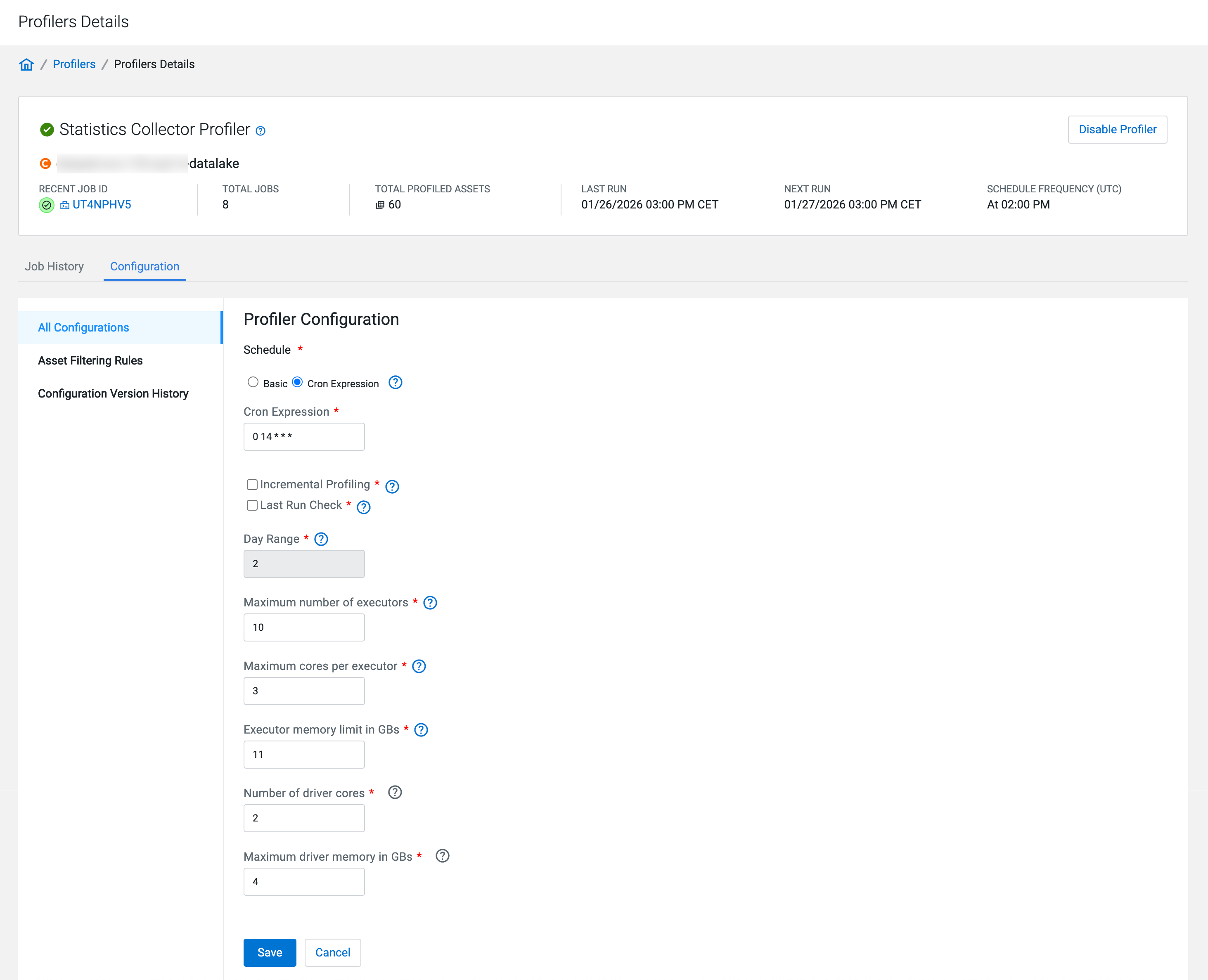
Figure 1. Profiler schedule with cron expression 
Figure 2. Profiler schedule with natural language 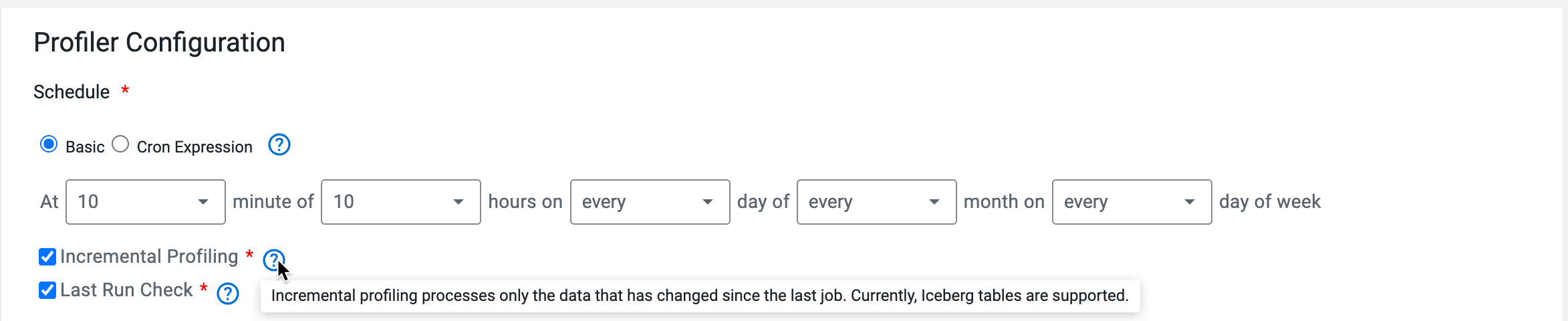
-
Configure the resources.
-
Add Asset Filtering Rules as needed to customize the selection and
deselection of assets which the profiler profiles.
-
Profiler configurations apply to both scheduled and on-demand profiler jobs.
- Asset filtering rules apply to assets, such as tables, and not to complete databases. This means that filtering rules work at table level and not at a database level. You are able to filter out all tables of a specific database, but each table will be check whether its parent is the selected database.
- Multiple asset filtering rules are evaluated together as if connected by the OR operator.
- In Compute Cluster environments, you cannot enable conflicting Allow and Deny
list rules at the same time. Enabling conflicting rules results in the following
error message:

-
Set your Deny List and Allow List.
The profiler will skip profiling assets that meet any criteria in the Deny List and will include assets that meet any criteria in the Allow List.
- Click Add New Rule to define new rules.
- Use the radio buttons to define your new rule for the Allow List or Deny List.
- Select one of the following keys from the drop-down list and select the relevant
operator:
Key Operator Database name - equals
- starts with
- ends with
Name (of asset) - equals
- contains
- starts with
- ends with
Owner (of asset) Creation date1 - greater than
- less than
1 By Creation Date, Greater than 7 days means an asset older than seven days. Less than 7 days means an asset younger than seven days. - Enter the value corresponding to the key. For example, you can enter a string as mentioned in the previous example.
- Click Add Rule. Once a rule is added (enabled by
default), you can enable it or disable it as needed by clicking the state
toggle.
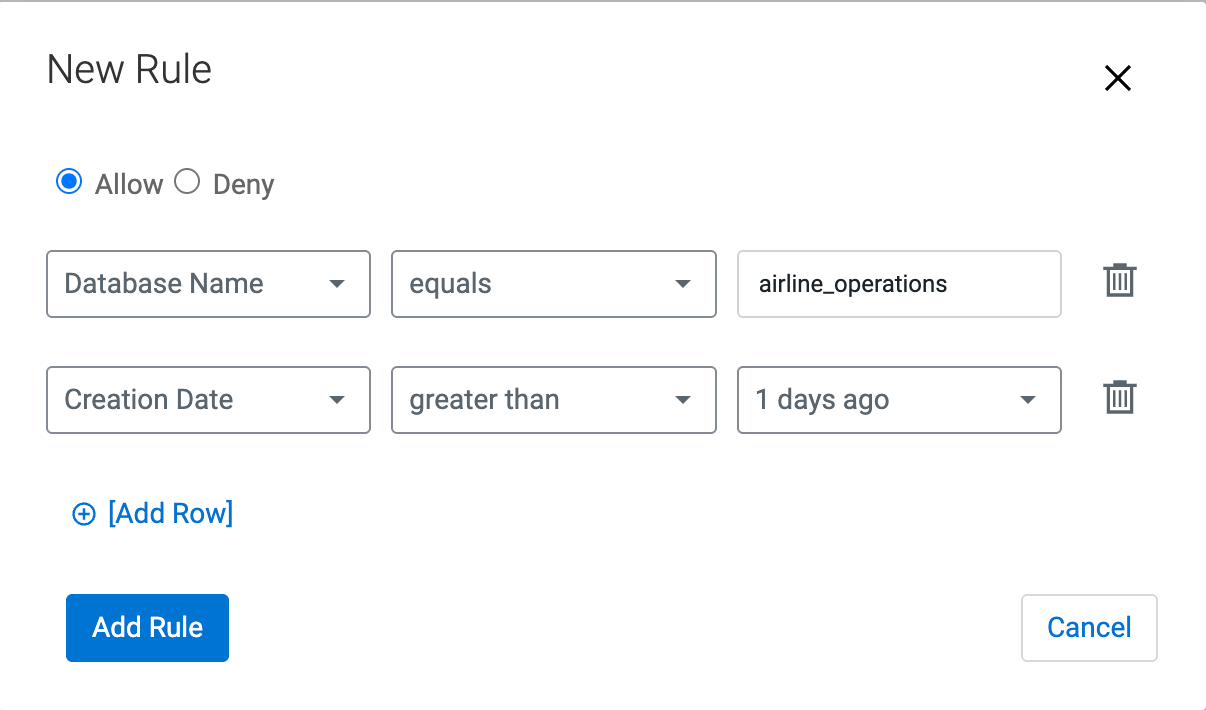

Figure 3. Affected Assets in Asset Filtering Rules configuration 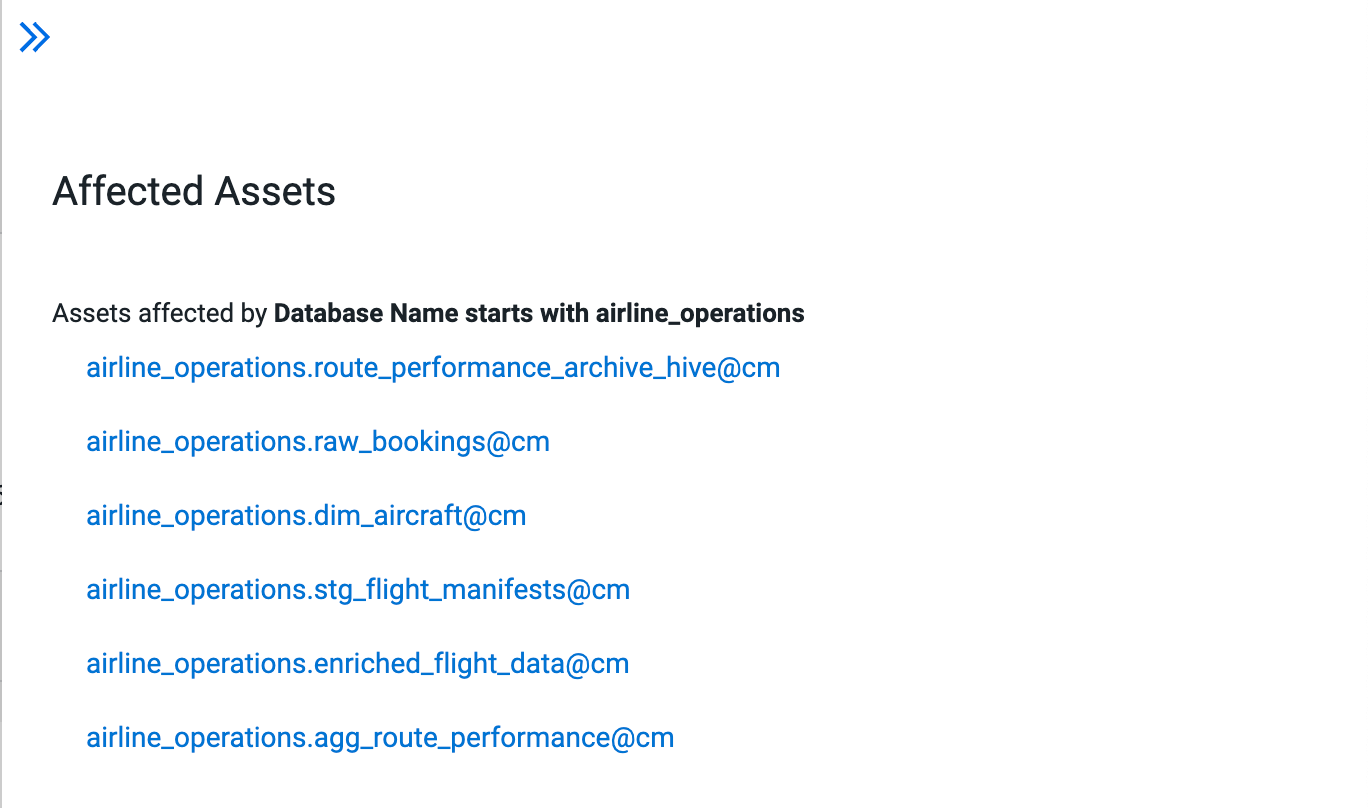 Job Summary shows the asset filtering rules applied for the particular profiling job.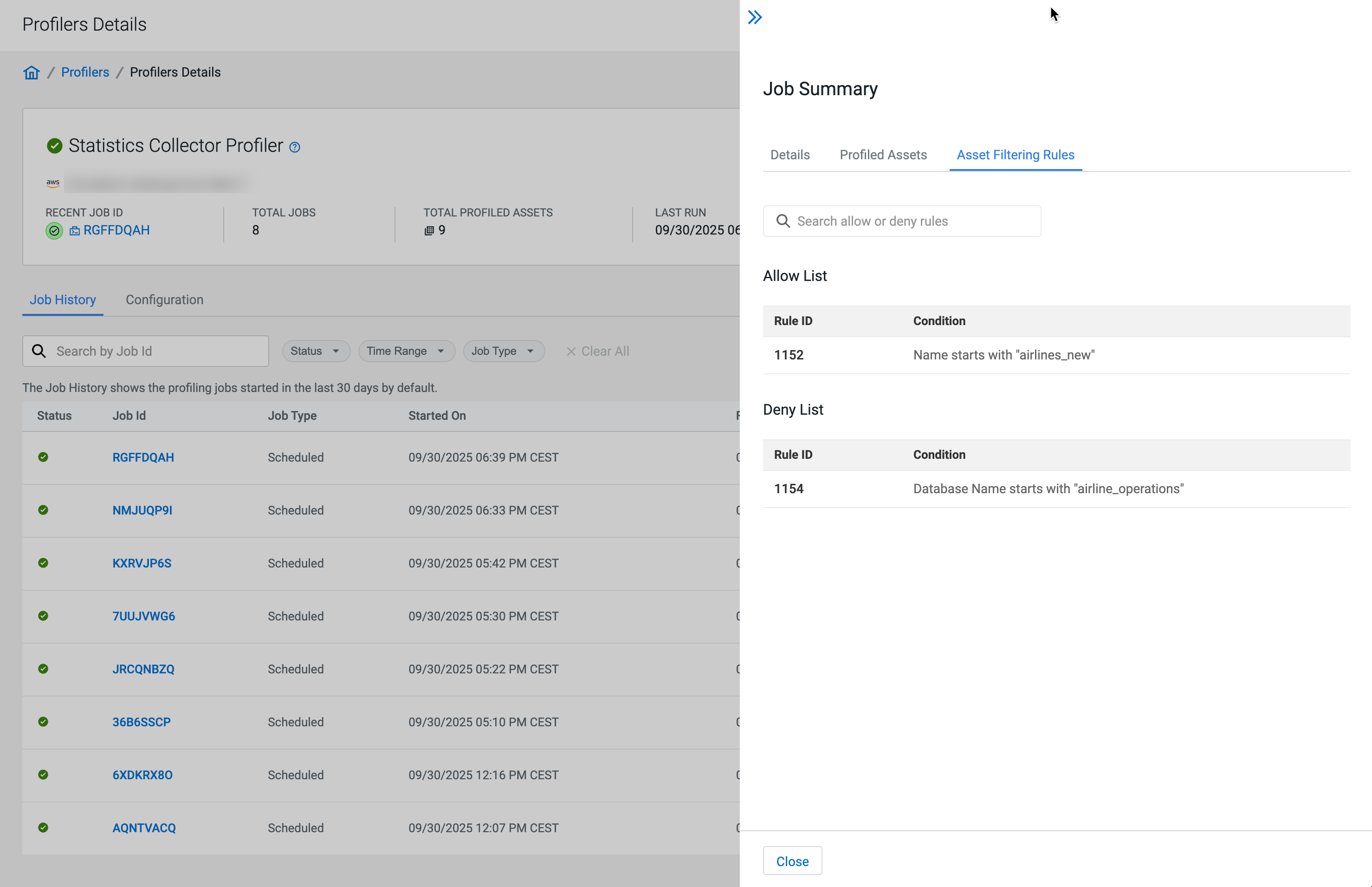
-
