Creating a custom color palette with distinct colors
Users with an administrative role can create custom color palettes with distinct colors. These palettes are useful when you want to apply clearly differentiated colors to categorical data.
-
Define the colors for the palette.
-
Click + Add Color to add a second color to the new custom
palette.
Continue adding colors until the palette contains the required number of distinct colors.In this example, the following colors have been added to the custom color palette called Leaf:
Color Hexadecimal Value Color 1 #25351f Color 2 #28410e Color 3 #476b17 Color 4 #82b332 Color 5 #aec551 Color 6 #f7f05d Color 7 #f1c150 Color 8 #dc8451 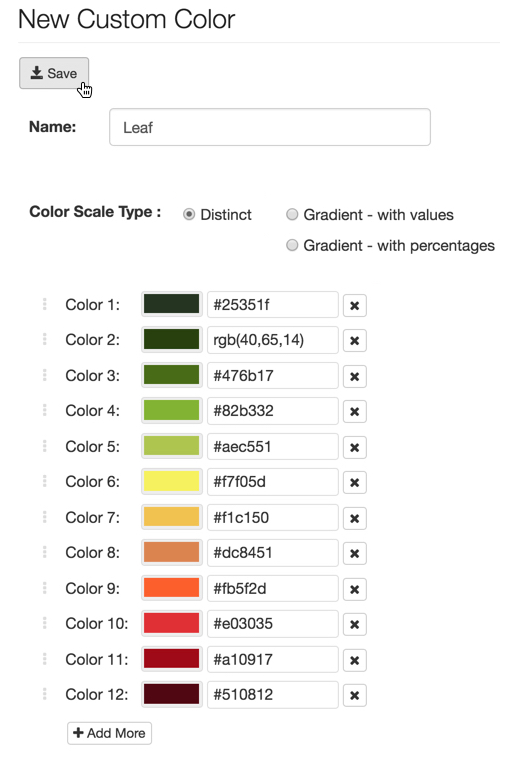
-
Click + Add Color to add a second color to the new custom
palette.
- The new distinct custom color palette you created is added to the list of custom colors on the Manage Custom Colors interface.
- The new custom palette becomes available in the menu of visuals.
You can edit or delete the palette using the available actions.
