Creating custom color palettes with gradient percentages

Users with an administrative role can create custom color palettes that use gradients with percentage-based color stops. These palettes are useful for visualizing value ranges and distributions.

  1. Click New Customer Color to open the Create Custom Color interface.
  2. Enter the Name of the new color.
    In this example, Orange is used.
  3. Optional: In Description, enter additional information about the palette.
  4. For Type, select Gradient – with percentages..
  5. Configure the gradient colors on the color bar.
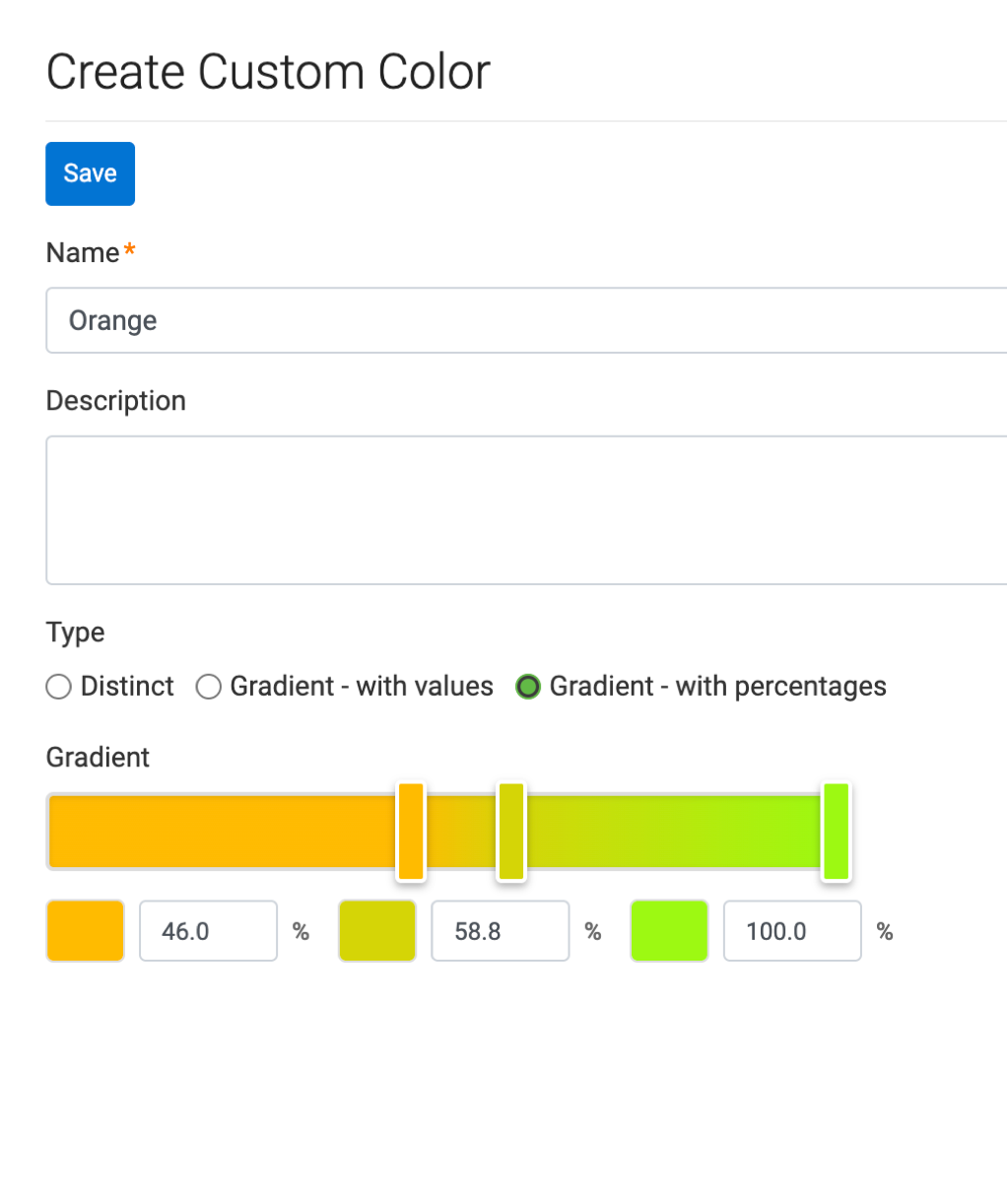
    1. Select the color indicator on the left side of the gradient and choose a color using one of the available options:
      • Color slider
      • Percentage field
      • Color picker
      • RGB, HSL, or hexadecimal color code
    2. Select the color indicator in the middle of the gradient and choose a color.
    3. Select the color indicator on the right side of the gradient and choose a color.
  6. Click Save.
  7. Click the Custom Colors tab to return to the Manage Custom Colors interface.
  • The new gradient-with-percentages custom color palette you created is added to the list of custom colors on the Manage Custom Colors interface.
  • The new palette also becomes available in the Style > Colors menu of visuals.

You can edit or delete the palette using the available actions.
