Creating a custom color palette with gradient values
Users with an administrative role can create custom color palettes that use value-based gradients. These palettes map a range of data values to a color gradient with defined minimum, midpoint, and maximum values.
-
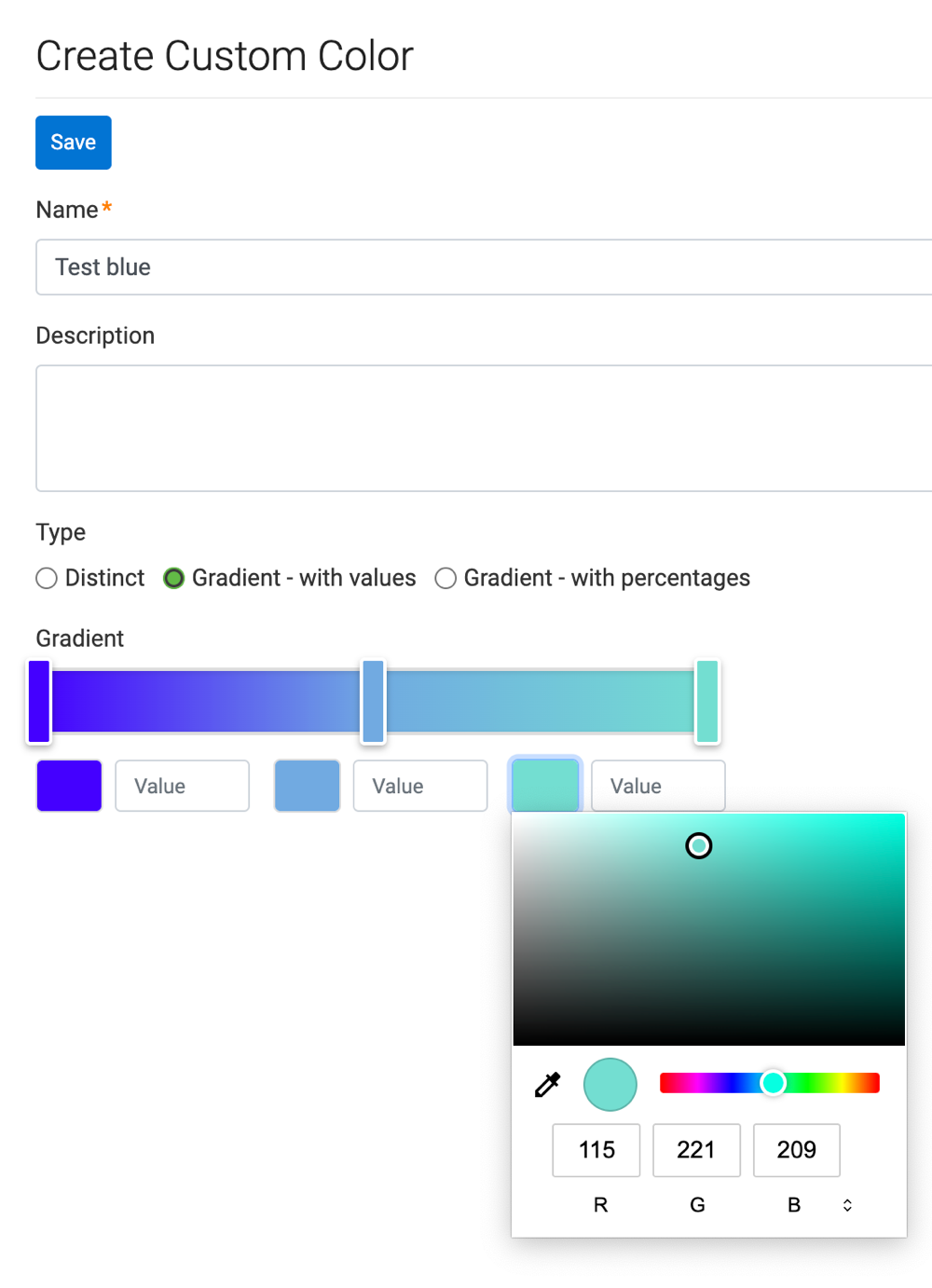
Configure the gradient colors on the color bar.
- Select the color indicator on the left side of the gradient to define the color for the minimum data value.
- Select the color indicator in the middle of the gradient to define the midpoint color.
- Select the color indicator on the right side of the gradient to define the color for the maximum data value.
For each color indicator, use the color selection widget to choose a color:
-
Select a color from the color field.
-
Adjust the shade using the shade slider. Moving the slider to the left produces progressively more muted (gray) shades. Moving it to the far right (the default position) produces the most intense color.
-
Enter RGB or hexadecimal values directly.
-
Fine-tune the color by dragging the selection marker within the color field.
- The new gradient-with-values custom color palette you created is added to the list of custom colors on the Manage Custom Colors interface.
- The new palette also becomes available in the menu of visuals.
You can edit or delete the palette using the available actions.
