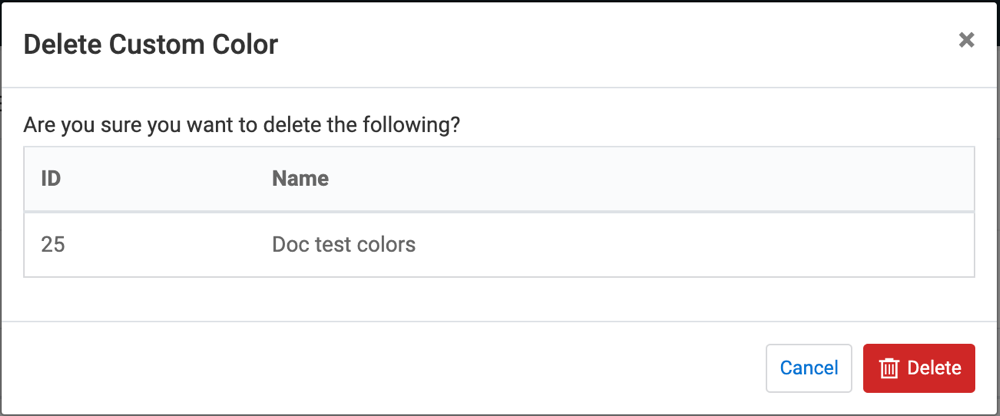
Deleting custom colors
Administrators can delete custom color palettes that are no longer needed.
-
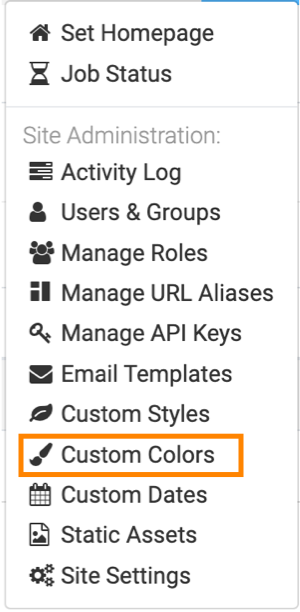
Click
 on the main navigation bar to open the
Administration menu and select Custom
Colors.
on the main navigation bar to open the
Administration menu and select Custom
Colors.
-
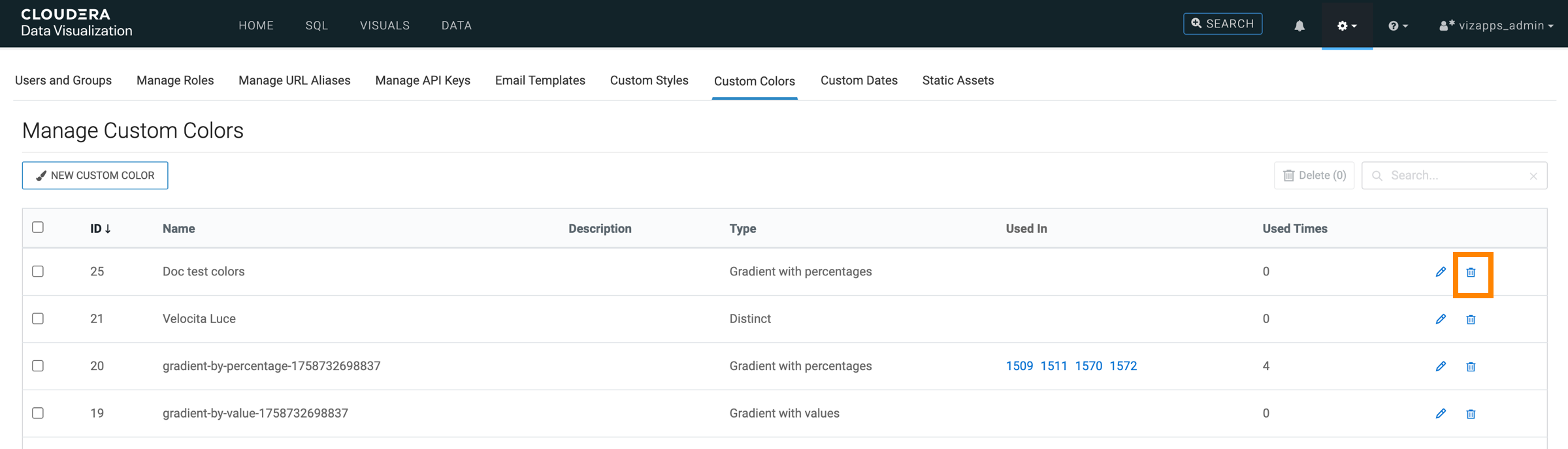
In the Manage Custom Colors interface, find the custom color
palette you want to remove and click
 on
the row to delete a single palette.
on
the row to delete a single palette.
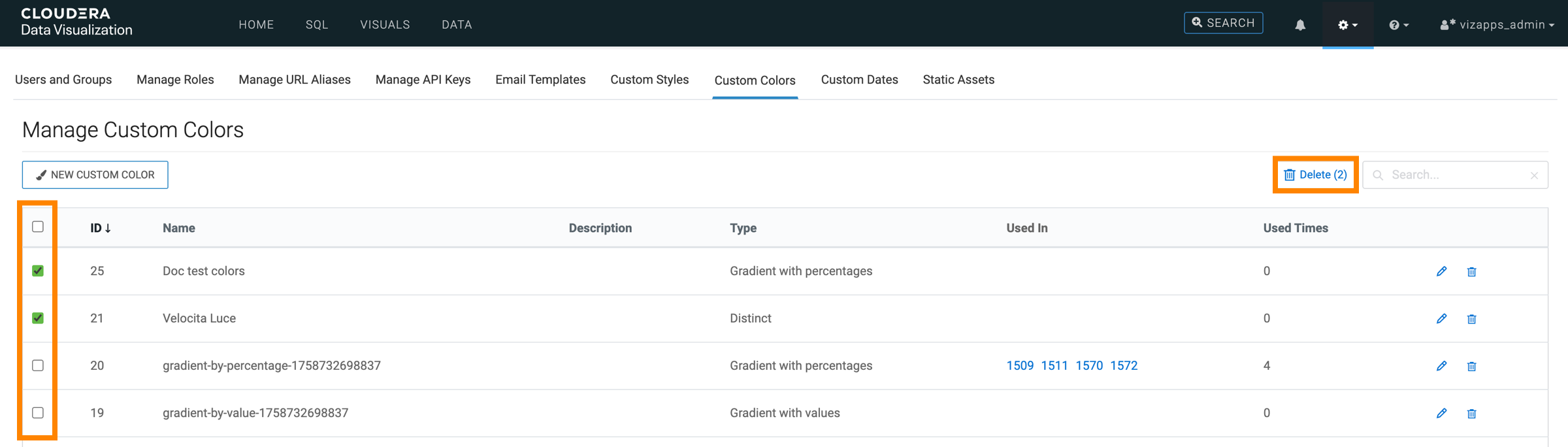
The Manage Custom Colors interface also supports deleting multiple custom colors at once. For this, select several color entries using the checkboxes to enable the Delete button. You can use the checkbox in the header row to select all entries.
-
In the Delete Custom Color modal, click
Delete to confirm the action.