Refreshing visual URLs in scheduled email jobs
If your Cloudera Data Visualization instance moves to a new host or its domain or port changes, visual links saved in scheduled email jobs may still point to the previous address. Refresh the URLs so links in future emails point to the right instance.
You can refresh one job in the UI or use the Admin API to refresh selected jobs or all scheduled email jobs.
Refreshing visual URLs for one job using the UI
Use this method to refresh the visual URL in a single scheduled email job.
-
Click
 in
the top-right corner to open the Settings menu.
in
the top-right corner to open the Settings menu.
-
Locate the job you want to update and click
 > Details at the end of its row to open the Job Details
modal.
> Details at the end of its row to open the Job Details
modal.
-
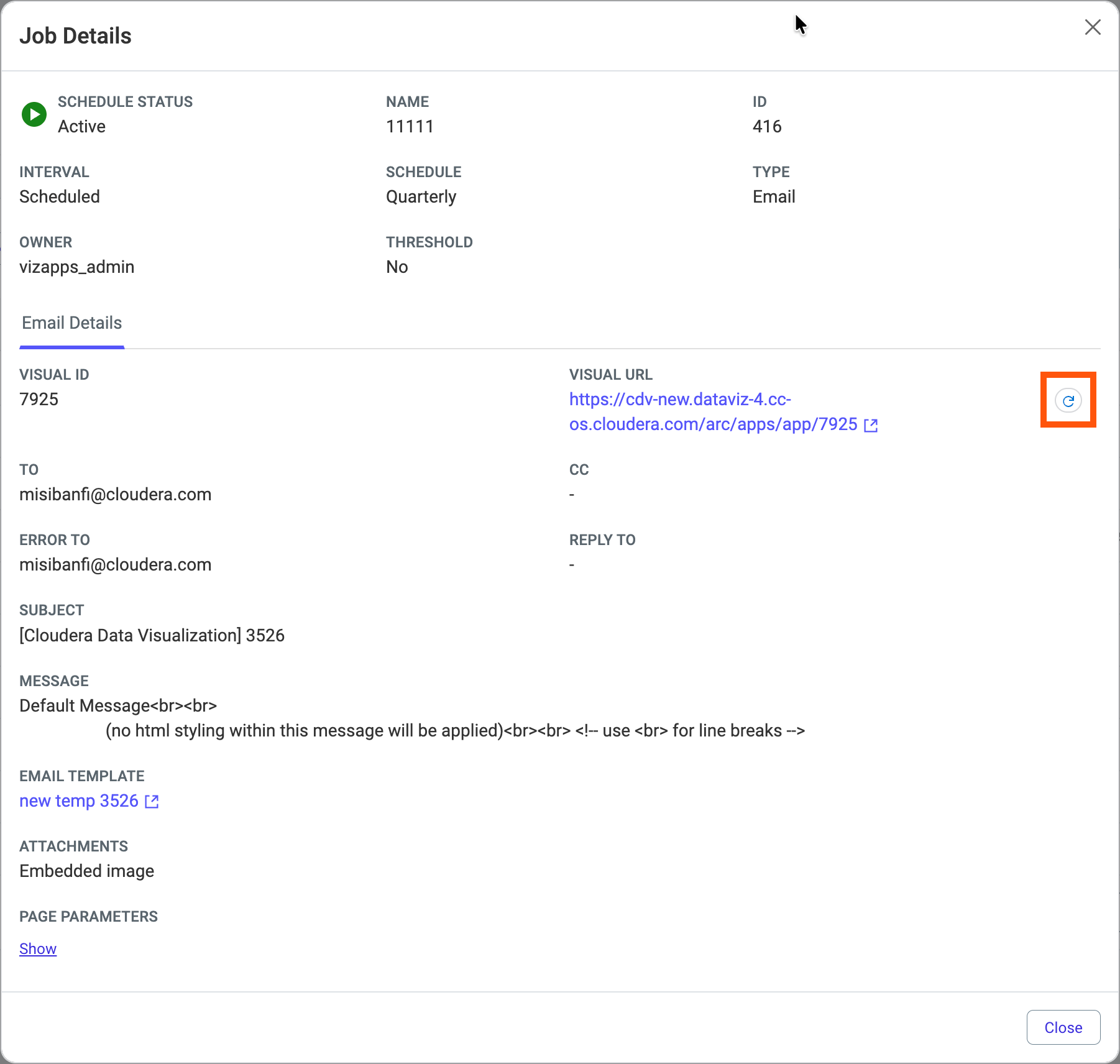
Next to the visual link URL, click
 .
.
Refreshing visual URLs for multiple jobs using the Admin API
Administrators can use POST /adminapi/jobs/refresh_visual_urls to
refresh selected scheduled jobs or all scheduled email jobs in one request.
-
Make sure you have administrator privileges.
-
Enable the
jobsAdmin API category in .For instructions, see Enabling admin API support.
-
If you want to refresh specific jobs, find their IDs on the Scheduled Jobs tab.
