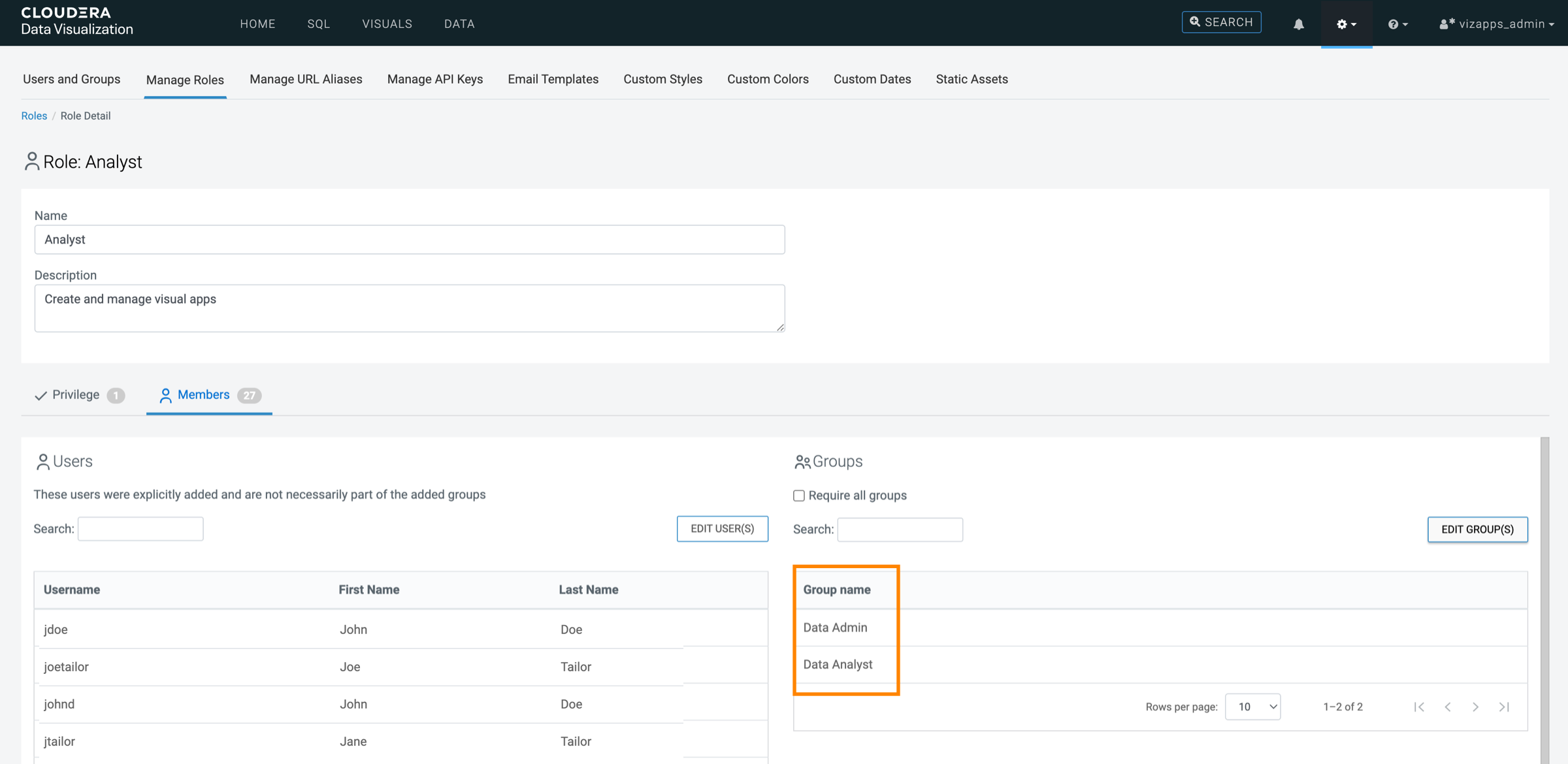
Assigning roles to user groups
The following steps demonstrate how to add user groups to a role.
-
Click EDIT GROUP(S).
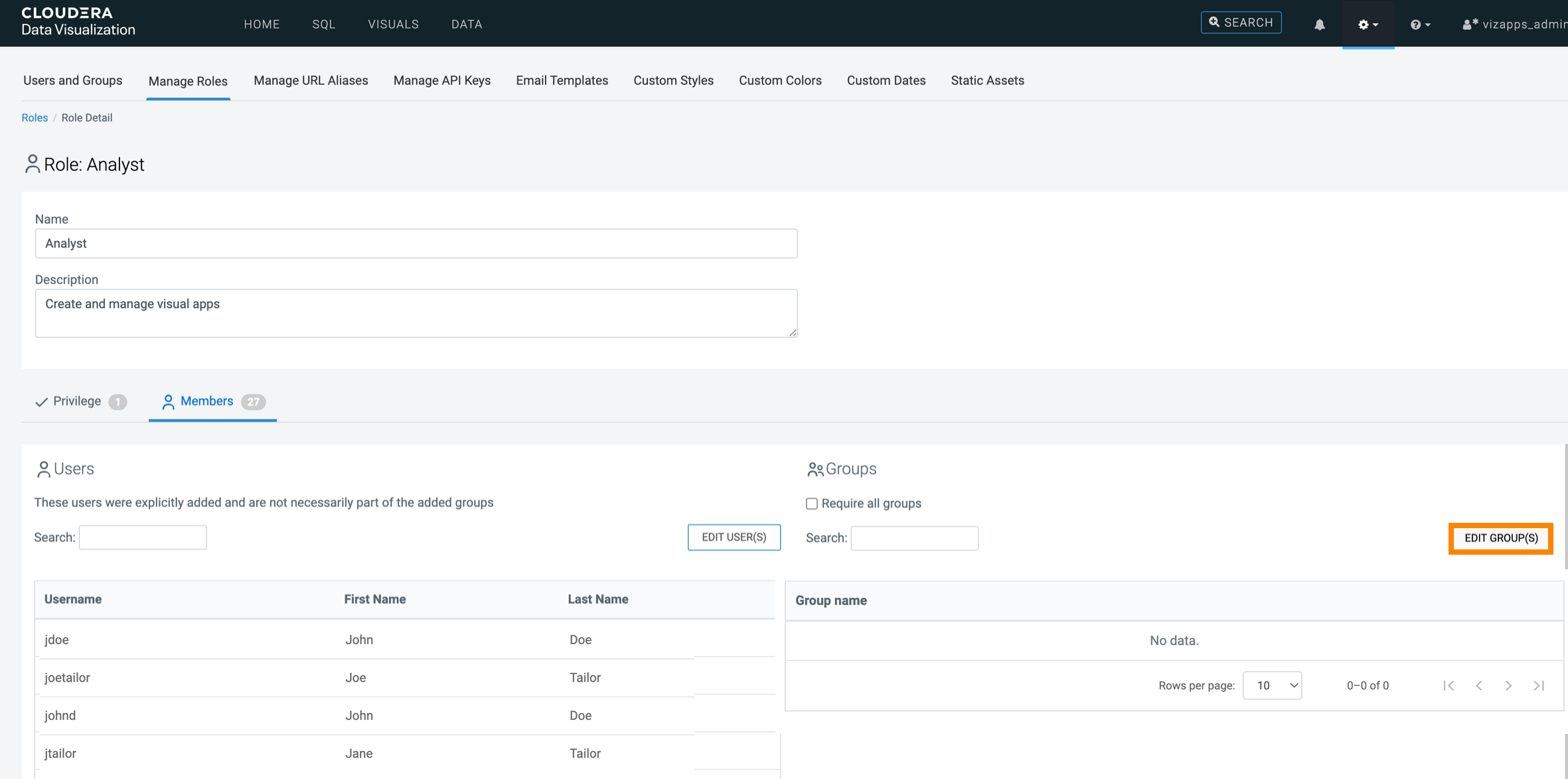
The Role Assignment modal is displayed.
-
There are several options to add groups to roles:
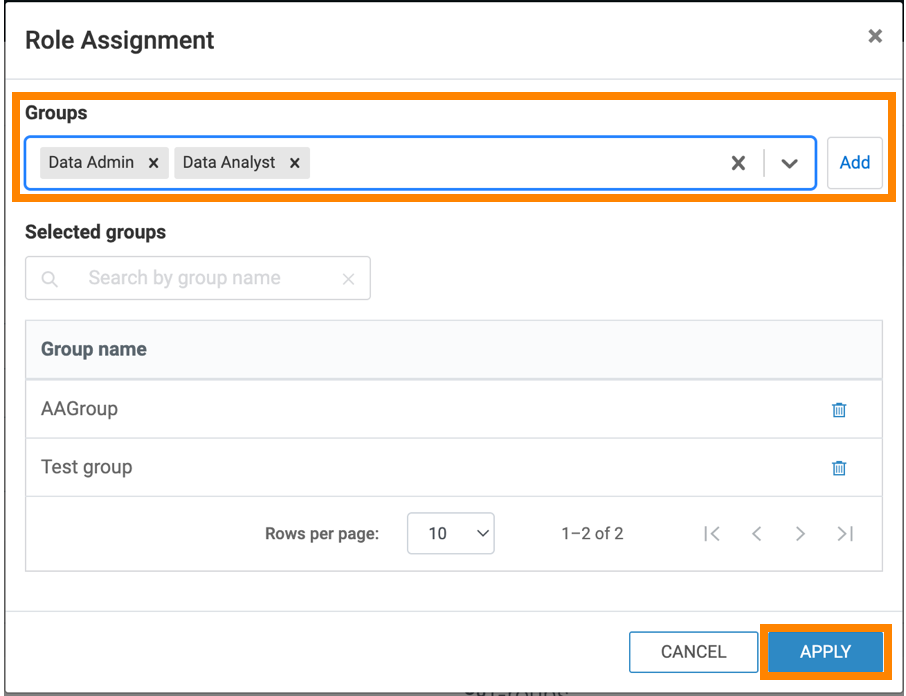
- Search and select existing groups
-
- Use the Search field to find groups by name.
- Select one or more groups from the filtered list.
- Click ADD to move them to the Selected groups list.
- Click APPLY.
- Add externally defined users (LDAP authentication)
-
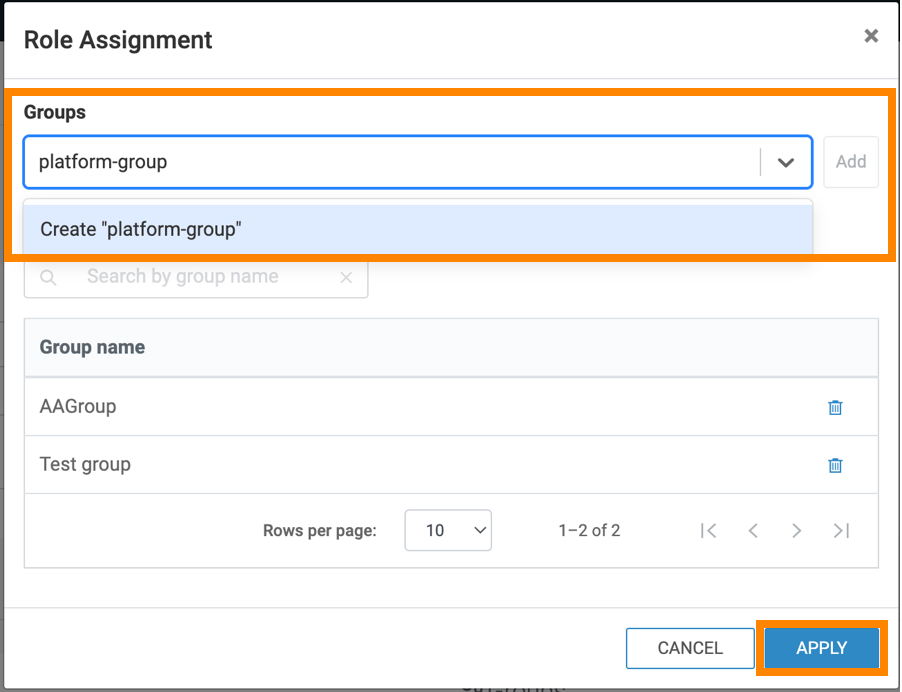
If you are using LDAP authentication, you can assign roles to groups who are not yet stored locally (for example, users who have not logged in).
-
In the Groups text field, type the group name.
-
Click Create to add the new group to the list.
-
Repeat as needed.
-
Click ADD, to move them to the Selected groups list.
- Click APPLY.
-
-
Click APPLY.
The Group name list is updated.