Assigning roles to a single user
You can add one or more security roles to a user's profile in Cloudera Data Visualization.
-
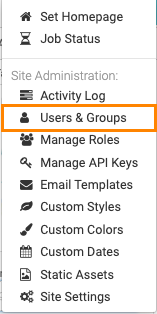
Click Users & Groups.
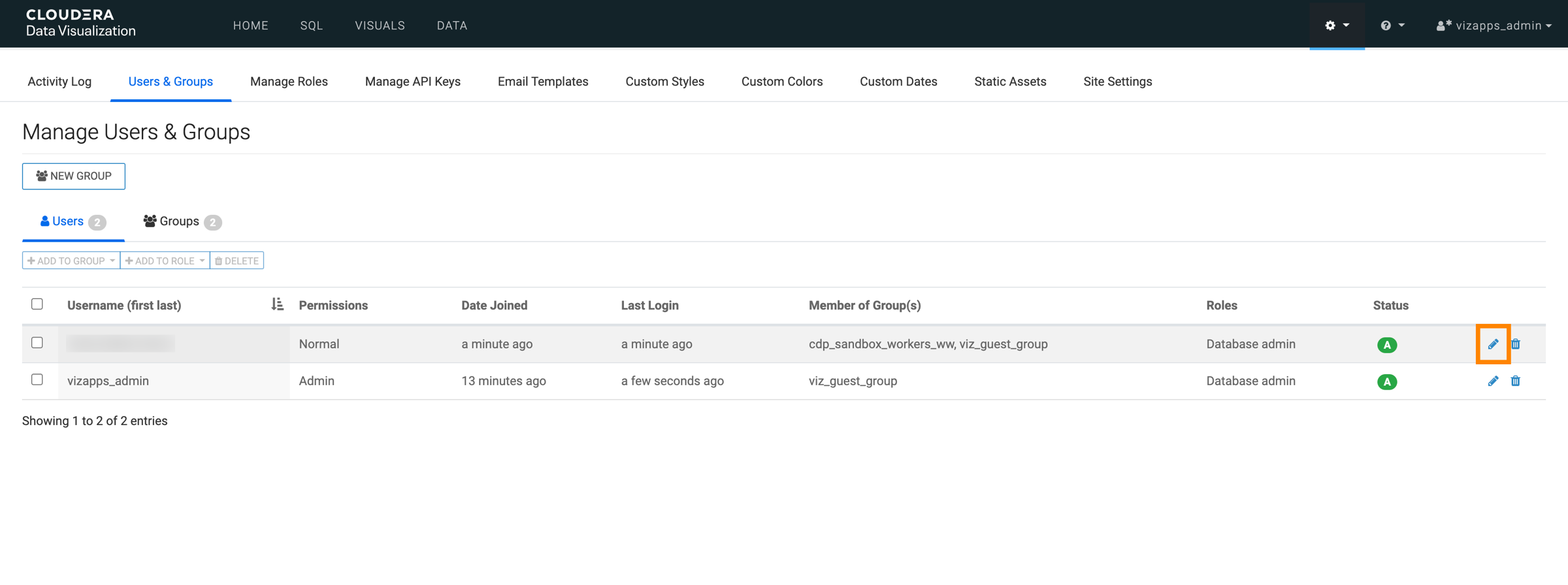
The Manage Users & Groups interface opens on the Users tab.
-
In the list of users, locate the user you want to update and click its edit
(Pencil) icon.
Alternatively, you can click the username itself to open the user details for editing.
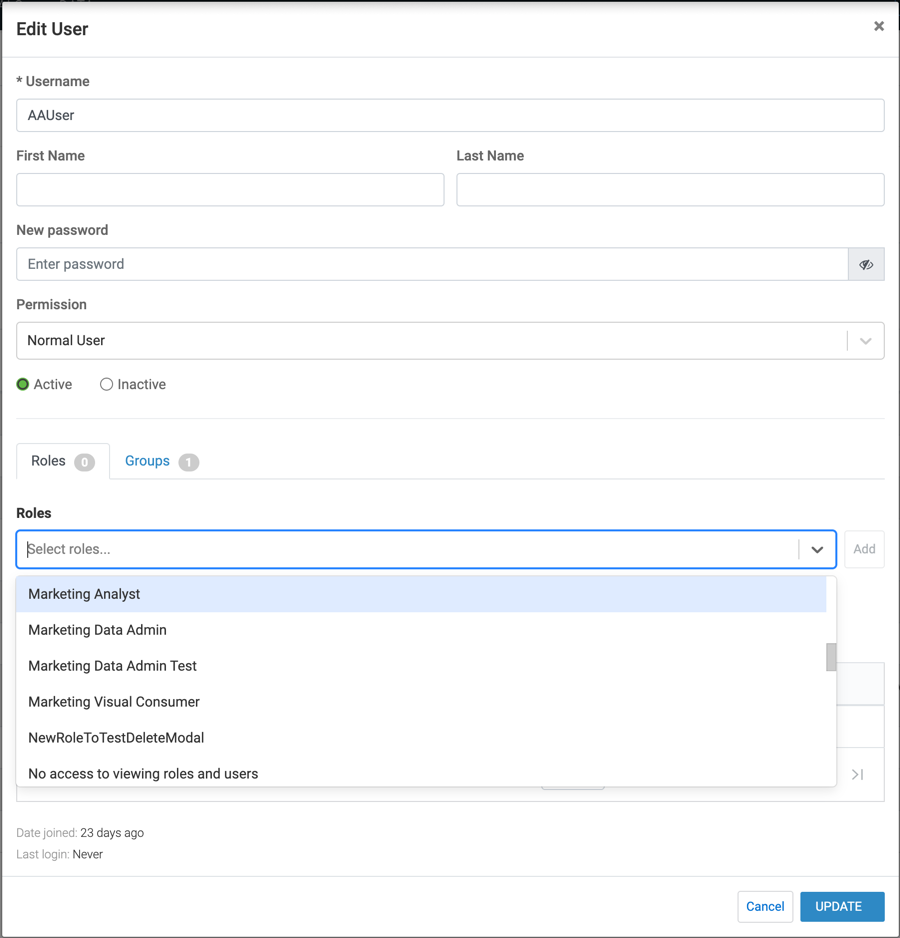
The Edit User modal appears.
-
Choose the role you want to assign to the user and click
ADD.
The user’s role assignments are applied immediately and are visible in the Users & Groups interface.
