Editing user groups
You can edit existing user groups in Cloudera Data Visualization.
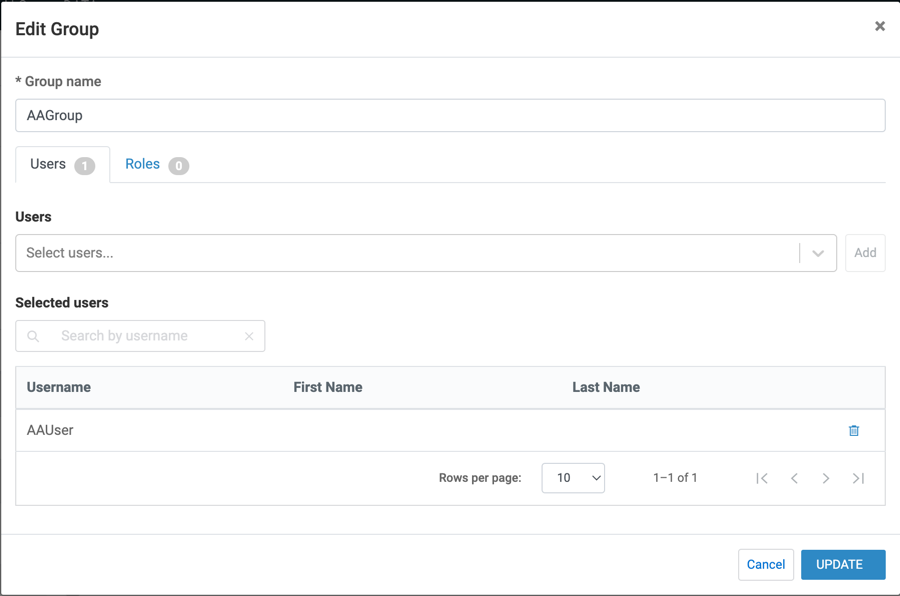
When editing a user group, you can change its name, and the users assigned to it.
The following steps demonstrate how to edit user groups.
-
Click Users & Groups.
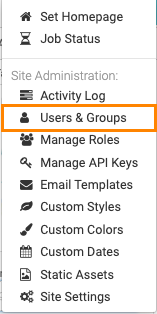
The Manage Users & Groups interface opens on the Users tab.
-
In the list of user groups, click the name of the user group you want to edit, or the
Pencil icon in the corresponding row.
The Edit Group modal appears.