Search suggestions
For faster search results, Cloudera Data Visualization enables you to choose from different Natural Language Search types.
In illustrating these topics, the search-enabled, sample datasets Cereals and World Life Expectancy are used.
Hit highlighting
To easily differentiate the visuals in the Natural Language Search results, Cloudera Data Visualization highlights the visuals that match the text in the search text box.
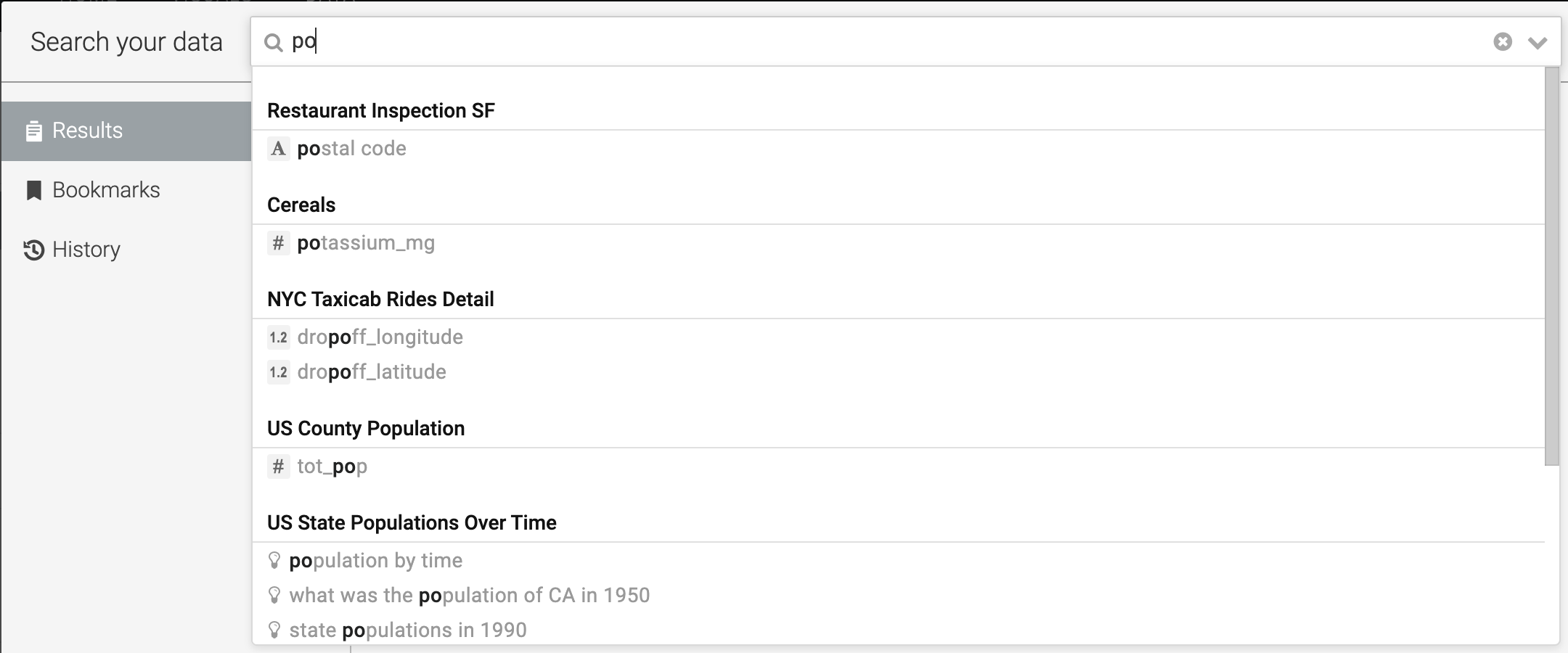
When the user enters text in the search text box, the dropdown list displays all the strings that match the characters entered in the search box. To easily identify and select one of the options, the typed characters are highlighted in a different color.
Match field names
For faster search results, Cloudera Data Visualization enables you to search visuals based on the field names entered in the Natural Language Search text box.
When you enter a field name in the search text box, the dropdown list highlights all the field names that match the characters entered in the search box. For example, if you type 'po' then the dropdown list highlights the fields names, 'tot_pop', 'potassium_mg', and so on. The dropdown list also matches within the strings, so in our example, 'dropoff_longitude' field name is also highlighted.
In the following example, 'dropoff_longitude' and 'dropoff_latitude' field names are also highlighted.
Matching suggested questions
For easy and faster search, Cloudera Data Visualization suggests predefined questions in the Natural Language Search drop-down list.
When you start to enter text in the search text box, the drop-down list displays predefined suggested questions that match the characters entered in the search box. In the below example, when the characters 'highest' are entered, the drop-down list highlights a suggestion with the characters ‘highest’ in the string.

Search history
Reuse a previous natural language search from the search field or review past searches in the History view.
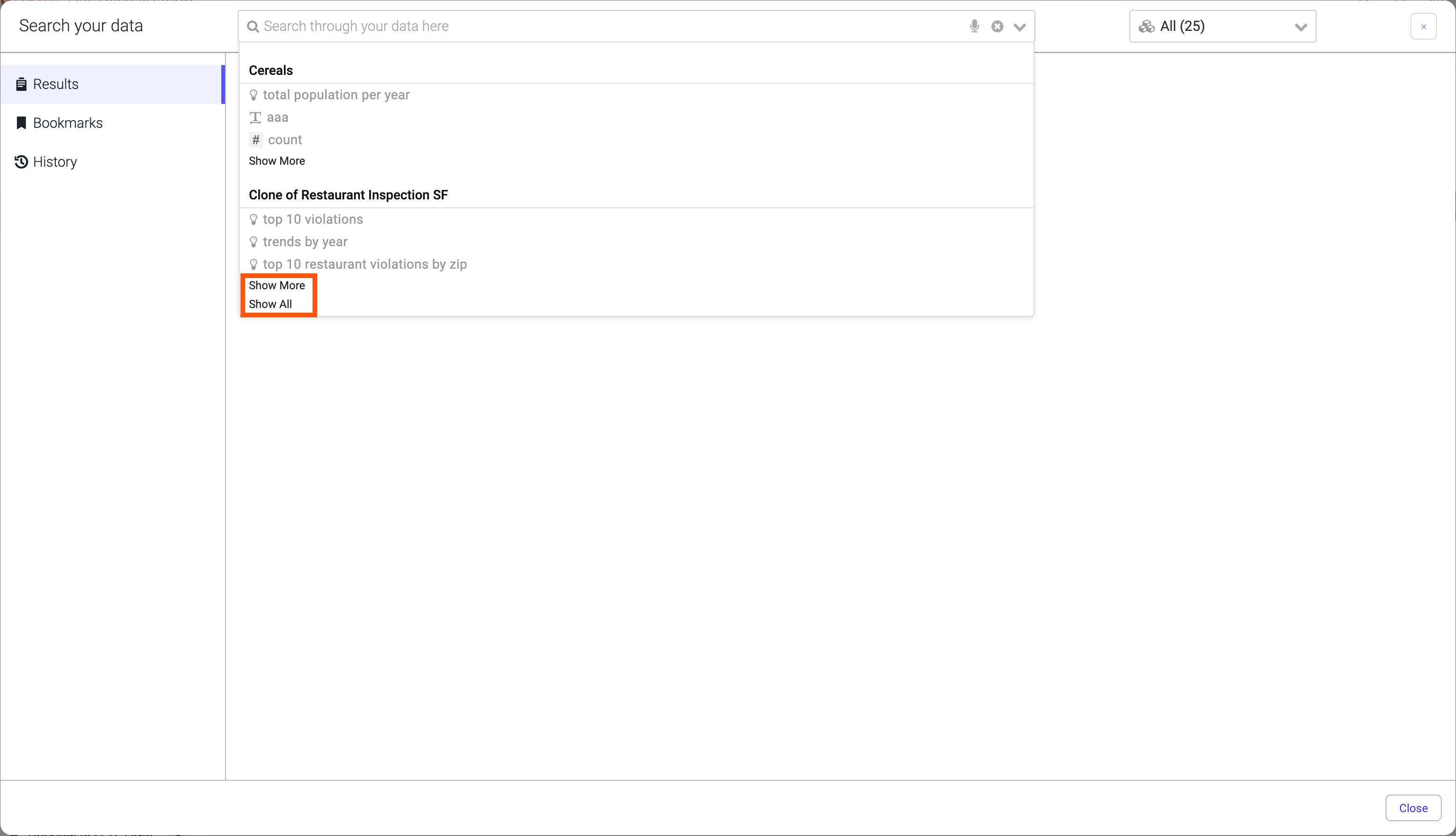
When you first click the search box and before you start typing, your most recent searches appear in the drop-down list grouped by dataset.
Select an entry to run that search again. As you type, matching entries from your search history may continue to appear alongside other search suggestions.
The drop-down list initially shows a limited number of entries for each dataset. Click Show More to see additional entries for a dataset, or Show All at the bottom of the list to expand the full list.
To review your past searches separately from the suggestions, click History in the left navigation panel.