Cloudera Data Visualization SQL view
Explore connected data sources and write and run SQL queries.
The SQL view enables you to explore connected data sources and create and run SQL queries. You can use query results to create datasets and dashboards. This page is typically the starting point when you need to explore raw data or create custom datasets for analysis and visualization.
To open this view, click SQL in the left navigation panel. Select a data connection from the Data Connection list to begin. The connections available to you depend on your permissions.
After selecting a connection, you can use the SQL workspace to:
- Write and edit SQL statements.
- Select a database.
- Run queries and review the results.
- Save queries for later use.
- Create datasets from query results.
- Create dashboards based on query output.
- Email or download query results.
The SQL workspace includes the following elements:
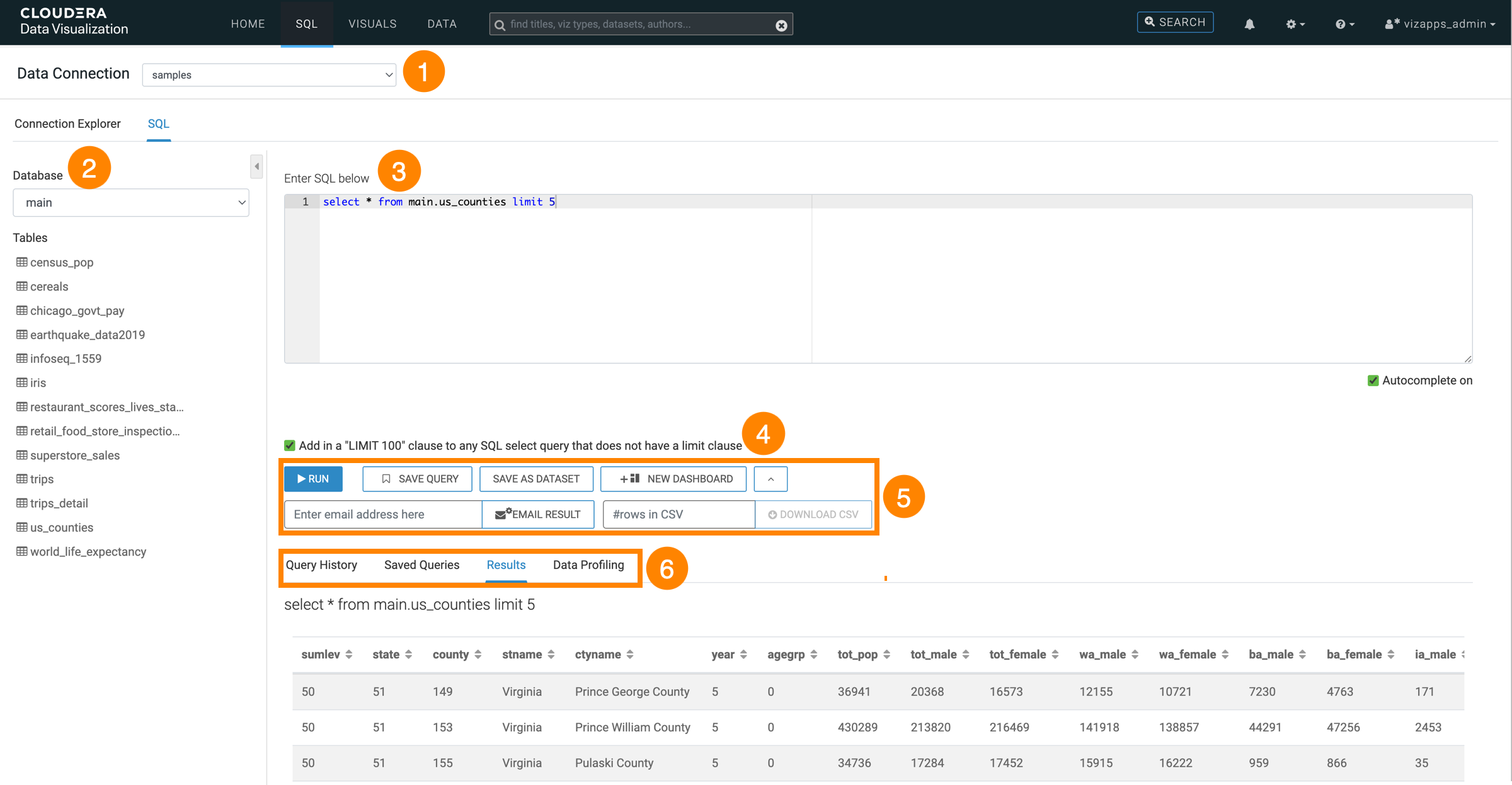
- Data connection: Select the connection that you want to use for your query.
- Database: Select the database that you want to query.
- Tables: Browse the tables available in the selected database. You can collapse the database and table panel to provide more space for the SQL editor.
- SQL editor: Enter and edit your SQL statement.
- Autocomplete: Enable or disable suggestions while entering a query.
- Apply "100 LIMIT" clause: Automatically add a
LIMIT 100clause toSELECTqueries that do not already specify a limit. - SHOW DATA: Run the SQL query and display the returned data on the Results tab.
- Display tabs:
- Query History: View previously run queries.
- Saved Query: View queries saved for later use.
- Results: View the data returned by the query.
