Navigating Cloudera Data Visualization
Move between the main views of Cloudera Data Visualization and access controls available throughout the application.
The Cloudera Data Visualization UI has two main navigation areas: The primary navigation panel (1) on the left takes you to the Home, SQL, Visuals, and Data views. The global controls (2) in the upper-right corner provide access to search, notifications, settings, help, and your account.
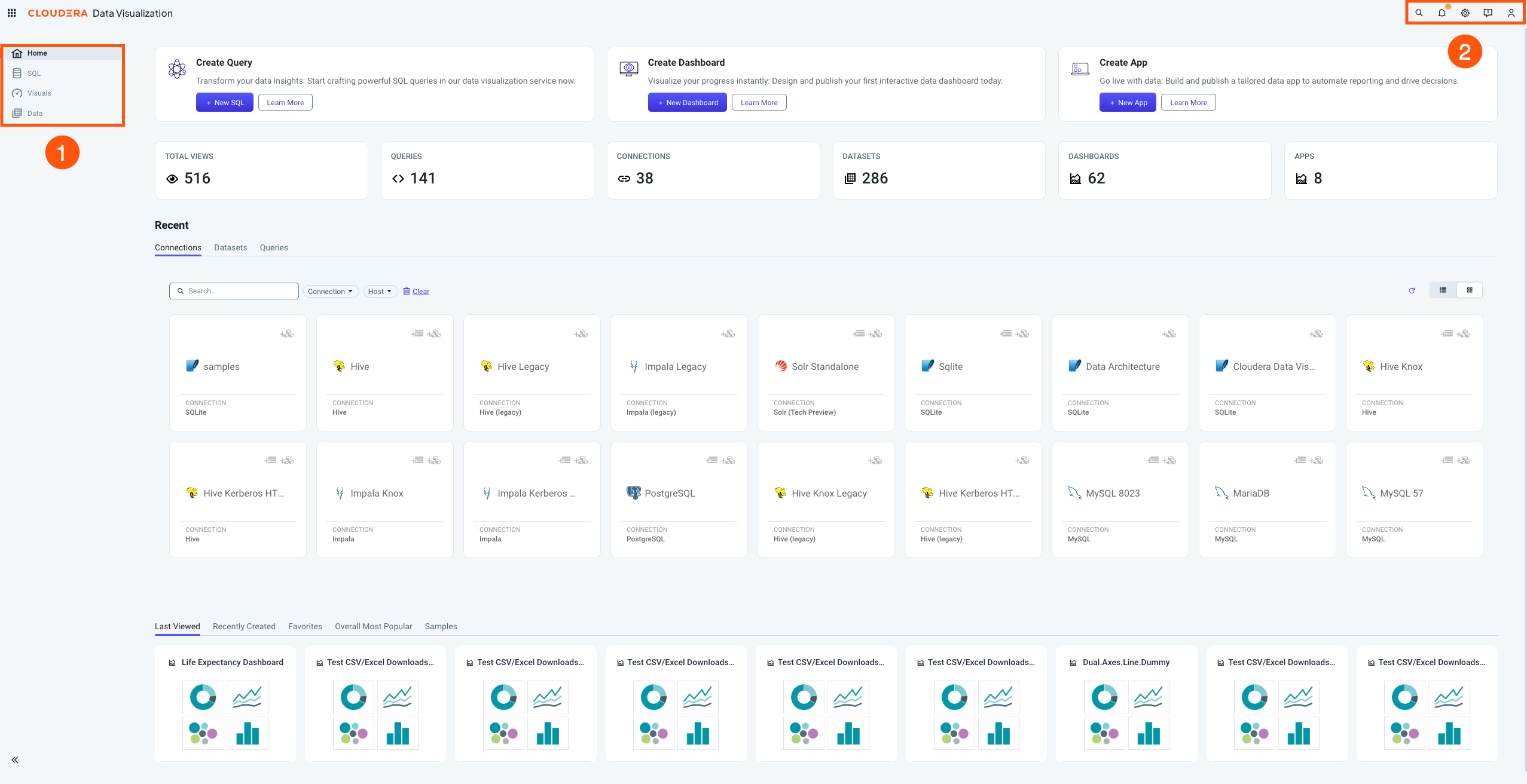
- 1. Primary navigation panel
-
Area Purpose Home View activity summaries and recent work, or create new queries, dashboards, and applications. For more information, see HOME interface. SQL Create and run SQL queries against connected data sources. For more information, see SQL interface. Visuals Create, edit, and manage visuals, dashboards and applications. For more information, see VISUALS interface. Data Manage connections, datasets, data models, and other data assets. For more information, see DATA interface. Click the arrow at the bottom of the panel to collapse or expand it.
- 2. Global controls
-
Use the controls in the upper-right corner to access features available throughout the application.
Control Description Search Find visuals, dashboards, applications, datasets, queries, and other assets that you have permission to access. This control is available only if search is enabled in Site Settings.
Notifications View system notifications and updates.
All users can view browser-level errors that may affect Cloudera Data Visualization. Depending on their permissions, users can also see activity logs, webserver errors, and system-level issues.
Settings Access application settings and administrative functions. The available options depend on your assigned role and permissions.
The Settings menu can include the following options:
- Set Homepage
- Job Status
- Site Administration
- Logs & Usage
- Users & Groups
- Manage Roles
- Manage URL aliases
- Manage API Keys
- Email Templates
- Custom Styles
- Custom Colors
- Custom Dates
- Static Assets
- Site Settings
Help Access release summary, product documentation, and support resources.
You can also view the version number of the running Cloudera Data Visualization instance.
User menu View your account and login information and access profile- and session-related options.
The user icon may include a marker indicating the account type or status:- Regular user:
- Regular user who needs to change their password :
- SSO-autheticated user:
- Admin user:
- Admin and SSO-autheticated user:
