Permissions

Cloudera Data Visualization uses Role-Based Access Control (RBAC) permissions to regulate access to different components and functionalities of the system. Administrators configure these permissions when setting up roles, which are then assigned to relevant users or user groups. Permissions define access to visuals, datasets, data connections, and system-level functions.

There are four categories of permissions: system, role, connection, and dataset. When defining privileges, the following default permissions exist in each category:

System-level permissions: site-level capabilities

Role-level permissions: defined separately for each role

Connection-level permissions: defined separately for each data connection

Dataset-level permissions: defined separately for each dataset

System-level permissions

Create workspaces

Allows users to create and share workspaces among users and user groups.

View roles and users

Enables users to view users, user groups, and roles.

Manage roles and users

Grants users the ability to create users, user groups, and roles.

By default, this includes managing Filter Associations on the dataset management interface. Alternatively, you can configure Filter Associations as part of dataset management during individual dataset permission configuration. For more information on how to manage filter association configuration for a dataset, see the Manage dataset permission below.

Manage settings

Grants users the ability to manage global site settings.

Manage custom styles

Authorizes users to create new styles for dashboards and visuals.

Manage jobs, email templates

Grants users the ability to handle scheduled jobs and create email templates.

View activity logs

Allows users to monitor Cloudera Data Visualization' usage statistics and performance.

Manage data connections

Grants users the ability to create and manage connections to various data sources.

Additional system privilege

Enables users to perform the following actions:

  • Set a default homepage for all users. For more information, see Setting a default homepage for all users.
  • Clone, delete, or edit dashboards in another user’s private workspace.
  • Perform administrative restart/stop work operations.
  • Use Trusted Auth Get Ticket to request a ticket from the Cloudera Data Visualization Server. For more information, see Embedding apps with trusted authentication.

Role-level permissions

Grant manage dataset

Enables users to assign Manage dataset privileges to specific roles, provided the user has Manage dataset permission for that dataset.

Grant manage dashboards

Enables users to assign Manage dashboard privileges to specific roles, provided the user has Manage dataset permission for that dataset.

Grant view dashboards

Enables users to assign View dashboard privileges to specific roles, provided the user has Manage dataset permission for that dataset.

Connection-level permissions

Manage AVs/Extracts

Enables users to create and manage analytical views.

Import data

Allows users to import supplemental data into an existing connection.

Create datasets, explore tables

Allows users to create new datasets from existing tables, view sample data, and explore statistical reports on the data tables.

Dataset-level permissions

Manage dataset

Allows users to modify dataset properties, create datasets from joined tables, modify the fields of the dataset, and more.

To enable Filter Association (FA) configuration based on Manage dataset permission, add the the following line under Site Settings > Advanced Settings > Advanced Site Settings:

MANAGE_DS_FA = True

If you get the Manage filter associations permission using the MANAGE_DS_FA flag, you at least have to have View roles and users permission to be able to work with filter associations.

Manage dashboards

Enables users to create and modify visuals and dashboards.

View dashboards

Limits users to view-only privileges for visuals and dashboards, without edit privileges.

DATA interface interpretations

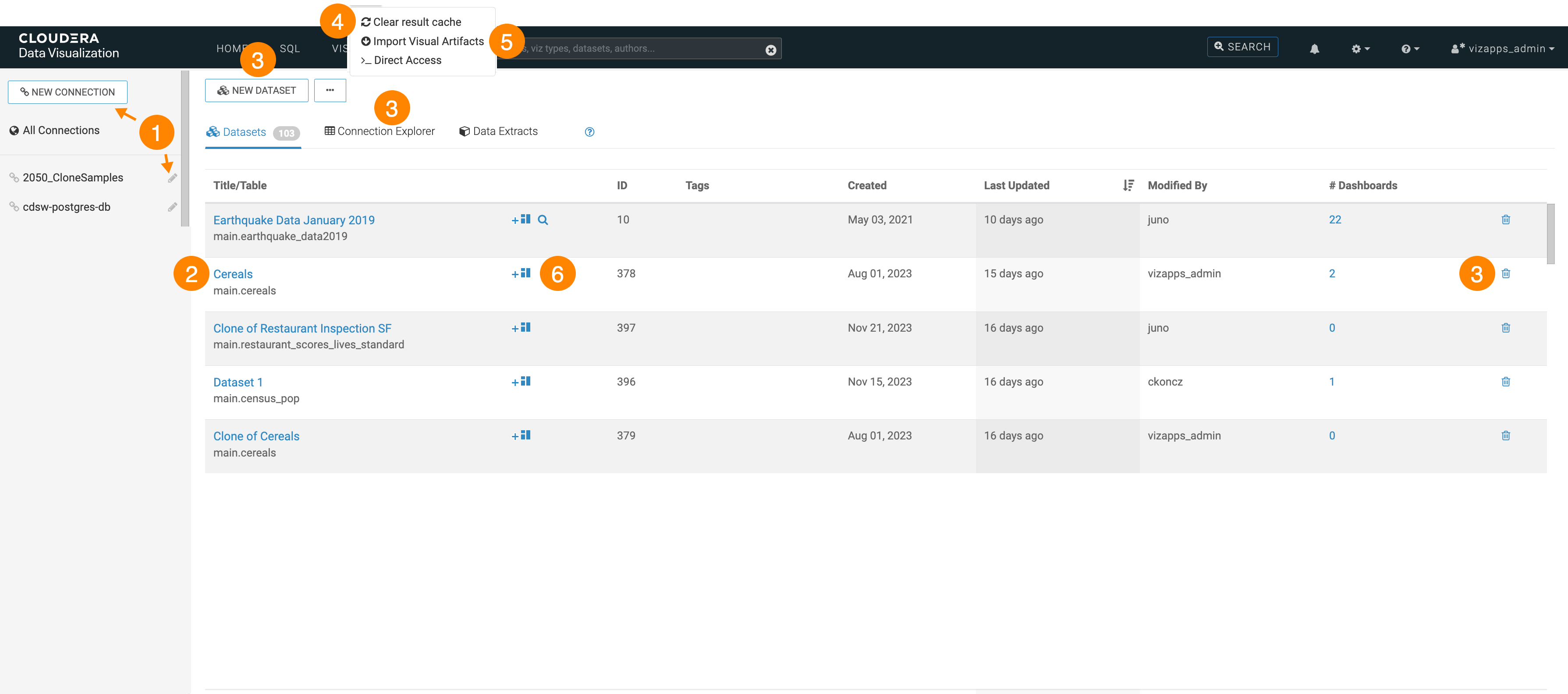
To connect the permissions to what options are available in the DATA interface of Cloudera Data Visualization, consider the following:

  • System-level Manage data connections permission

    Necessary to access the NEW CONNECTION button for creating new connections and the Pencil icon for editing existing connections.

  • Dataset-level View visuals and dashboards permission

    Required for a specific dataset to appear in the list of datasets for the selected connection.

  • Connection-level Create datasets, explore tables permission
    Necessary to access the:
    • NEW DATASET button over the list of datasets
    • Connection Explorer tab
    • Delete icon on the dataset row
  • Connection-level Manage data connections and dataset-level Manage dataset permissions

    Essential for the visibility of the Clear result cache option in the Supplemental menu.

  • System-level Manage styles and settings, connection-level Create datasets, explore tables, and dataset-level Manage dataset and Manage visuals and dashboards permissions

    May all be required for the visibility of the Import Visual Artifacts option in the Supplemental menu, depending on the type of import.

  • Dataset-level Manage visuals and dashboards permission

    Necessary to access the New Dashboard and New Visual icons on the specified dataset rows.