Visual Builder
The Visual Builder is the visual-level editing interface within the Dashboard Designer. Use it to create or configure an individual visual on a dashboard.
When a visual is selected, or you start creating a new visual, the visual-level Build, Settings, and Style menus appear below the dashboard-level menus. The selected visual remains on the dashboard canvas, while its configuration options appear in the Visual Builder.
For information about the dashboard toolbar, canvas, sheets, dashboard filters, and dashboard-level menus, see the Dashboard Designer documentation.
The Visual Builder provides the following menus:
- Build: Select the visual type and assign dataset fields to the visual.
- Settings: Configure the behavior and data-display options of the visual.
- Style: Customize the appearance of the visual.
Click the selected menu again to close the Visual Builder panel and provide more space for the dashboard canvas.
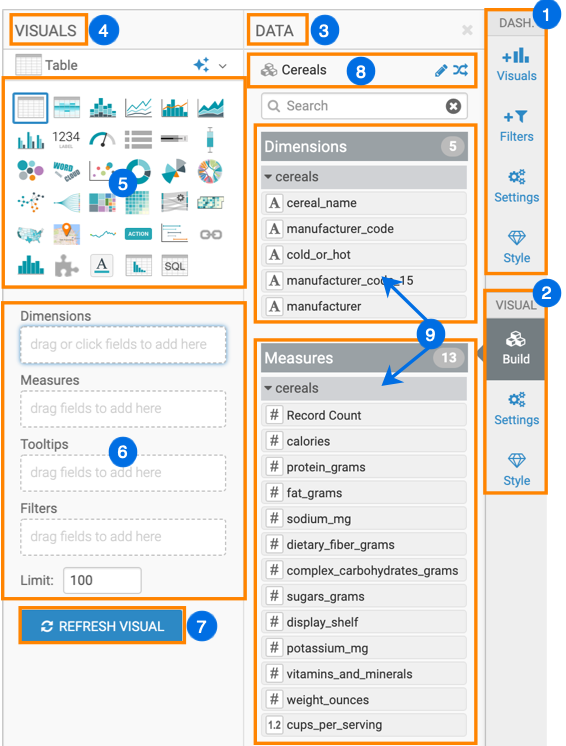
Build menu
The Build menu contains two main areas:
- Visuals area
-
The VISUAL area displays the current visual type and the Visual Type Catalog. Click an icon in the catalog to change the visual type.
Shelves below the catalog define the data displayed in the visual. The available shelves depend on the selected visual type. Drag fields from the DATA area to the appropriate shelves. You can also select a shelf and click fields to add them.
Click Refresh Visual after changing the visual type or shelf contents to update the visual on the dashboard canvas.
- Data area
-
The DATA area displays the dataset and fields available for the selected visual.
You can:
- View the dataset used by the visual.
- Change the visual’s dataset.
- Open the dataset for editing.
- Search for a field.
- Browse the available dimensions and measures.
- Drag fields to shelves in the VISUAL area.
If the dataset combines multiple tables, the fields are grouped by their source table.
Settings menu
Use the visual-level Settings menu to configure the behavior and data-related options of the selected visual.
The available settings are organized into the following sections:
- Downloads: Configure options for downloading data from the visual.
- Parameters: Configure parameters used by the visual.
- Data: Control how the visual retrieves and displays data.
- Marks: Configure data marks and related display behavior.
- Data Summary: Configure the summary information available for the visual.
Enable Apply future changes to all visuals to apply subsequent setting changes to all visuals on the dashboard. If this option is disabled, changes apply only to the selected visual.
The available settings can vary by visual type.
Style menu
Use the visual-level Style menu to customize the appearance of the selected visual.
For a table visual, the menu includes:
- Table Style: Configure the layout and formatting of the table.
- Table Colors: Customize the colors used in the table.
- Visual Basics: Configure general appearance options for the visual.
- Visual Title: Customize the visual title.
- Visual Subtitle: Customize the visual subtitle.
- Tooltip: Configure the information and formatting displayed in tooltips.
- Custom Style: Apply custom styling to the visual.
Enable Apply future changes to all visuals to apply subsequent style changes to all visuals on the dashboard. Otherwise, changes apply only to the selected visual.
The available style sections depend on the selected visual type.
