Adding field comments in dataset
When working with large datasets data, it can be useful to have access to comprehensive field-level descriptions. In Cloudera Data Visualization, you can use field comments to provide the context and meaning of each dataset field.
The following steps demonstrate how to add description to a column of a dataset, as a
'comment'. In this example, the county field is used from the Food
Stores Inspection in NYC dataset.
-
Under Dimensions, find the field
countyand click .
.
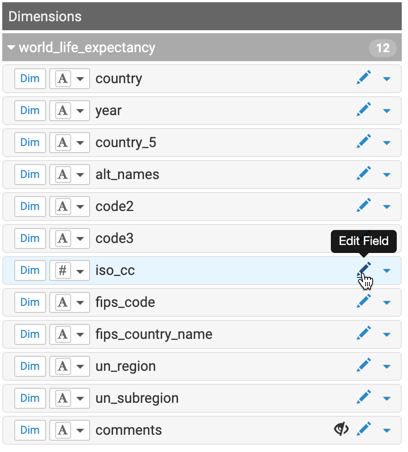
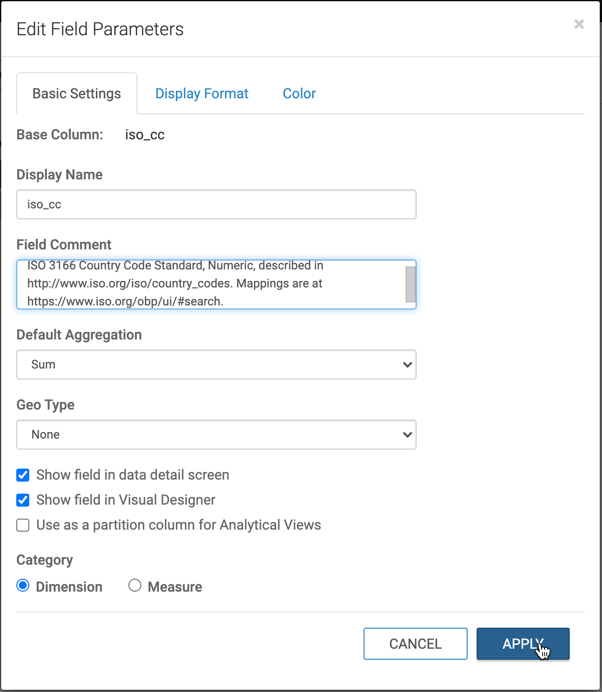
The Edit Field Parameters modal opens.
-
Add your comment in the Field Comment text box.
- Optional:
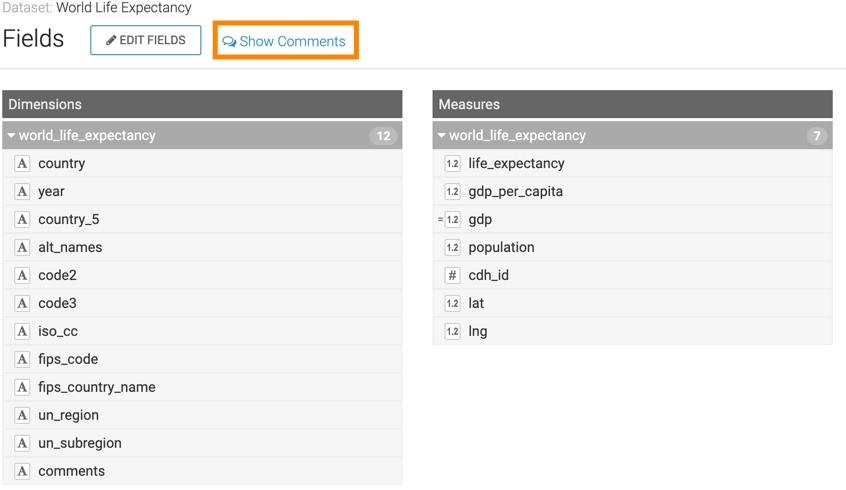
Click Show Comments to display the field comment.
To hide field comments, you can click Hide Comments.