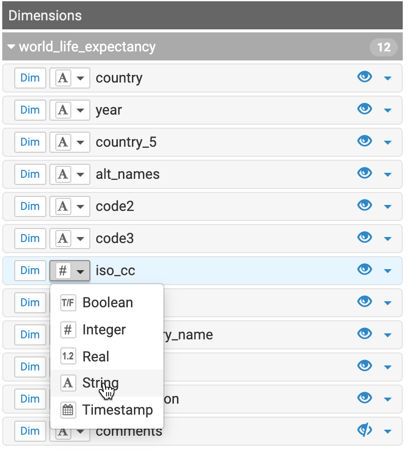
Changing data type

Cloudera Data Visualization allows you to change a field’s effective data type in the dataset model without changing the source data. For example, you can treat numerical identifiers or country codes as strings.

The following steps show how to change the data type of the fips_code field in the World Life Expectancy dataset (samples.world_life_expectancy).

  1. On the left navigation panel, click Data.

    The Data view opens, displaying the Datasets tab.

  2. Select a connection from the connection list on the left side panel.

    In this example Samples is used.

  3. In the Datasets area, click the dataset you want to modify.

    In this example World Life Expectancy is used.

  4. In the Dataset Detail menu, select Fields.
  5. Click Edit to access the editing interface.
  6. Under Dimensions, find the field fips_code
  7. Click the data type drop-down immediately to the left of the field name.

    This control displays the current data type icon, such as # for Integer or A for String.

  8. Select String.
  9. Click Save in the upper-right corner.

New visuals created from this dataset use the updated data type.