Creating calculated fields
In Cloudera Data Visualization, you can create a calculated field in a dataset when you need to transform source data or calculate a value from one or more fields. You can then reuse the field across dashboards and visuals instead of adding the expression to each visual.
gdp (gross
domenstic product) in the World Life Expectancy dataset [data source:
main.world_life_expectancy], using the following
equation:gdp = gdp_per_capita x population-
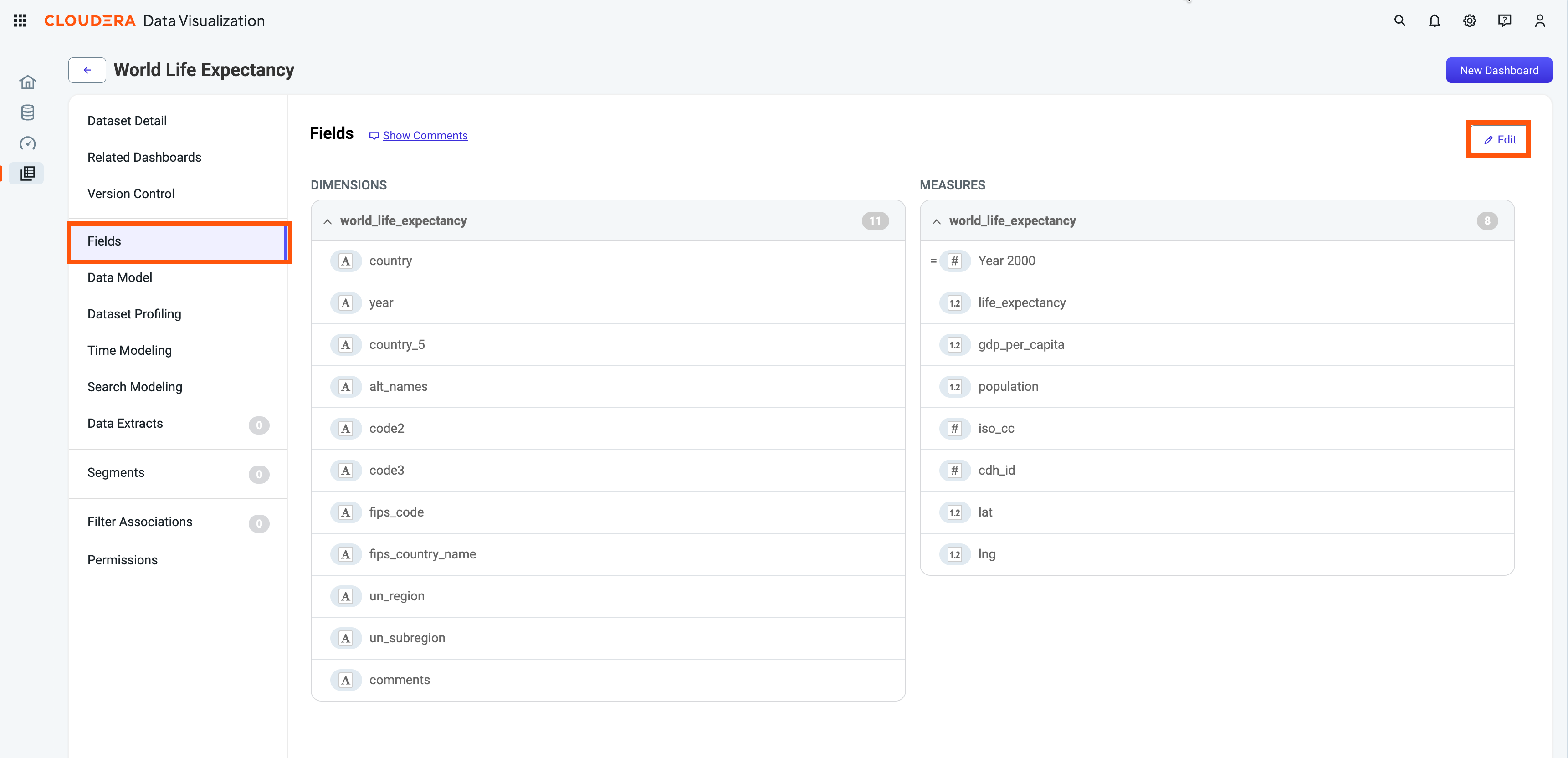
Click Edit to access the editing interface.
This action adds an edit option (
 ) to each dataset field row.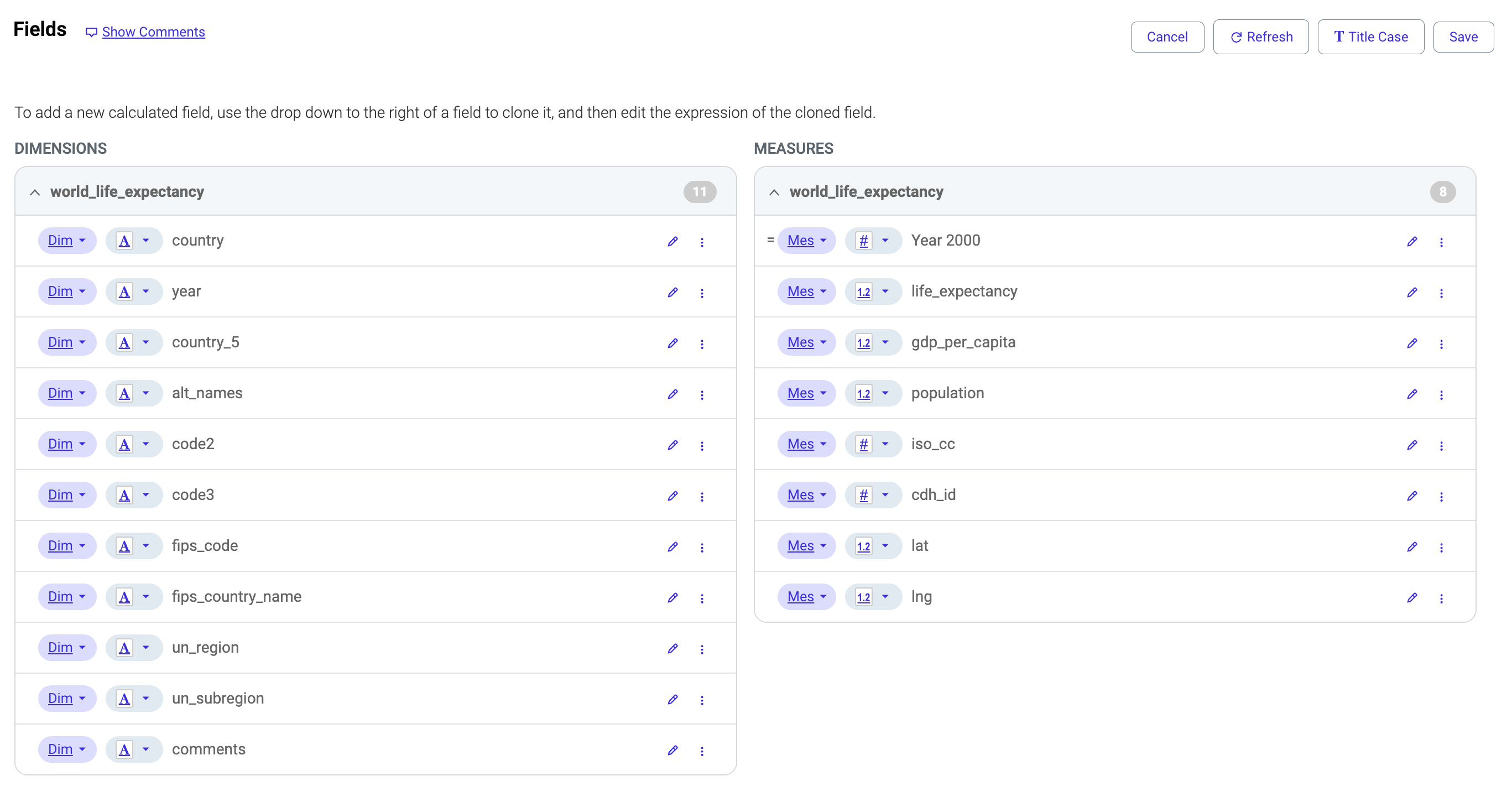
-
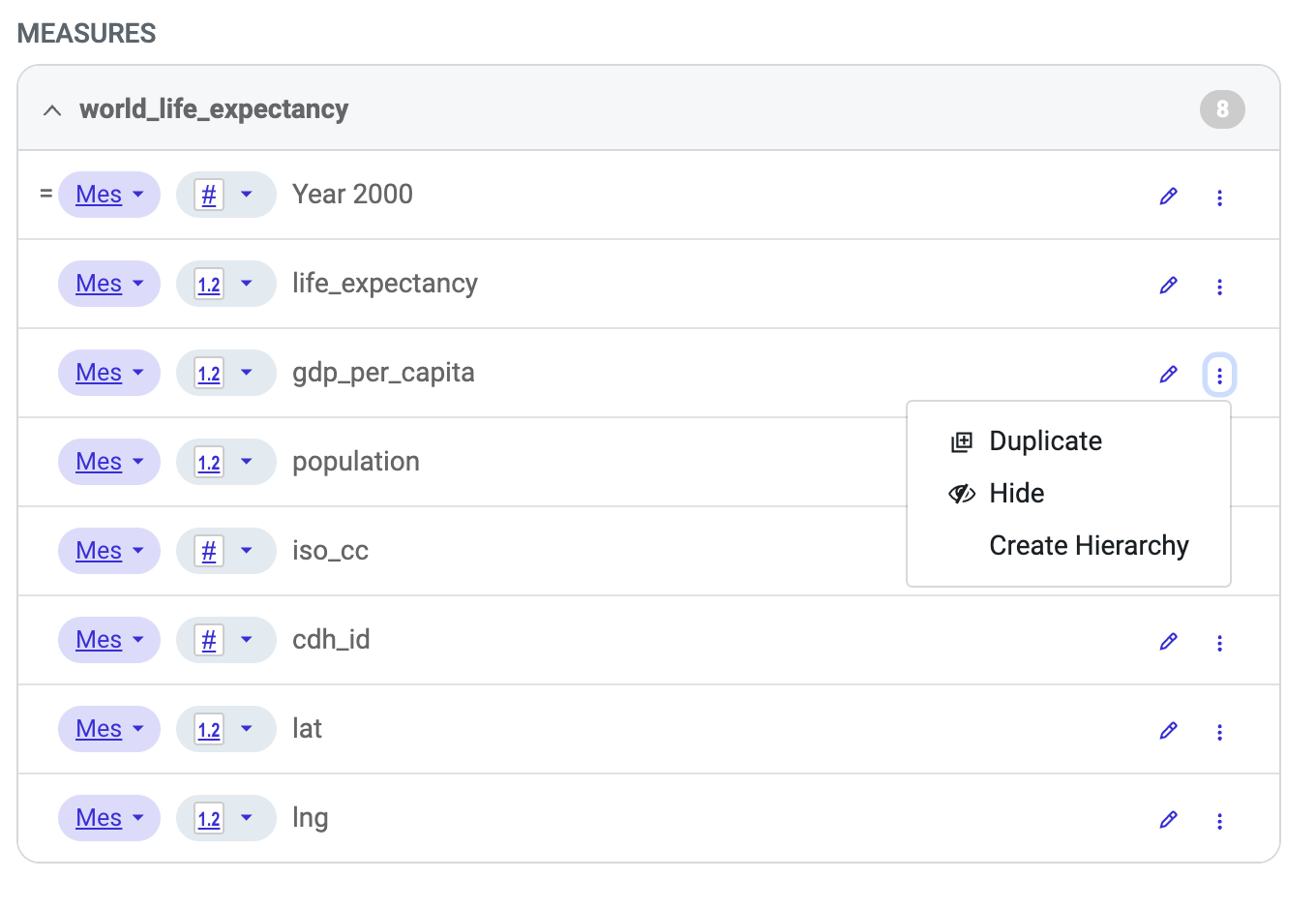
Click
 >
>  Duplicate on the field row.
-
Find the new, duplicated field and click on its right side.
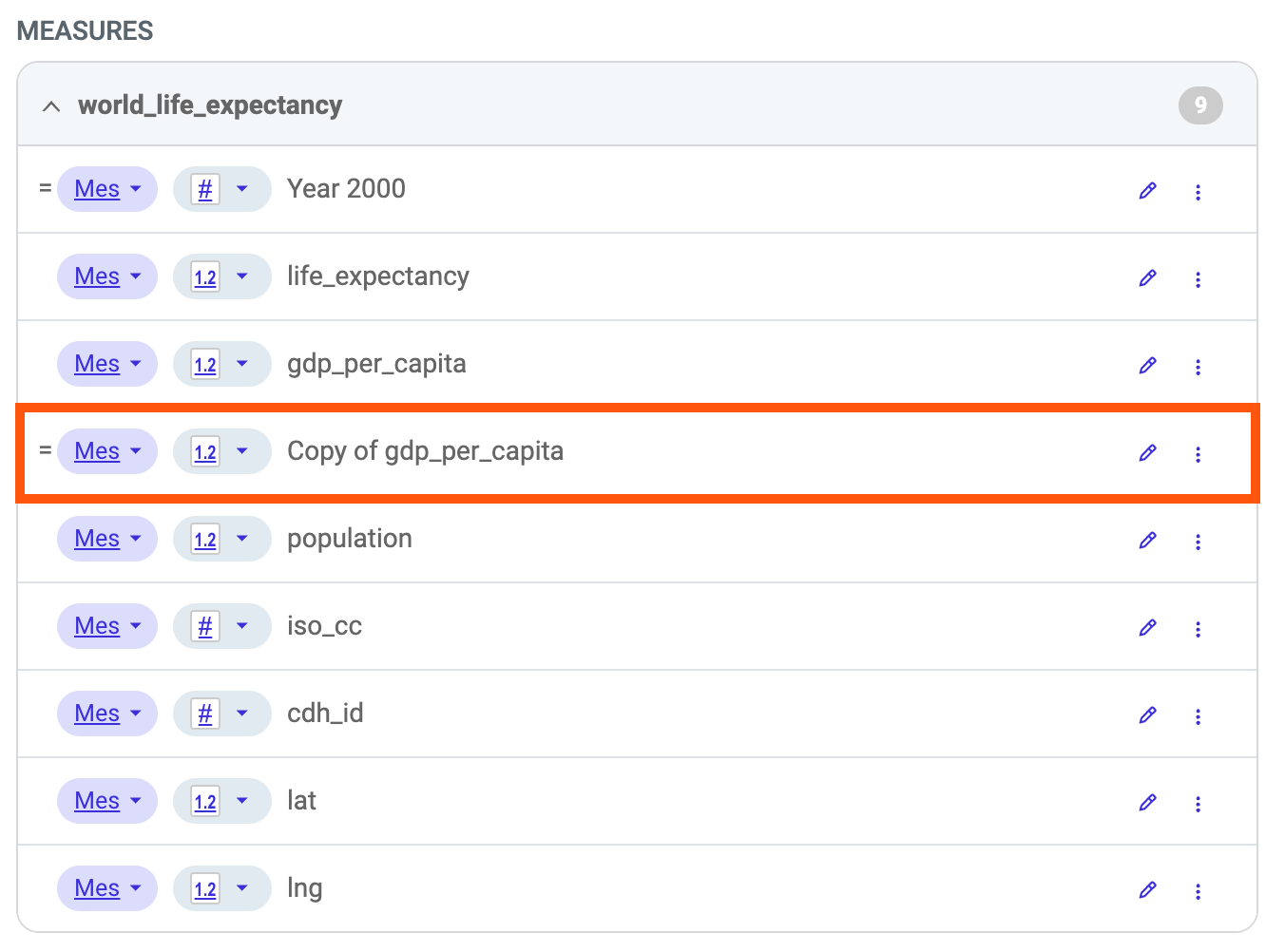
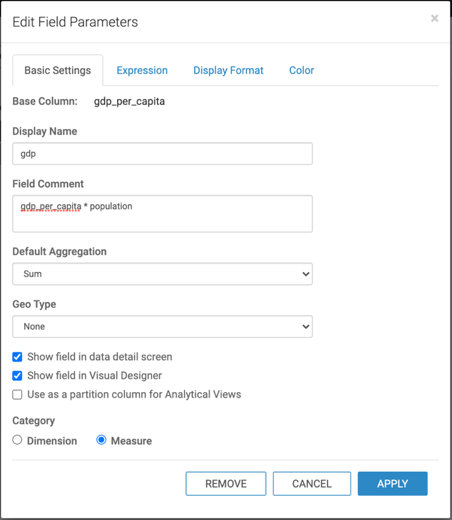
The Edit Field Parameters modal opens.
-
Make the following chnages on the Basic Settings tab:
- Change Display Name to gdp.
- Add gdp_per_capita * population to Field Comment.
- Update the Default Aggregation to Sum.
Testing calculated fields
In Cloudera Data Visualization, you can easily test whether a newly calculated field works correctly or not.
The following steps show you how to test the calculated field gdp
(gross domenstic product) in the World Life Expectancy dataset [data source:
main.world_life_expectancy].
- Click New Dashboard in the top-right corner of this interface.
- Select the Combined Bar/Line visual type.
-
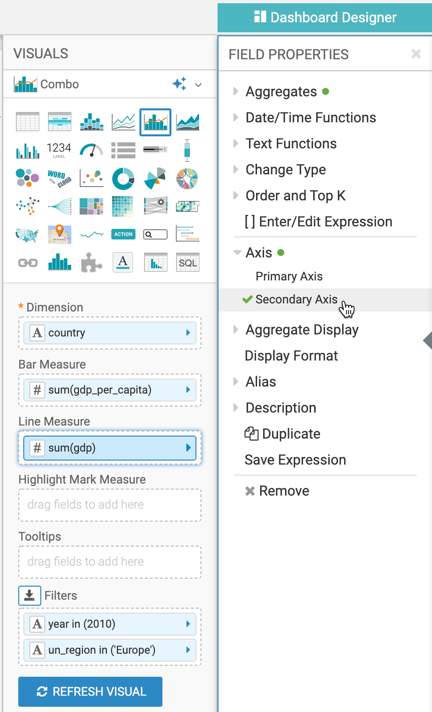
Populate the shelves from the available fields in the following way:
-
In the FIELD PROPERTIES under Axis,
select Secondary Axis.
-
In the FIELD PROPERTIES under Axis,
select Secondary Axis.
- Click REFRESH VISUAL.
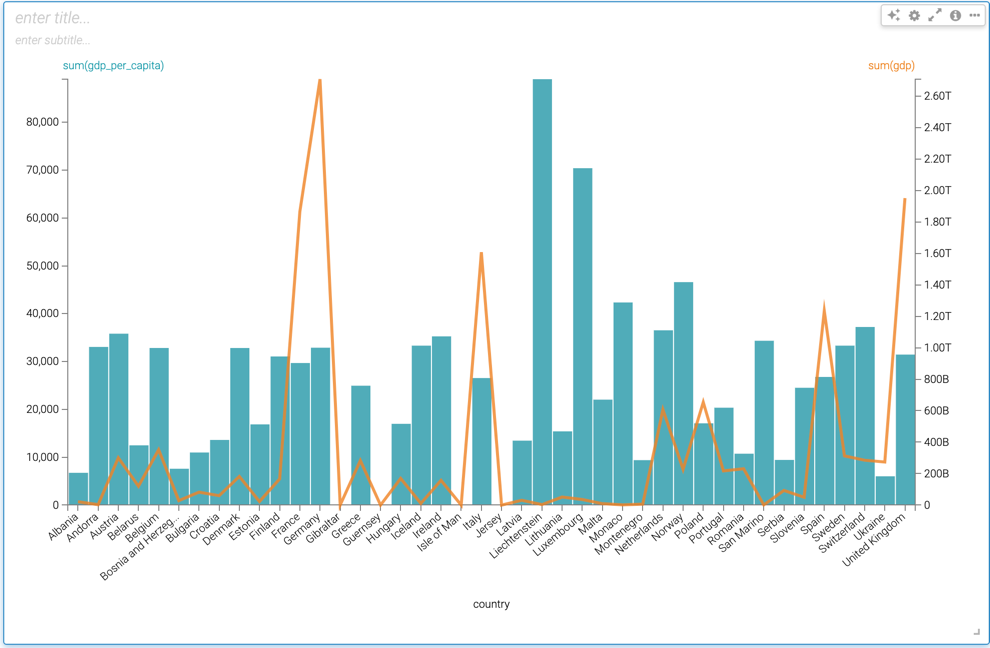
The graph overlays the two measures: bars show the original
gdp_per_capita values, and a line shows the calculated
gdp values.