Creating a data extract

Learn how you can create data extract to export data from a dataset into a table in the same or a different data connection.

  • Eenable the data extract feature in Site Settings > Data > Enable Data Extracts. For more information, see Managing data related site settings.

  • Ensure that you have the following privileges :
    • Manage dataset on the source dataset
    • Manage AVs/extracts on the source and target data connections.
  1. Click DATA on the main navigation bar.
    The Data view opens, displaying the Datasets tab.
  2. In the left navigation panel, select the connection that contains the source dataset.
  3. Select the dataset you want to use as the source for the data extract.
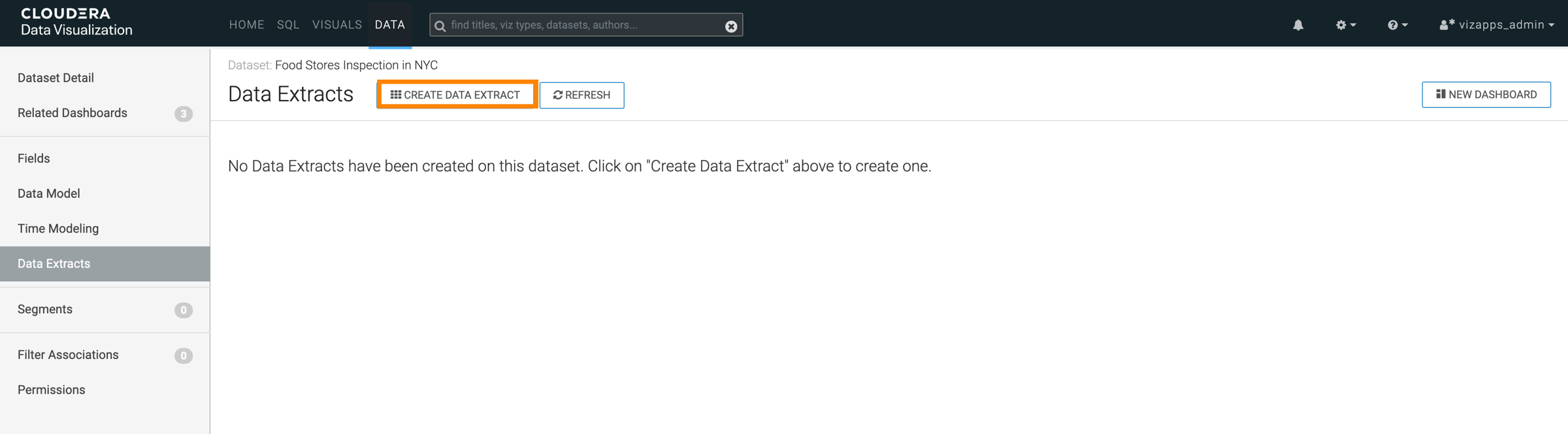
  4. Click Data Extracts in the left navigation panel.
  5. In the Data Extracts view, click CREATE DATA EXTRACT.

    The Create Data Extract modal opens.
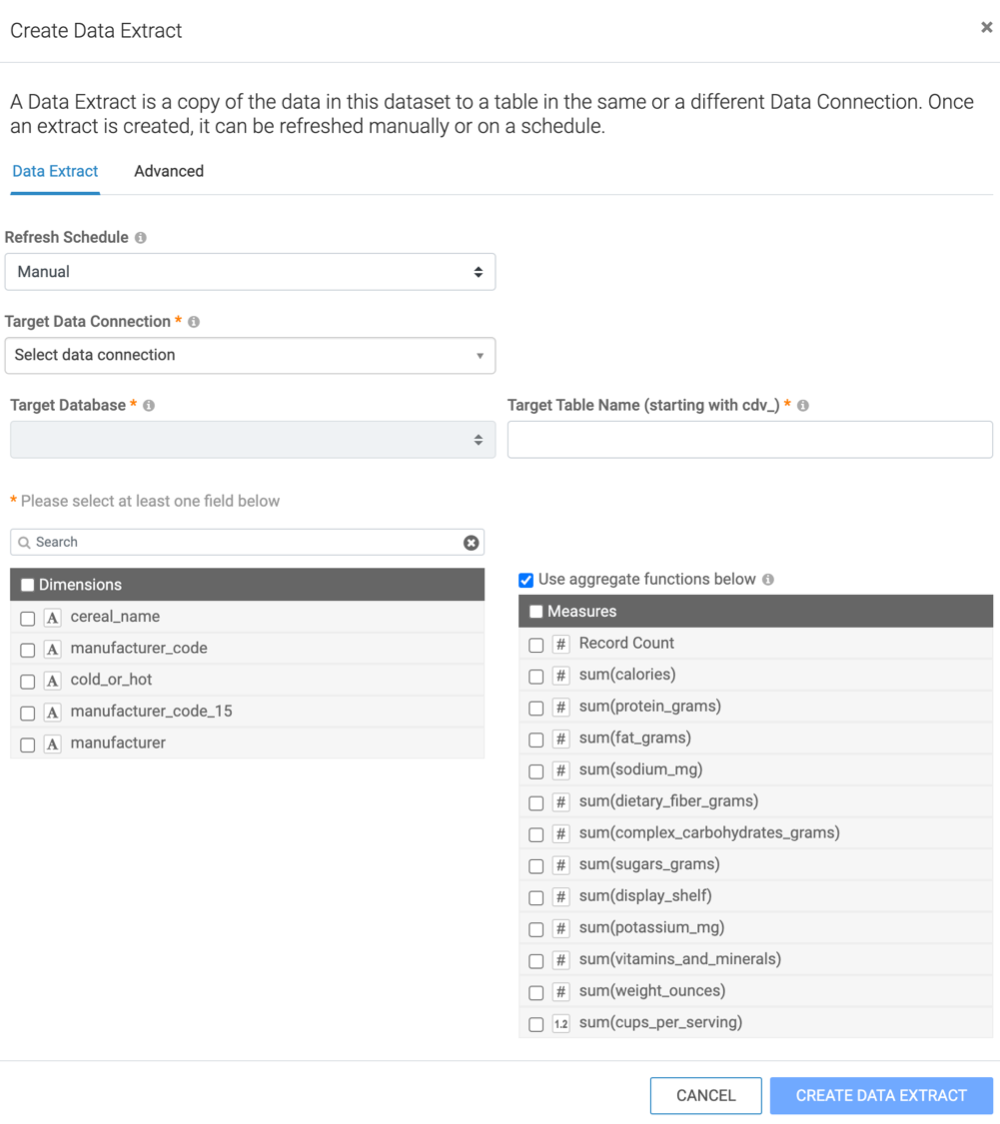
  6. Select the refresh schedule for the data extract.
    The default is Manual, but you can create custom schedules. For more information, see Creating new schedules.
  7. Select the target data connection where the extract will be stored.
    You can select the same connection where the source dataset is or you can also choose a different connection.
  8. Select the database on the previously selected connection where the extract table will be created.
  9. Enter a target table name, starting with cdv_.
  10. Select the dimension and measure fields to include in your extract.
    To store measures without aggregation, clear Use aggregate functions below.

    When configuring a data extract, you can search for a column by name and view available field types and complex data types.

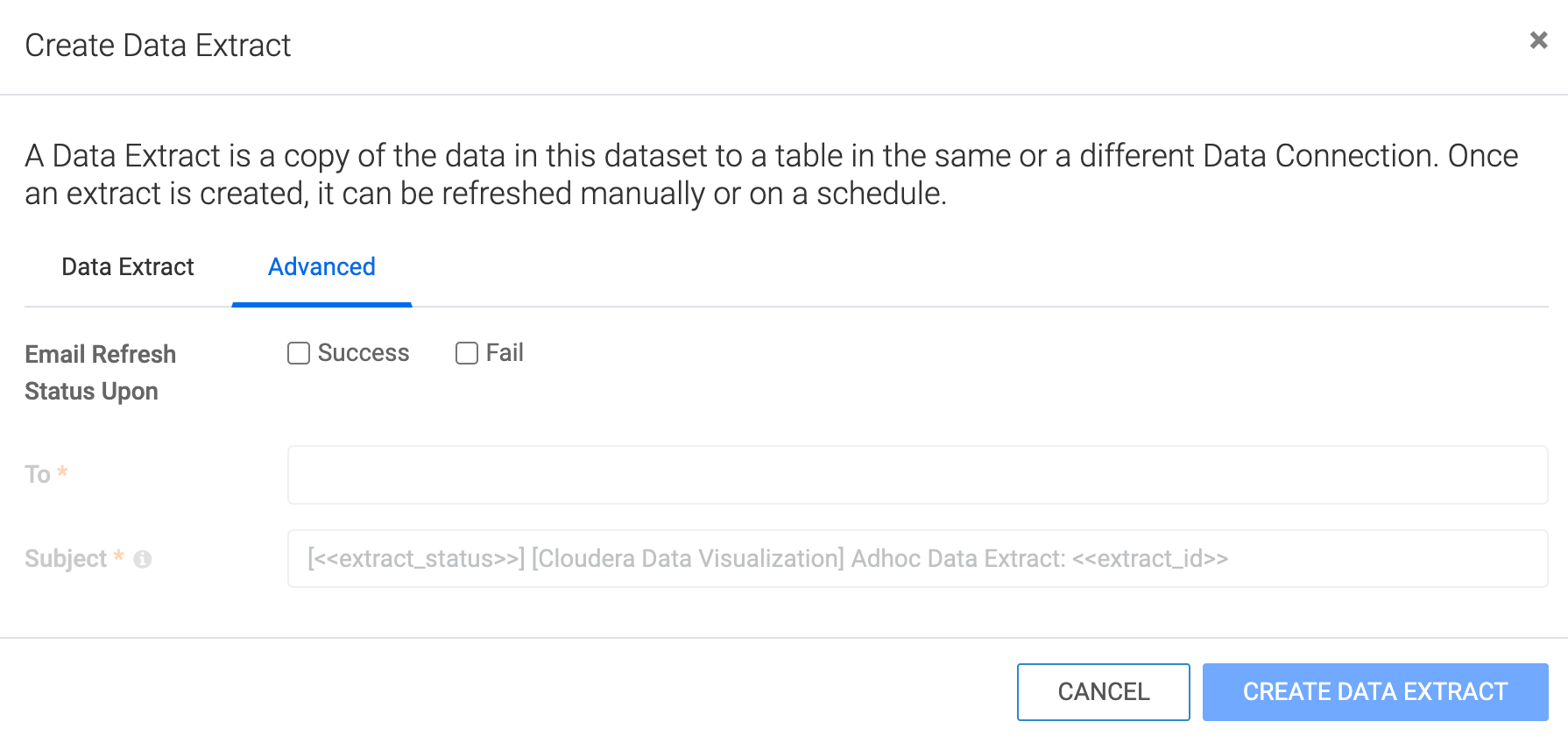
  11. Optional: If you want to send an email confirmation about the extract's status, switch to the Advanced tab of the Create Data Extract modal.
    1. Select the event(s) you want to be notified about - success, failure or both.
    2. Add one or more email addresses as recipients.
    3. Optionally, edit the default subject line of the notification email.
  12. Click Save after completing the required fields.

    The data extract is created, and its state shows as Never run. After the extract is created, you can refresh it manually or it will be refreshed on the schedule you defined in Step 6.