Creating a dataset from a data extract
After running a data extract, you can create a new dataset based on the extracted data. This dataset can then be used to build visuals and dashboards.
-
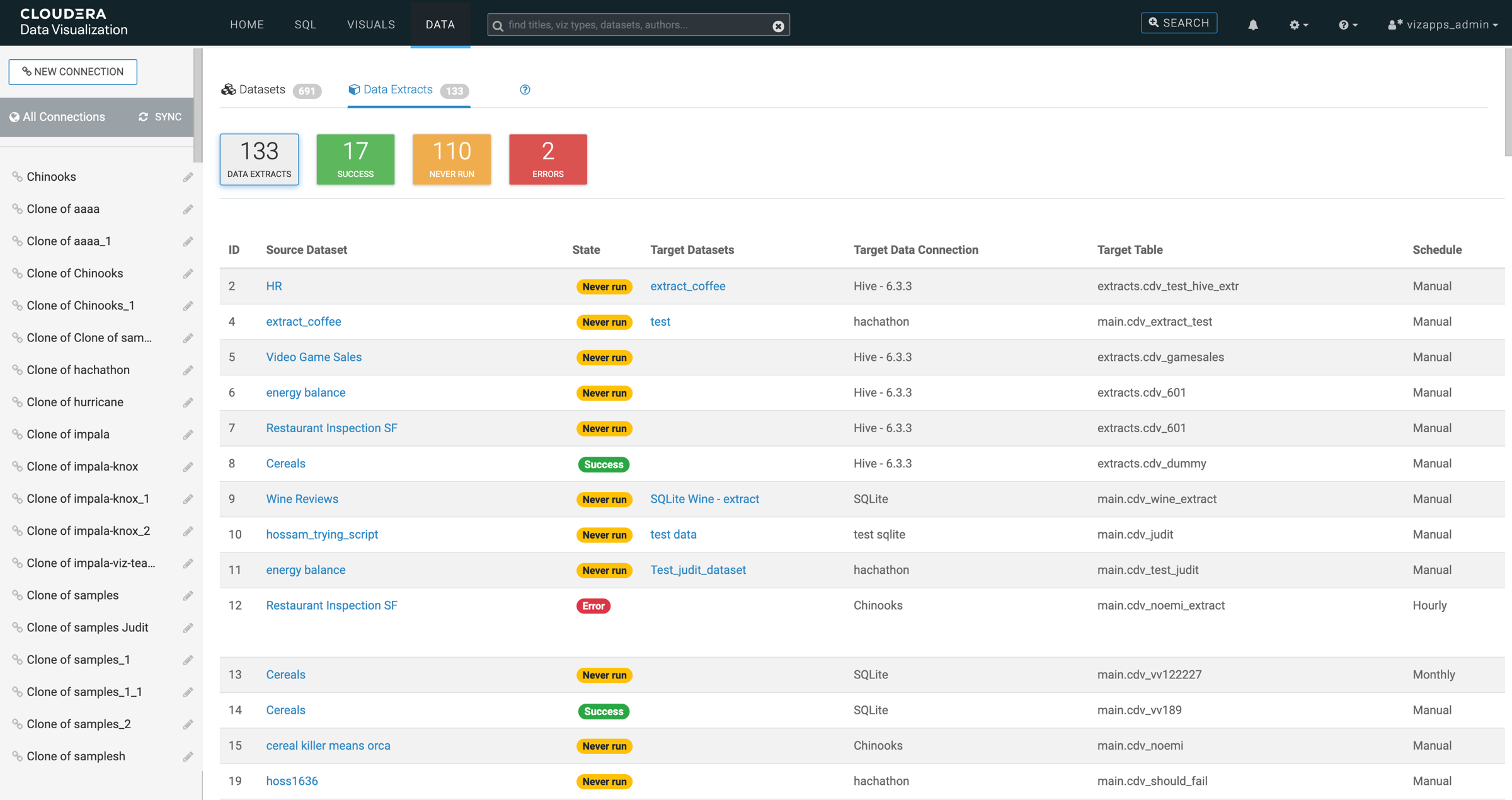
Click Data Extracts in the left navigation panel.
The Data Extracts view is displayed, showing all data extracts defined in the Cloudera Data Visualization instance.
-
Find the data extract that you want to use for the new dataset and click
Create Dataset.
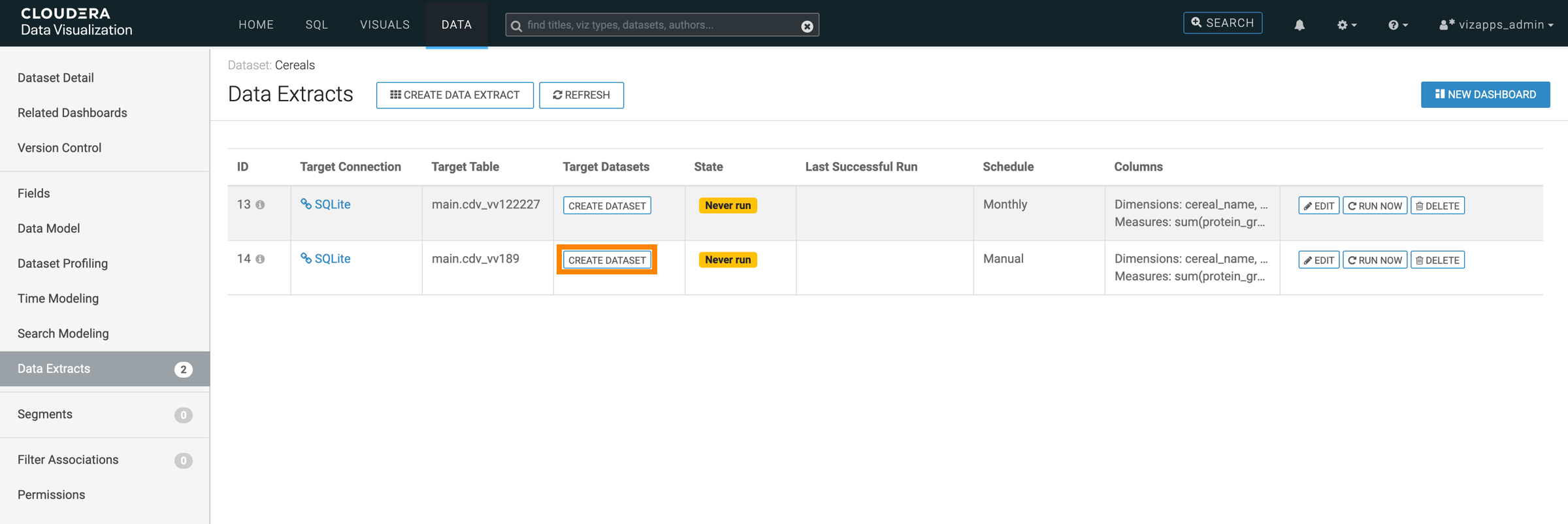
The New Dataset from table: modal is displayed.
