Custom renaming dataset fields
Often, we find it useful to rename a frequently-used field directly in the dataset, instead of using an alias in each visual. Cloudera Visualization makes it very easy to change the display name of a dataset field.
The following steps demonstrate how to rename a field. In this example, the column
iso_cc (the ISO-compliant country code) is used from the dataset
World Life Expectancy [data source:
samples.world_life_expectancy].
-
Click Edit to access the editing interface.
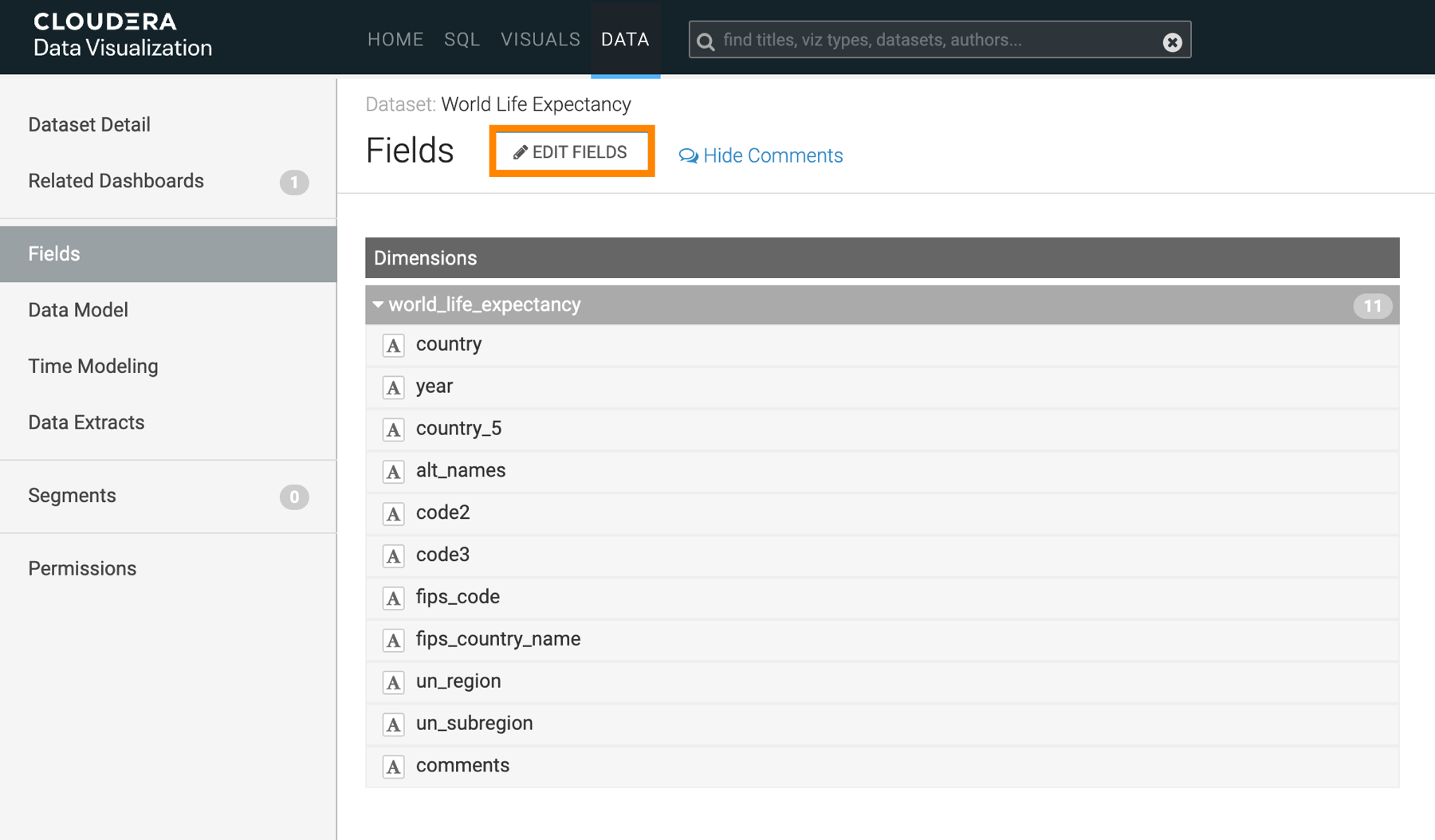
This action adds an edit option (
 ) to each dataset field row.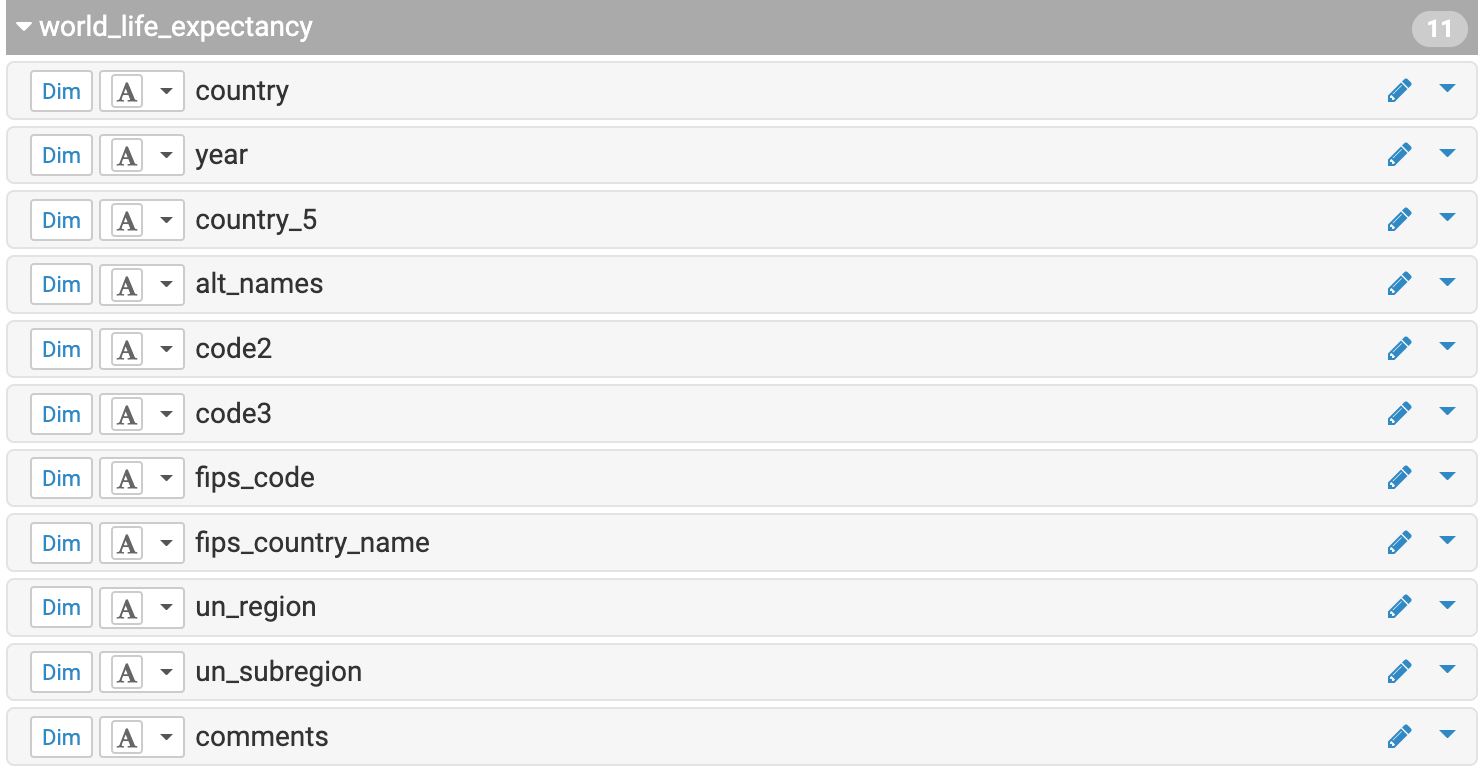
-
Under Dimensions, find the
manufacturer_codeand click to edit
the name of the field.
The Edit Field Parameters modal opens.
All new visuals created from this dataset use the new name automatically.
