Editing dataset fields
Editing dataset fields allows you to tailor your data to better suit specific analytical needs and visualization requirements. By modifying field parameters, you can enhance the accuracy, clarity, and relevance of your datasets.
-
Click Edit to access the editing interface.
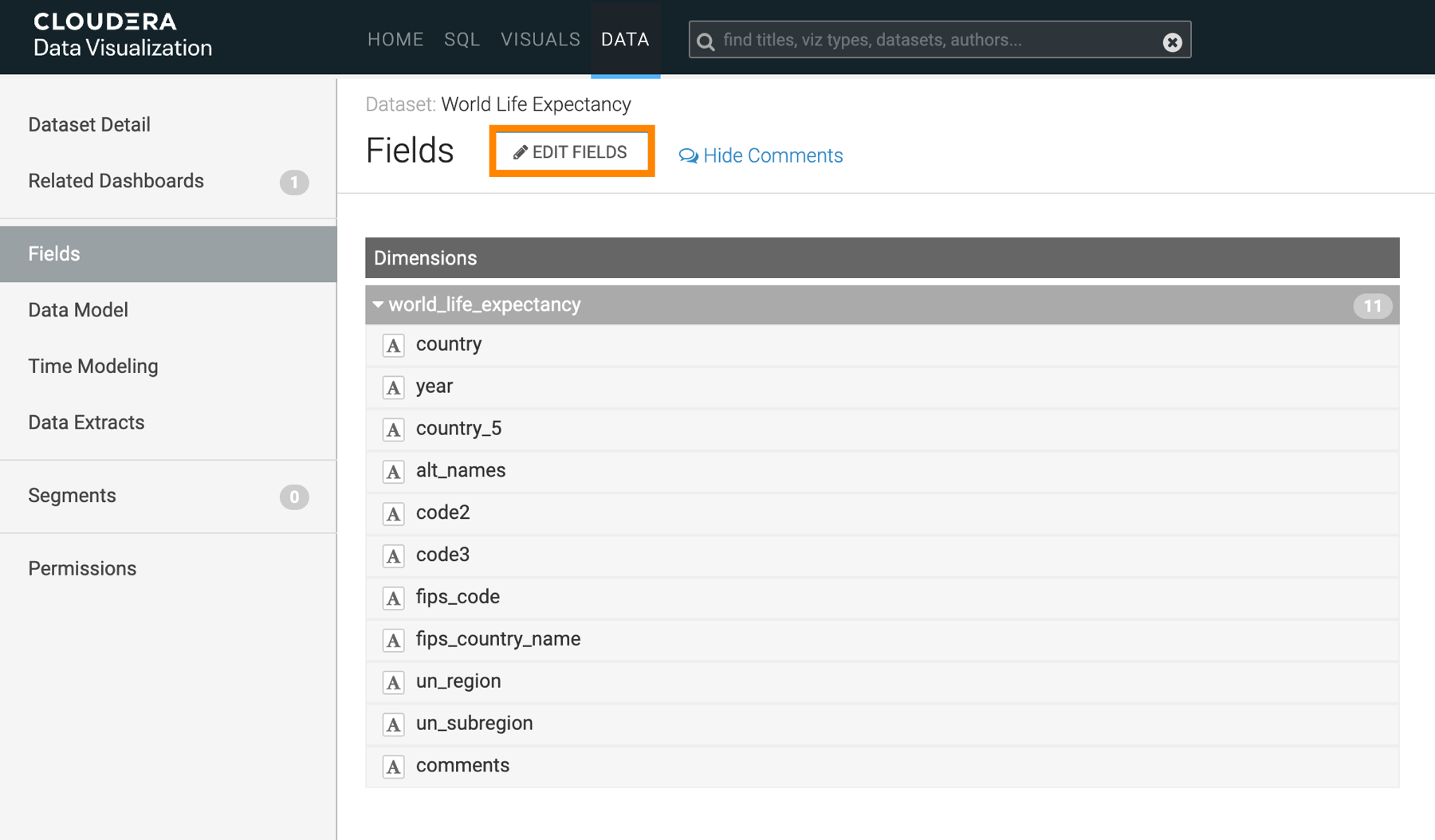
This action adds an edit option (
 ) to each dataset field row.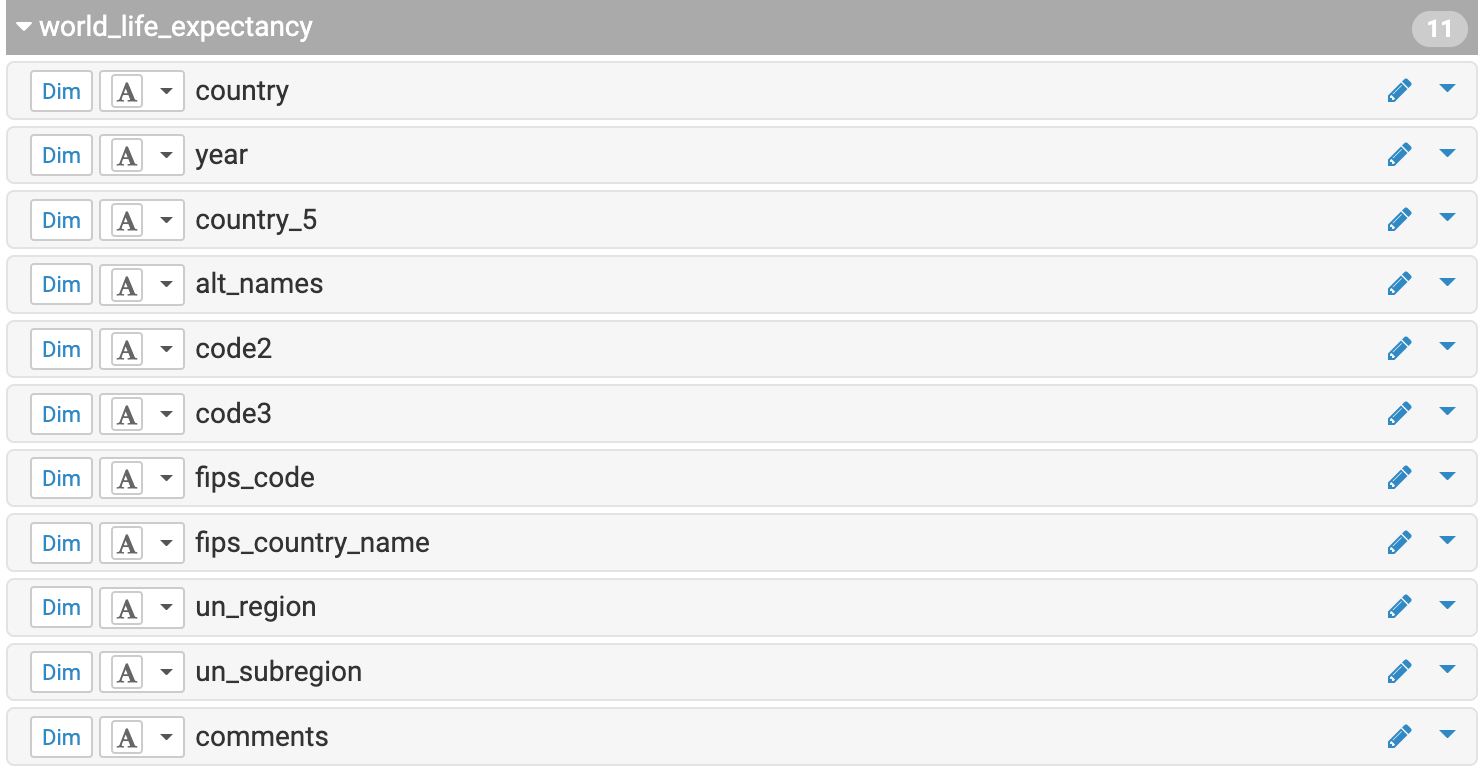
-
Click for the
specific field that you want to update.
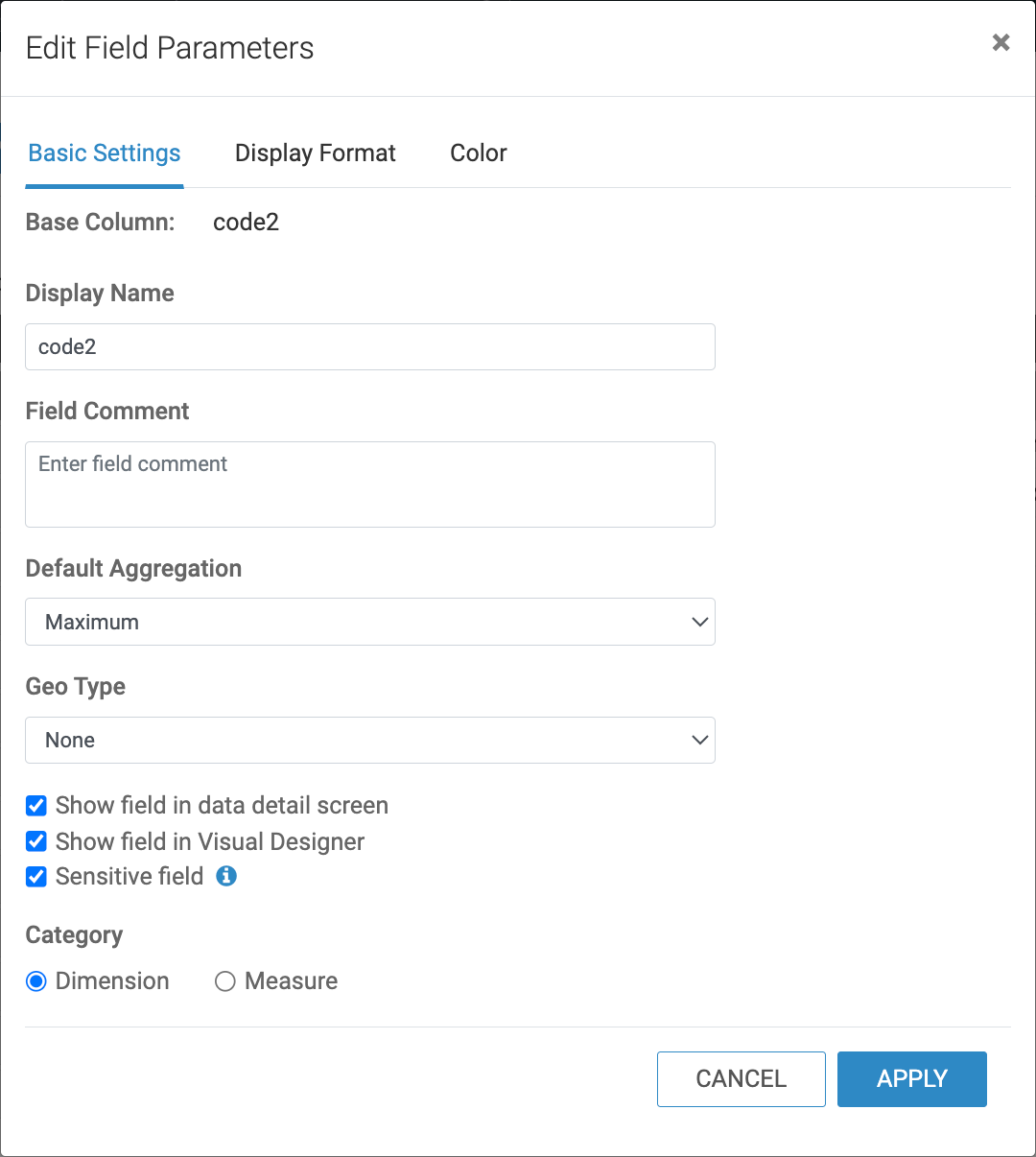
The Edit Field Parameters modal opens.
-
Make your changes as needed.
-
You can update basic field settings such as name, default aggregation, or geo type, and add comments to the field.
-
You can mark a field as 'Sensitive' to restrict its usage in specific visual shelves that are designated as 'Sensitive'. For example the Embedding Context shelf of the Artificial Intelligence (AI) Assistant visual is a sensitive shelf.
When you mark a field as 'Sensitive', the
 icon is displayed next to it.
 - You casn change the field's category.
-
You can switch to the Display Format tab to assign a category to the field or to the Color tab to enable custom colors for the field.
-
