Exploring data extract details
You can view detailed information about your data extracts, including their configuration, status, and available actions.
-
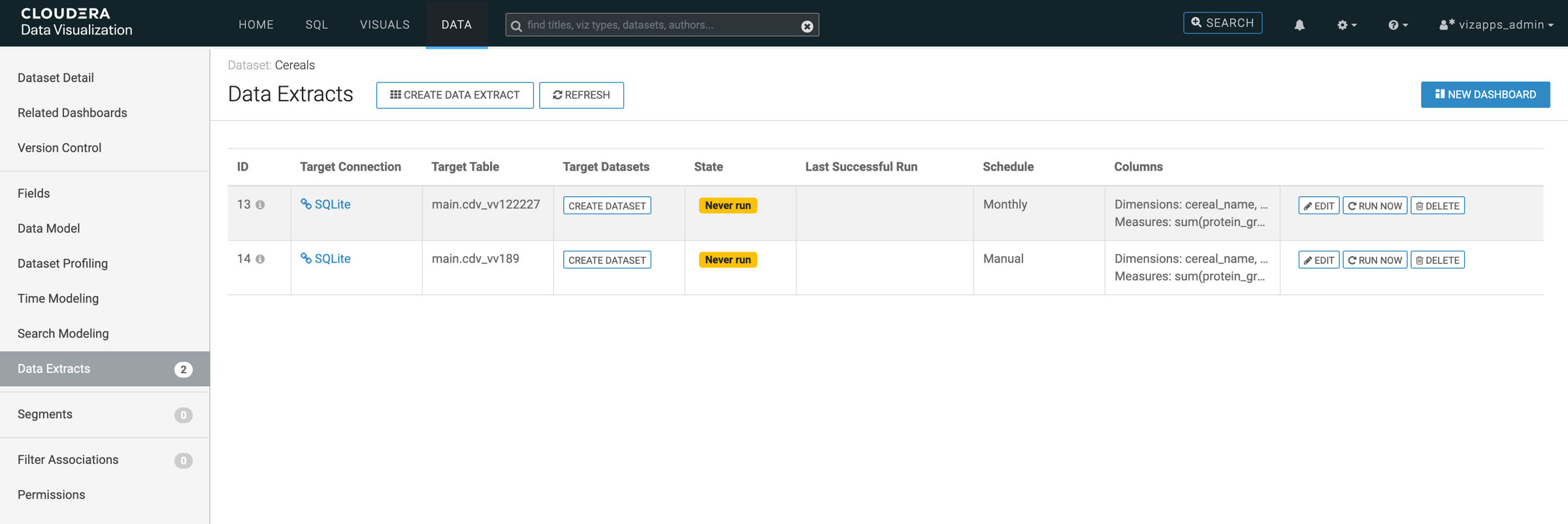
Click Data Extracts in the left navigation panel.
The Data Extracts view opens and displays all extracts defined for the selected dataset. It lists the available extracts and displays the following information for each extract:
- ID
- Target Connection
- Target Table
- Target Datasets
- State
- Last Successful Run
- Schedule
- Columns
Each extract also provides the following actions behind the menu:
menu:- Edit — Modify extract settings
- Run Now — Trigger an immediate refresh of the extract
- Delete — Remove the extract