Specifying geographic fields
In Cloudera Data Visualization, you can assign geographic types to dataset fields so they can be used in map visuals.
A field’s Geo Type identifies the geographic information it contains. Before creating map or interactive map visuals, assign the appropriate geographic types to the relevant fields.
The following steps show how to assign a Geo Type to a dataset field. In this example, the Food Stores Inspection in NYC dataset is used.
-
Click Edit to access the editing interface.
This action adds an edit option (
 ) to each dataset field row.
 -
Click for the
specific field that you want to update.
The Edit Field Parameters modal opens.
-
From the Geo Type menu, select the appropriate option.
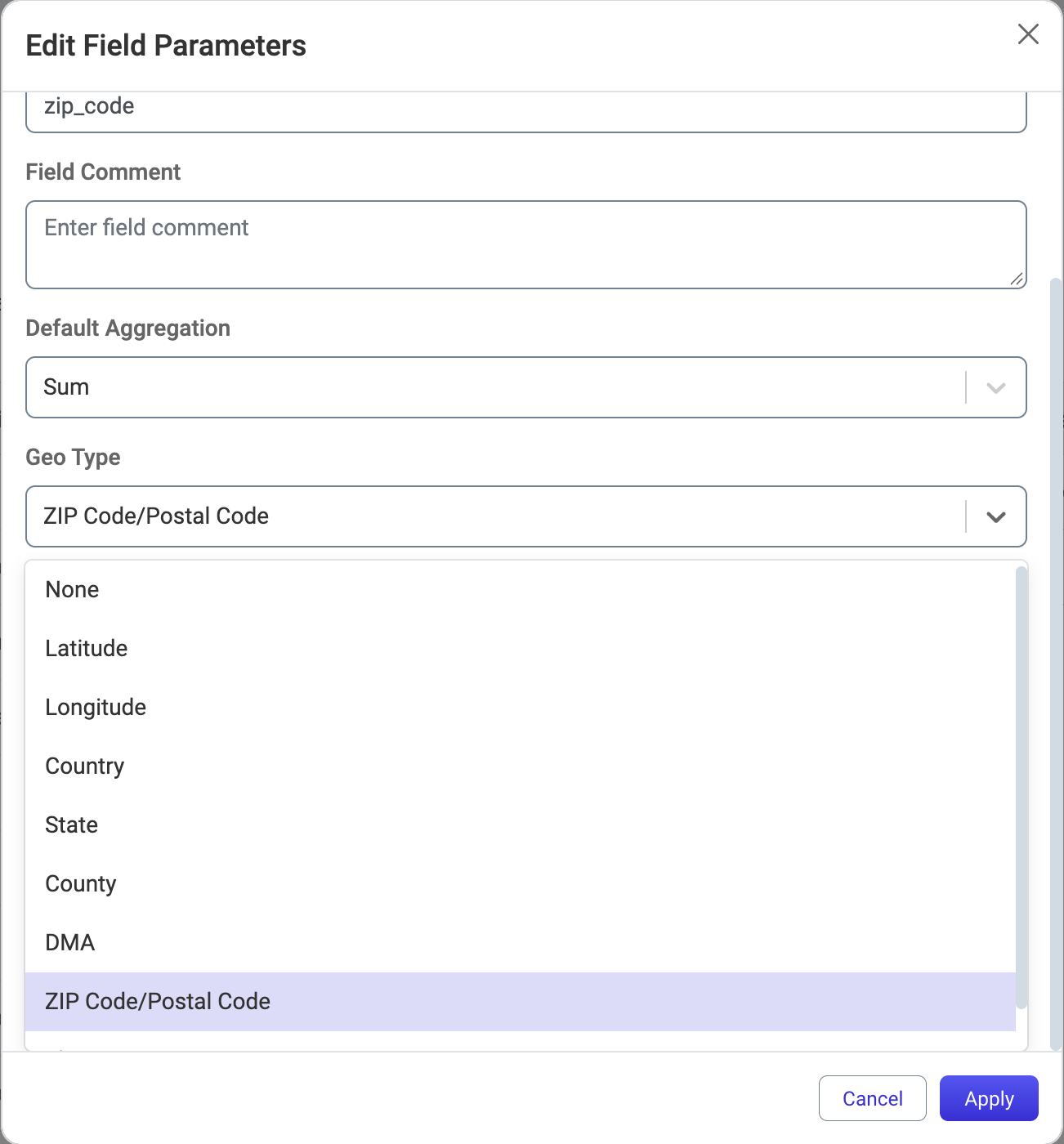
The selected fields are identified as geographic data and can be used in map and interactive map visuals without setting their geographic types in each visual.
