To enable a custom Kerberos principal in Cloudera Data Warehouse, follow
these steps to consolidate multiple service identities into a single, organization-approved
hostname.
To enable this feature in a previously created Cloudera Data Warehouseon premises environment, you must:
Delete all existing virtual warehouses.
Deactivate the Cloudera Data Warehouse environment.
Log in to the Cloudera Data Warehouse service as DWAdmin
Click Advanced Configuration and select the
Enable customization of Kerberos service principal
option.
Click Update.
In the Environments tab, for the required environment,
click Activate.
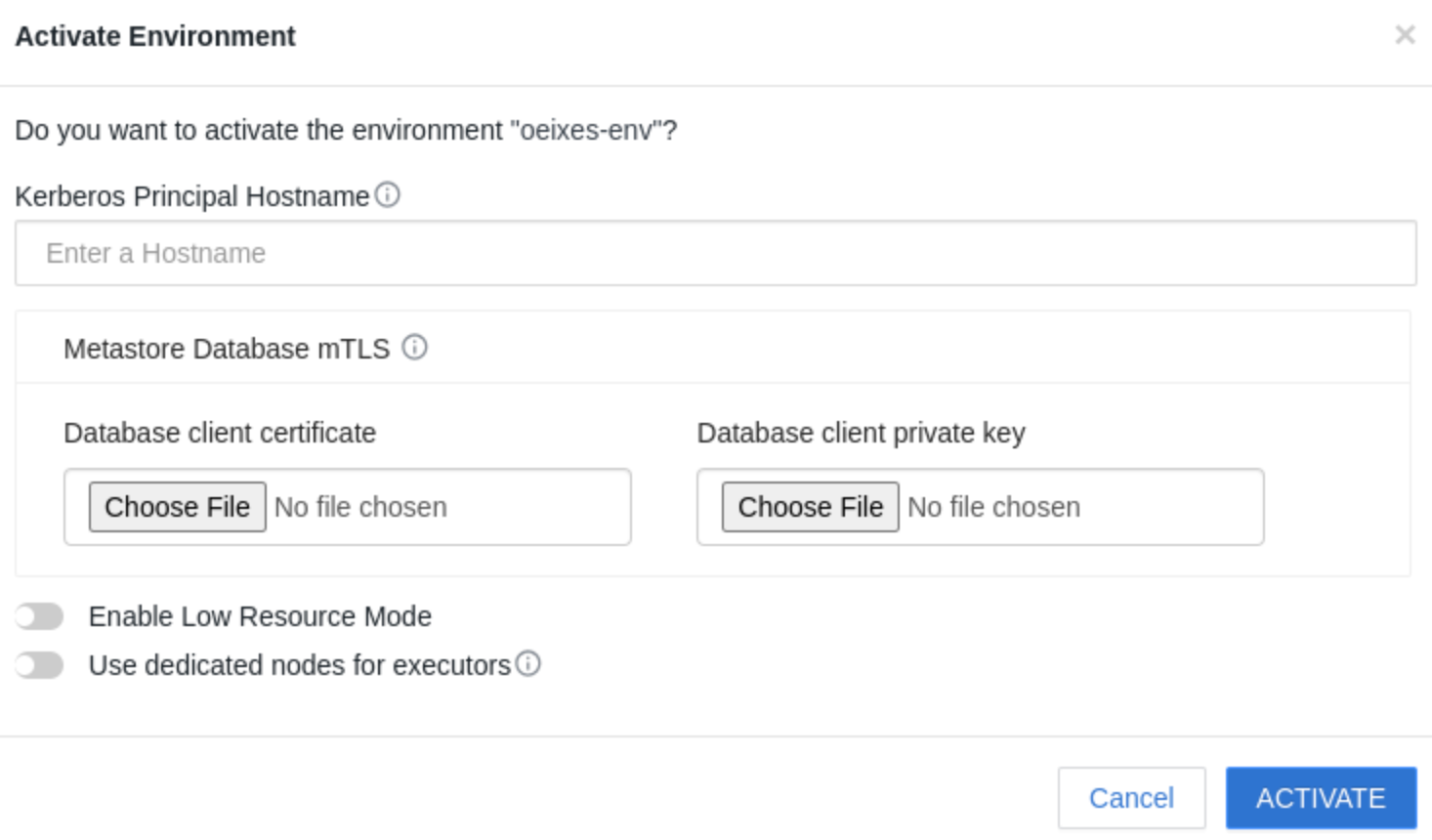
The Activate Environment screen is displayed.
In the Kerberos Principal Hostname field, enter the
required hostname.
If this field is blank, it will cause the activation to revert to the default
behavior, requiring the two predefined Kerberos principals.
Configure any additional environment settings as needed and click
ACTIVATE.
Post-activation behavior and validation:
Once the environment activation process begins, the Cloudera Data Warehouse handles the principal setup.
During activation, Cloudera Data Warehouse performs the following
two critical validations:
Reverse DNS resolution for the hostname of the custom Kerberos
principal. A failure in this validation will generate a warning, but
the environment activation will proceed.
Keytab download for the custom Kerberos principal. A failure in this
validation will result in an error, causing the environment
activation to fail.
After the environment activation, all Cloudera Data Warehouse
components, such as Virtual Warehouses, DataViz, Shared Hue instances, and Log routers
will utilize the new principal that includes the updated hostname.