Checking data provenance
- Make sure that you have DFDeveloper permission to perform this task. For information on account and resource roles, see Cloudera Data Flow Authorization.
- This feature will not provide provenance data if provenance events have not been generated. For provenance events to be generated, you need an active test session.
Data provenance provides a searchable historical record of every data object (FlowFile) as it moves through your flow. It can help you debug and audit issues with your flows by understanding the changes (events) that occurred to data as it was being processed by each processor.
-
To view data provenance events in Flow Designer, go to Flow Options
 >
>  Data
Provenance
Data
Provenance
-
Find provenance events relevant to your use case.
-
To locate all events related to a component,
 Search by component
name.
Search by component
name. - You can filter for events by Event Type and Component Type.
- To further narrow your search, click Advanced
search.
Advanced search allows you to include or exclude the following types of properties from your search:
- Event Type
- FlowFile UUID
- Filename
- Component ID
- Relationship
- Date Range
- Start Time
- End Time
- Minimum File Size
- Maximum File Size
- To clear all selected filtering options, click
 Clear all.
-
-
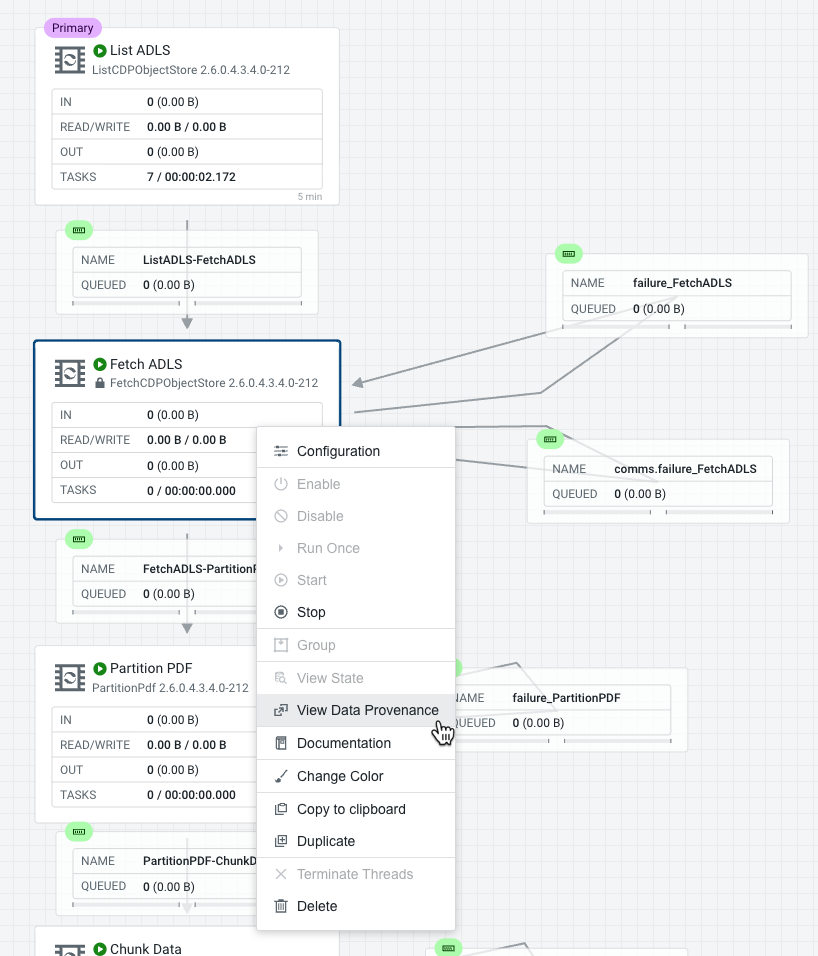
You can directly access data provenance of a specific processor by right
clicking a processor and selecting View Data
Provenance from the context menu.
-
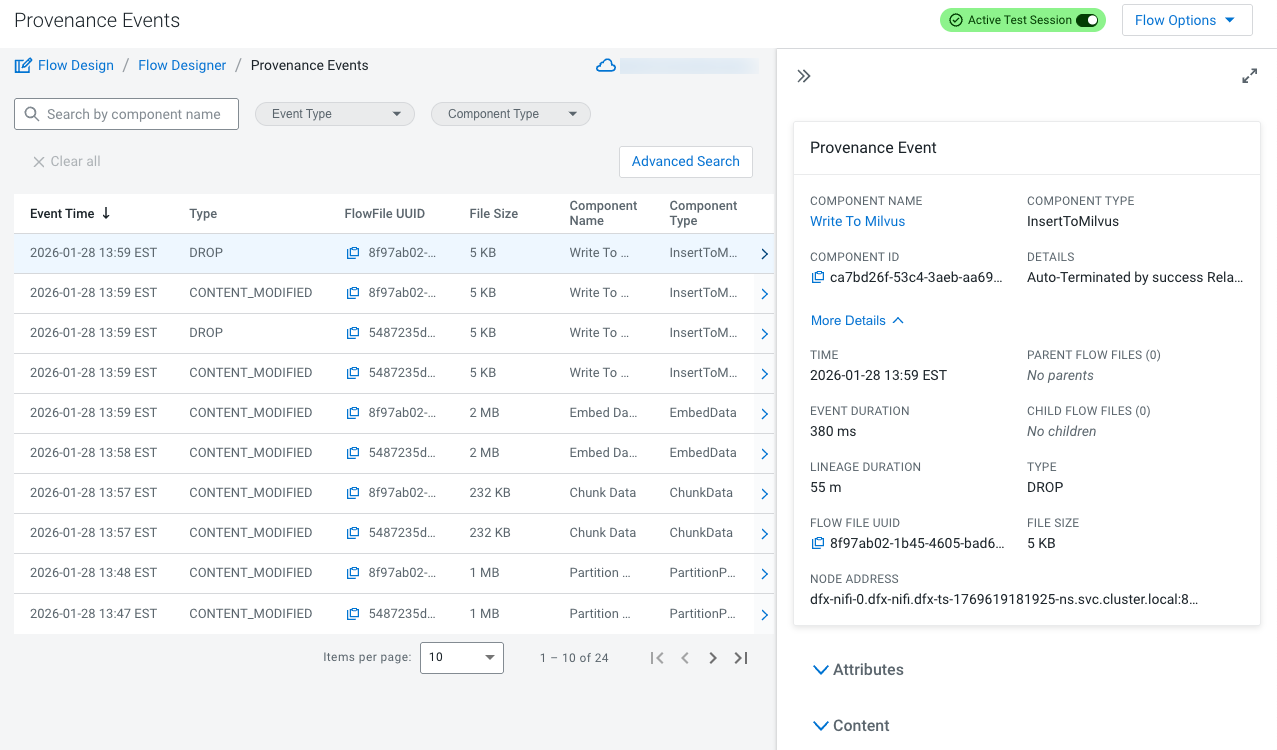
To view event details click the
 [Event Details] icon on
the right of an event row.
[Event Details] icon on
the right of an event row.
It opens the Provenance Event details pane that also includes the Attributes and Content sections.
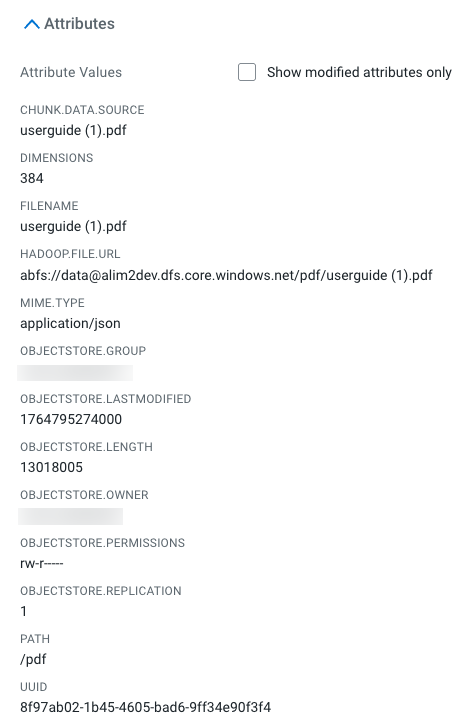
The Attributes section shows the attributes that exist on the FlowFile as of that point in the flow. To only view the attributes that were modified as a result of the processing event, select the Show modified attributes only checkbox.
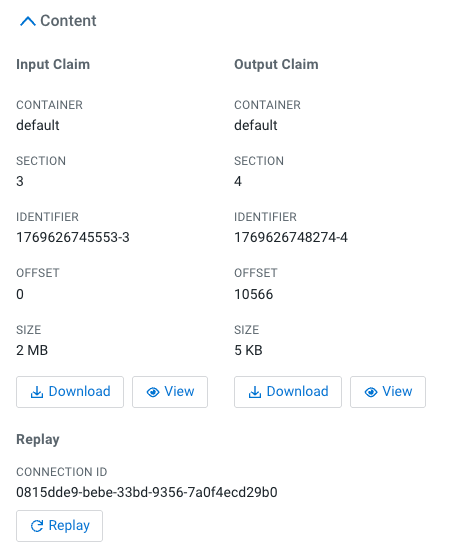
The Content section shows information about the FlowFile’s content, such as its location in the Content Repository and its size.- Click the
 Download button to
download a copy of the FlowFile’s content as it existed at this point in
the flow.
Download button to
download a copy of the FlowFile’s content as it existed at this point in
the flow. - Click the
 Replay button to
replay the FlowFile at this point in the flow.
Replay button to
replay the FlowFile at this point in the flow. Upon clicking
Replay, the
FlowFile is sent to the connection feeding the component that
produced this processing event. To inspect the contents of a
FlowFile at some point in the flow to ensure that it is being
processed as expected. If it is not being processed properly, you
may need to make adjustments to the flow and replay the FlowFile
again. You can achieve this from the Content
section of the Provenance Event pane.
- Click the
