Verifying flow file content
When you run a test session and need to verify how data is being processed, you can use the List Queue view to inspect flow files at any connection in your flow. Viewing queued flow files and their attributes helps you confirm that processors are producing the expected output before you publish your flow.
- Make sure that you have DFDeveloper permission to perform this task. For information on account and resource roles, see Cloudera Data Flow Authorization.
- You have an active test session.
-
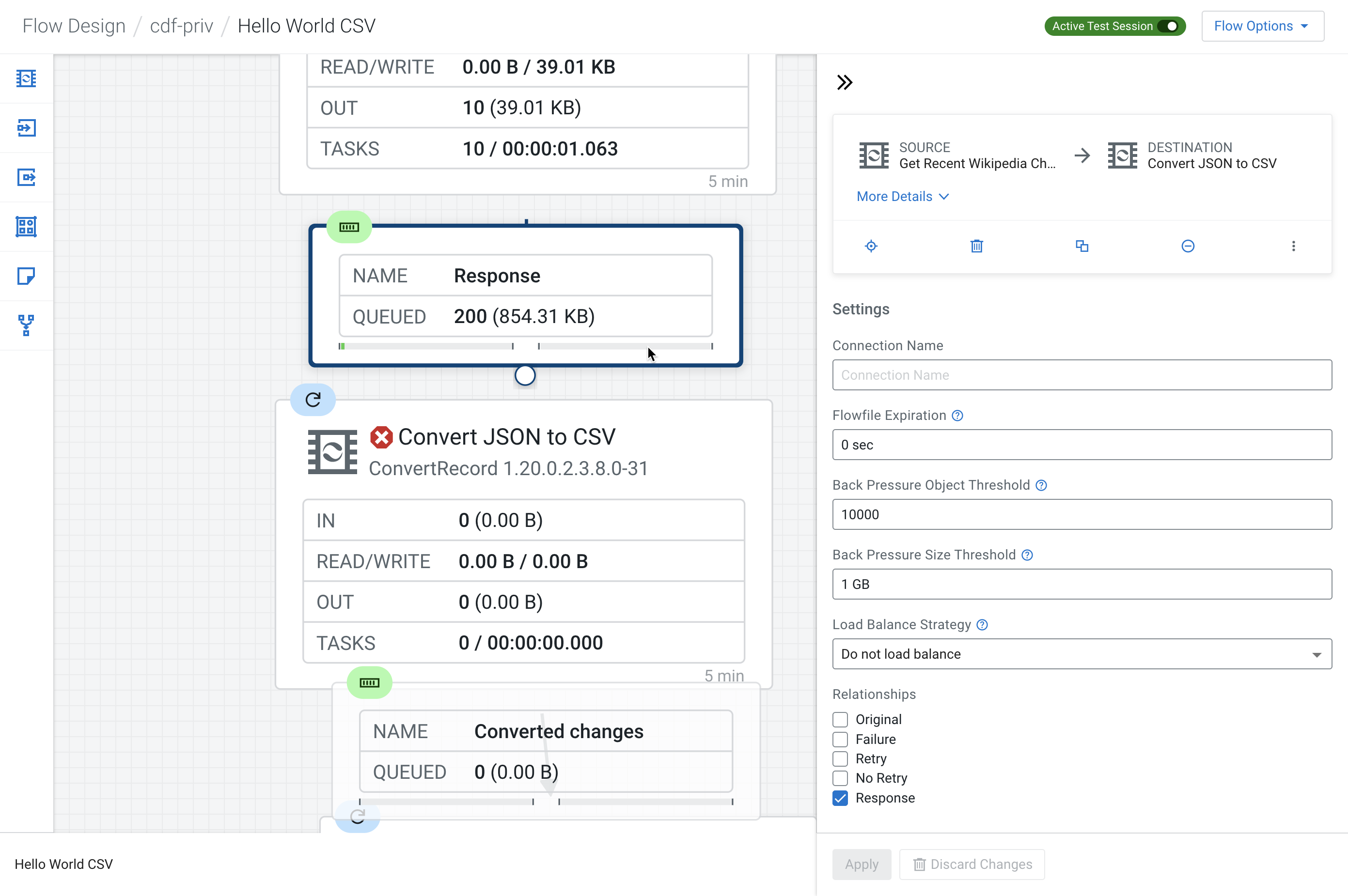
On the Flow Design canvas, click the connection where you
want to inspect the flow files.
-
In the Configuration pane select
 >
>  List Queue.
In the List Queue view, All Queued Flow Files for [***RELATIONSHIP NAME***] Relationship opens.
List Queue.
In the List Queue view, All Queued Flow Files for [***RELATIONSHIP NAME***] Relationship opens.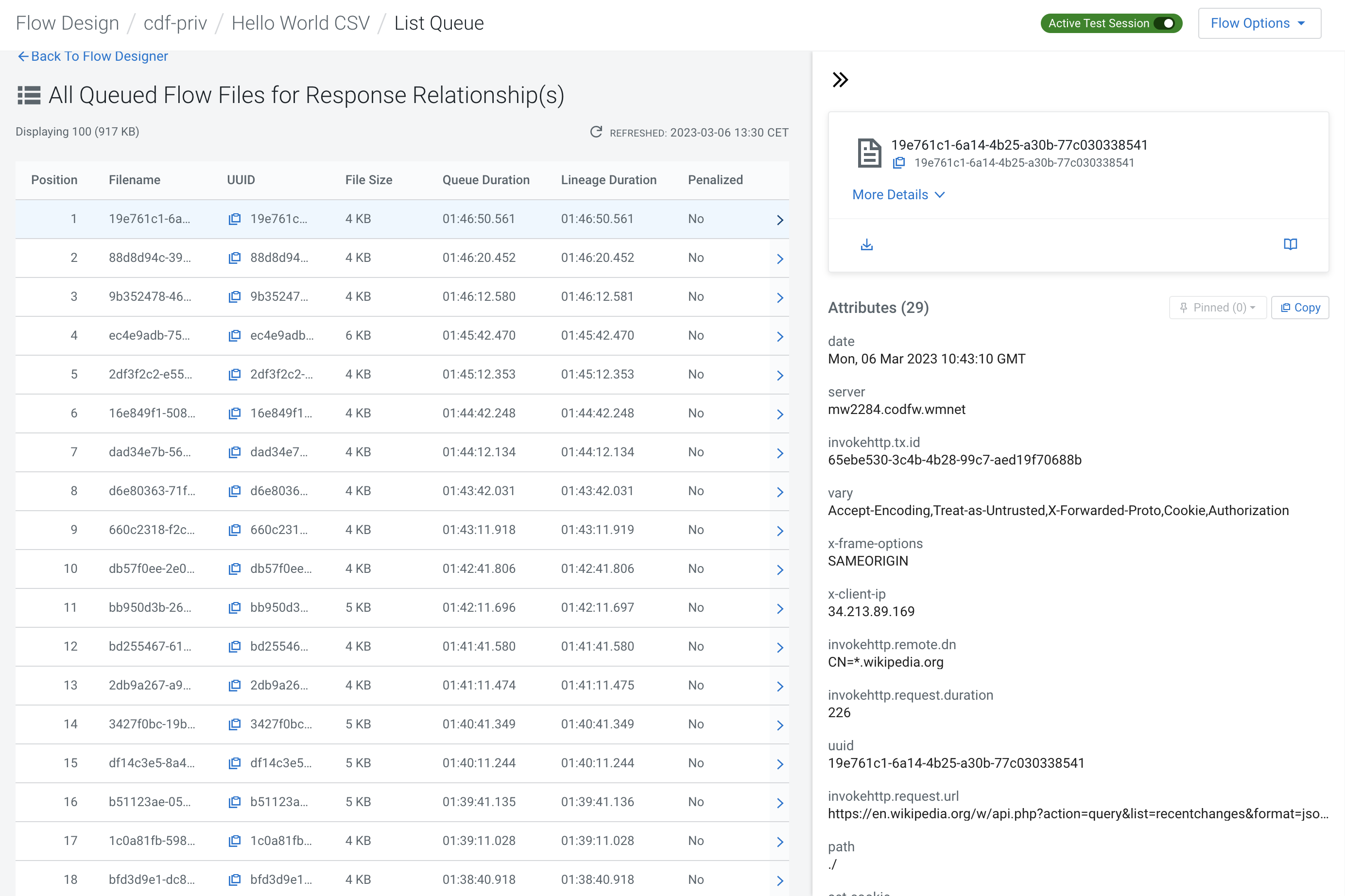
- Optional:
If there is an attribute that is of special interest to you, hover the cursor
over it and select
 Pin this
attribute
The selected attribute is pinned to the top of the list of attributes. Pinning persists, if you select a different flow file, or return to the Canvas and decide to view flow files later, you will find the pinned attribute(s) at the top of the list.
Pin this
attribute
The selected attribute is pinned to the top of the list of attributes. Pinning persists, if you select a different flow file, or return to the Canvas and decide to view flow files later, you will find the pinned attribute(s) at the top of the list.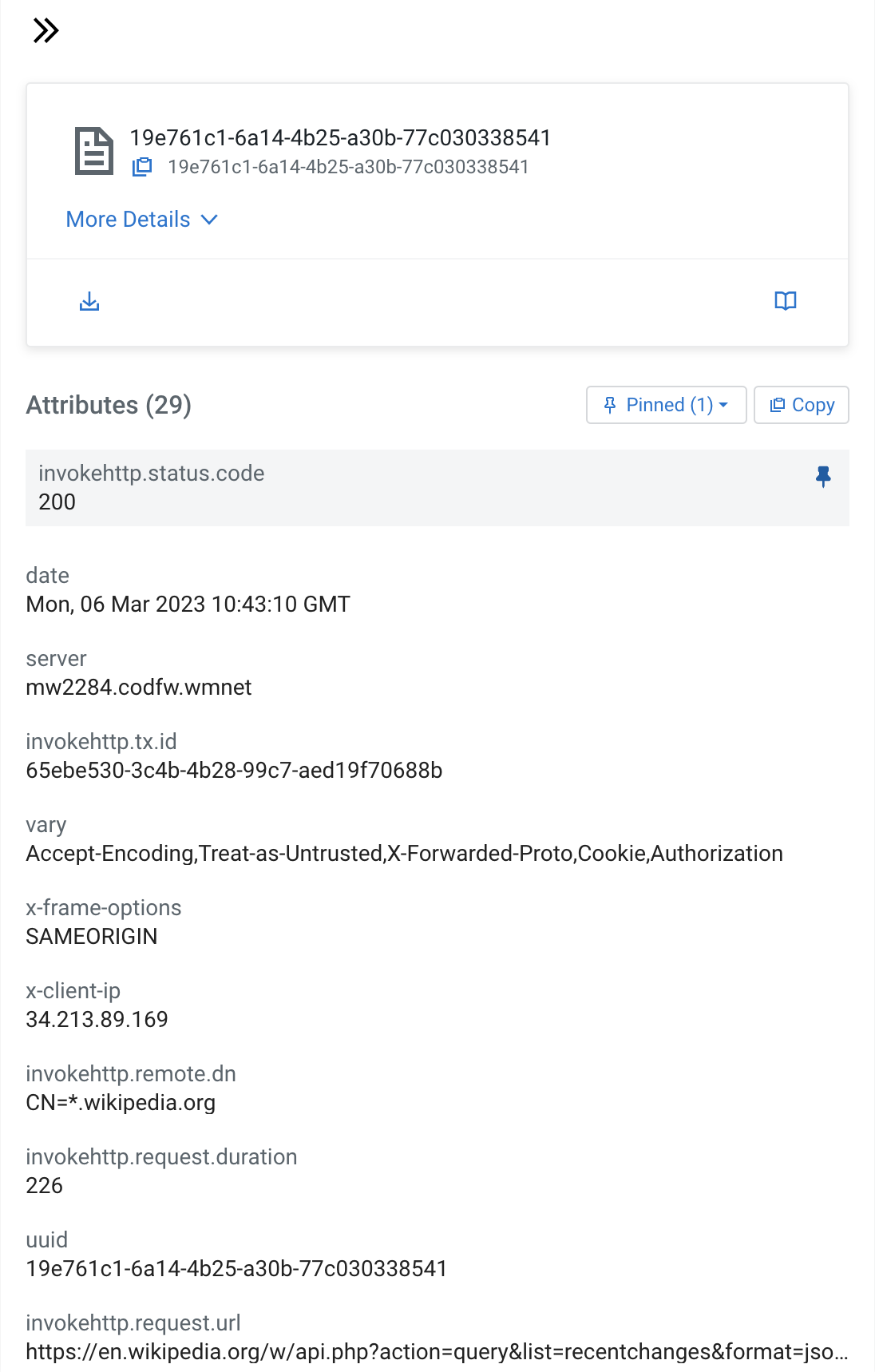
-
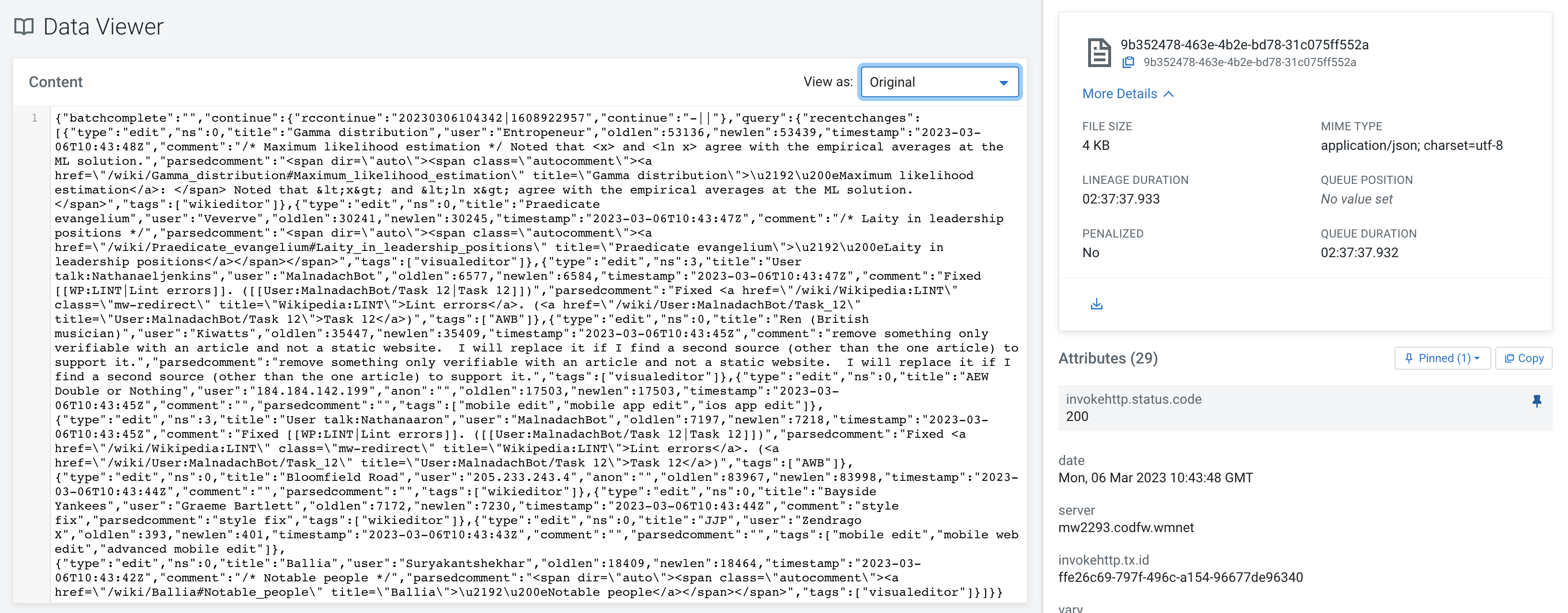
To view flow file content, click
 Open in Data
Viewer on top of the Attributes pane.
The contents of the flow file is displayed in a new tab in your browser.
Open in Data
Viewer on top of the Attributes pane.
The contents of the flow file is displayed in a new tab in your browser.