Learn about editing flows using the Cloudera Data Flow web
UI.
These are the steps to edit a flow using the Cloudera Data Flow webUI. For instructions on using the Cloudera CLI, see Editing deployments using the
CLI.
Open Cloudera Data Flow by clicking the
Data Flow tile in the Cloudera sidebar.
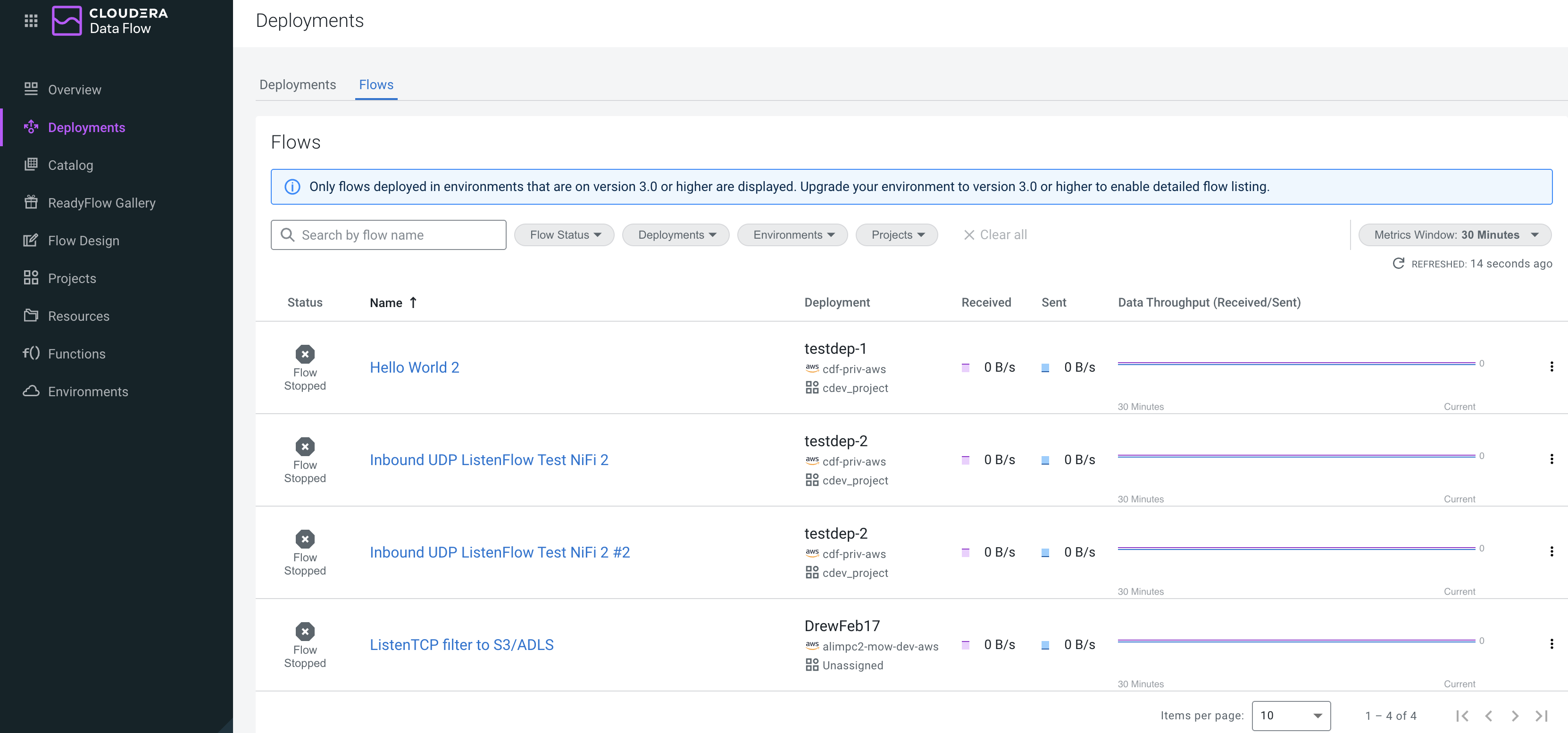
Click Deployments on the left navigation pane.
The Deployments page is displayed.
Select the Flows tab.
Select a flow to expand the Deployment & Flows
pane where you can view flow details, KPIs, flow metrics, alerts, and event
history information.
In Deployment & Flows, click Actions > Manage Deployment.
You are redirected to the Deployment Manager
page.
Select KPIs and Alerts
to add new KPIs
edit the alerts existing KPIs trigger
Select Parameters to change flow deployment parameter
values.
To edit a single parameter, click next to the parameter.
To edit a parameter group click Edit Group.
To import parameters from a shared parameter group, click
Import Shared
Parameters. From the available shared parameter groups,
select the parameters you want to import.
If a shared parameter group has been modified since it was imported to a
deployment, you get a similar warning:Click Update Parameters, or
Update All Parameter Contexts if you have
several stale parameter contexts and you want to update them in one go.
The Update Parameters dialog displays all changed
parameters with the old and new values. Click
Update.
 Data Flow tile in the Cloudera sidebar.
 >
>  Manage Deployment.
You are redirected to the Deployment Manager page.
Manage Deployment.
You are redirected to the Deployment Manager page. next to the parameter.
 Import Shared
Parameters. From the available shared parameter groups,
select the parameters you want to import.
Import Shared
Parameters. From the available shared parameter groups,
select the parameters you want to import.
