Stopping all flows in a deployment
Learn how to stop all flows in a Cloudera Data Flow deployment.
Stopping a flow results in the following:
- All processors are stopped and no data processing happens within the NiFi flow.
- KPI alerts are stopped. Your KPI alerts are activated again when the flow is restarted.
- Any active KPI alerts are resolved.
- All underlying cloud resources remain allocated for the Cloudera Data Flow deployment.
- You can modify deployment configuration while flows are stopped.
- Stopped flows are still billable however if auto-scaling is enabled for the flow, a certain amount of cost reduction may occur.
- You must have deployed at least one flow definition in a Cloudera Data Flow deployment.
- You must have DFFlowAdmin permission.
-
Open Cloudera Data Flow by clicking the
 Data Flow tile in the Cloudera sidebar.
-
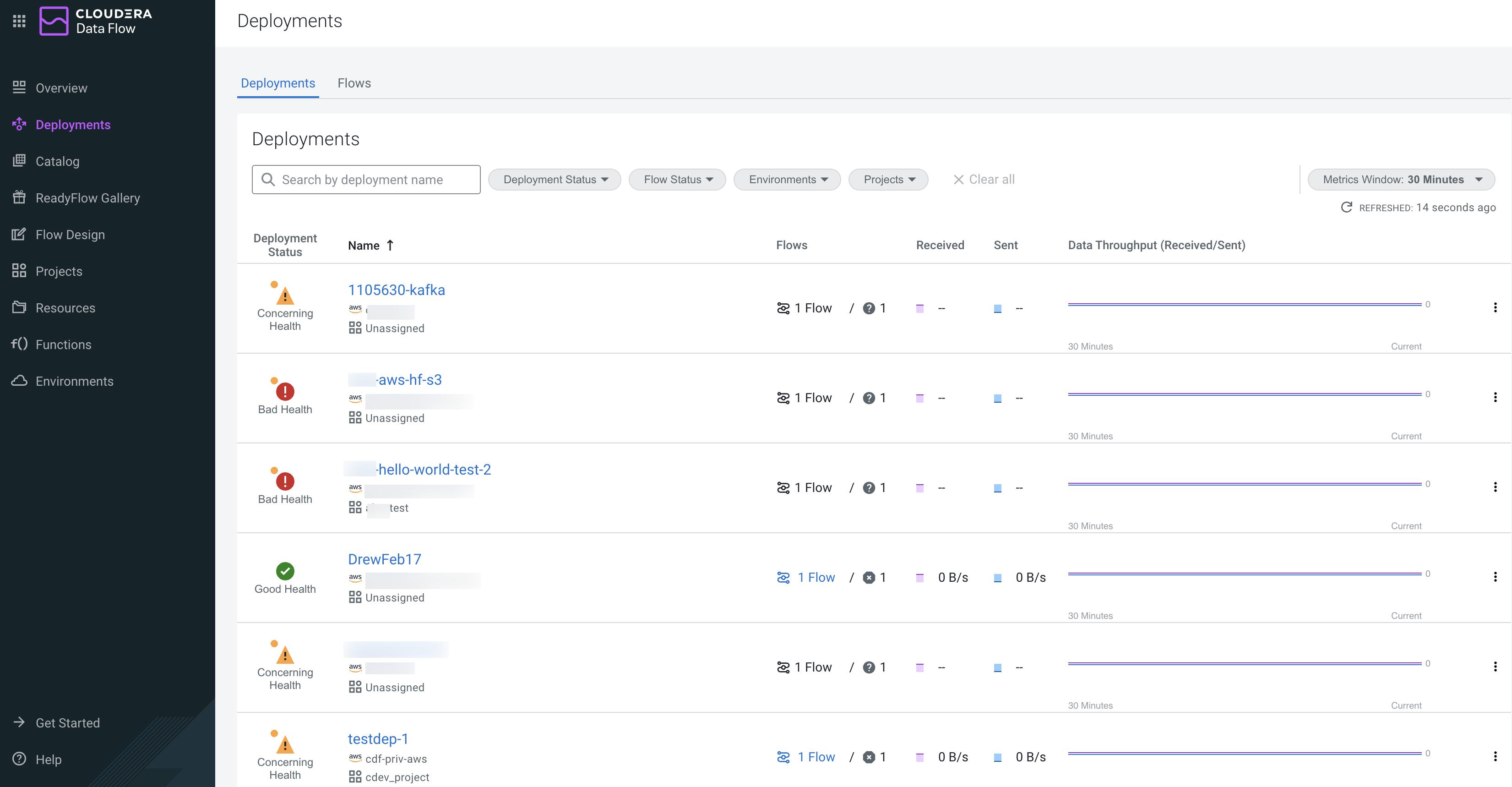
Click Deployments from the left navigation
pane.
The Deployments page is displayed, by default the Deployments tab is active.
-
In Deployment & Flows, click Actions
 >
>  Manage Deployment.
You are redirected to the Deployment Manager page.
Manage Deployment.
You are redirected to the Deployment Manager page. -
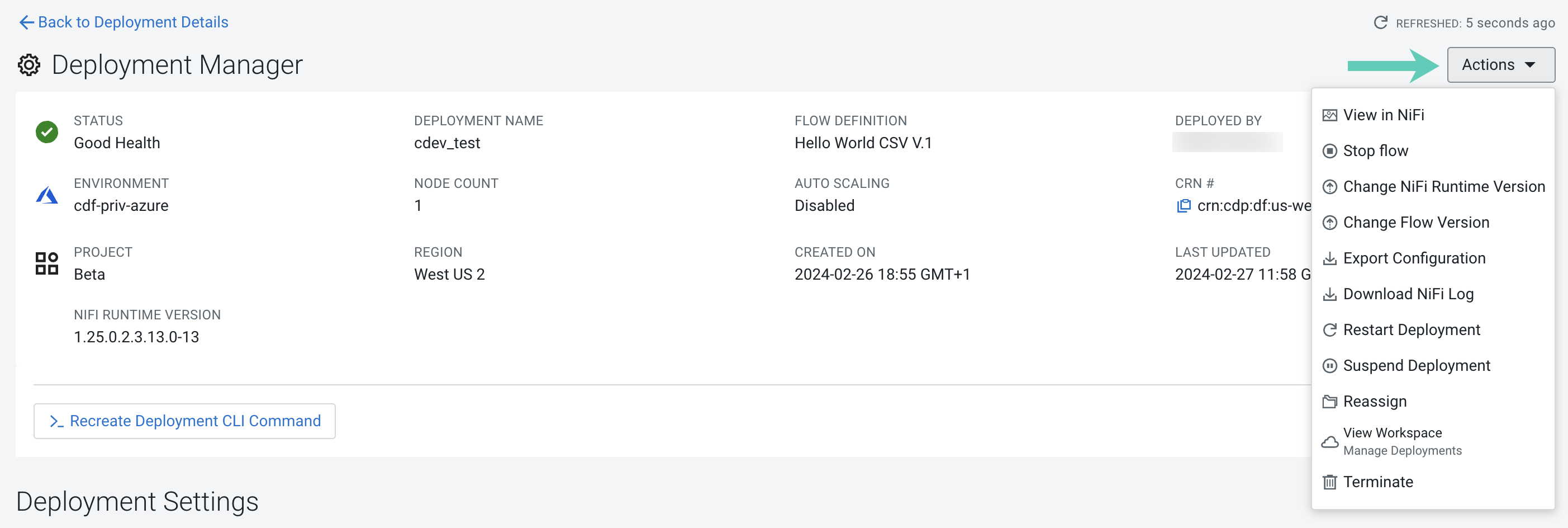
Click Actions on the Manage
Deployment page.
-
Select
 Stop all flows.
The Stop [Deployment Name] modal opens.
Stop all flows.
The Stop [Deployment Name] modal opens. -
Click Stop Flow to stop the flow
deployment.
