Monitor flows
You can monitor the health of flows in the Flows toab of the Deployments page of the Cloudera Data Flow UI. You can track the status of flows, and data throughput (sent / received) within a 30 minute window.
To monitor flows go to  Deployments > Flows
You can perform the following tasks on the Flows tab:
- Monitor health of flows
- Filter and sort flows
- Fetch metrics details for flows
- Refresh flow data
The Flows view
Monitor the status and the data throughput (received / sent) within a 30 minute window for your deployments. You can also view the details of the amount of data sent and received in a graphical format.
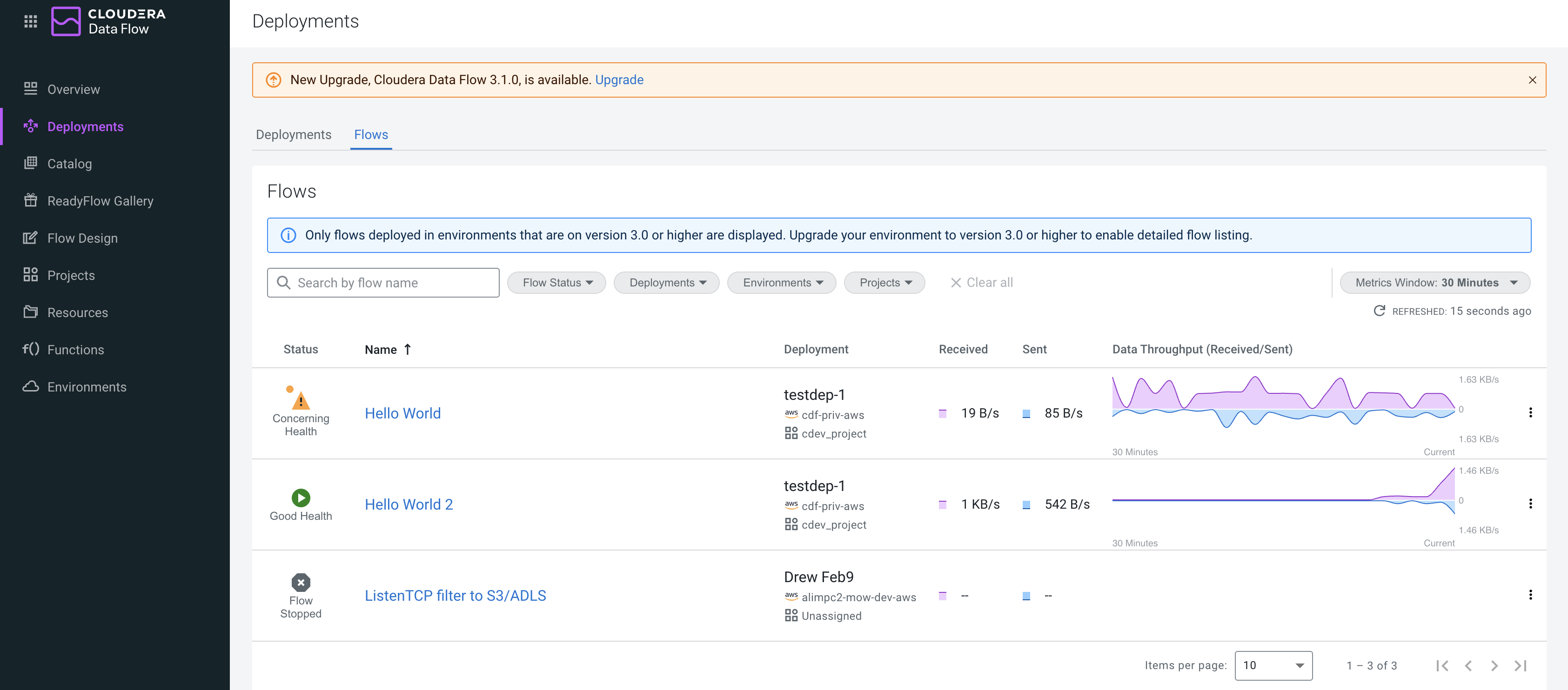
You can monitor the following details of your flows on the Flows tab:
- Status
-
Shows status of your flows including Bad health, Changing flow version, Concerning health, Deploying, Deployment suspended, Flow stopped, Good health, Importing flow. You can also click Status to sort your flows by status as required.
- Name
-
Shows the name of your deployments. You can also click Name to sort your deployments by name if required.
- Deployment
-
Shows the NiFi deployment that hosts your flow, along with project and environment information.
- Received
-
Shows the amount of data that your flows currently receive from the source. You can click Received to sort your flows by the amount of data they receive.
- Sent
-
Shows the amount of data that your flows currently send to the targets. You can click Sent to sort your deployments by the amount of data they send.
- Data throughput (Received/Sent)
-
Shows graphical representation of data received and sent by your flows in the selected metric window.
Filter and sort flows
Filter flows according to your requirement.
You can filter your flows by:
- Name
-
You can use the search box to look for flows by name.
- Status
-
Deployments can be in many different statuses, including Bad health, Changing flow version, Concerning health, Deploying, Deployment suspended, Flow stopped, Good health, Importing flow. By default, all statuses are selected.
- Deployment
-
You can use this filter to search your flow by the names of the deployments hosting them. You can filter your deployments by either selecting all deployments or a specific deployment. By default, all deployments are selected.
- Environment
-
You can either select all environments or a specific environment which is enabled. By default, all environments are selected.
- Project
-
You can filter your flows by project affiliation.
Click Clear all to set the filter options to their default values.
You can sort flows by:
-
Status
-
Name
- Deployment
-
Data currently received
-
Data currently sent
Click on the column name to sort by ascending or descending order.
Use the Items per page option, at the bottom of the screen, to display the desired number of flows in a page.
Set metrics window
The Metrics Window option enables you to fetch details for your flows for a specified time. For example, if you select 30 minutes in the Metrics Window, the Cloudera Data Flow UI displays details of your deployments for the last 30 minutes, and if you select 1 hour, the UI displays details of your deployments for the last one hour. You can also select 12 or 24 hours based on your requirement.
Refresh flow data
By default, every 30 seconds all data for your flows are updated. Click the  [Refresh]
icon to refresh the data.
[Refresh]
icon to refresh the data.
