Cleaning up the domain trust

  1. Open Active Directory Domains and Trusts.
  2. Right-click your domain and click Properties.
  3. Select the Trusts tab.
  4. Select the outgoing trust for the FreeIPA domain and click Remove.
    Figure 1. Remove the outgoing trust for the FreeIPA domain
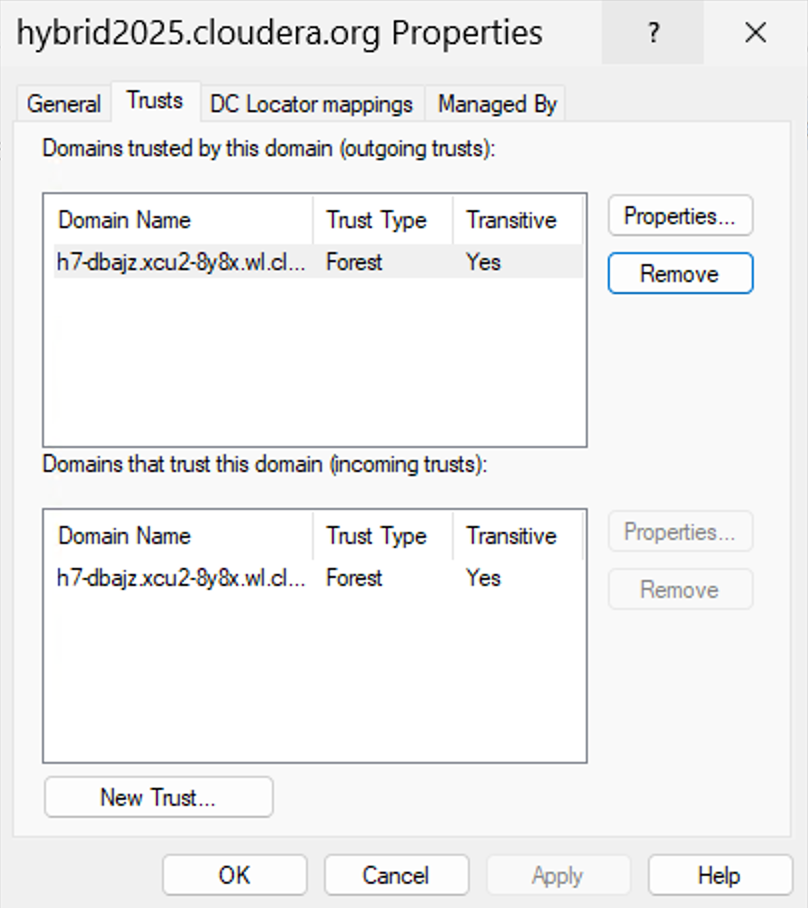
    Windows Server 2025 user interface, Active Directory Domains and Trusts window, Trusts tab, FreeIPA domain selected
    1. If the trust is inactive, you must click Yes to confirm its removal.

      Figure 2. Confirm inactive trust information removal
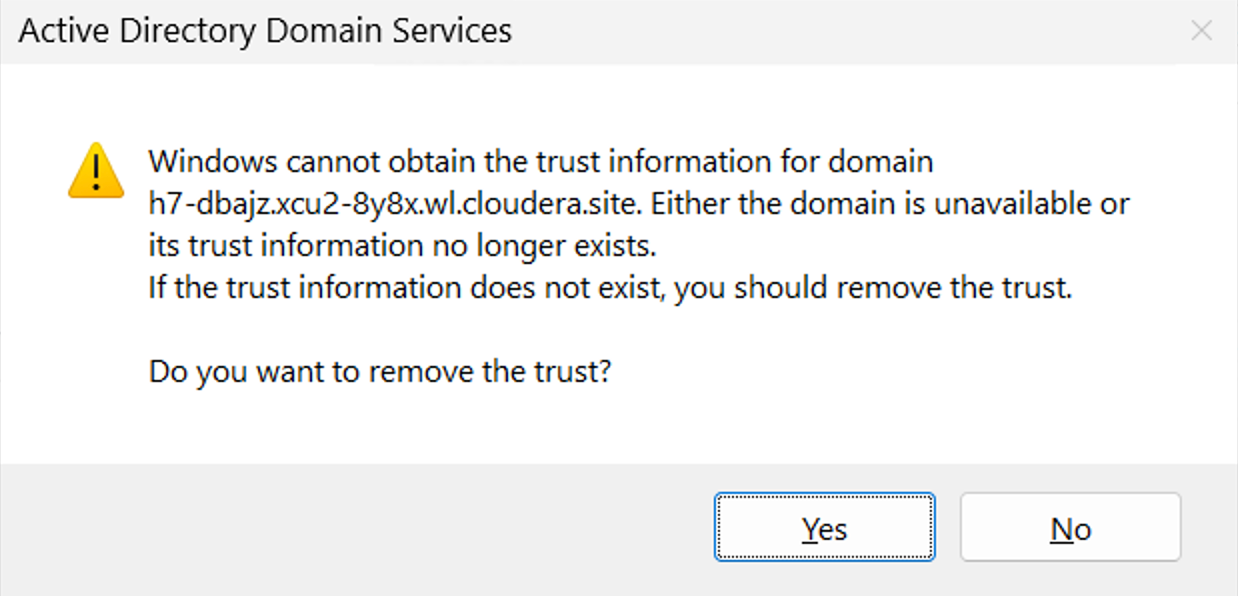
      Windows Server 2025 user interface, Active Directory Domain Services modal window, confirm inactive trust information removal
    2. If the trust is still active, select No, remove the trust from the local domain only, and click OK to confirm its removal.

      Figure 3. Confirm active trust information removal
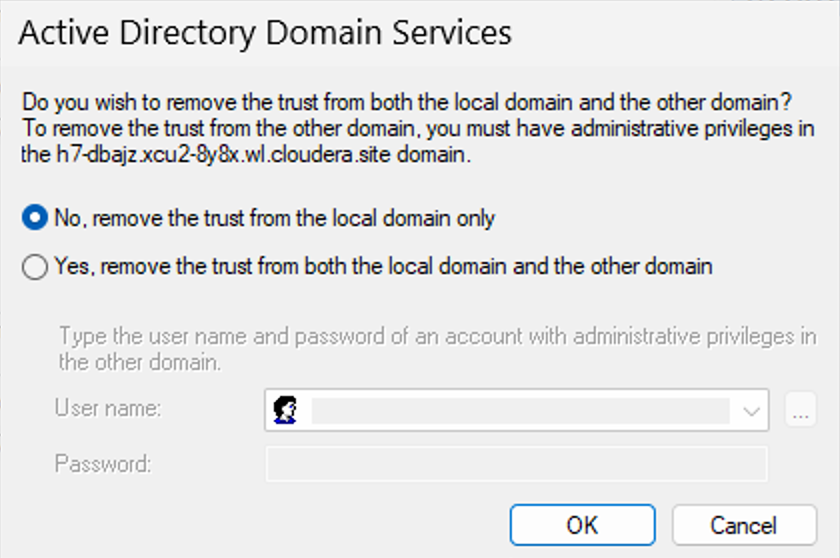
      Windows Server 2025 user interface, Active Directory Doman Services modal window, confirm active trust information removal
  5. Select the incoming trust for the FreeIPA domain and click Remove.
    Figure 4. Remove the incoming trust for the FreeIPA domain
    Windows Server 2025 user interface, Active Directory Domains and Trusts window, Trusts tab, FreeIPA domain selected
    1. If the trust is inactive, you must click Yes to confirm its removal.

      Figure 5. Confirm inactive trust information removal
      Windows Server 2025 user interface, Active Directory Domain Services modal window, confirm inactive trust information removal
    2. If the trust is still active, select No, remove the trust from the local domain only, and click OK to confirm its removal.

      Figure 6. Confirm active trust information removal
      Windows Server 2025 user interface, Active Directory Doman Services modal window, confirm active trust information removal
You have successfully cleaned up the domain.
